
Quick Summary: A 3.5mm Bluetooth transmitter for headphones lets you add wireless capability to wired headphones or audio sources without Bluetooth. It’s a simple, affordable way to enjoy freedom from cables, connect to various devices, and enhance your listening experience with modern convenience.
Hey everyone, Edward Cavitt here from headphonehorizon! Ever found yourself staring at your favorite wired headphones, wishing you could cut the cord without buying a whole new pair? Or maybe you’ve got a vintage stereo system or a TV that lacks modern Bluetooth, and you’re longing for that wireless bliss? You’re not alone! The good news is, there’s an incredibly simple and budget-friendly solution: a 3.5mm Bluetooth transmitter for headphones. This little gadget is a game-changer, allowing you to connect virtually any audio source to your favorite Bluetooth headphones or speakers. Let’s dive in and see how this essential piece of tech can unlock a world of wireless listening for you!
What Exactly is a 3.5mm Bluetooth Transmitter for Headphones?

At its core, a 3.5mm Bluetooth transmitter for headphones is a small electronic device that takes an audio signal from a non-Bluetooth source and converts it into a Bluetooth signal. Think of it as a translator for your audio! The “3.5mm” refers to the standard headphone jack size – that common round plug you’ve seen on countless devices. This transmitter typically plugs into the audio output of your source device (like a TV, computer, or even an old MP3 player) using its 3.5mm connector. Once connected and powered on, it broadcasts the audio wirelessly, allowing your Bluetooth-enabled headphones or speakers to pick up the signal and play your music, movie audio, or podcasts.
It’s essentially the bridge that brings your beloved wired audio gear into the wireless age, giving you the best of both worlds: the comfort and sound quality of your existing headphones, with the freedom and convenience of Bluetooth.
Why You Absolutely Need One: The Benefits

Before we get into the how-to, let’s talk about why a 3.5mm Bluetooth transmitter is such a valuable tool for any audio enthusiast, beginner or seasoned. The benefits are numerous and can significantly improve your daily listening habits.
Freedom from Wires
This is the big one! No more tangled cords getting caught on desk corners, no more tripping hazards, and no more being tethered to your device. Enjoy moving around your room freely while still listening to your audio source. Whether you’re cooking in the kitchen while following a recipe video on your TV or pacing while on a long conference call, the wireless freedom is liberating.
Upgrade Your Existing Gear
You likely have a favorite pair of wired headphones with exceptional sound quality that you’ve invested in. Instead of replacing them with a sometimes pricier Bluetooth alternative, a transmitter allows you to keep and enjoy them wirelessly. It’s an economical way to get modern features without sacrificing your beloved audio gear.
Connect to Non-Bluetooth Devices
Many older audio sources, like some TVs, projectors, car stereos (with an AUX input), or even certain gaming consoles, might not have built-in Bluetooth. A 3.5mm transmitter makes these devices compatible with your wireless headphones, breathing new life into them and expanding your listening options.
Enhanced TV/Movie Watching Experience
One of the most popular uses is connecting a transmitter to a TV. This allows you to watch movies or shows late at night without disturbing anyone, or to hear dialogue more clearly without having to turn the TV volume up excessively. Some advanced transmitters even support low-latency codecs (like aptX Low Latency), which minimizes that annoying delay between the video and audio – crucial for a seamless viewing experience.
Portability and Versatility
These transmitters are usually small, lightweight, and battery-powered, making them easy to carry around. You can move them between your home TV, your office computer, or even use them in a hotel room with the TV there. Some models even function as receivers, adding Bluetooth input to non-Bluetooth speakers!
Choosing the Right 3.5mm Bluetooth Transmitter for Your Needs

With a variety of transmitters on the market, selecting the right one can seem daunting. Here’s a breakdown of what to look for:
Key Features to Consider
- Bluetooth Version: Look for Bluetooth 5.0 or higher for better stability, range, and power efficiency.
- Audio Codecs: These determine the quality and latency of the audio.
- SBC: The standard codec, found on almost all devices. Good, but not the highest quality.
- AAC: Better quality than SBC, especially for Apple devices.
- aptX: Offers a noticeable improvement in audio quality over SBC.
- aptX HD: Near CD-quality audio.
- aptX Low Latency (aptX LL): Essential for video to minimize audio delay. Your headphones must also support aptX LL for this to work.
- Battery Life: If it’s a portable unit, check how long it lasts on a single charge. Many can also be powered via USB while in use, which is ideal for stationary setups.
- Range: Standard Bluetooth range is around 33 feet (10 meters), but some transmitters offer extended range.
- Transmitter/Receiver (TX/RX) Modes: Many devices can both send and receive Bluetooth signals. Ensure it has a transmitter mode (TX) for your primary use.
- Number of Devices Supported: Some transmitters can pair with two headphones simultaneously, allowing for shared listening.
- Ease of Use: Simple pairing buttons and clear indicators are always a plus.
Essential Specifications Compared
Here’s a quick look at how different Bluetooth versions and codecs can impact your experience:
| Feature | Bluetooth 4.2 | Bluetooth 5.0+ | SBC | aptX | aptX Low Latency |
|---|---|---|---|---|---|
| Stability & Speed | Good | Excellent (Faster, more stable) | Standard | Improved | Optimized for low delay |
| Power Efficiency | Standard | Improved | Standard | Standard | Standard |
| Audio Quality | Standard | Standard (dependent on codec) | Basic | Good (Better than SBC) | Good (focus on latency) |
| Latency (Delay) | Moderate | Moderate (dependent on codec) | High | Lower than SBC | Very Low (ideal for video) |
How to Set Up Your 3.5mm Bluetooth Transmitter: A Step-by-Step Guide
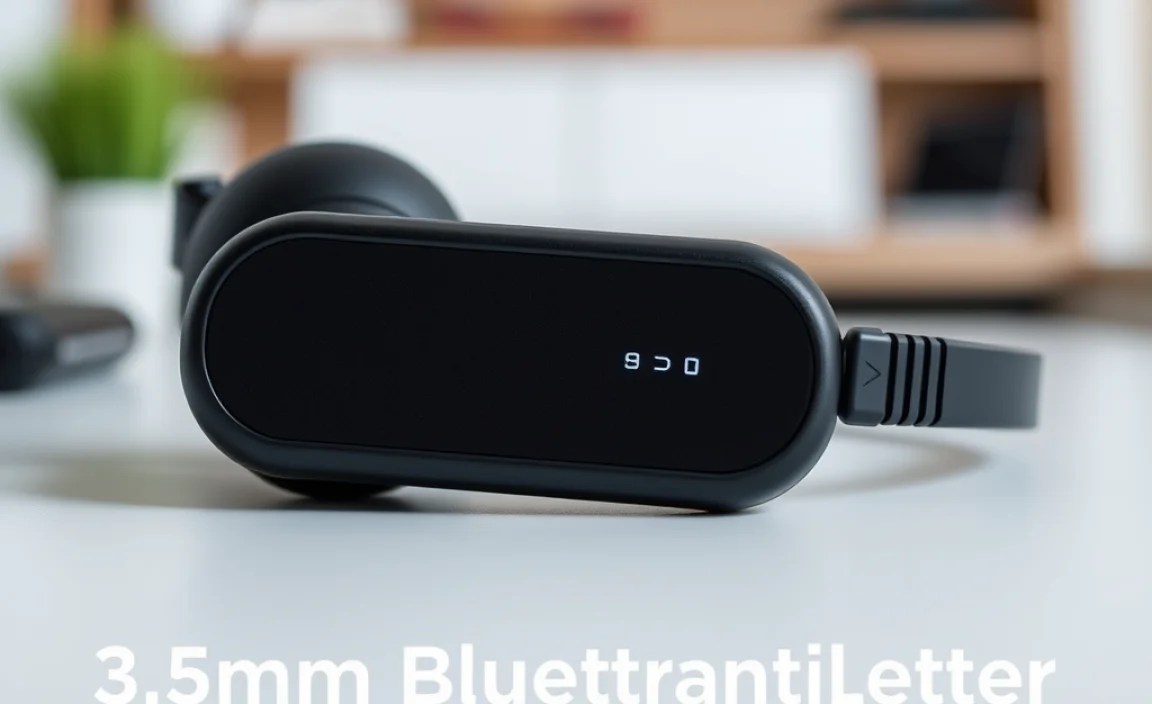
Getting your 3.5mm Bluetooth transmitter up and running is surprisingly simple. Follow these easy steps, and you’ll be enjoying wireless audio in no time.
Step 1: Charge Your Transmitter (If Battery-Powered)
Many portable transmitters have an internal rechargeable battery. Before you begin, ensure it has a sufficient charge. Most come with a USB charging cable. Plug it into a USB power adapter, computer, or power bank. Some transmitters can be used while charging, which is especially handy for stationary setups like with a TV.
Step 2: Identify the Audio Output on Your Source Device
Find the 3.5mm audio output jack on your device. This is usually labeled with a headphone icon or “Audio Out.” Common locations include:
- The side or back panel of a TV.
- The headphone jack on a laptop or desktop computer.
- The “Line Out” port on a stereo receiver or sound system.
- The headphone jack on an older MP3 player or tablet.
If your device only has an audio input (like a modern smartphone or tablet with a USB-C or Lightning port), you might need a separate adapter to convert that port to a 3.5mm output, or consider a transmitter that specifically connects via USB. For this guide, we’re focusing on devices with a native 3.5mm audio out.
Step 3: Connect the Transmitter to Your Source Device
Using the included 3.5mm audio cable (or the one built into the transmitter if it has a fixed plug), plug one end into the audio output jack of your source device and the other end into the designated audio input port on your Bluetooth transmitter. Ensure it’s a snug fit.
Important Note: Make sure you’re plugging into the output of your source device. If your device only has a headphone jack (which is an output), this is usually where you plug in.
Step 4: Power On Your Transmitter
Locate the power button on your transmitter. Press and hold it for a few seconds until an indicator light flashes (often blue or red/blue alternating, indicating it’s in pairing mode). Consult your transmitter’s manual for specific light codes.
Step 5: Put Your Bluetooth Headphones into Pairing Mode
This is crucial! Your headphones need to be discoverable. Typically, you’ll need to:
- Ensure your headphones are turned off.
- Press and hold the power or pairing button on your headphones until the indicator light starts flashing rapidly (often blue or red/blue). This signals they are ready to connect.
Again, refer to your headphone manual if you’re unsure how to activate pairing mode.
Step 6: Pair the Transmitter and Headphones
Now, bring your transmitter and headphones close to each other. Most transmitters will automatically search for and pair with the nearest discoverable Bluetooth device. The indicator lights on both the transmitter and headphones should change (e.g., stop flashing, show a solid blue light) to indicate a successful connection. This might take a few seconds to a minute.
Troubleshooting Tip: If they don’t pair after a minute, turn off both devices, ensure they are both in pairing mode, and try again. Keep them close together during this process.
Step 7: Adjust Source Device Audio Settings (If Necessary)
Once paired, you might need to tell your source device to send audio to the external output. For example, on a TV, you might need to go into the audio settings and select “External Speakers” or “Audio Out” as the sound output. On a computer, you might need to select the Bluetooth transmitter as the default audio playback device in your sound settings.
Step 8: Test the Audio
Play some audio from your source device! You should now hear the sound through your Bluetooth headphones. Adjust the volume using the controls on your headphones or, if available, on your source device. Congratulations, you’ve gone wireless!
Advanced Tips & Troubleshooting
Sometimes, things don’t go perfectly the first time. Here are some common issues and how to solve them.
Pairing Issues
- Ensure Both Devices Are in Pairing Mode: This is the most common mistake. Both the transmitter and receiver (headphones) need to be actively searching for a connection.
- Proximity: Keep devices very close, ideally within 1-2 feet, during the initial pairing process.
- Clear Previous Pairings: Sometimes, devices try to connect to old or forgotten devices. Clear the pairing history on both your transmitter and headphones if possible, and try again.
- Restart Both Devices: A simple power cycle can resolve many glitches.
Audio Delay (Latency)
This is most noticeable with videos. If you’re experiencing a lag between what you see and what you hear:
- Check Codecs: Ensure both your transmitter and headphones support a low-latency codec like aptX Low Latency. If one or both don’t, you’ll likely experience some delay.
- Check Device Support: Make sure the source device is outputting audio in a format compatible with the low-latency codec.
- Wired is Still Best for Zero Latency: For tasks requiring absolute zero latency (like critical audio editing), wired connections remain the gold standard. See resources on audio latency from organizations like the International Telecommunication Union (ITU) for detailed technical insights on audio transmission.
No Sound
- Volume Levels: Check volume on both the source device and your headphones.
- Correct Audio Output: Ensure your source device is set to output audio through the 3.5mm jack and not internal speakers.
- Connection: Double-check that the 3.5mm cable is securely plugged into both the transmitter and the source device.
- Transmitter/Receiver Mode: If your device has TX/RX modes, ensure it’s set to TX (Transmit).
Intermittent Connection / Dropped Audio
- Range: Move closer to the source device. Walls and other electronic devices can interfere with Bluetooth signals.
- Battery Level: Low battery on either device can cause instability.
- Interference: Other wireless devices (Wi-Fi routers, microwaves, other Bluetooth devices) can cause interference. Try moving away from them.
Frequently Asked Questions (FAQ)
Here are some common questions beginners have about 3.5mm Bluetooth transmitters for headphones:
Q1: Can any 3.5mm Bluetooth transmitter work with any headphones?
Generally, yes! As long as your headphones or speakers can connect to a Bluetooth signal, they should be able to connect to a Bluetooth transmitter. The key is that the transmitter sends a standard Bluetooth audio signal, and your headphones receive it.
Q2: Will audio quality be as good as a wired connection?
It depends on the Bluetooth version and codecs supported by both the transmitter and your headphones. With modern codecs like aptX HD and Bluetooth 5.0+, the audio quality can be very close to wired. However, some basic transmitters using only SBC may have slightly reduced quality compared to a good wired connection.
Q3: How do I know if my headphones support aptX Low Latency?
This information is usually found in the product specifications or manual for your headphones. Look for mentions of “aptX Low Latency,” “aptX LL,” or “low latency mode.” If the specification isn’t explicitly mentioned, they likely do not support it.
Q4: Can I use a 3.5mm Bluetooth receiver as a transmitter?
Most dedicated receivers are designed only to receive Bluetooth signals. However, many modern 2-in-1 devices are both transmitters (TX) and receivers (RX). You’ll need to ensure the device you purchase explicitly states it has a “transmitter mode” if you want to broadcast audio from a non-Bluetooth source.
Q5: How far can the Bluetooth signal reach from the transmitter?
The standard Bluetooth range is typically up to 33 feet (10 meters) in open spaces. However, this can be significantly reduced by obstructions like walls, furniture, and even human bodies. Some transmitters advertise extended range, but this is also subject to environmental factors.
Q6: Can I plug a transmitter into my smartphone’s headphone jack?
Most smartphones released in the last few years do not have a 3.5mm headphone jack. If yours does, then yes! If your smartphone only has a USB-C or Lightning port, you cannot directly plug a 3.5mm transmitter into it without an adapter. You’d typically use the phone’s Bluetooth directly to connect to headphones, or if you must use a transmitter for some reason (e.g., dual-device connection via transmitter), you’d need an adapter to convert the phone’s port to 3.5mm audio out before connecting the transmitter.
Q7: What’s the difference between plugging in a transmitter and just using my headphones’ built-in Bluetooth?
Plugging in a transmitter is specifically for devices that don’t have Bluetooth themselves. If your headphones are already Bluetooth-enabled and your source device (like your phone or laptop) also has Bluetooth, you can usually connect them directly without a transmitter. The transmitter is your solution when the source device lacks native Bluetooth capability.
Conclusion
There you have it! A 3.5mm Bluetooth transmitter for headphones is a wonderfully simple yet incredibly powerful tool that can unlock wireless freedom for a vast array of audio experiences. Whether you want to finally make your beloved wired headphones wireless, stream audio from your TV without disturbing anyone, or give new life to an older audio system, this little gadget is an essential addition to your tech arsenal. It’s affordable, easy to set up, and opens up a world of convenience. So go ahead, embrace the wireless revolution without ditching your favorite headphones. Happy listening!
