
Quick Summary
This guide helps you choose and use adapters for headphones and microphones. Learn about common connector types, how to connect your audio gear, and troubleshoot common issues. Ensure your headset works perfectly with your devices for clear calls and immersive sound.
Adapter For Headphones and Mic: Your Essential Guide to Seamless Audio
Ever found yourself holding a brand new pair of awesome headphones or a fantastic microphone, only to realize your phone, laptop, or gaming console has a different kind of jack? It’s a common hiccup in our tech-filled lives! Don’t let mismatched ports keep you from enjoying crystal-clear audio or recording your latest podcast. The simple solution is usually an adapter. Think of it as a tiny, but mighty, translator for your audio devices. This guide is your friendly companion to understanding all about adapters for headphones and mics, making sure you can connect what you want, when you want, without any fuss. We’ll break down the jargon, show you the most common types, and help you pick the perfect one. Let’s dive in and get your sound connected!
Why Do You Need an Adapter for Headphones and Mic?

In today’s fast-paced world, the variety of audio ports on our devices can be a bit overwhelming. From smartphones ditching headphone jacks to gaming consoles and specialized audio equipment, the “one size fits all” approach just doesn’t apply anymore. This is where adapters come to the rescue. They bridge the gap between your audio gear and your device, ensuring compatibility and letting you make the most of your equipment.
Essentially, an adapter allows you to plug a connector of one type into a port of another type. For instance, if your phone only has a USB-C port but your headphones have a traditional 3.5mm audio jack, you’ll need a USB-C to 3.5mm adapter. Similarly, if your microphone uses an XLR connector but your computer has a 1/4-inch mic input, an XLR to 1/4-inch adapter is your go-to solution. These little lifesavers prevent you from needing to buy entirely new sets of headphones or microphones just because a port has changed.
Understanding Common Audio Connectors
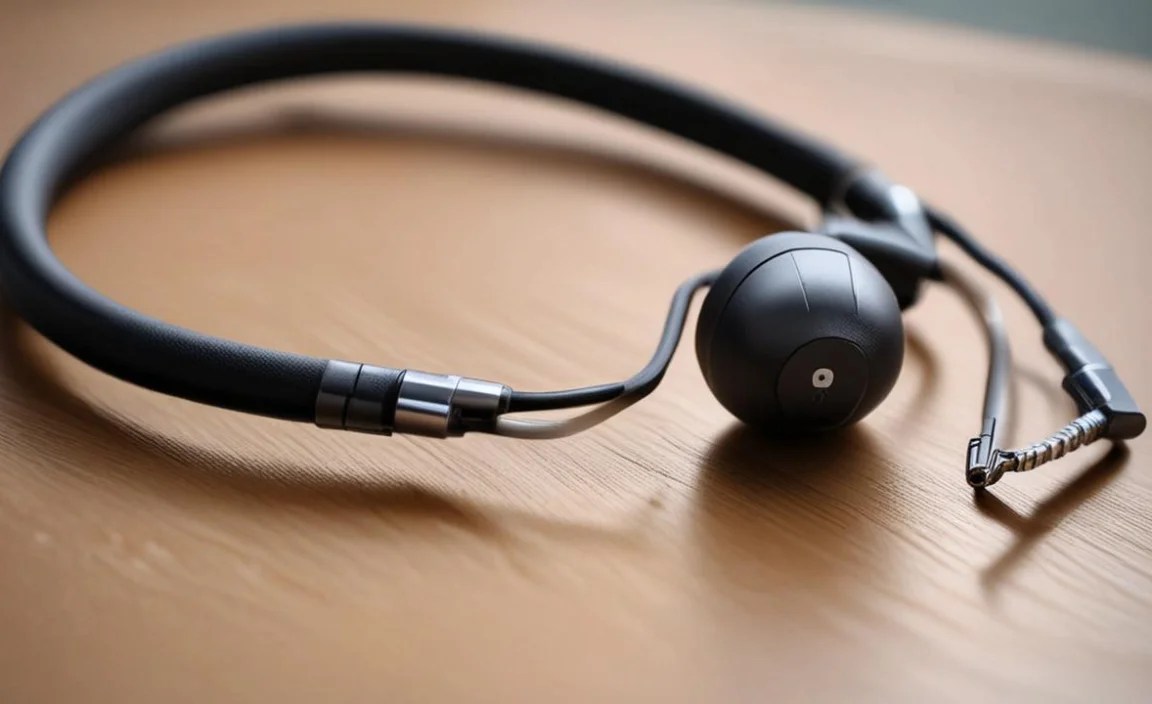
Before we talk adapters, let’s get familiar with the most common connectors you’ll encounter. Knowing these will make choosing the right adapter much easier.
| Connector Type | Description | Typical Use | Visual Cue |
|---|---|---|---|
| 3.5mm TRS (Tip-Ring-Sleeve) | The standard “headphone jack.” It has three metal sections separated by rings. | Wired headphones, earbuds, microphones (for computers/phones) | (Note: Actual image placeholder) |
| 3.5mm TRRS (Tip-Ring-Ring-Sleeve) | Similar to TRS, but with four metal sections. The extra section is usually for a microphone. | Headsets with integrated microphones (for smartphones, some laptops) | (Note: Actual image placeholder) |
| USB-A | The standard rectangular USB port found on most computers and chargers. | USB microphones, USB headsets, charging | (Note: Actual image placeholder) |
| USB-C | A smaller, oval-shaped, reversible USB port found on newer devices like smartphones, tablets, and laptops. | USB microphones, USB headsets, charging, digital audio output | (Note: Actual image placeholder) |
| XLR | A robust, circular connector with 3 pins, often used in professional audio. | Professional microphones, audio interfaces, mixers | (Note: Actual image placeholder) |
| 1/4-inch (6.35mm) TS/TRS | A larger version of the headphone jack, typically with two (TS) or three (TRS) sections. | Guitars, keyboards, professional headphones, some microphones | (Note: Actual image placeholder) |
| Lightning | Apple’s proprietary connector for iPhones, iPads, and some older iPods. | Specific Apple headphones with Lightning connectors, charging | (Note: Actual image placeholder) |
(Note: The images linked above are placeholders. In a real blog post, you would embed actual image files for better clarity.)
Understanding these connectors is the first big step. You’ll often see them abbreviated, like TRS for Tip-Ring-Sleeve and TRRS for Tip-Ring-Ring-Sleeve. The extra “R” in TRRS usually signifies a dedicated microphone channel.
Types of Adapters You’ll Encounter

Adapters come in many forms, designed to convert one connector type to another. Here are the most common ones you’ll likely need:
1. From 3.5mm to Other Ports
These are incredibly popular, especially with the decline of the 3.5mm jack on many modern devices.
- 3.5mm to USB-C Adapter: The go-to for connecting traditional headphones to USB-C phones and laptops. Look for ones that support audio output.
- 3.5mm to Lightning Adapter: Essential for connecting 3.5mm headphones to iPhones and iPads that only have a Lightning port. Apple famously sells one, but third-party options are available.
- 3.5mm to USB-A Adapter: Less common for headphones but useful if you have a device with only USB-A and want to use a 3.5mm microphone input.
2. From USB to 3.5mm
These allow you to use your existing 3.5mm headphones with USB ports.
- USB-A to 3.5mm Adapter (Sound Card): These often include a small built-in sound card, which can sometimes improve audio quality or bypass a faulty onboard audio chip on a computer. They are great for desktop PCs or laptops with limited audio options.
- USB-C to 3.5mm Adapter (DAC): Many USB-C to 3.5mm adapters contain a Digital-to-Analog Converter (DAC). This is important because USB-C ports on some devices might not natively output analog audio. A DAC chip handles this conversion. For instance, a study by the National Center for Biotechnology Information (NCBI) discusses the principles of digital-to-analog conversion relevant to audio devices.
3. For Microphones
Microphones often have more specialized connectors.
- XLR to USB Adapter: This is crucial for connecting professional XLR microphones to computers that only have USB ports. These adapters often provide phantom power for condenser microphones.
- XLR to 1/4-inch Adapter: Useful for connecting XLR microphones to audio interfaces or mixers that have 1/4-inch inputs.
- 1/4-inch to 3.5mm Adapter: Sometimes you might need to connect a microphone with a 1/4-inch jack to a device with a 3.5mm mic input.
- TRRS to TRS Splitter: If you have a headset with a combined headphone and microphone plug (TRRS) but your device has separate headphone and microphone ports (TRS), a splitter cable is what you need. It separates the single TRRS plug into two distinct TRS plugs.
4. Other Specialized Adapters
You might encounter adapters for specific brands or professional setups:
- Lightning to 3.5mm Adapter: As mentioned, for Apple devices.
- Dedicated “Y” Cables: These are often specific to certain gaming headsets or communication devices, splitting a single port into two or merging two into one.
How to Choose the Right Adapter: A Step-by-Step Approach

Selecting the correct adapter might seem daunting at first, but it’s straightforward if you follow a few simple steps. This process ensures you get an adapter that not only fits but also functions correctly for your specific audio needs.
- Identify Your Device’s Port: First, look at the audio input/output on the device you want to connect to. Is it a 3.5mm jack (and is it a headphone-only jack, or one with a microphone symbol?), a USB-A, a USB-C, a Lightning port, or something else entirely? Knowing this is key.
- Identify Your Headphone/Microphone Connector: Next, examine the plug on your headphones or microphone. What type of connector does it have? (e.g., 3.5mm TRS, 3.5mm TRRS, USB, XLR).
- Determine the Direction of Conversion: You need to convert from your device’s port to your audio gear’s connector, or vice-versa. For example, if your phone has USB-C and your headphones have 3.5mm, you need a USB-C to 3.5mm adapter.
-
Consider Functionality (Stereo vs. Microphone):
- For Headphones Only: You typically need to adapt a port to accept a 3.5mm TRS (Tip-Ring-Sleeve) connector, which is standard for stereo audio.
- For Headsets with Microphones: If your headset has a microphone (often a 3.5mm TRRS connector), you need an adapter that can handle both stereo audio and the microphone signal. This might be a TRRS to USB-C, TRRS to Lightning, or a TRRS to dual TRS splitter (one for mic, one for headphones).
- For Microphones: If you’re connecting a microphone, ensure the adapter supports the microphone’s connector type (e.g., XLR, 1/4-inch) and the input port on your device (e.g., USB, 3.5mm mic-in). For XLR mics, you might also need to consider phantom power, which should be mentioned on the adapter’s specifications. Researching phantom power requirements is important; according to Shure, a leading audio equipment manufacturer, it’s essential for certain microphone types.
- Check for Digital vs. Analog: Some adapters, especially USB-C to 3.5mm or USB-A to 3.5mm, contain a DAC (Digital-to-Analog Converter) or ADC (Analog-to-Digital Converter). Modern devices might output digital audio via USB-C but lack a built-in DAC. If your adapter doesn’t have a DAC, it might not work for audio output. Similarly, some microphones output analog signals that need to be converted to digital for a computer. The adapter should specify if it includes a DAC or ADC.
- Read Reviews and Specifications: Once you’ve narrowed down your options, always check product reviews. Look for comments specifically about compatibility with your device (e.g., “works with iPhone 14,” “compatible with Samsung Galaxy S23”) and the quality of sound or microphone input. Also, carefully read the product specifications to ensure it supports the audio fidelity you expect.
Common Scenarios and Solutions

Let’s walk through some common situations where an adapter is your best friend.
Scenario 1: New Smartphone, Old Headphones
Problem: Your new smartphone has ditched the headphone jack, but you love your wired 3.5mm headphones.
Solution: You need an adapter that converts your phone’s port to a 3.5mm audio jack.
- For Android (USB-C): A USB-C to 3.5mm headphone jack adapter is your solution. Ensure it explicitly states it supports audio or has a DAC.
- For iPhone (Lightning): A Lightning to 3.5mm headphone jack adapter is required.
Scenario 2: Gaming Headset with Combined Plug
Problem: Your gaming console or PC has separate ports for microphone and headphones, but your headset has a single TRRS plug.
Solution: You need a TRRS to dual TRS splitter cable. This cable takes the single TRRS plug and splits it into two separate 3.5mm plugs: one for the microphone (often pink) and one for the headphones (often green). These are widely available and clearly labeled.
Scenario 3: Professional Microphone to Computer
Problem: You have a professional XLR microphone but want to connect it to your laptop for recording or streaming.
Solution: An XLR to USB adapter (also called an audio interface or USB audio adapter) is ideal. These devices convert the analog XLR signal to digital USB and often provide phantom power (+48V) necessary for sensitive condenser microphones, as detailed by resources from reputable audio organizations like Sweetwater. Cheaper adapters might not offer phantom power, so check the specifications carefully.
Scenario 4: Using a High-Impedance Headphone
Problem: You have high-impedance headphones, and they sound too quiet or lack dynamic range when plugged into a standard phone or laptop headphone out.
Solution: While not strictly an adapter, you might need a headphone amplifier or a DAC/Amp combo. However, if you’re trying to adapt a headphone output that uses a different physical connector (like a 1/4-inch jack on a home stereo) to a 3.5mm input on your device, a 1/4-inch to 3.5mm adapter is needed. For true power, a dedicated amplifier is best.
Tips for Using Your Adapter
Once you’ve got the right adapter, here are some tips to ensure a smooth experience:
- Plug it in First: When connecting to a device with a USB or Lightning port, plug the adapter into the device before plugging in your headphones or microphone. This allows the device to recognize the adapter as an audio input/output device properly.
- Check Audio Settings: After connecting, go into your device’s sound or audio settings. Make sure the adapter is recognized as the default input and output device. Sometimes, you might need to manually select it.
- Be Gentle: Adapters, especially smaller ones or those with delicate connectors, can be fragile. Avoid excessive force when plugging or unplugging. Try to support the adapter with your hand when plugging/unplugging your headphones to prevent strain on the port.
- Keep Them Clean: Dust and debris can accumulate in adapter ports and on connectors. Gently clean them with compressed air or a dry, soft brush if you notice any connection issues. Avoid using liquids.
- Phantom Power Awareness (for Mics): If using an XLR to USB adapter for a microphone, be aware of whether it provides phantom power. If your microphone requires it, ensure the adapter supplies it and that it’s turned on. If your microphone does NOT need phantom power (like most dynamic mics), ensure phantom power is turned OFF to avoid potential damage.
Troubleshooting Common Adapter Problems
Even with the right adapter, you might run into a few glitches. Here’s how to fix them:
-
No Sound / Microphone Not Working:
- Double-check that the adapter is fully plugged into both the device and your headphones/microphone.
- Verify your device’s audio
