
An amp adapter for headphones, often called a headphone adapter or converter, lets you connect headphones with a different plug size than your audio source. This guide explains what they are, why you need one, types, how to choose, and simple steps to use them for crystal-clear sound.
Amp Adapter For Headphones: Your Essential Guide

Hey there, fellow music lovers! Edward Cavitt here, your guide to all things audio at headphonehorizon. Ever found yourself with an amazing pair of headphones, only to realize their plug just doesn’t fit your phone, laptop, or that cool vintage stereo?
It’s a common snag, and one that used to leave many of us scratching our heads. But don’t worry! The simple solution is often an amp adapter for headphones. Think of it as a translator for your audio connections, ensuring your sound journey is smooth and uninterrupted.
This guide is designed to demystify these little lifesavers, making sure you can enjoy your music, podcasts, or calls without any compatibility headaches. Let’s dive in and make sure your headphones always sing the right tune!
What Exactly is a Headphone Amp Adapter?

At its heart, a headphone amplifier adapter, or simply an amp adapter for headphones, is a small, often passive device designed to bridge the gap between your headphones and your audio source when their connectors don’t match. They don’t typically add significant power (that’s the job of a dedicated headphone amplifier), but they are crucial for physical compatibility.
Imagine a mini-bridge for your audio signals, allowing them to cross from one type of port to another. This might sound simple, but it’s a vital piece of kit for anyone who uses multiple audio devices or has a diverse collection of headphones. They come in various forms, from simple cable converters to more complex dongles.
Why Do You Need an Amp Adapter for Headphones?

The modern audio landscape is a bit like a buffet of connection types. Your phone might have a USB-C port, your older laptop might have a standard 3.5mm jack, and your audiophile-grade headphones could sport a beefy 6.35mm (1/4 inch) plug.
Without the right adapter, these wonderful technologies can’t communicate effectively. Here are the primary reasons you might need one:
- Connector Mismatch: This is the most common reason. Your headphone jack size (e.g., 3.5mm) might be different from the output port on your audio device (e.g., 6.35mm on a guitar amp or stereo receiver).
- Port Availability: Many newer smartphones have ditched the headphone jack entirely, relying on USB-C or Lightning ports for audio. An adapter becomes essential to use your beloved wired headphones.
- Device Compatibility: Some professional audio equipment, like mixers or audio interfaces, might use different connector sizes or even balanced outputs, requiring specific adapters to connect standard headphones.
- Cable Length Extension: While not their primary function, some adapters can act as short extensions, providing a little extra reach.
Understanding Headphone Connector Types
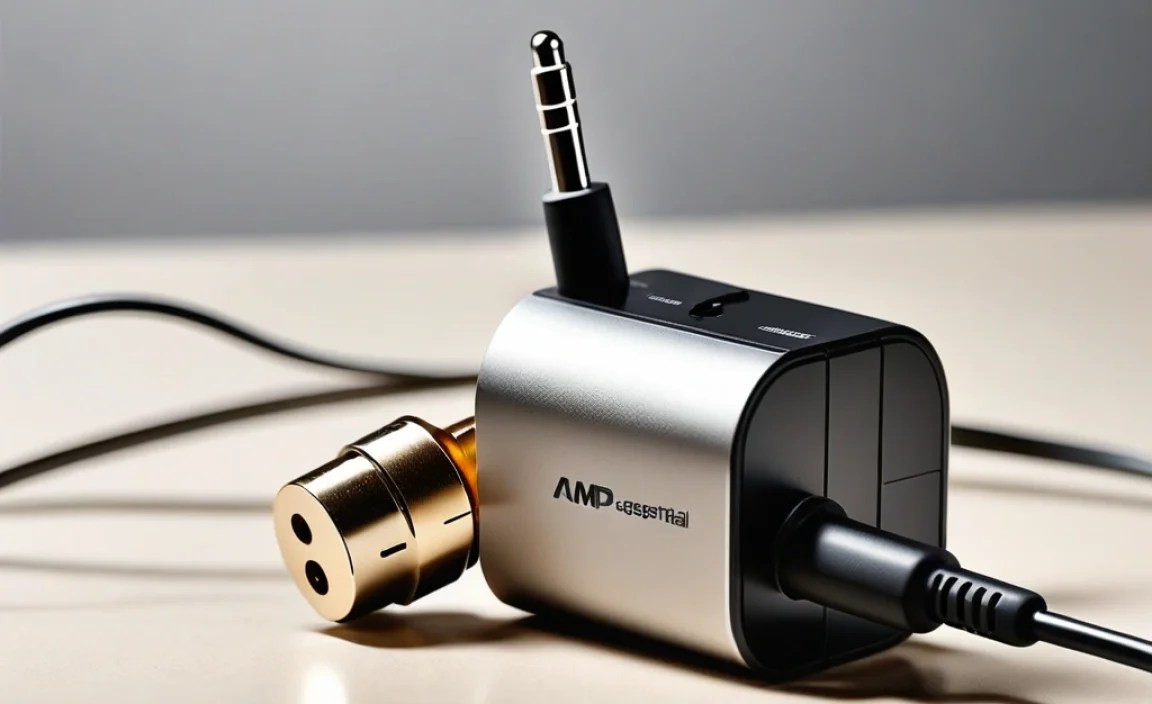
Before we get into adapters, it’s helpful to know the common connector types you’ll encounter. This will make choosing the right adapter much easier.
The Standard Sizes:
- 3.5mm (1/8 inch) Mini-Jack: This is the most common connector found on smartphones, laptops, tablets, and most consumer headphones. It’s small and versatile, typically supporting stereo audio and sometimes microphone input.
- 6.35mm (1/4 inch) Jack: Larger than the 3.5mm, this is usually found on professional audio equipment like stereo receivers, amplifiers, electric guitars, keyboards, and DJ gear. It’s robust and often offers better signal integrity due to its larger size.
Other Important Varieties:
- 2.5mm Connector: Less common for general headphones, you might find this on some older mobile phones, cordless phones, or specific audio devices.
- XLR Connectors: Primarily used in professional audio for microphones and high-end balanced headphone outputs. These are typically not what you’d use a simple adapter for, as they often imply a different type of audio signal.
- Proprietary Connectors: Some manufacturers use their own unique connectors, especially for charging and audio combined.
Types of Amp Adapters for Headphones

Headphone adapters come in a few main flavors, each serving a slightly different purpose. Most are passive, meaning they don’t require power and just reroute the existing signal. However, some actively convert digital signals to analog, which is where the “amp” in “amp adapter” can sometimes mislead.
1. Simple Plug Converters (Passive Adapters)
These are the most basic and common type. They simply change the physical size of the plug. For example:
- 3.5mm to 6.35mm Adapter: Allows you to plug your standard headphones into a larger 6.35mm jack.
- 6.35mm to 3.5mm Adapter: Allows you to plug your standard headphones into a 6.35mm output.
- USB-C to 3.5mm Adapter: Essential for phones without a headphone jack, this dongle allows you to plug in headphones with a 3.5mm connector.
- Lightning to 3.5mm Adapter: Similar to USB-C, this is for Apple devices using the Lightning port.
These passive adapters are generally very affordable and don’t degrade sound quality if they’re well-made.
2. Digital-to-Analog Converters (DACs) with Headphone Output
This is where the “amp” part can get a bit more involved. Often, when people refer to a “DAC dongle” or even an “amp adapter,” they might be using a device that includes a small Digital-to-Analog Converter (DAC). Here’s why this is important:
- Digital Audio Sources: Devices like USB-C or Lightning ports output a digital audio signal. Your headphones, however, need an analog signal to produce sound.
- Built-in vs. External DAC: Many phones and computers have a small DAC and amplifier built into their headphone port or motherboard. When the headphone jack is removed, this functionality often moves to the USB-C or Lightning port.
- DAC Dongles: Adapters like the USB-C to 3.5mm or Lightning to 3.5mm often contain their own small DAC chip. This chip takes the digital audio signal from your device and converts it into an analog signal that your headphones can understand. Some of these may also include a tiny amplifier to boost the signal slightly.
- External DAC/Amps: For serious audiophiles, there are more substantial external DAC/Amp units. These are much larger, often require their own power source, and provide significantly better sound quality and power than basic dongles. While these are amplifiers, they are usually referred to by their specific names (DAC/Amp, Headphone Amplifier) rather than just “adapter.”
For the purpose of this guide, when we talk about “amp adapter for headphones,” we’re primarily focusing on the first category (simple plug converters) and the second category (USB-C/Lightning to 3.5mm dongles), as these are what most beginners will encounter. These simple dongles are often referred to as “headphone adapters” or “USB-C headphone adapters,” and they are essential for using wired headphones with modern devices.
3. Balanced to Unbalanced Adapters
This is a more niche type, typically for advanced users. Some high-end headphones and amplifiers use “balanced” connections (often with XLR connectors or TRS connectors wired for balanced audio). These offer superior noise rejection and can deliver more power. If you have a balanced headphone output but unbalanced headphones (or vice-versa), you need a specific adapter. However, using the wrong type of adapter here can lead to either no sound or damaged equipment. Stick to simpler adapters if you’re unsure.
A Comparison: Passive Adapters vs. DAC Adapters
Here’s a quick look at the key differences for the most common types you’ll encounter:
| Feature | Passive Plug Adapter (e.g., 3.5mm to 6.35mm) | DAC Adapter Dongle (e.g., USB-C to 3.5mm) |
|---|---|---|
| Primary Function | Changes physical connector size/type. | Converts digital audio to analog and provides a headphone jack. |
| Power Requirement | None. Relies on the audio source’s output. | Draws power from the source device (phone, laptop) via USB-C/Lightning. |
| Sound Quality Impact | Minimal, if well-made. Relies on the source’s DAC. | Can improve sound quality if the source device’s built-in DAC is weak, or if the dongle has a better DAC. Can also have negligible impact or slightly alter the sound profile. |
| Use Case Example | Plugging studio headphones (6.35mm) into a guitar amp. | Using wired headphones with a smartphone that lacks a headphone jack. |
| Complexity | Very simple. | Slightly more complex, involves digital-to-analog conversion. |
| Common Issue Potential | Poor contact, physical wear. | Incompatibility with certain devices, driver issues (rare), lower quality internal DAC/amp. |
How to Choose the Right Amp Adapter for Your Headphones
Selecting the correct adapter is crucial for seamless audio. Here’s a simple checklist to guide you:
Step 1: Identify Your Headphone Plug Type
Look at the metal connector on the end of your headphone cable. Is it the small 3.5mm size, the larger 6.35mm size, or something else?
Step 2: Identify Your Audio Source Output Type
Examine the audio ports on the device you want to connect your headphones to. Is it a standard 3.5mm jack, a larger 6.35mm jack, a USB-C port, or a Lightning port?
Step 3: Determine the Conversion Needed
Based on Steps 1 and 2, figure out what you need to convert from and to. For example:
- Headphones: 3.5mm plug
- Source Device: USB-C port
- Needed Adapter: USB-C to 3.5mm headphone adapter
Or:
- Headphones: 6.35mm plug
- Source Device: 3.5mm jack on a laptop
- Needed Adapter: 6.35mm to 3.5mm headphone adapter
Step 4: Consider the “Amp” Aspect (DAC Functionality)
If your source device is a modern smartphone or tablet that lacks a headphone jack (e.g., uses USB-C or Lightning), you will need an adapter that includes a DAC. These are the USB-C to 3.5mm or Lightning to 3.5mm dongles.
These are essential because the digital signal from your phone needs to be converted to analog. Cheap ones might sound okay, but for better audio fidelity, look for adapters from reputable brands that specifically mention having a good DAC chip. For instance, Apple’s own Lightning to 3.5mm adapter is well-regarded for its sound quality.
Step 5: Brand Reputation and Reviews
For any adapter, especially DAC dongles, read reviews. Look for comments on sound quality, build durability, and compatibility with your specific device. Brands like Apple, Anker, UGREEN, and AudioQuest (for higher-end options) are generally reliable.
Step 6: Purpose and Features
- Portability: For use with phones, small dongles are best.
- Durability: If you’re using it with studio gear or in a mobile setup, look for robust build quality. Braided cables or reinforced connectors can help.
- Cable Length: Most adapters are short. If you need more length, you might need an adapter plus a short extension cable.
How to Use an Amp Adapter for Headphones: A Step-by-Step Guide
Using an amp adapter for headphones is wonderfully straightforward. Follow these simple steps:
Step 1: Gather Your Equipment
You will need:
- Your headphones with their existing plug.
- Your audio source device (phone, laptop, stereo, etc.).
- The correct amp adapter for your headphones and audio source.
Step 2: Connect the Adapter to Your Audio Source
Plug the end of the adapter that is designed to go into your audio device into the appropriate port.
For example:
- If using a USB-C to 3.5mm adapter, plug the USB-C end into your phone or laptop’s USB-C port.
- If using a 6.35mm to 3.5mm adapter, you might screw it onto the 6.35mm output jack of your stereo.
Step 3: Connect Your Headphones to the Adapter
Now, take the plug of your headphones and insert it into the jack on the other end of the adapter.
For example:
- If using a USB-C to 3.5mm adapter, plug your 3.5mm headphone jack into the adapter’s 3.5mm port.
- If using a 3.5mm to 6.35mm adapter, plug your 3.5mm headphones into the adapter, which is already attached to the 6.35mm jack of your amplifier.
Step 4: Test the Audio
Turn on your audio source device and play some music, a podcast, or any sound. Start with the volume at a low level. You should now hear audio through your headphones. Gradually increase the volume to a comfortable listening level.
Step 5: Troubleshooting (If Needed)
If you don’t hear any sound, or if the sound is distorted, here are a few things to check:
- Check Connections: Ensure all plugs are fully and securely inserted into their respective ports. Sometimes, a slightly loose connection can prevent audio or cause crackling.
- Verify Adapter Type: Double-check that you have the correct adapter for your needs (e.g., not a USB-A to 3.5mm when you need USB-C to 3.5mm).
- Inspect for Damage: Look for any visible damage on the adapter cable, plugs, or connectors.
- Restart Device: For USB-C or Lightning adapters, sometimes a quick restart of your phone or laptop can resolve compatibility issues.
- Check Source Settings: On some computers or audio interfaces, you might need to select the adapter as the audio output device in your system’s sound settings. This is especially true for USB-based DAC adapters. Go to your Operating System’s sound settings (e.g., System Preferences > Sound on macOS, or Settings > System > Sound on Windows) and select the adapter/dongle as the output.
- Test Headphones Independently: Try plugging your headphones directly into another known working device to ensure the headphones themselves are functioning correctly.
For devices without a headphone jack, refer to resources like the Apple Support page for information on which accessories are compatible. Similarly, for Android devices, checking your manufacturer’s specifications is key.
Common Issues and How to Solve Them
While generally reliable, adapters can sometimes present minor hiccups. Here are a few common problems and their solutions:
1. No Sound or Intermittent Sound
Cause: Loose connection, incorrect adapter type, damaged adapter, or system setting.
Solution:
- Firmly push plugs in.
- Ensure you’re using the right adapter (e.g., USB-C vs. Lightning, 3.5mm vs. 6.35mm).
- Visually inspect the adapter for any breaks or bent pins.
- On computers or some phones, you may need to manually select the adapter in your audio output settings.
- Try restarting your audio source device.
2. Crackling or Popping Sounds
Cause: Poor connection, electrical interference, or a low-quality DAC/amp inside a dongle.
Solution:
- Reseat the connections firmly.
- Move away from other electronic devices that might cause interference.
- If using a DAC dongle, a higher-
