
Quick Summary: Discover how a PC headphone amplifier can transform your listening experience, delivering clearer sound and more power. This guide breaks down what they are, why you might need one, how to choose the right amp, and essential setup tips for enhanced audio quality on your computer.
Hey everyone, Edward Cavitt here from headphonehorizon! Ever feel like your PC isn’t quite doing your favorite headphones justice? Maybe the volume isn’t as loud as you’d like, or the sound feels a bit… flat? You’re not alone! Many of us invest in great headphones, only to find the built-in audio hardware on our computers holding them back. That’s where a little magic called a headphone amplifier comes in. Think of it as a booster shot for your audio, designed to unlock the full potential of your headphones and give you a much richer, more immersive listening experience. Let’s dive in and see how you can get the best sound possible from your PC.
Amplify Your Audio: The Essential Guide to PC Headphone Amplifiers

When you think about getting the most out of your audio setup, your headphones are often the star of the show. But what if your computer’s sound card is the weak link? That’s precisely the problem a headphone amplifier is designed to solve. It’s a dedicated piece of equipment that takes the audio signal from your PC and boosts it, providing more power and a cleaner signal to your headphones. This can result in dramatically improved sound quality, allowing you to hear more detail, enjoy a wider dynamic range, and achieve satisfying listening volumes without distortion. For music lovers, gamers, and content creators, an amplifier can be a game-changer.
What Exactly Is a Headphone Amplifier for PC?

At its core, a headphone amplifier is a device that takes a weak audio signal and makes it stronger. Your computer has a built-in audio chip, often referred to as a sound card or DAC (Digital-to-Analog Converter). While these are perfectly adequate for everyday tasks like video calls and casual listening, they are generally not powerful enough to drive high-quality or high-impedance headphones to their full potential. A dedicated amplifier provides the extra electrical current needed to accurately reproduce the sound signals your audiophile-grade headphones are designed to handle.
Think of it like this: your computer’s audio output is like a small faucet providing a trickle of water. Your headphones are like a powerful showerhead. To get a great shower experience, you need a stronger flow of water – that’s what an amplifier does for your audio signal.
Why Do You Need a Headphone Amplifier for Your PC?
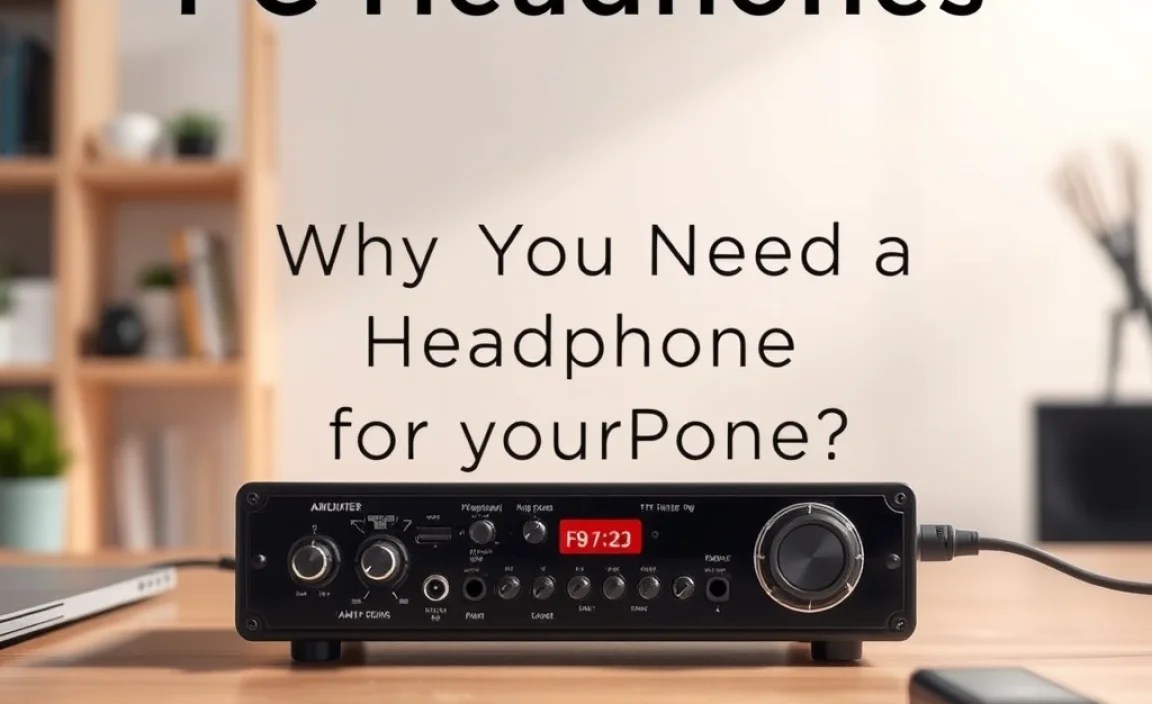
The question isn’t always “do I need one?” but rather “will one improve my experience?” For many, the answer is a resounding yes. Here are the key benefits:
- Improved Sound Quality: This is the biggest reason. Amplifiers can reduce noise and distortion present in your PC’s audio signal, leading to clearer highs, richer mids, and deeper, more controlled bass. You’ll hear nuances in your music that you might have missed before.
- Adequate Volume: Some headphones, especially larger over-ear models, require more power to reach a satisfying listening level. Your PC’s internal audio might simply not be powerful enough, forcing you to listen at lower volumes or experience a lack of dynamic impact.
- Driving Demanding Headphones: Headphones with high impedance (measured in Ohms, Ω) require more voltage to operate correctly. Without a proper amplifier, these headphones can sound thin, quiet, and lifeless when connected directly to a PC.
- Better Noise Floor: While PCs are getting better, they can still introduce electrical noise into the audio signal. A dedicated amplifier often has better-shielded circuitry, resulting in a cleaner signal path and a quieter background, especially noticeable during silent passages in music.
- Enhanced Detail and Soundstage: A good amplifier can improve the separation of instruments and voices (soundstage) and bring out subtle details in the audio, making your listening experience more immersive and detailed.
When Might You Not Need an Amplifier?

It’s also important to be realistic. Not everyone will benefit from a headphone amplifier. If you typically use:
- Low-impedance, sensitive earbuds or on-ear headphones: These are designed to work well with portable devices and most PC outputs.
- For casual listening: If you’re just listening to podcasts or background music during work and volume and clarity are sufficient, you might not notice a significant difference.
- If your PC has a high-quality integrated DAC/Amp: Some modern motherboards or dedicated external audio interfaces have remarkably good audio components that might already be sufficient.
However, if you fall into the category of owning headphones that sound underwhelming, too quiet, or muddy when connected to your PC, an amplifier is likely your next best step.
Understanding Key Terms (The Jargon Buster!)
Before we dive into choosing an amplifier, let’s demystify a few terms you’ll encounter:
- DAC (Digital-to-Analog Converter): This is the component that converts the digital audio files (like MP3s or FLACs) into an analog signal that your headphones can understand. Many amplifiers also include a DAC, and these are often called ‘DAC/Amps’ or ‘Amps with built-in DACs’.
- Impedance (Ω, Ohms): This is a measure of the electrical resistance in your headphones. Higher impedance generally means they require more power (voltage) to drive. Headphones below 60-80 Ohms are typically easier to drive.
- Sensitivity (dB/mW or dB/V): This indicates how loud your headphones will play with a given amount of power. Higher sensitivity means they’ll get louder more easily.
- Signal-to-Noise Ratio (SNR): This measures how much louder the desired audio signal is compared to the background noise. A higher SNR is better, indicating a cleaner signal.
- Total Harmonic Distortion (THD): This measures unwanted distortion in the audio signal. Lower THD is better, meaning a cleaner, more accurate sound.
For a deeper dive into audio specifications, resources like the Audio Engineering Society (AES) offer incredibly detailed technical information, though their publications can be quite advanced.
Types of PC Headphone Amplifiers
When looking for an amplifier, you’ll find a few main categories designed for PC use:
1. Desktop Amplifiers (Standalone):
These are larger units that sit on your desk. They often offer more power, better components, and a wider range of connectivity options. They usually connect to your PC via USB (acting as an external DAC) or a line-out port.
2. USB DAC/Amps (All-in-One):
These are very popular for PC users. They combine a DAC and an amplifier in a single, compact unit that typically connects to your PC via USB. This simplifies setup and often provides a significant upgrade over your computer’s internal audio.
3. Portable Amplifiers (Can be used for PC):
While designed for mobile use, smaller portable battery-powered amps can be used to boost your PC’s audio. They often connect via the PC’s headphone jack or USB. They’re a good option if you also need amplification on the go but might offer less raw power than dedicated desktop units.
How to Choose the Right Amplifier for Your PC Headphones
Selecting an amplifier can seem daunting, but it boils down to a few key considerations:
Step 1: Assess Your Headphones
This is the most crucial step. Your headphones dictate the kind of power you need.
- Impedance (Ω):
- Low Impedance (Under 80 Ω): Most common headphones, easily driven by most devices. An amplifier might still offer sonic improvements but isn’t strictly necessary for volume.
- High Impedance (80 Ω and above): These headphones absolutely benefit from an amplifier to reach satisfactory volume and sound quality. 250 Ω, 300 Ω, and even 600 Ω headphones require substantial amplification.
- Sensitivity: Lower sensitivity headphones (e.g., below 100 dB/mW) might also benefit more from an amplifier for volume.
Step 2: Determine Your Connectivity Needs
How will the amplifier connect to your PC and headphones?
- USB Connection: This is ideal for DAC/Amps. It bypasses your PC’s internal sound card entirely, sending a cleaner digital signal. This often provides the most significant upgrade.
- 3.5mm or 6.35mm (1/4 inch) Auxiliary Input: If you’re using a standalone amplifier that doesn’t have a USB DAC function, you’ll plug it into your PC’s headphone or line-out port using an audio cable.
- Headphone Output Connector: Ensure the amplifier has the correct headphone jack size for your headphones (commonly 3.5mm for earbuds/smaller headphones, or 6.35mm for larger over-ear models. Many amplifiers include an adapter).
Step 3: Consider Your Budget and Features
Headphone amplifiers range from under $50 to well over $1000.
- Entry-Level DAC/Amps ($50 – $150): Great for bringing significant improvement over onboard audio, suitable for headphones up to around 80-150 Ω.
- Mid-Range DAC/Amps ($150 – $400): Offer more power, better DAC chips, and improved circuitry for handling a wider range of headphones, including many 250 Ω models.
- High-End DAC/Amps ($400+): For serious audiophiles, these units offer superior sound quality, robust build, and the power to drive even the most demanding headphones.
- Standalone Amplifiers ($100+): If your PC already has a decent DAC (perhaps in an external audio interface), a dedicated amp can be a great choice for maximum power and sound refinement without paying for an integrated DAC.
Step 4: Read Reviews and Look for Reputable Brands
Once you have an idea of what you need, check reviews from trusted audio websites and user testimonials. Popular and reputable brands in the headphone amplifier space include:
- Schiit Audio
- Topping
- FiiO
- iFi audio
- JDS Labs
- Audio-Technica
Comparing Amplifier Options: A Quick Look
Here’s a simplified look at common scenarios and what you might choose:
| Your Headphones | Typical PC Audio Output | Recommended Amplifier Type | Example Use Case |
|---|---|---|---|
| Low impedance (e.g., 32 Ω earbuds) | Built-in PC sound card | USB DAC/Amp (Entry-level) or even a good portable DAC/Amp | Boosting clarity and getting a bit more punch for everyday listening. |
| Medium impedance (e.g., 80-150 Ω headphones) | Built-in PC sound card | USB DAC/Amp (Mid-range power) | Ensuring sufficient volume and detail for these slightly more demanding headphones. |
| High impedance (e.g., 250-600 Ω headphones) | Built-in PC sound card | USB DAC/Amp (High Power) or a powerful Desktop Amp + separate DAC if PC has digital out. | The only way to get these headphones to sound their best and reach adequate volume. |
| Already own a decent external DAC/Interface | Line-out from DAC/Interface | Standalone Headphone Amplifier (Desktop) | Maximizing power and sonic refinement for high-end headphones where the DAC is already handled. |
Setting Up Your PC Headphone Amplifier
Getting your new amplifier connected and working is usually quite straightforward. Here’s a general guide:
Scenario 1: USB DAC/Amplifier
This is the most common and easiest setup.
- Physical Connection: Plug one end of the USB cable into your amplifier and the other end into a USB port on your PC.
- Driver Installation (if necessary): Some DAC/Amps are ‘plug-and-play’ and will be recognized automatically by Windows or macOS. Others may require you to download and install specific drivers from the manufacturer’s website. Check the amplifier’s manual.
- Select as Audio Output:
- Windows: Right-click the speaker icon in the system tray, select ‘Sound settings’ or ‘Playback devices’. Your new DAC/Amp should appear in the list of output devices. Select it as your default playback device.
- macOS: Go to ‘System Preferences’ > ‘Sound’ > ‘Output’. Select your DAC/Amp from the list.
- Connect Headphones: Plug your headphones into the headphone jack on the DAC/Amp.
- Adjust Volume: Start with the volume on both your PC and the amplifier at a low setting. Gradually increase the volume on the amplifier first, then use your PC’s volume controls (or the amp’s volume knob) to reach your desired listening level.
Scenario 2: Standalone Amplifier (Connected via PC Headphone Jack)
This method uses your PC’s built-in audio, but with an external amp.
- Connect Amplifier to PC: Use a stereo 3.5mm male-to-male audio cable to connect the amplifier’s input (often labeled ‘Line In’ or ‘Aux’) to your PC’s headphone or line-out port.
- Connect Headphones: Plug your headphones into the headphone output jack of the amplifier.
- Set PC Output: Ensure your PC’s default audio output is set to its own sound card or line-out port, NOT a USB DAC/Amp (as you’re not using one in this setup).
- Adjust Volumes: Set your PC’s volume to about 75-100% (to provide a strong signal). Then, use the volume knob on your standalone amplifier to control the listening level and sound quality. Avoid maxing out the PC volume if you hear distortion from the PC’s output itself.
Important Considerations for Setup:
- Driver Updates: Always keep your audio drivers (both for your PC’s onboard audio and your DAC/Amp) up to date. This can sometimes resolve compatibility issues.
- USB Ports: For DAC/Amps, connecting directly to a USB port on your motherboard (usually at the back of a desktop PC) is often recommended over USB hubs, as they can provide more stable power and data transfer.
- Gain Settings: Some amplifiers have a ‘gain’ switch. High gain is usually for high-impedance or low-sensitivity headphones to provide more amplification power. Low gain is for sensitive headphones to prevent distortion and loud volumes. Use the appropriate setting for your headphones. Start on low gain and switch to high if you can’t reach a satisfying volume.
Maintaining Your Amplifier
Amplifiers are generally low-maintenance devices, but a few simple practices will keep them in top condition:
- Keep it Clean: Dust can accumulate, affecting ventilation. Use a dry, soft cloth to wipe it down periodically. Avoid harsh chemicals.
- Ensure Ventilation: Amplifiers can generate heat. Make sure they have enough space around them for air circulation. Don’t stack components directly on top of them unless they are designed for it and have adequate airflow.
- Handle with Care: While most are built sturdily, avoid dropping or exposing them to extreme temperatures or moisture.
- Power Cycles: While not strictly necessary, occasionally powering down and unplugging your amplifier (especially if troubleshooting) can be a good practice.
FAQ: Your Questions Answered
Can I use an amplifier with just any headphones?
Yes, you can physically plug almost any headphones into an amplifier. However, the benefit you’ll receive depends heavily on your headphones’ impedance and sensitivity, as discussed earlier. Low-impedance, sensitive earbuds might not benefit as much in terms of volume but could still get a cleaner signal.
Will it make my cheap headphones sound amazing?
An amplifier can make your headphones sound better by providing a cleaner and more powerful signal, but it cannot fundamentally change the quality of the drivers or construction of cheap headphones. If the headphones themselves have a poor sound signature or are poorly made, an amplifier will likely reveal their limitations more clearly rather than transforming them into audiophile-grade cans.
