
Quick Summary: Navigating Apple’s headphone connectors, specifically the Lightning port and its transition to USB-C, can seem tricky. This guide demystifies the options for connecting your headphones to iPhones, iPads, and Macs, ensuring you can enjoy your audio without confusion. We’ll cover adapters, direct connections, and what to look for.
Hey there, audio adventurers! Edward Cavitt here from headphonehorizon. So, you’ve got a fantastic pair of headphones and a shiny Apple device, but connecting them feels like solving a puzzle? Don’t sweat it!
For years, Apple devices have had their own unique ways of handling audio jacks, and with recent changes, it’s easy to feel a little lost.
Whether you’re holding onto a familiar iPhone or embracing a newer iPad or Mac with USB-C, understanding the “apple connector for headphones” is key to uninterrupted listening. Let’s break down what you need to know to get your tunes flowing smoothly, no matter which Apple gadget you’re using.
Understanding Apple’s Headphone Connection Landscape

Apple’s approach to headphone connectors has evolved over time, primarily driven by device design and the pursuit of smaller, more integrated technology. This journey has seen the removal of the traditional 3.5mm headphone jack from iPhones and the shift towards digital audio transmission.
For many, this meant a slight learning curve, but it paved the way for new ways to connect. The primary “apple connector for headphones” that most users will encounter today involves two main types of ports: the Lightning port (found on most older iPhones and some iPads) and the USB-C port (standard on newer iPads, iPhones 15 and later, and most Macs).
The Era of the Lightning Port
For a significant period, the Lightning port was the standard for charging and data transfer on iPhones and some iPad models. It also became the gateway for audio. Unlike the analog 3.5mm jack, Lightning carries digital audio signals. This means that when you connect headphones via Lightning, the digital-to-analog conversion (DAC) happens either within the headphones themselves or in an adapter, rather than within the device.
Lightning Headphones
These headphones come with a built-in Lightning connector. They offer a direct digital connection, bypassing the device’s analog circuitry. This can potentially offer higher audio fidelity as the DAC is specifically designed for the headphones.
Lightning to 3.5mm Headphone Jack Adapter
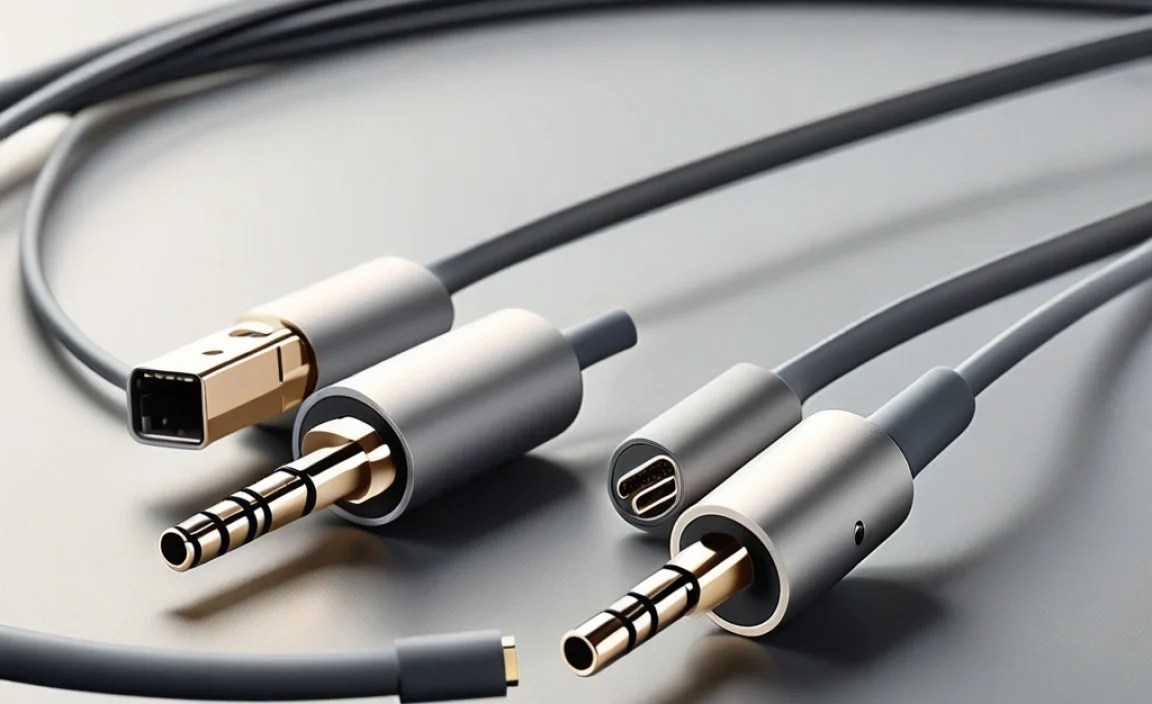
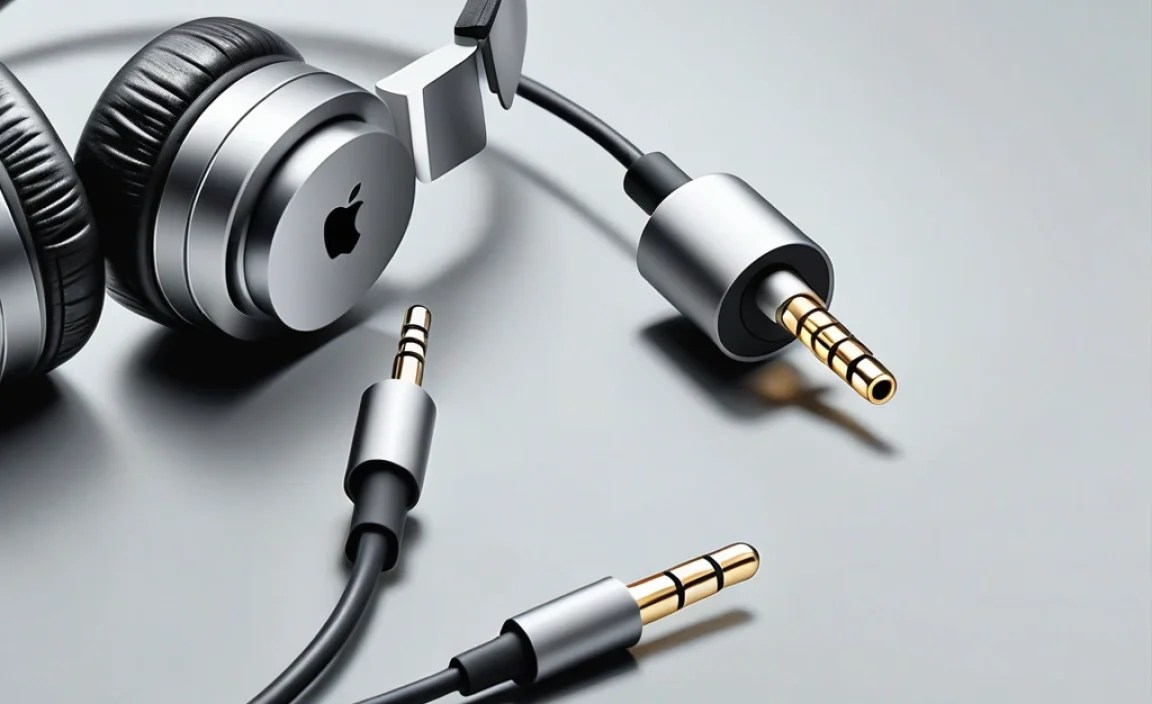
One of the most common solutions for those with traditional headphones and a Lightning device is the official Apple Lightning to 3.5mm Headphone Jack Adapter. This small dongle plugs into your Lightning port, and you then plug your standard 3.5mm headphones into the adapter. It contains a high-quality DAC and amplifier to convert the digital signal from your device into an analog signal your headphones can understand.
Pros of using Lightning for audio:
- Direct digital audio transmission can preserve sound quality by avoiding analog conversion within the device.
- Allows for simultaneous charging and listening on some devices with specific splitters (though this can sometimes impact audio quality).
- The official adapter is designed for seamless compatibility with Apple devices.
Cons of using Lightning for audio:
- Requires a dedicated adapter for standard 3.5mm headphones, which is an extra item to carry and potentially lose.
- Not all Lightning headphones support inline controls or microphones, so check product specifications.
- The adapter itself can be a point of failure; a damaged adapter means no audio.
The Rise of USB-C
In recent years, Apple has embraced the USB-C standard across its product line, including iPads, MacBooks, and most notably, the iPhone 15 series and beyond. USB-C is a versatile, universal standard that can carry data, power, and audio signals. For audio, this means many USB-C devices also support digital audio output directly through the USB-C port.
USB-C Headphones
Similar to Lightning headphones, these are designed with a USB-C connector for a direct digital audio link. They are becoming increasingly common as USB-C becomes the norm.
USB-C to 3.5mm Headphone Jack Adapter
Just as with Lightning, if you have standard 3.5mm headphones, you’ll likely need a USB-C to 3.5mm adapter. These work on the same principle: they take the digital audio signal from the USB-C port and convert it using an internal DAC into an analog signal for your headphones. Many non-Apple brands offer these, as well as Apple’s own USB-C to 3.5mm Headphone Jack Adapter.
Pros of using USB-C for audio:
- Universal standard, meaning USB-C headphones or adapters might work across a wider range of devices, not just Apple products.
- Generally supports high-resolution audio and faster data transfer.
- Often allows for charging and audio playback simultaneously through the single port, especially with compatible hubs or adapters.
Cons of using USB-C for audio:
- Requires an adapter for 3.5mm headphones, just like Lightning.
- The quality of USB-C to 3.5mm adapters can vary significantly between brands, impacting sound quality.
- Not all USB-C ports on all devices support audio output (though this is rare on modern Apple devices).
Connecting Your Headphones: Step-by-Step

Navigating the connection process depends on your Apple device and the type of headphones you have. Here’s a breakdown of the common scenarios:
Scenario 1: Using a Lightning Device (iPhone 14 and earlier, some iPads)
- Identify your device’s port: Look for the small, reversible Lightning port, usually at the bottom of your iPhone.
- Option A: Using Lightning Headphones:
- Simply plug your Lightning headphones directly into the Lightning port on your device.
- Your device should automatically recognize the headphones.
- If you encounter issues, try unplugging and replugging them.
- Option B: Using 3.5mm Headphones with an Adapter:
- Take your Apple Lightning to 3.5mm Headphone Jack Adapter.
- Plug the Lightning end of the adapter into your device’s Lightning port.
- Plug your 3.5mm headphone cable into the female 3.5mm jack on the adapter.
- Audio should now play through your headphones.
- If you want to charge your device while listening, you’ll need to ensure you’re using an adapter that explicitly supports this, often with an additional Lightning port for your charging cable (e.g., the Belkin MIXIT Lightning Charge + Sync Adapter).
Scenario 2: Using a USB-C Device (iPhone 15 and later, newer iPads, Macs)
- Identify your device’s port: Look for the small, oval-shaped USB-C port. It’s reversible and symmetrical.
- Option A: Using USB-C Headphones:
- Plug your USB-C headphones directly into the USB-C port on your device.
- Your device should automatically detect and use the headphones for audio.
- For MacBooks or iPads with multiple USB-C ports, you can use any of them for audio.
- Option B: Using 3.5mm Headphones with an Adapter:
- Take a USB-C to 3.5mm Headphone Jack Adapter.
- Plug the USB-C end of the adapter into your device’s USB-C port.
- Plug your 3.5mm headphone cable into the female 3.5mm jack on the adapter.
- Your audio should now route to your headphones.
- To charge and listen simultaneously on devices with only one USB-C port (like some iPads or iPhones), you’ll need a USB-C hub or adapter that offers both a USB-C port for accessories and a separate USB-C port for power delivery.
Choosing the Right “Apple Connector for Headphones” Solution

When deciding on the best way to connect your headphones, consider your current gear and future needs. Here’s a quick comparison to help you make an informed choice:
| Connection Type | Best For | Device Compatibility | Potential Audio Quality | Port Requirement |
|---|---|---|---|---|
| Direct Lightning Headphones | Users with older iPhones/iPads who want a dedicated digital audio solution. | iPhone 14 and earlier, compatible iPads. | Potentially excellent, as DAC is optimized for headphones. | Lightning Port |
| Lightning to 3.5mm Adapter | Users with standard 3.5mm headphones and Lightning devices. | iPhone 14 and earlier, compatible iPads. | Good to Excellent, depending on adapter quality. | Lightning Port |
| Direct USB-C Headphones | Users with newer iPhones, iPads, or Macs who want a simple, modern connection. | iPhone 15+, newer iPads, Macs. | Potentially excellent, as DAC is optimized for headphones. | USB-C Port |
| USB-C to 3.5mm Adapter | Users with standard 3.5mm headphones and USB-C devices. | iPhone 15+, newer iPads, Macs. | Varies greatly by adapter brand; can be good to excellent. | USB-C Port |
It’s important to note that while Apple’s official adapters are generally reliable, third-party options can offer varying quality. For the best experience, especially with high-fidelity headphones, consider adapters that explicitly state support for high-resolution audio or MFi (Made For iPhone/iPad) certification for Lightning accessories.
Troubleshooting Common Connection Issues
Even with the right connectors, you might occasionally run into glitches. Here are some common problems and how to fix them:
- No Sound:
- Ensure your headphones are securely plugged into the device or adapter.
- Check the volume level on your device and the headphones (if they have inline controls).
- Try unplugging and re-plugging the headphones and adapter.
- Restart your Apple device.
- Test your headphones with another device to rule out headphone malfunction.
- Audio Cuts Out or Crackles:
- This can indicate a loose connection. Firmly press the connector and cable.
- If using an adapter, check for any damage to the adapter or its cable.
- For Bluetooth headphones connected via a Lightning or USB-C adapter (less common but possible), ensure Bluetooth is enabled and there aren’t too many other active Bluetooth devices nearby.
- If the issue persists, the adapter or headphones might be faulty.
- Microphone Not Working:
- Not all Lightning or USB-C to 3.5mm adapters support microphone input. Ensure your adapter and headphones are compatible with microphone functionality.
- Check your device’s microphone settings. Under Settings > Privacy & Security > Microphone, ensure the app you’re using has permission to access the microphone.
- For digital headphones (Lightning/USB-C), confirm that the headphones themselves have a microphone and are designed for calls.
- Device Not Charging While Listening:
- You need a specific type of adapter that supports both audio output and charging pass-through. For Lightning, this is often called a “splitter” or “charge-and-sync” adapter. For USB-C, you’ll need a hub or adapter with Power Delivery (PD) support for charging.
- Ensure you are using the correct power adapter and cable for charging.
Understanding Audio Standards and Quality
When you connect headphones to an Apple device, especially through digital ports like Lightning and USB-C, you’re dealing with digital audio. The quality of this digital audio is determined by several factors:
- Digital-to-Analog Converter (DAC): This chip converts the digital audio file into an analog signal that your headphones can reproduce. The quality of the DAC in the headphones themselves (for direct digital connections) or in the adapter is crucial. Higher-end DACs can reveal more detail and clarity in your music. For more information on audio conversion, resources like those from the AES (Audio Engineering Society) AES – The Audio Engineering Society offer in-depth technical details.
- Sampling Rate and Bit Depth: These specifications determine how accurately sound is represented digitally. Common standards include 44.1 kHz (CD quality) at 16-bit, but many modern devices and headphones support higher sampling rates (e.g., 48 kHz, 96 kHz) and bit depths (e.g., 24-bit) for potentially greater detail and dynamic range. Apple’s devices generally support high-resolution audio playback through their digital connectors.
- Headphone Amplifier: The amplifier boosts the analog signal from the DAC to a level that can drive your headphones effectively. A good amplifier ensures your headphones sound clear and dynamic, without distortion, especially at higher volumes or with demanding headphones.
Using an official adapter from Apple or a reputable manufacturer like Belkin or Anker is often recommended because they are designed to meet Apple’s compatibility and performance standards. For instance, Apple’s own USB-C to 3.5mm Headphone Jack Adapter is known for its solid build and good audio performance.
When to Consider Bluetooth Headphones
While wired connections offer a direct and often superior audio path, Bluetooth headphones have become incredibly popular for their convenience. If you find yourself constantly dealing with adapters or cables, especially for active lifestyles or when juggling multiple devices, Bluetooth might be a better fit.
How Bluetooth works with Apple devices:
- Apple devices (iPhone, iPad, Mac) feature robust Bluetooth capabilities.
- Connecting is usually as simple as putting your Bluetooth headphones in pairing mode and selecting them from the Bluetooth menu in your device’s settings.
- Once paired, they will automatically reconnect when in range and turned on.
- Modern Bluetooth codecs (like AAC, which Apple devices heavily utilize) offer good sound quality, though audiophiles may still prefer the absolute best from a high-quality wired setup.
Pros of Bluetooth:
- No wires, offering freedom of movement.
- Seamless pairing with multiple Apple devices and easy switching.
- Many models offer advanced features like active noise cancellation (ANC) and smart assistants.
Cons of Bluetooth:
- Requires charging the headphones themselves.
- Sound quality can be slightly compressed compared to the best wired connections, depending on the Bluetooth codec used.
- Can be susceptible to interference in crowded wireless environments.
Frequently Asked Questions (FAQ)
Q1: Do all iPhones and iPads support audio through their Lightning or USB-C port?
Yes, all iPhones and iPads equipped with a Lightning or USB-C port are designed to output audio through these ports, either directly with compatible headphones or via an adapter. This has been Apple’s standard for handling audio since the removal of the 3.5mm jack from iPhones.
Q2: Can I use any brand of adapter?
For Lightning ports, it’s highly recommended to use Apple’s official Lightning to 3.5mm Headphone Jack Adapter or accessories certified with the “Made for iPhone” (MFi) program. This ensures compatibility and optimal performance. For USB-C, while there isn’t an MFi certification program in the same way, choosing adapters from reputable brands known for audio accessories is advisable for better sound quality and reliability.
Q3: Will a Lightning or USB-C to 3.5mm adapter work with my MacBook?
If your MacBook only has USB-C ports, then a USB-C to 3.5mm adapter will work perfectly. If your MacBook still has a 3.5mm jack, you wouldn’t need an adapter for that port, but you could still use a USB-C adapter if you preferred or if the built-in jack was malfunctioning.
Q4: Can I use a dongle to charge my iPhone and listen to music at the same time?
Yes, but you need the right kind of adapter. For Lightning iPhones, you’ll need a Lightning splitter adapter that has both a Lightning port for charging and a 3.5mm headphone jack. For USB-C iPhones (like the iPhone 15 series) and iPads, you’ll need a USB-C hub or adapter that supports Power Delivery (PD) for charging alongside a 3.5mm audio output or USB-C audio output.
