
Unlock dual audio functionality with an audio splitter for headphones and microphones, a simple yet powerful tool enabling simultaneous use of separate headphone and mic jacks on your PC.
This guide provides everything a beginner needs to understand, select, and use this essential gadget for clearer communication and immersive listening.
Audio Splitter For Headphone And Microphone: Your Essential Guide

Hey there, audio adventurers! Edward Cavitt here from headphonehorizon, your go-to guide for all things sound. Ever found yourself staring at your computer, eager to jump into a game with friends or join an important video call, only to realize your sleek new headphones have separate plugs for sound and speech?
It’s a common puzzle, especially with modern laptops and desktops that often feature a single combined jack. But don’t worry, there’s a simple, affordable, and incredibly effective solution: an audio splitter for headphone and microphone.
Think of it as a tiny, unassuming hero that bridges the gap, allowing you to use your favorite headset with dedicated mic and headphone inputs without a hitch. This guide is crafted to demystify this handy device, making it easy for anyone—even if you’re new to audio tech—to understand what it is, why you might need one, and how to pick the perfect one for your setup. Let’s get your audio sorted!
What Exactly is an Audio Splitter for Headphone and Microphone?

At its core, an audio splitter for headphone and microphone is a small adapter designed to take a single audio input and output it into two separate connections, specifically for your headphones (which deliver audio sound) and your microphone (which captures your voice).
Most modern laptops and some desktop PCs have a single 3.5mm TRRS (Tip-Ring-Ring-Sleeve) jack that conveniently combines both headphone and microphone signals into one port. However, many headsets, especially those designed for gaming or professional use, still come with two separate 3.5mm plugs: one for audio (often green) and one for the microphone (often pink or red).
This is where the magic of the audio splitter comes in. It essentially “splits” that single TRRS connection into two distinct TRS (Tip-Ring-Sleeve) connectors, allowing you to plug your headset’s separate headphone and microphone cables into your computer’s dedicated audio and mic ports. It’s a simple plug-and-play solution that doesn’t require any drivers or software, making it incredibly user-friendly.
Why Do You Need an Audio Splitter? The Common Scenarios

You might be wondering if this little gadget is really necessary for you. Here are some common situations where an audio splitter for headphone and microphone becomes an absolute lifesaver:
- Laptop Compatibility Issues: Many sleek ultrabooks and newer laptops have ditched the separate headphone and microphone jacks in favor of a single combined 3.5mm port. If your headset has separate plugs and your laptop has only one, a splitter is your ticket to using both.
- Desktop PC Setups: While many desktop PCs still boast separate front or rear audio ports, sometimes they can be inconveniently located, or you might want to use a headset with a single combined plug on a motherboard that expects separate inputs. A splitter can help adapt.
- Enhancing Existing Gear: You might have a fantastic pair of headphones you love for listening to music, but they lack a microphone. Pairing them with a clip-on or standalone microphone and using a splitter allows you to create a versatile headset setup without buying a whole new piece of gear.
- Gaming and Communication: For gamers, clear communication is key. If your gaming headset has separate plugs a splitter ensures your microphone is properly connected to your PC’s mic input for crisp voice chat, while your headphones deliver immersive game audio.
- Online Meetings and Classes: Professionals and students relying on their computers for important calls and lectures often need a reliable microphone and headphone setup. A splitter ensures that if your headset is designed for separate inputs, you can connect it to a computer that might be configured differently.
Understanding the Connectors: TRS vs. TRRS

To truly grasp how an audio splitter works, it’s helpful to understand the basic anatomy of the plugs involved. Audio connectors, especially the common 3.5mm jack, come in different configurations:
- TRS (Tip-Ring-Sleeve): This is the most common connector for standard stereo headphones or microphones. It has three sections:
- Tip: Usually carries the left audio channel.
- Ring: Usually carries the right audio channel.
- Sleeve: Acts as the common ground.
A TRS plug is typically used for stereo audio output (headphones) or a mono microphone input. Devices with separate headphone and mic jacks will use two TRS connectors.
- TRRS (Tip-Ring-Ring-Sleeve): This connector has four sections and is designed to carry multiple signals over a single plug. It’s commonly found on smartphones, tablets, and many modern laptops. The sections typically are:
- Tip: Left audio channel.
- First Ring: Right audio channel.
- Second Ring: Microphone signal (or ground, depending on the wiring standard).
- Sleeve: Common ground.
The crucial difference is that the TRRS connector combines stereo audio output and microphone input into one plug.
An audio splitter for headphone and microphone typically takes a TRRS plug (from your headset that has a combined connector) and converts it into two TRS plugs (one for the headphone jack and one for the microphone jack on your computer), or vice-versa, it might take two TRS plugs and combine them into a single TRRS plug. For the purpose of connecting a headset with separate plugs to a laptop with a single TRRS jack, we usually mean a splitter that converts a single TRRS jack into two TRS outputs.
Types of Audio Splitters
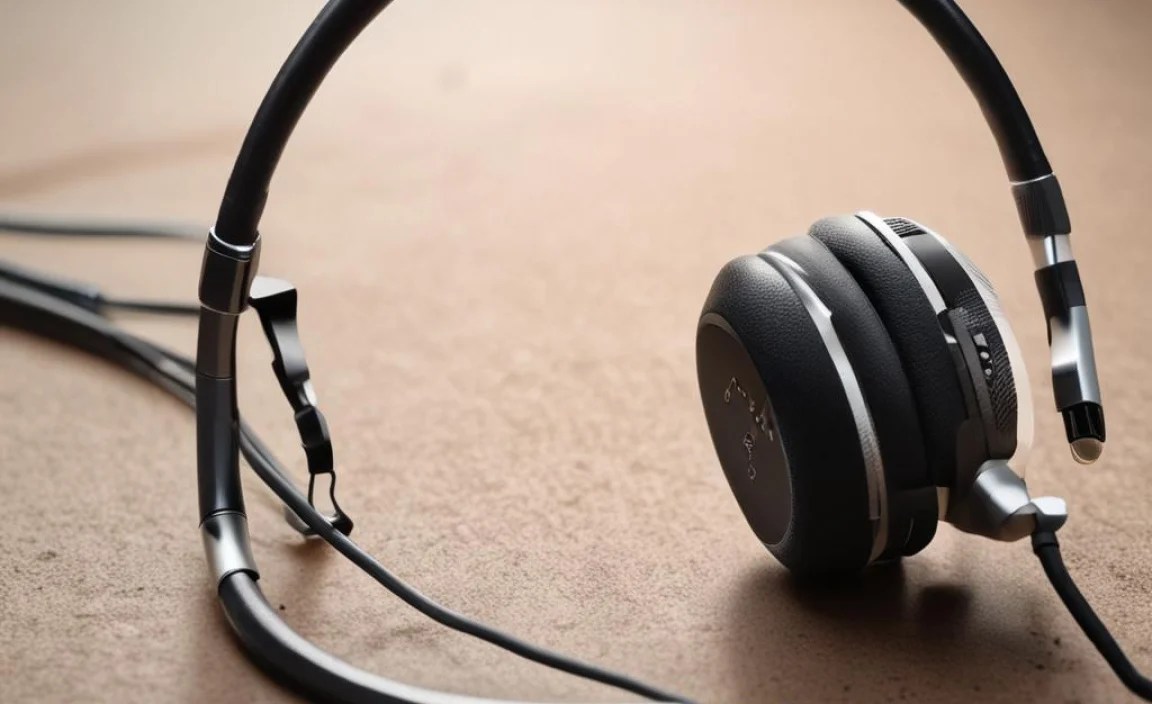
When you’re shopping for an audio splitter for headphone and microphone, you’ll notice there are a few variations. While they all serve a similar purpose, understanding the differences can help you make the best choice:
- Headphone and Microphone Splitter (Y-Splitter): This is the most common type for our purpose. It typically features a single TRRS male plug (to go into your device’s combined jack) and bifurcates into two TRS female jacks—one for headphones and one for a microphone. You then plug your headset’s individual headphone and mic cables into these jacks.
- Stereo Splitter (or Dual Headphone Splitter): Be cautious here. Some “splitters” are designed to share an audio output between two pairs of headphones. These will have one stereo TRS input and two stereo TRS outputs. These are great for listening to music with a friend but won’t work for separating headphone and microphone signals.
- Microphone Splitter: This type takes a single microphone input and splits it into two microphone outputs. Useful for connecting multiple microphones to one input, but not relevant for our headset/microphone scenario.
For connecting a headset with separate headphone and microphone plugs to a computer or device with a single combined headphone/mic jack, you are generally looking for a splitter that converts a single TRRS connection to two TRS connections.
How to Use an Audio Splitter: A Step-by-Step Guide
Using an audio splitter for headphone and microphone is refreshingly straightforward. There’s no complex installation, just simple plugging in.
Step 1: Identify Your Ports
First, take a look at your computer (or other device) and your headset.
- On your computer: Do you have a single 3.5mm jack that likely handles both audio and mic, or do you have two separate jacks, typically labeled with headphone and microphone icons (often green for headphones and pink/red for microphone)?
- On your headset: Does your headset have a single 3.5mm plug that combines mic and audio, or does it have two separate plugs, one for headphones and one for the microphone?
Step 2: Choose the Right Splitter
Based on your identification in Step 1:
- Scenario A: Computer has one TRRS jack, headset has two TRS plugs (one mic, one headphone). This is where you need the Y-splitter described earlier: a cable with a TRRS male connector (to plug into your computer) and two TRS female connectors (to accept your headset’s plugs).
- Scenario B: Computer has two TRS jacks (one mic, one headphone), headset has one TRRS combined plug. In this less common scenario for splitters, you would need an adapter that combines a TRRS female input (for your headset’s plug) into two TRS male outputs (to plug into your computer’s jacks).
For the purpose of this guide, we’re primarily focusing on Scenario A, which is the most frequent need for an “audio splitter for headphone and microphone.”
Step 3: Connect the Splitter to Your Device
If you need to adapt your headset’s separate plugs for a single port on your device (Scenario A), plug the TRRS male connector of your splitter directly into the single combined headphone/microphone jack on your laptop or computer. This port is usually found on the side of laptops or the front/rear of desktop towers. It might have an icon resembling a headset or a microphone with a headphone.
Step 4: Connect Your Headset to the Splitter
Now, take the individual plugs from your headset (the one meant for headphones and the one for the microphone).
- Plug the headphone connector (usually green, or labeled “HP”) into the corresponding headphone jack on the splitter.
- Plug the microphone connector (usually pink or red, or labeled “Mic”) into the corresponding microphone jack on the splitter.
Most good quality splitters will clearly indicate which female port is for headphones and which is for the microphone, often with color-coding or small icons.
Step 5: Test Your Audio and Microphone
Turn on your computer and launch an application that uses audio and microphone, like a voice recording program, a video call app (Zoom, Skype, Discord), or even your operating system’s sound settings.
- Test microphone: Go to your sound settings and look for the input device. Speak into your microphone and check if the input levels are registering. You can also record a short audio clip and play it back.
- Test headphones: Play some music or a video and ensure you can hear sound clearly through your headphones.
If everything sounds good, congratulations! You’ve successfully set up your audio splitter.
When Things Don’t Work: Basic Troubleshooting
Most of the time, an audio splitter is plug-and-play. But if you encounter issues, here are a few things to check:
- Check Connections: Ensure all plugs are firmly seated in their respective jacks. Sometimes a loose connection is all it is.
- Verify Splitter Type: Make sure you bought the correct type of splitter. If you’re trying to connect a single TRRS plug from a headset into two ports on your PC, you need a combiner, not a splitter. If you’re trying to connect separate headphone/mic plugs to a single port, you need a splitter with a TRRS male end.
- Operating System Settings: Go into your computer’s sound settings. Make sure the correct input (microphone) and output (headphones) devices are selected. Sometimes, the system might default to an incorrect device. For Windows, you can access this by right-clicking the speaker icon in the taskbar. For macOS, navigate to System Preferences > Sound.
- Headset Configuration: Some headsets might have a “mode” switch or require specific software. While less common with basic splitters, it’s worth checking your headset’s manual if you have one.
- Test Ports Individually: If your computer has separate mic and headphone ports, try plugging just the headphone part of your headset into the headphone jack and the mic part into the mic jack, bypassing the splitter temporarily. This helps determine if the issue is with your headset, the splitter, or your computer’s ports.
- Restart Your Device: A simple reboot can sometimes clear up temporary software glitches that might be preventing devices from being recognized correctly.
Key Features to Look For in an Audio Splitter
When selecting an audio splitter for headphone and microphone, consider these features to ensure you get a reliable and functional product:
| Feature | What to Look For | Why It Matters |
|---|---|---|
| Connector Type | TRRS Male to 2x TRS Female (for headset w/ sep. plugs to single port) | Ensures compatibility with common setups where a headset has separate plugs and a device has a single combined jack. Double-check if you need the opposite (TRRS female to 2x TRS male). |
| Cable Length | Sufficient length for comfortable use (e.g., 6 inches to 1 foot) | Prevents strain on the ports and allows for flexible positioning of your headset connections. Too short can be awkward; too long can lead to tangles. |
| Build Quality | Durable materials, reinforced connectors, braided cable (if available) | A well-built splitter will last longer and be less prone to damage from bending or pulling, ensuring consistent audio performance. |
| Durability of Connectors | Gold-plated connectors | Gold plating can improve conductivity and resist corrosion, potentially leading to a more stable connection and better audio quality. |
| Brand Reputation & Reviews | Well-known audio brands, positive user reviews | Reputable brands often offer better quality control and support. Reading reviews can highlight real-world performance and potential issues. |
| Color-Coding/Labeling | Clearly marked headphone and microphone ports | Makes it easy to plug in your headset correctly without guesswork, preventing common connection errors. |
Benefits of Using a Dedicated Audio Splitter
Why bother with an adapter? Here are the advantages:
- Cost-Effective: Splitters are generally very inexpensive, offering a high value for their price. It’s much cheaper than buying a new headset compatible with your device’s port configuration.
- Versatility: Allows you to use your favorite headphones and microphones with a wider range of devices, from laptops to gaming consoles.
- Preserves Existing Gear: You don’t have to abandon your beloved headset just because your new computer uses a different port setup.
- Simplicity: No software or drivers required. Just plug it in and go.
- Improved Microphone Performance: By connecting your microphone to a dedicated mic input (if available on your PC), you can sometimes achieve clearer audio transmission compared to relying solely on a combined jack.
Potential Limitations and What to Avoid
While incredibly useful, audio splitters aren’t without their minor drawbacks or things to watch out for:
- Not for all Devices: Some very specialized audio devices or gaming consoles might not use standard 3.5mm jacks, or they might have proprietary connectors that won’t work with a simple splitter.
- Quality Varies: Cheap, unbranded splitters can sometimes introduce static, reduce audio quality, or fail prematurely. Investing a little more in a reputable brand is usually worthwhile.
- Combined Jacks are Complex: The way computers handle combined TRRS jacks can sometimes be a bit finicky. A splitter makes it explicit for the computer’s sound card by separating the signals. While this usually works well, very rarely, some software might still struggle to differentiate.
- Avoid Incorrect Splitter Types: As mentioned, ensure you’re not buying a stereo splitter (for two headphones) when you need a headphone and microphone splitter.
For a deeper dive into common audio standards and connectors, organizations like the International Telecommunication Union (ITU) provide standards and specifications that influence audio and telecommunications technologies, including connector types.
Frequently Asked Questions (FAQ)
Q1: Will an audio splitter affect my sound quality?
A: In most cases, a good quality audio splitter will have a negligible impact on your audio quality. The signals are essentially being routed more directly to separate ports. However, very cheap or poorly made splitters could potentially introduce minor static or a slight reduction in clarity. It’s always best to opt for a reputable brand.
Q2: Can I use a splitter with my gaming console?
A: It depends on the console and your headset. If your gaming console has a standard 3.5mm headphone/mic jack (or readily available ports), and your headset uses separate plugs, a splitter can definitely work. For example, some PlayStation and Xbox controllers have a 3.5mm jack that accepts a combined TRRS plug, so you’d need
