
Quick Summary: An aux Bluetooth transmitter for headphones is a small device that lets you wirelessly stream audio from devices with an aux port (like older TVs or car stereos) to your Bluetooth-enabled headphones. This guide will walk you through setting it up and using it, no tech headaches required!
Aux Bluetooth Transmitter for Headphones: Your Essential Guide

Hey headphone enthusiasts, Edward Cavitt here from headphonehorizon! Ever wished you could ditch those pesky wires and enjoy your favorite shows or music from that older TV or car stereo with your modern Bluetooth headphones? You know, the ones on your bedside table, your trusty car speakers, or even that beloved vintage audio equipment? Well, you’re in luck! The magic wand for this is called an aux Bluetooth transmitter for headphones. Don’t let the name intimidate you; it’s a super simple gadget that bridges the gap between wired audio sources and your wireless listening world. Today, we’re diving deep into what these little gadgets are, how they work, and most importantly, how to get yours up and running without a hitch. Let’s make your listening life a whole lot freer and more enjoyable!
What Exactly is an Aux Bluetooth Transmitter for Headphones?
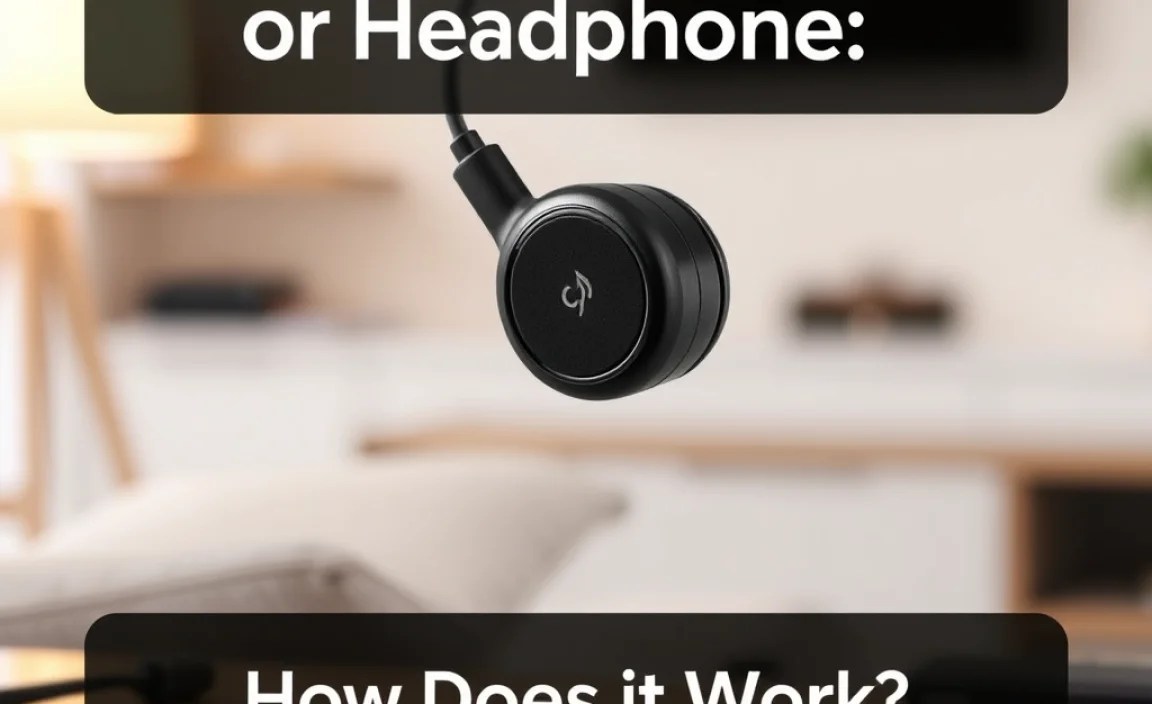
Think of your favorite pair of wireless, Bluetooth headphones. They’re fantastic, right? But what about that awesome old stereo system you have, or the TV in the living room that doesn’t have built-in Bluetooth? These devices likely only have a traditional 3.5mm headphone jack, also known as an “aux” or “auxiliary” port. This is where the aux Bluetooth transmitter comes in!
An aux Bluetooth transmitter is a small, portable device that plugs into the aux port of any audio source. It then takes that audio signal and converts it into a Bluetooth signal, which can then be wirelessly transmitted to your Bluetooth headphones or speakers. It’s like giving your old audio gear a brand-new wireless superpower!
How Does it Work? The Tech (Simplified!)

It might sound a bit like magic, but the science behind it is quite straightforward. Here’s a simplified breakdown:
- Audio Input: The transmitter receives an analog audio signal from your source device (like a TV or stereo) through its aux cable.
- Digital Conversion: Inside the transmitter, this analog signal is converted into a digital signal.
- Bluetooth Encoding: The digital signal is then encoded using the Bluetooth protocol – the same technology that connects your phone to your car or wireless earbuds.
- Wireless Transmission: The transmitter broadcasts this Bluetooth signal.
- Pairing: Your Bluetooth headphones or speakers “listen” for this signal. When you pair them (like you would with your phone or tablet), they connect to the transmitter.
- Audio Output (Wireless): Once paired, your headphones receive the digital Bluetooth signal and decode it back into analog sound, which you can then hear!
This process allows you to enjoy sound from devices that lack native Bluetooth capabilities, extending the life and versatility of your existing audio equipment. It’s a fantastic way to upgrade your home entertainment or car audio experience without buying entirely new, expensive systems.
Why You Might Need One: Benefits of an Aux Bluetooth Transmitter
These little gadgets are more than just a convenience; they offer some compelling advantages for everyday listeners and audiophiles alike.
Versatility for Older Devices
The most apparent benefit is breathing new life into devices that predate widespread Bluetooth technology. This includes:
- Older TVs that only have headphone jacks.
- Car stereos that lack Bluetooth connectivity.
- Home stereo systems and soundbars.
- MP3 players or older portable music devices.
- Projectors and other entertainment systems.
Wire-Free Freedom
No more tripping over wires or being tethered to your audio source. Enjoy the freedom of movement while watching TV in bed, cooking in the kitchen, or working out – all connected wirelessly to your non-Bluetooth audio system.
Enhanced Listening Experience
If you have a great pair of noise-canceling or high-fidelity Bluetooth headphones, you can now use them with any audio source. This means you can enjoy immersive sound without disturbing others, or vice versa. For example, you can watch late-night shows without waking up the household!
Cost-Effective Solution
Instead of replacing your entire TV or car stereo to get Bluetooth functionality, purchasing an aux Bluetooth transmitter is a significantly cheaper alternative. It’s a smart investment for enhancing your existing setup.
Easy to Use and Portable
Most aux Bluetooth transmitters are plug-and-play. They are usually compact, lightweight, and powered by a rechargeable battery or USB, making them easy to move between devices or take with you on the go.
Types of Aux Bluetooth Transmitters
While the core function remains the same, there are a few variations you might encounter:
- Basic Transmitters: These simply transmit audio from a wired source to a Bluetooth receiver (like your headphones).
- Transmitter/Receiver (2-in-1) Combo Devices: These are incredibly versatile. They can act as a transmitter (sending audio from a wired source) or as a receiver (taking audio from a Bluetooth-enabled device, like your phone, and sending it to a wired speaker). This is a great option if you want dual functionality.
- Transmitters with Low Latency Technology: For audio and video synchronization, especially important for watching movies or gaming, look for transmitters that support low latency codecs like aptX Low Latency (aptX LL). This significantly reduces the delay between what you see on screen and what you hear.
For this guide, we’ll primarily focus on the basic transmitter function, as that’s the most common use case for connecting headphones to non-Bluetooth audio sources.
How to Set Up Your Aux Bluetooth Transmitter for Headphones: A Step-by-Step Guide
Setting up your aux Bluetooth transmitter is generally a straightforward process. Here’s how to do it:
What You’ll Need:
- Your Aux Bluetooth Transmitter
- Your Bluetooth-enabled Headphones
- An audio source device with a 3.5mm aux output (e.g., TV, car stereo, laptop)
- A charging cable for the transmitter (usually USB, often included)
- The 3.5mm audio cable to connect the transmitter to your source (usually included)
Step 1: Charge the Transmitter
Before you begin, ensure your Bluetooth transmitter has enough power. Most transmitters are rechargeable. Connect it to a power source using its included USB charging cable. Some can be powered directly from a USB port on your TV or audio device, while others have internal batteries that need charging. Check the indicator lights to know when it’s fully charged (usually a solid light or the charging light turning off).
Step 2: Connect the Transmitter to Your Audio Source
This is the crucial physical connection.
- Locate the 3.5mm headphone jack or aux output port on your audio source device (e.g., TV, car stereo).
- Plug one end of the included 3.5mm audio cable into this port.
- Plug the other end of the 3.5mm audio cable into the aux input port on your Bluetooth transmitter. The transmitter’s port is often labeled “AUX IN” or has a headphone symbol.
Step 3: Power On the Transmitter
Find the power button on your transmitter and press it. It usually requires a long press to turn on. The device will likely emit a sound or show a blinking light to indicate it’s powered on and ready to pair.
Step 4: Put Your Headphones in Pairing Mode
This step varies by headphone model, but generally involves:
- Turning on your Bluetooth headphones.
- Pressing and holding the power or Bluetooth button until you hear a voice prompt or see a blinking light indicating they are in pairing mode. Consult your headphone’s manual if you’re unsure.
Step 5: Pair the Transmitter and Headphones
Most transmitters and headphones will automatically search for and connect to each other once both are in pairing mode.
- The indicator lights on the transmitter and headphones will usually change (e.g., stop blinking, turn solid, or change color) to show a successful connection.
- You might hear a confirmation sound in your headphones, like “Connected” or a specific beep.
- If your transmitter supports multiple device pairings or has a manual pairing button, you might need to press it to initiate the search or selection.
Pro Tip: If pairing fails, turn both devices off and on again, ensure they are close to each other (within a few feet), and try the pairing process again. Interference from other wireless devices can sometimes cause issues.
Step 6: Activate Audio Output
Once paired, you usually need to ensure your audio source device is sending audio to the aux output.
- For TVs: Go into your TV’s audio settings and select “Headphone Out” or “External Speakers” and make sure the volume isn’t muted or set too low. You might need to set the audio output format to stereo PCM for optimal compatibility, as detailed by resources like the FCC Consumer Guide on Audio/Video Equipment.
- For Car Stereos: Ensure your car stereo is set to the Aux input mode.
- For Other Devices: Refer to the device’s manual to ensure audio is routed to the headphone jack.
Step 7: Adjust Volume
Now you should hear sound! Adjust the volume on your headphones to your desired listening level. You may also need to adjust the volume on the audio source device itself. It’s often best to set the source device’s volume relatively high (but not distorted) and control the final listening volume with your headphones for the best signal quality.
Optimal Placement and Considerations
Where you position your transmitter and headphones can affect the connection quality.
Proximity Matters
Keep your transmitter and headphones relatively close, especially during the initial pairing. Bluetooth has a range, but a direct line of sight and closer proximity will provide the most stable connection. For most transmitters, a range of 10-30 feet (3-10 meters) is typical, but this can be reduced by walls or interference.
Minimizing Interference
Other wireless devices, microwaves, and even dense objects can interfere with Bluetooth signals.
- Try to keep the transmitter in an open area, away from other electronics if possible.
- Ensure there isn’t a lot of metal or thick walls between the transmitter and your headphones.
Powering Solutions
Consider how you’ll power the transmitter long-term.
- Rechargeable Battery: Convenient for portable use or if your audio source has no USB ports. You’ll need to recharge it periodically.
- USB Powered: Ideal for stationary setups where your TV or audio device has a USB port. This offers continuous power without worrying about battery life.
Troubleshooting Common Issues
Even the best gadgets can have hiccups. Here are some common problems and how to fix them:
No Sound
- Check Connections: Ensure all audio cables are firmly plugged into the correct ports.
- Volume Levels: Verify that the volume is turned up on both your audio source AND your headphones.
- Pairing Status: Confirm that the transmitter and headphones are successfully paired. Lights on both devices should indicate a solid connection, not blinking.
- Audio Source Settings: Make sure your TV, stereo, or device is set to output audio through the aux/headphone jack.
- Transmitter Mode: If it’s a 2-in-1 device, ensure it’s in transmitter mode.
Choppy or Intermittent Audio
- Distance: Move your headphones closer to the transmitter.
- Interference: Turn off or move away from other wireless devices that might be causing interference.
- Battery Life: Low battery on the transmitter or headphones can cause performance issues.
- Re-pair Devices: Unpair both devices from each other and then re-pair them.
Audio Delay (Lip-Sync Issues)
This is common with standard Bluetooth. If lip-sync is critical for watching videos, you’ll need a transmitter that specifically supports a low-latency codec like aptX Low Latency (aptX LL) and headphones that also support the same codec. Regular Bluetooth can have latency that ranges from 70ms to over 200ms, while aptX LL aims for under 40ms. You can learn more about Bluetooth codecs on the official Bluetooth Technology website.
Transmitter Not Turning On
- Charge It: Ensure the transmitter is fully charged or connected to a working USB power source.
- Power Button: Make sure you are pressing the power button correctly (often a long press is required).
Choosing the Right Aux Bluetooth Transmitter
When shopping for an aux Bluetooth transmitter, consider these factors:
| Feature | Consideration | What to Look For |
|---|---|---|
| Bluetooth Version | Affects range, speed, and energy efficiency. | Bluetooth 5.0 or higher is generally recommended for better stability and range. |
| Codec Support | Determines audio quality and latency. | For general use, SBC is fine. For movies/gaming, look for aptX or aptX Low Latency (aptX LL) IF your headphones also support it. Ensure compatibility! |
| Battery Life | How long it lasts on a charge. | Check the advertised playtime. 8+ hours is usually good for occasional use. Continuous USB power is best for fixed positions. |
| Portability & Size | How easy it is to carry and connect. | Smaller, lighter devices are great for travel or discreet placement. |
| 2-in-1 Functionality? | Do you need to receive Bluetooth too? | If you want to stream from your phone to wired speakers, get a transmitter/receiver combo. |
| Ease of Pairing | How simple is it to connect devices? | Look for simple, one-button pairing processes. |
