
Quick Summary: Even if your headphones are Bluetooth, an aux cable can be your secret weapon. Learn how to connect your wireless gear to devices without Bluetooth, troubleshoot common issues, and unlock more versatile audio experiences with this simple, essential link.
Aux Cable for Bluetooth Headphones: The Essential Link You Didn’t Know You Needed
Hey there, audio explorers! Edward Cavitt here from headphonehorizon. We love our wireless freedom, don’t we? Cutting the cord with Bluetooth headphones feels futuristic and convenient. But what happens when that sleek Bluetooth connection just isn’t an option? Maybe your car’s infotainment system is a bit older, your gaming console doesn’t have built-in Bluetooth, or perhaps your favorite headphones are acting up wirelessly. That’s where the humble aux cable, often overlooked in our wireless world, steps in as the unsung hero. It’s the essential link that can breathe new life into your audio setup, ensuring you never miss a beat. Today, we’re diving deep into how this simple cable is your gateway to connecting Bluetooth headphones to non-Bluetooth devices, troubleshooting, and maximizing your listening pleasure. Let’s get those tunes flowing, no matter the connection!
Why Would You Even Need an Aux Cable for Bluetooth Headphones?

It might seem counterintuitive, right? You bought Bluetooth headphones for their wireless capabilities, so why bother with a cable? The reality is, technology doesn’t always align perfectly with our needs, and sometimes the simplest solution is the most reliable. There are several common scenarios where an aux cable becomes an indispensable tool in your audio arsenal:
- Older Devices: Many car stereos, some older laptops, and even certain home entertainment systems lack Bluetooth connectivity. An aux input is your direct line to these devices.
- Reliability Over Wireless: While Bluetooth is generally stable, it can sometimes suffer from interference, dropouts, or latency issues, especially in crowded Wi-Fi environments. A wired connection is always 100% reliable.
- Battery Saving: Bluetooth transmission uses power. If your headphone battery is low and you need to listen for a while longer, switching to an aux cable can help conserve the remaining battery.
- Troubleshooting: If your Bluetooth connection is consistently failing, using an aux cable is a fantastic way to test if the problem lies with the headphones themselves or the Bluetooth source device.
- Zero Latency Requirements: For tasks requiring precise audio timing, like some professional audio editing or DJing, Bluetooth’s inherent latency (delay) can be problematic. An aux cable offers zero latency.
- Compatibility: Certain older gaming consoles, professional audio equipment, or public address systems primarily use aux inputs.
Understanding the Aux Cable and Your Headphones

What is an Aux Cable, Really?
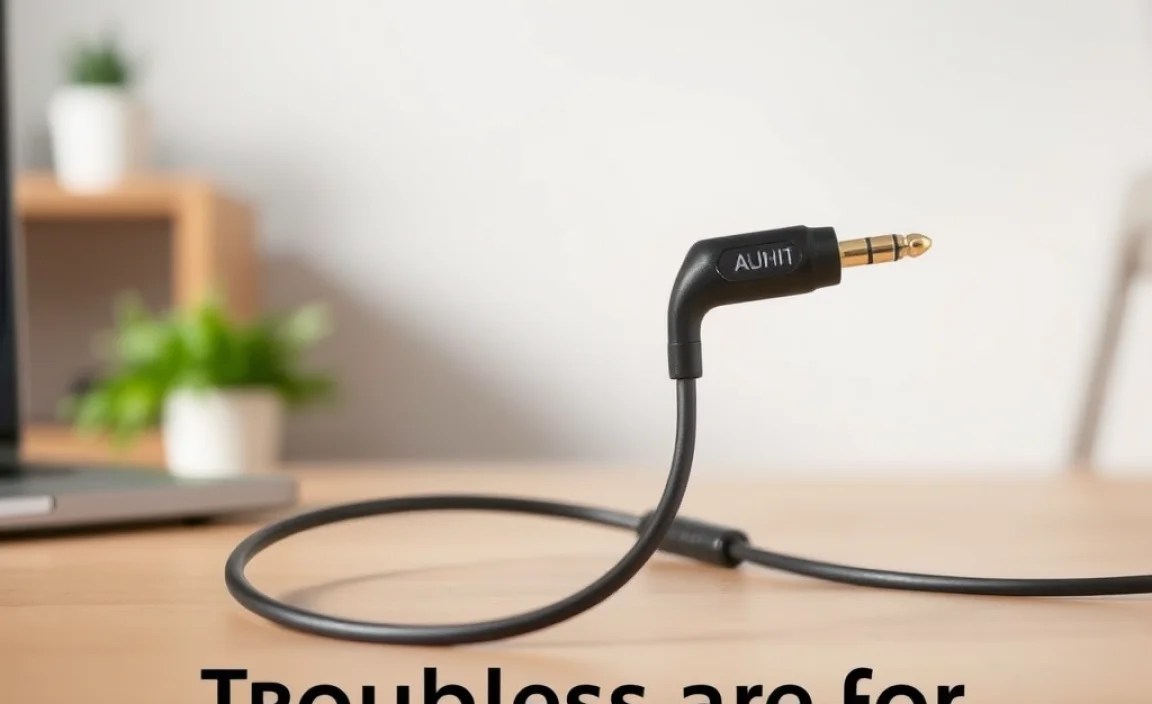
At its core, an aux cable (short for auxiliary) is a standard 3.5mm audio cable. It typically has a 3.5mm connector on each end. Think of it as a direct conduit for analog audio signals. When you plug one end into your audio source (like a phone, computer, or car stereo) and the other into your headphones, it bypasses any wireless technology and sends sound directly through the wire.
Does My Bluetooth Headphone Have an Aux Port?
Most modern Bluetooth headphones are designed with versatility in mind. A significant number of them include a 3.5mm aux input port. This is usually a small, circular jack on the earcups or the housing of the headphones. It’s often positioned near the charging port or the power button. If you’re unsure, check the product manual or specifications online. If your headphones have this port, congratulations! You’re already halfway there.
If your headphones don’t have an aux port built-in, don’t despair just yet! There are Bluetooth transmitters and receivers on the market that can work with your existing audio devices. We’ll touch on those later, but for now, let’s focus on headphones that do have the aux input.
The Anatomy of a 3.5mm Aux Cable
Standard 3.5mm aux cables are incredibly common. You’ll find them connecting everything from MP3 players to car stereos. For headphones, you’ll most frequently encounter two types of aux cables:
- 3.5mm to 3.5mm Stereo Cable: This is the most common type. Both ends have a 3.5mm connector, designed to plug into two standard audio jacks.
- 3.5mm to Dual 1/4″ Mono Cables: Less common for headphones but found in some audio equipment, where one end is 3.5mm and the other splits into two larger 1/4″ connectors for stereo output on specific instruments or amplifiers.
For connecting your Bluetooth headphones to a standard audio source, the 3.5mm to 3.5mm stereo cable is what you’ll need.
Connecting Your Bluetooth Headphones Via Aux Cable: A Step-by-Step Guide
Ready to make the connection? It couldn’t be simpler. Follow these steps, and you’ll be enjoying your audio through a reliable wired connection in no time.
Step 1: Gather Your Gear
You’ll need:
- Your Bluetooth headphones with an aux input port.
- A 3.5mm to 3.5mm aux cable. (Ensure it’s in good condition – frayed or damaged cables can cause sound issues.)
- The audio source device (e.g., laptop, car, MP3 player) with a 3.5mm headphone or aux output jack.
Step 2: Power Off Bluetooth (Optional but Recommended)
While many headphones automatically switch to wired when an aux cable is plugged in, it’s often best practice to turn off the Bluetooth on your headphones. This prevents potential conflicts or the device trying to maintain a wireless connection when you intend to use the wired one. You can usually do this by holding down the power button until the lights indicate it’s off, or by going into the headphone’s settings on your connected device if it’s still paired.
Step 3: Locate the Aux Ports
Find the 3.5mm aux input port on your headphones. It’s typically a small circular hole. Then, locate the headphone or aux output jack on your audio source device. This is usually marked with a headphone icon or labeled “Audio Out.”
Step 4: Connect the Aux Cable
- Insert one end of the 3.5mm aux cable firmly into the aux input port on your headphones.
- Insert the other end of the 3.5mm aux cable firmly into the headphone/aux output jack on your audio source device.
You should feel a satisfying ‘click’ as the connectors seat properly. A secure connection is crucial for clear sound.
Step 5: Play Your Audio
Turn on your audio source device and start playing music, a podcast, or any audio content. The sound should now be routed through the aux cable directly to your headphones.
Step 6: Adjust Volume
Control the volume using the volume controls on your audio source device. In most cases, the volume controls on the headphones themselves will be disabled when using the aux cable.
Troubleshooting Common Aux Cable Issues

Even with this simple connection, hiccups can happen. Here are some common problems and how to fix them:
| Problem | Possible Cause | Solution |
|---|---|---|
| No Sound | Loose connection, damaged cable, volume muted on source, headphones powered off | Ensure cable is fully plugged in on both ends. Test cable with another device. Check source volume. Make sure headphones can receive audio (even if Bluetooth is off, some still need power for aux). |
| Intermittent Sound / Crackling | Damaged aux cable, debris in port, headphones not fully seated | Inspect cable for damage, try a new cable. Gently clean ports with compressed air. Re-seat the cable. |
| Sound Only in One Ear | Faulty aux cable (most common), damaged headphone jack | Test your aux cable with a different set of headphones (or plug it into a speaker). If sound is still only in one ear, the cable is likely the issue. If the sound is fine with other headphones, the headphone’s aux port might be damaged. |
| Headphones Not Being Recognized (e.g., on a PC) | Incorrect audio output selected, driver issues (rare for aux) | On PCs, right-click the speaker icon in the taskbar and select your “Headphones” or “Line Out” as the playback device. Ensure it’s not set to speakers. |
A Note on “Wired” Mode and Headphone Features
When you use an aux cable, you are essentially turning your Bluetooth headphones into regular wired headphones. This means:
- Microphone functionality might be limited or unavailable, as it often relies on Bluetooth for data transmission. Some headphones have a TRRS (Tip-Ring-Ring-Sleeve) jack that supports microphones, but this isn’t universal.
- Active Noise Cancellation (ANC) and other electronic features typically require the headphones to be powered on. While the audio signal comes via wire, the headphone’s internal processing for ANC still needs power.
- Onboard controls (volume up/down, track skip) usually do not work when using the aux connection. You’ll need to control playback and volume on your source device.
When Your Headphones Don’t Have an Aux Port: Bluetooth Transmitters & Receivers
What if your favorite wireless headphones are one of the few that don’t sport that handy aux jack? Or what if the device you want to connect to doesn’t have an aux output, but does have Bluetooth? This is where Bluetooth transmitters and receivers come into play. They act as bridges, converting audio signals between different connection types.
Bluetooth Receivers (RX)
A Bluetooth receiver takes an audio signal wirelessly via Bluetooth and outputs it through a wired connection (usually an aux port).
- How it works: You plug the receiver into your headphones’ aux port (if they have one). Then, you pair your phone or audio source to the receiver via Bluetooth. The receiver then sends the audio to your headphones wirelessly. This is less common for using Bluetooth headphones, but useful if you have non-Bluetooth headphones you want to make Bluetooth.
- Use Case: Making your wired headphones wireless.
Bluetooth Transmitters (TX)
A Bluetooth transmitter takes a wired audio signal and broadcasts it wirelessly via Bluetooth.
- How it works: You plug the transmitter into the headphone jack (aux output) of your non-Bluetooth device (like a TV or older computer). The transmitter then broadcasts the audio signal via Bluetooth, which your Bluetooth headphones can pick up and connect to.
- Use Case: Sending audio from a non-Bluetooth source to your Bluetooth headphones. This effectively mimics a wireless connection where one doesn’t exist on the source device.
Bluetooth Transmitter/Receiver Combos (TX/RX)
These handy devices can do both! They can act as a transmitter or a receiver, offering maximum flexibility. They are often ideal for travel or for households with a mix of audio devices.
What to Look for in a Transmitter/Receiver:
- Bluetooth Version: Newer versions (like Bluetooth 5.0 or higher) offer better range, stability, and lower power consumption.
- Codec Support: Look for support for codecs like aptX, aptX HD, or LDAC if you want higher fidelity audio, especially for transmitters connecting to headphones.
- Latency: For watching videos or gaming, low latency is crucial. Transmitters/receivers supporting aptX Low Latency (aptX LL) are ideal here.
