
An aux cable with a built-in microphone is a simple yet powerful upgrade for your headphones. It transforms standard headphones into a versatile headset, perfect for calls, gaming, and voice notes. This guide breaks down why it’s an essential accessory and how to choose and use one effectively, even if you’re new to audio tech.
Aux Cable with Mic for Headphones: Your Essential Upgrade

Hey there, fellow audio explorers! Edward Cavitt here from headphonehorizon. Ever found yourself with a fantastic pair of headphones, but wishing you could use them for more than just listening? Maybe you’re trying to take a call, chat with your gaming squad, or record a quick voice memo, only to realize your headphones lack a mic. It’s a common frustration, and one that has a wonderfully simple solution: an aux cable with a built-in microphone.
This little cable is an absolute game-changer, transforming your beloved headphones into a fully functional headset without needing to buy a whole new audio setup. Let’s dive into why this upgrade is so essential and how you can easily make the switch to crystal-clear communication and enhanced audio experiences.
Why Upgrade to an Aux Cable with a Mic?

Think of your favorite headphones. They provide immersive sound for your music, podcasts, and movies. But when a call comes in, or you want to jump into an online game, you’re often stuck fumbling for a separate microphone or switching to a less-than-ideal headset.
An aux cable with a mic seamlessly bridges this gap. It’s about maximizing the potential of the gear you already love. Instead of just passively listening, you gain the ability to actively communicate, creating a more interactive and convenient audio experience.
It’s more than just convenience; it’s about versatility. Imagine being able to:
- Take calls on your computer or tablet without removing your comfortable headphones.
- Engage in online gaming with clear voice chat directly through your preferred headphones.
- Record voice notes or dictate text with ease.
- Use your headphones with devices that only have a single 3.5mm TRRS jack (common on many laptops and smartphones).
This upgrade is particularly beneficial for anyone who uses their headphones for a mix of listening and communication. It offers a budget-friendly way to get headset functionality without compromising on headphone sound quality.
Understanding Your Aux Cable: The Jack Matters

Before we get into the specifics of mic-equipped cables, it’s crucial to understand the standard connectors. Most headphones and audio devices use a 3.5mm jack, also known as a 1/8-inch jack. The number of “rings” on the plug tells you what kind of signal it can carry:
| Connector Type | Number of Rings (Conductors) | Function | Common Devices |
|---|---|---|---|
| TS (Tip-Sleeve) | 1 | Mono Audio (typically unbalanced) | Older mono instruments, some microphones |
| TRS (Tip-Ring-Sleeve) | 2 | Stereo Audio (unbalanced) | Standard headphones, line-out jacks on audio equipment |
| TRRS (Tip-Ring-Ring-Sleeve) | 3 | Stereo Audio + Microphone (or Video) | Smartphones, modern laptops, tablets, gaming consoles |
For an aux cable to work with a microphone for your headphones, you’ll almost always be looking for a TRRS connector. Your existing headphones likely have a TRS plug (two rings) for stereo audio. A TRRS aux cable is designed to split or combine these signals effectively. It provides the stereo audio channels (left and right ear) and also includes a separate channel for the microphone input.
How Does an Aux Cable with a Mic Work?
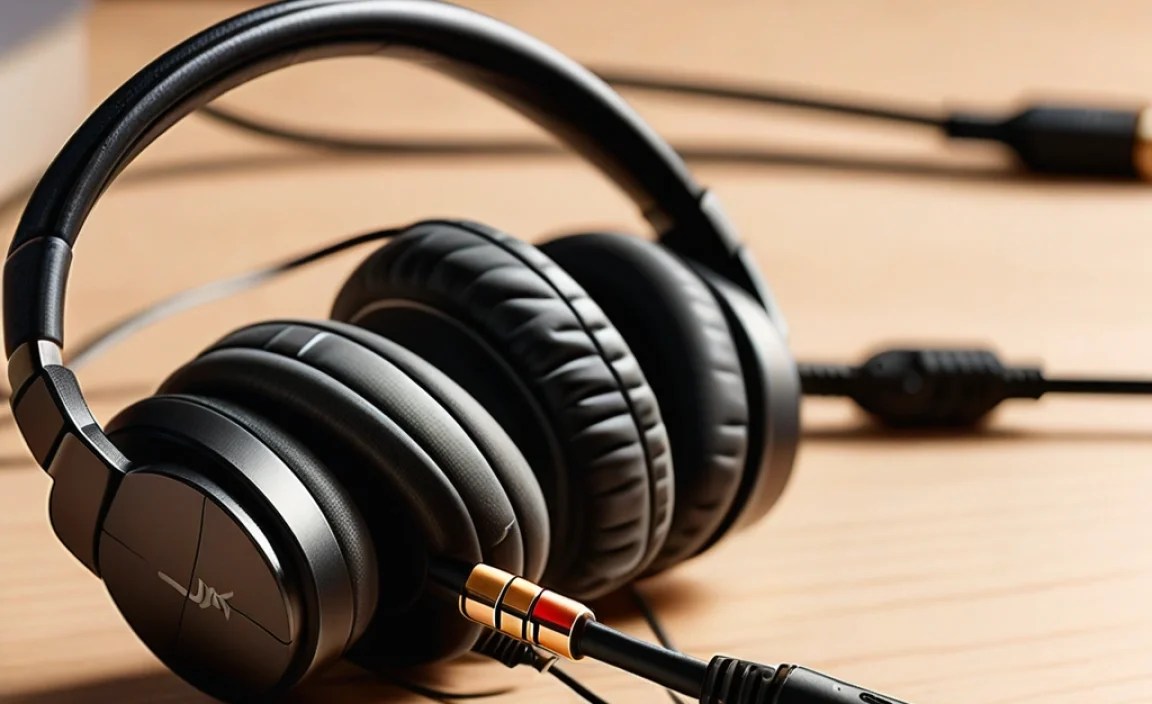
The magic lies in the TRRS connector. On a standard TRS stereo headphone plug, the tip carries the left audio channel, the ring carries the right audio channel, and the sleeve is the common ground. A TRRS plug adds a second ring, which is dedicated to carrying the microphone signal from your device.
An aux cable with a mic typically has two main configurations:
- Single 3.5mm TRRS Plug to Dual 3.5mm TRS Plugs: This is very common for PC use. One TRRS plug connects to your computer’s headset port (which combines microphone and headphone jacks), and it splits into two TRS plugs: one for your headphone’s audio and another mic plug to connect to the microphone input port on your computer.
- Single 3.5mm TRRS Plug to Single 3.5mm TRRS Plug: This type is designed for devices that have a unified headset jack, like most smartphones, tablets, and newer laptops. The single TRRS plug on the cable intelligently handles both the outgoing audio to your headphones and the incoming audio from the microphone.
Essentially, the cable acts as an adapter and conduit. It routes the audio signals from your device to your headphones and, critically, routes the audio captured by the inline microphone back to your device via the dedicated mic channel on the TRRS connector.
Choosing the Right Aux Cable with a Mic: Key Features to Consider
Not all aux cables with mics are created equal. Here’s what to look for to ensure you get the best upgrade for your setup:
1. Connector Compatibility (TRRS is Key!)
As discussed, ensure the cable you’re buying is designed for a TRRS connection if your target device has a single headset jack. If you’re specifically connecting to a PC with separate headphone and microphone ports, you’ll need a TRRS to dual TRS adapter cable.
2. Microphone Quality
While the primary function might be to add a mic, the quality of that microphone can vary significantly. Look for:
- Type of Mic: Some cables have small, discreet inline microphones. Others might have a boom mic that extends closer to your mouth. For general use, an inline mic is often sufficient. For gaming or more serious voice work, a slightly larger or better-positioned mic might be preferable.
- Features like Noise Cancellation: Higher-end cables might include features to reduce background noise, ensuring your voice comes through more clearly.
3. Cable Length and Durability
Consider where you’ll be using the cable. Do you need extra length to reach your computer tower under a desk? Or is a shorter cable better to avoid tangles? Also, look for robust materials. Braided cables and reinforced connectors are generally more durable and tangle-resistant than standard plastic ones.
4. Inline Controls
Many aux cables with mics come with an inline remote. These can be incredibly handy for:
- Answering or ending calls without touching your device.
- Playing, pausing, or skipping audio tracks.
- Adjusting volume.
- Activating voice assistants (like Siri or Google Assistant).
Check if the controls are compatible with your operating system (iOS, Android, Windows, macOS).
5. Plug Type for Headphones
Most headphones use a 3.5mm TRS plug. The aux cable you purchase should terminate in a connector that plugs into your headphones. Some cables are designed to be a direct replacement for your original aux cable, meaning they’ll have a standard 3.5mm plug on one end to connect into the headphones themselves.
6. Brand Reputation and Reviews
Stick with reputable brands known for their audio accessories. Reading user reviews can offer valuable insights into real-world performance, durability, and microphone clarity.
Step-by-Step Guide: Connecting Your Aux Cable with a Mic
Getting your new aux cable up and running is usually straightforward. Here’s a general guide:
Step 1: Identify Your Device’s Audio Ports
Take a look at your computer, smartphone, or tablet. Do you see a single port labeled with a headset icon (like a headphone with a microphone)? Or are there separate ports for headphones and a microphone?
- Single Headset Port (TRRS): You’ll likely need a cable with a TRRS plug on one end.
- Separate Headphone and Mic Ports (TRS): You’ll likely need a cable that’s TRRS on one end (for your headphones) and splits into two TRS plugs (one for headphones, one for mic) or a TRRS to Dual TRS adapter.
Step 2: Connect the Cable to Your Headphones
If your new aux cable has a standard 3.5mm TRS plug on one end, this is what you’ll insert into the audio-out jack on your headphones. Make sure it’s fully seated for a solid connection.
Step 3: Connect the Cable to Your Device
- For single headset ports: Plug the TRRS end of the cable into the unified headset jack on your phone, laptop, or tablet.
- For separate ports (PC): Plug the TRRS end into your headphone jack. Then, plug the two separate TRS connectors into their respective ports – the green one typically for headphones and the pink one for the microphone.
Step 4: Test the Microphone
The moment of truth! Once connected, you’ll need to test the microphone. This often involves going into your device’s settings or using an app.
On a smartphone/tablet:
- Open the voice recorder app.
- Tap record and speak into the inline microphone.
- Play back the recording to check the sound quality.
On Windows PC:
- Search for “Sound settings” in the Windows search bar and open it.
- Under the “Input” section, you should see your microphone listed (it might be named “External Microphone,” “Headset Microphone,” or something similar). Select it as your default input device.
- Click on “Device properties” and then “Test your microphone.” Speak, and you should see the meter move.
On macOS:
- Go to System Preferences > Sound.
- Click on the “Input” tab.
- Your microphone should appear in the list. Select it and speak into it; the “Input volume” meter should respond.
Step 5: Test the Audio
Play some music or a video to ensure the stereo audio is coming through correctly to both your left and right earcups.
Troubleshooting Common Issues
While usually plug-and-play, you might encounter minor hiccups. Here are solutions for common problems:
- No Microphone Detected:
- Ensure the cable is fully plugged into both your headphones and device.
- Check your device’s audio input settings to make sure the correct microphone is selected as the default.
- Try the cable on a different device to see if the issue persists.
- Restart your device.
- Mic Works, But Audio Doesn’t (or vice versa):
- Check if you’re using the correct cable type (TRRS vs. dual TRS).
- Make sure you haven’t accidentally selected the wrong audio device in your system settings (e.g., something other than your headphones for output).
- Inspect the cable and connectors for any visible damage.
- Poor Audio/Mic Quality:
- Ensure there’s no debris in the headphone jack or the device’s port.
- Position the inline mic closer to your mouth, if possible.
- Check for software updates for your device’s audio drivers.
- Inline Controls Not Working:
- Some inline controls are designed for specific operating systems (e.g., Apple vs. Android vs. Windows). Check the product description for compatibility.
- Ensure the cable is fully seated.
For more in-depth troubleshooting, you can explore resources like Microsoft’s audio troubleshooting guides or Apple’s support pages on audio issues, which often cover fundamental steps applicable to most devices.
Can I Use ANY Aux Cable with a Mic?
No, not just any cable will work. As we’ve covered, the crucial factor is the connector type and wiring. A standard aux cable is usually TRS (Tip-Ring-Sleeve) and only carries stereo audio. To carry both stereo audio and a microphone signal, you need a TRRS (Tip-Ring-Ring-Sleeve) cable, or a specialized adapter if your device has separate mic/headphone jacks.
When purchasing, explicitly look for “aux cable with microphone,” “headset cable,” or “TRRS audio cable.” Trying to use a standard aux cable with a separate microphone will not work without a dedicated interface or adapter that can properly route both signals.
Making the Smart Purchase: What to Consider Before Buying
Before you click “buy,” consider these practical points:
1. What Devices Will You Use It With?
If it’s primarily for your PC with separate ports, look for the TRRS to dual TRS type. For your smartphone or modern laptop, a single TRRS to TRRS cable is usually the way to go.
2. What is Your Budget?
You can find basic aux cables with mics for a few dollars, while premium options with enhanced features can go up to $30 or more. For everyday use, a mid-range option often strikes the best balance between quality and price.
3. What’s Your Priority?
Is microphone clarity the most important thing? Or is it the inline controls for media playback? Knowing your priorities will help you narrow down product options.
4. Durability Needs
If you’re constantly on the move or prone to cable snags, invest in a more robust, possibly braided cable with reinforced stress points.
Table: Common Scenarios for Aux Cables with Mic
| Scenario | Recommended Cable Type | Key Features to Look For |
|---|---|---|
| Laptop/PC with single headset jack | TRRS to TRRS | Inline mic, media controls |
| Desktop PC with separate mic/headphone jacks | TRRS to Dual TRS splitter cable | Clear mic pickup, good audio isolation |
| Smartphone/Tablet for calls | TRRS to TRRS | Inline controls for calls, durable build |
| Nintendo Switch/PS5/Xbox Series X/S Controllers | TRRS to TRRS | Low latency, compatible mic |
Conclusion: A Small Upgrade, a Big Difference
As you can see, an aux cable with a microphone is far more than just a simple cable; it’s an essential upgrade that unlocks the full potential of your existing headphones. It’s an accessible, affordable, and incredibly effective way to enhance your communication capabilities, whether you’re working remotely, dominating in an online game, or simply want more flexibility from your everyday audio gear. Don’t let your fantastic headphones be limited by a lack of a microphone. With a little knowledge about connectors and what to look for, you can easily find the perfect cable to transform your listening experience into a truly interactive one. Happy listening, and happy talking!
Frequently Asked Questions (FAQ)
Q1: Will this work with my iPhone/Android phone?
A1: Yes, most modern smartphones (especially those without a traditional headphone jack) use a single TRRS port, making them ideal for a TRRS aux cable with a microphone. Just ensure the cable you choose specifically mentions smartphone compatibility or has a TRRS connector.
Q2: Can I use my gaming headset’s detachable mic cable as a regular aux cable?
A2: Sometimes, but it depends on the cable’s design. If your gaming headset’s mic cable is also wired for stereo audio and uses a TRRS connector, it might work. However, many dedicated gaming mic cables are proprietary and won’t function as a standard audio-out aux cable.
Q3: Is the microphone quality good enough for professional use?
A3: For casual calls, online meetings, and general communication, the microphone quality on most aux cables with mics is perfectly adequate. However, for professional voiceovers, serious podcasting, or broadcast-quality audio, you would typically need a dedicated USB or XLR microphone.
