
Quick Summary: This guide demystifies the aux cord for your headphones. Learn what it is, why it’s important, how to use it effectively, troubleshoot common issues, and make informed choices when buying one. Get clear, simple instructions to enhance your listening experience.
Aux For Headphones: Your Essential Guide
Hey there, fellow music lovers and podcast enthusiasts! Edward Cavitt here, your guide from headphonehorizon. If you’ve ever plugged headphones into a device and wondered about that little round port, you’re in the right place. That port, my friends, is often an aux input, and the cable you use is an aux cord. It’s the unsung hero of wired audio, connecting your favorite headphones or speakers to your music source. But what exactly is it, and how can you make sure you’re getting the best sound possible? Let’s dive in and unlock the simple magic of the aux connection. No overly technical stuff, just clear, straightforward advice to help you enjoy your audio experience to the fullest!
What Exactly is an Aux Connection?

The term “aux” is short for auxiliary, meaning “providing or supporting something, but in a secondary or supplementary way.” In the world of audio, an aux connection refers to a standard analog audio signal transmission. Think of it as a direct pipeline delivering sound from one device to another.
The most common type of aux connector you’ll encounter for headphones is the 3.5mm jack. This is that familiar round plug, about the size of a pencil eraser, found on the end of many headphone cables. Devices that have an aux input port will also feature this 3.5mm opening, ready to accept the plug.
The Humble 3.5mm Jack: A Universal Standard
For decades, the 3.5mm aux jack has been the go-to for connecting headphones. You’ll find them on:
- Smartphones and tablets (though increasingly less common on newer models)
- Laptops and desktop computers
- Car stereos
- Portable speakers
- Older MP3 players
- Gaming consoles
The beauty of the 3.5mm aux is its near-universal compatibility. As long as both your device and your headphones have this port, you’re usually good to go. This simple plug carries both the left and right audio channels, allowing for stereo sound.
Why Do We Still Need Aux Cables?
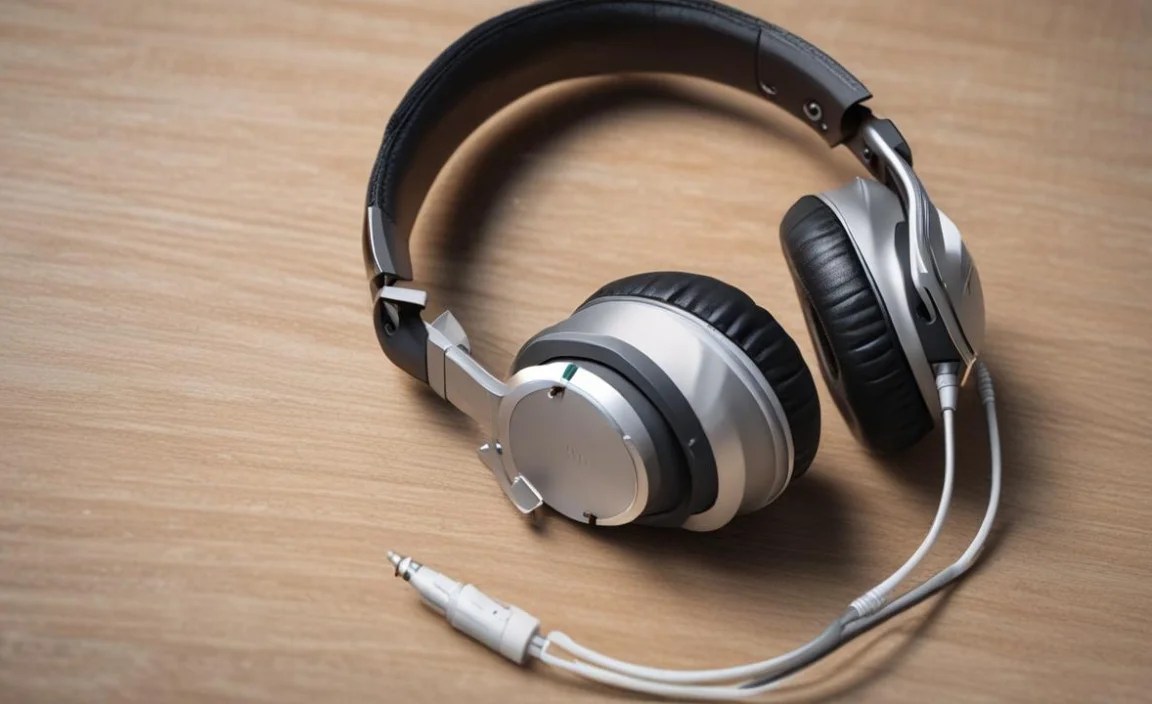
You might be wondering, with all the wireless Bluetooth options out there, why bother with aux cords? Well, aux connections still hold a special place for several solid reasons:
- Reliability: Wired connections are generally more stable than wireless. You don’t have to worry about Bluetooth pairing issues, signal drops, or interference.
- Sound Quality: For audiophiles, a direct wired connection can sometimes offer superior sound quality. There’s no compression or digital-to-analog conversion happening in the same way as Bluetooth, which can preserve more of the original audio detail.
- No Batteries Needed (for the connection): Your headphones might have batteries for active noise cancellation, but the aux connection itself doesn’t drain power from your source device like Bluetooth can.
- Universality (Still!): Many situations still rely on aux. Think of older car stereos, public announcement systems, or even certain professional audio equipment.
- Simplicity: Plug it in, and it works. No fussing with Bluetooth menus or updates.
While Bluetooth is fantastic for convenience, the aux cable remains a steadfast and often superior option for pure audio fidelity and consistent performance. For a deeper dive into the science behind audio transmission, you might find resources on digital signal processing from organizations like the Audio Engineering Society (AES) interesting, though don’t worry, we’ll keep things simple here!
How to Use Your Aux Cable Effectively
Using an aux cable is wonderfully straightforward. It’s really about making the right connections and ensuring a clean signal.
Step 1: Identify the Ports
First, find the aux port on your device. It’s usually marked with a headphone symbol ( ) or an icon that looks like a microphone with a headphone on top (for combined mic/headphone jacks). On your headphones, locate the end of the cable that plugs into the device. This is your aux plug.
Step 2: Connect the Cable
Gently insert the aux plug of your headphones into the aux port on your audio source (phone, laptop, car stereo, etc.). You should feel a slight click or resistance as it seats properly.
Step 3: Select Your Audio Source (If Necessary)
Most devices will automatically switch to headphone output when an aux cable is plugged in. However, on some devices, especially car stereos or older stereos, you might need to manually select “Aux” or “Line-In” as the input source using the device’s buttons or menu.
Step 4: Adjust Volume
Start with the volume on your device at a low setting. Slowly increase it to a comfortable listening level. Always be mindful of your hearing. The National Institute on Deafness and Other Communication Disorders (NIDCD) recommends keeping listening volumes at safe levels to prevent noise-induced hearing loss.
Step 5: Enjoy Your Audio!
Play your music, podcast, or video. You should now be hearing sound through your headphones.
Types of Aux Cables and Connectors

While the 3.5mm jack is king, there are a few variations and related connectors you might encounter:
3.5mm (1/8 inch) Connectors
This is the standard. You’ll see them on the cable ends of most headphones designed for consumer electronics. The plug itself can have different configurations based on how many “rings” it has:
- TS (Tip-Sleeve): Mono audio, typically used for instruments like guitars. Not common for headphones.
- TRS (Tip-Ring-Sleeve): Stereo audio (left and right channels). This is most common for headphones.
- TRRS (Tip-Ring-Ring-Sleeve): Stereo audio PLUS a microphone channel. This is what you find on smartphone headsets that allow you to talk and listen.
Key takeaway: If your headphones have a built-in microphone or remote control, they likely use a TRRS plug.
Other Aux-Related Connectors
- 6.35mm (1/4 inch) Jack: This is a larger connector, often found on professional audio equipment like home stereo receivers, amplifiers, and electric guitars. You can use a 3.5mm to 6.35mm adapter to connect your standard headphones to these devices.
- RCA Connectors: These are typically red and white (or red and black) plugs, commonly used for connecting home stereo components like CD players or receivers. You can find cables with a 3.5mm jack on one end and RCA plugs on the other.
Troubleshooting Common Aux Issues
Even the simplest things can sometimes go sideways. Here are a few common problems and their easy fixes:
1. No Sound or Intermittent Sound
- Check the Connection: Ensure the aux plug is fully inserted into both the device and your headphones (if they have a detachable cable). Try unplugging and replugging.
- Test Another Cable: If possible, try a different aux cable. This helps determine if the issue is with the cable itself.
- Test Another Device: Plug your headphones into a different audio source. If they work there, the problem is with the original device’s aux port.
- Check Device Volume and Mute: Make sure the volume on your source device isn’t turned off or set too low. Also, check if the device is accidentally muted.
- Inspect the Ports: Look inside the aux ports for any dust, lint, or debris that might be preventing a clean connection. A gentle blast of compressed air or a careful clean with a dry cotton swab can help. Here’s a quick visual guide on cleaning ports safely.
2. Static or Crackling Sound
- Cable Damage: This is often a sign of a damaged aux cable, especially if the sound cuts out when you move the cable. The internal wires might be frayed.
- Loose Connection: Sometimes, a slightly loose connection can cause static. Ensure it’s seated firmly.
- Interference: While less common with physical aux cables than wireless, sometimes proximity to strong electrical devices can cause minor interference.
- Dirty Contacts: The metal contacts on the aux plug or inside the port might be dirty. Try cleaning them gently as described above.
3. Only Hearing Sound in One Ear (Stereo Issues)
- Cable: This almost always points to a damaged aux cable. The wire carrying one of the audio channels (left or right) is likely broken.
- Headphone Jack: The aux port on your device might be damaged, specifically on the portion that contacts one of the rings on the plug.
- Headphone Internal Wiring: In rare cases, the wiring inside the headphones themselves could be faulty.
4. Microphone Not Working (with TRRS cable)
- Port Type: Ensure the device you’re plugging into supports TRRS headsets. Many older computers have separate headphone and microphone ports (TRS), and a TRRS plug won’t work correctly with the microphone. You might need an adapter in this case.
- Software Settings: Check your device’s audio input settings to make sure the correct microphone is selected and not muted.
- Cable Damage: Like stereo sound, microphone functionality can be affected by cable damage.
Making Smart Aux Cable Purchases
When you need a new aux cable, choosing the right one is simple:
Key Features to Consider
- Length: How far do you need to be from your audio source? A shorter cable (e.g., 3ft) is great for portability, while a longer one (e.g., 6ft or more) offers more freedom.
- Connector Type: Do you need standard stereo (TRS) or stereo with a mic (TRRS)? Most headphones come with the correct type, but if you’re buying a replacement, be sure.
- Durability: Look for cables with reinforced connectors and braided sheathing. These tend to be more resistant to tangling and wear.
- Brand Reputation: Stick with reputable brands. While you don’t need to break the bank, inexpensive, no-name brands are more likely to fail quickly.
Aux Cable vs. Bluetooth Adapter
Sometimes, your device might lack an aux port (like many modern smartphones). In these cases, you have two main options:
- USB-C/Lightning to 3.5mm Adapter: This small dongle plugs into your phone’s charging port and provides a 3.5mm aux output.
- Bluetooth Transmitter/Receiver: This device connects to your audio source via aux and then transmits audio wirelessly to your Bluetooth headphones. Conversely, a receiver can take a Bluetooth signal and output it via aux to wired speakers.
For the absolute simplest setup and often best sound quality (if your device has the port), a direct aux connection is hard to beat.
A Quick Glance: Aux Cable Specs
Here’s a handy comparison of common aux connectors:
| Connector Type | Common Use | Channels | Typical Devices |
|---|---|---|---|
| 3.5mm TRS | Headphones | Stereo (Left/Right) | Laptops, older phones, MP3 players, car stereos |
| 3.5mm TRRS | Headsets (with mic) | Stereo (Left/Right) + Microphone | Smartphones, tablets, modern laptops |
| 6.35mm TRS | Home Audio, Instruments | Stereo (Left/Right) | Amps, receivers, guitars, pianos |
Maintaining Your Aux Cables
With a little care, your aux cables can last a long time:
- Avoid Yanking: Always pull the plug itself, not the cable, to disconnect.
- Coil Gently: Don’t wrap the cable tightly around your device. Use loose loops to avoid stressing the wires.
- Protect Connectors: Keep the plugs clean and free from dust when not in use.
- Storage: Store cables in a pouch or a dedicated cable organizer rather than stuffed in a pocket or bag where they can get knotted or damaged.
When Bluetooth Might Be a Better Choice
While we love aux, let’s be fair. Bluetooth shines in certain situations:
- No headphone jack: If your phone or tablet has completely ditched the 3.5mm port, Bluetooth is the primary way to connect most headphones.
- Tangled-free freedom: For activities like working out or moving around your home, the lack of wires is a huge advantage.
- Convenience over pristine audio: For casual listening, podcasts, or watching videos, the slight audio differences are often imperceptible to most listeners.
- Multi-device connectivity: Many modern Bluetooth headphones can connect to two devices simultaneously.
Ultimately, having both options available gives you the best of both worlds! Many headphones offer both aux input and Bluetooth.
Frequently Asked Questions About Aux for Headphones
Q1: Can I use any 3.5mm aux cable with my headphones?
Generally, yes! If your headphones have a 3.5mm plug and your device has a 3.5mm aux port, they should work together. The main difference to watch for is between TRS (stereo only) and TRRS (stereo + mic). If your headphones have a mic and remote, they are likely TRRS, and you’ll need to ensure the aux port on your device supports TRRS for the mic to function. For just listening, TRS and TRRS plugs are usually interchangeable.
Q2: My aux cable seems to be broken. Can I fix it?
Minor issues like dirt in the connector can often be fixed with cleaning. However, if the cable is frayed or sound is cutting in and out, it’s usually best to replace it. Aux cables are relatively inexpensive, and trying to repair them can be fiddly and might not yield reliable results. For DIY enthusiasts, there are tutorials on soldering new connectors, but for most users, a new cable is the simplest solution.
Q3: What’s the difference between an aux cable and a USB-C/Lightning audio adapter?
An aux cable is a direct analog audio connection using a 3.5mm plug. A USB-C or Lightning audio adapter is a digital-to-analog converter that plugs into your device’s charging port (USB-C or Lightning) and outputs an analog signal via a 3.5mm aux jack. It’s essentially a small, external sound card for devices that have removed the headphone jack.
Q4: My car stereo has an aux input. Can I use my phone’s audio through it?
Yes! If your car stereo has an “AUX” or “Line In” port (usually a 3.5mm jack), you can connect your phone or any audio player with a headphone jack or a USB-C/Lightning adapter using a standard 3.5mm aux cable. Make sure to select “AUX” as the input source on your car stereo. Note that this will play your phone’s audio through the car speakers, but it won’t charge your phone or control your phone’s music playback via the car’s dashboard controls (unless your car stereo has advanced features like Android Auto or Apple CarPlay that also use the USB connection).
Q5: Do aux cables degrade sound quality?
A high-quality aux cable in good condition generally does not degrade sound quality in a noticeable way for most listeners. The sound quality is primarily determined by the audio source and your headphones. However, a damaged or poorly shielded cable can introduce noise or distortion. With analog signals, factors like cable length and interference can play a role, but for typical consumer use, a good aux cable provides a very clean signal.
Conclusion
There you have it! The humble aux connection is a powerful and reliable way to experience your audio. From understanding its core function to troubleshooting those occasional hiccups and
