
Quick Summary: Enhance your iPhone audio experience with Beats headphones. This guide simplifies choosing, connecting, and caring for your Beats, ensuring optimal sound quality and seamless integration with your Apple device. Perfect for beginners seeking clear, powerful audio on the go.
Beats Audio Headphones for iPhone: Essential Sound
Hey there, audio adventurers! Edward Cavitt here from Headphone Horizon, ready to dive into a topic that brings together two giants of personal tech: Beats headphones and your trusty iPhone. If you’ve just snagged a pair of Beats or are thinking about it, you’re in for a treat. Beats are famous for their bold sound and stylish designs, and when paired with an iPhone, they can elevate your music, podcasts, and calls to a whole new level. We’ll walk through everything you need to know, from picking the perfect pair to keeping them sounding fantastic. Let’s unlock that essential sound together!
Why Choose Beats Audio Headphones for Your iPhone?

For many iPhone users, the choice of headphones is more than just about listening; it’s about an experience. Beats Audio, now a part of Apple, offers a synergy that’s hard to beat (pun intended!). But what makes them a particularly good match for your iPhone?
Deep Bass, Clear Highs: The Signature Sound
Beats are renowned for their bass-heavy sound profile, which many listeners find incredibly satisfying, especially for genres like hip-hop, EDM, and pop. Alongside that punchy low-end, they also deliver crisp highs and clear mids. This balanced (though bass-forward) sound ensures you can enjoy the full spectrum of your favorite tracks.
Seamless Apple Integration
As an Apple-owned brand, Beats headphones offer an unparalleled level of integration with iPhones. This means:
- Effortless Pairing: Most Beats models connect via Bluetooth, and for iPhones, this process is incredibly simple. Just turn on your Beats near your iPhone, and a pairing prompt will appear.
- iCloud Sync: Once paired with one Apple device, your Beats can often automatically connect to other devices like your iPad or Mac signed into the same iCloud account.
- Battery Status: You can easily check the battery level of your Beats directly on your iPhone’s screen, usually via a widget or within Bluetooth settings.
- Find My Network: Select Beats models can be tracked using Apple’s Find My network, offering peace of mind if you misplace them.
Style Meets Durability
Beats headphones don’t just sound good; they look good too. With a range of vibrant colors and sleek designs, they’re a fashion statement as much as an audio accessory. Beyond aesthetics, they are built with robust materials designed to withstand daily use.
Choosing Your Perfect Beats for iPhone

The Beats lineup offers a variety of headphone types, each suited for different needs and preferences. Here’s a look at some popular options and how they might fit your iPhone lifestyle.
Over-Ear Beats
These are your classic, comfortable headphones that fully enclose your ears. They often provide superior noise isolation and a more immersive listening experience.
- Beats Studio Pro: Apple’s current flagship noise-canceling over-ear headphones. They offer active noise cancellation (ANC), transparency mode, Spatial Audio support, and premium comfort. Perfect for long listening sessions, travel, and focused work.
- Beats Studio3 Wireless: A long-standing favorite, the Studio3 offers Pure Adaptive Noise Cancellation (Pure ANC), a comfortable fit, and extended battery life. Still a solid choice if you’re looking for effective ANC.
On-Ear Beats
These rest directly on your ears. They are generally more portable and less bulky than over-ear models but may offer less passive noise isolation.
- Beats Solo3 Wireless: A very popular, compact option. The Solo3 boasts a foldable design, impressive battery life (up to 40 hours), and the Apple W1 chip for easy pairing. Great for everyday commutes and casual listening.
True Wireless Earbuds
For ultimate portability and freedom of movement, true wireless earbuds are the way to go. They offer compact charging cases and no wires whatsoever.
- Beats Fit Pro: Designed for active lifestyles, these feature wingtips for a secure fit, Active Noise Cancellation (ANC), Transparency Mode, and Spatial Audio. They are water and sweat resistant, making them ideal for workouts.
- Beats Studio Buds +: These offer enhanced Active Noise Cancellation and Transparency Mode compared to their predecessors, improved battery life, and a more comfortable fit. They are a fantastic all-around option for daily use and exercise.
- Beats Powerbeats Pro: These offer secure-fit, sweat-resistant ear hooks, making them superb for intense exercise. They feature Active Noise Cancellation, Transparency Mode, and excellent audio quality.
Key Features to Consider for iPhone Users
When selecting Beats for your iPhone, certain features can significantly enhance your experience. Understanding these will help you make the best choice.
Active Noise Cancellation (ANC)
ANC is a technology that uses microphones to detect external noise and then generates opposing sound waves to cancel it out. This is fantastic for:
- Focusing in noisy environments (e.g., cafes, offices, planes).
- Enjoying your music at lower volumes, which can be better for your hearing.
- This feature is prominently found in models like the Beats Studio Pro, Beats Studio3 Wireless, Beats Fit Pro, and Beats Studio Buds +.
Transparency Mode
The opposite of ANC, Transparency Mode uses the external microphones to allow ambient sound to pass through to your ears. This is useful for:
- Hearing announcements at airports or train stations.
- Talking to someone without taking your headphones off.
- Staying aware of your surroundings when walking or cycling.
- Available on the same ANC-equipped models.
Spatial Audio with Dynamic Head Tracking
This feature, supported by Apple, creates an immersive, three-dimensional sound experience. It makes it feel like the sound is coming from all around you, and it stays fixed in place even as you move your head. This is especially impressive for movies and TV shows. Supported by Beats Studio Pro and Beats Fit Pro.
Apple W1 or H1 Chip
These Apple-designed chips power much of the seamless integration with iPhones, iPads, and Macs. They ensure:
- Quick and easy Bluetooth pairing.
- Stable wireless connections.
- Energy efficiency for longer battery life.
- The Beats Studio3 Wireless, Beats Solo3 Wireless, and Beats Powerbeats Pro specifically feature the W1 chip. Newer models like Beats Fit Pro and Studio Buds + use a custom Apple silicon for similar integration benefits.
Comfort and Fit
This is subjective but crucial. If you plan to wear them for hours, ensure they are comfortable. For workouts, a secure fit is paramount. Try them on if possible, or read reviews focusing on long-term wearability and workout stability.
Connecting Your Beats Headphones to Your iPhone (Step-by-Step)

Pairing your Beats headphones with your iPhone is wonderfully simple, thanks to Apple’s technology. Here’s how to do it:
Step 1: Charge Your Beats
Before you begin, ensure your Beats headphones or earbuds have a sufficient charge. Connect them to their charger as needed.
Step 2: Turn On Your Beats & Make Them Discoverable
- For most Beats headphones (Studio, Solo): Press and hold the power button on your Beats until the LED indicator light flashes white.
- For Beats earbuds (Studio Buds, Fit Pro, Powerbeats Pro): Place them in their charging case, open the lid, and press and hold the system button on the case until the LED indicator light flashes white.
Step 3: Unlock Your iPhone and Bring Beats Closer
Make sure your iPhone is unlocked. Bring your powered-on Beats, with the case open if they are earbuds, close to your iPhone.
Step 4: Look for the Pairing Prompt
A setup animation should appear on your iPhone’s screen, showing your Beats headphones. Tap “Connect.”
Step 5: Follow On-Screen Instructions
Your iPhone will guide you through the remaining pairing steps. This might include tapping “Done” or confirming the connection. If you’re pairing Beats with Active Noise Cancellation, you might be prompted to set up ANC and Transparency Mode.
Step 6: Already Paired?
If your Beats have been paired with an iPhone before, or if you’re connecting them to another Apple device signed into your iCloud account, they should connect automatically. You can check by going to Settings > Bluetooth on your iPhone, and your Beats should appear under “My Devices” and show as “Connected.”
Using Your Beats with iPhone: Essential Controls & Features
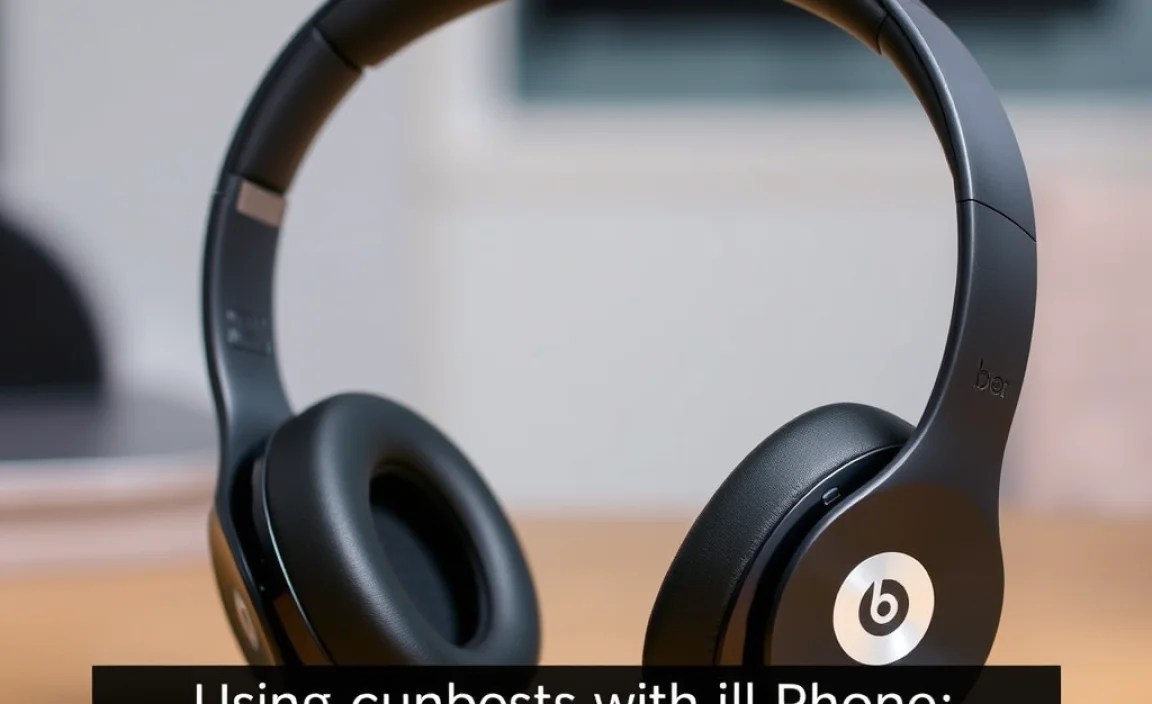
Once paired, controlling your Beats and utilizing their features with your iPhone is intuitive.
Basic Controls
- Play/Pause: Press the Beats button (the ‘b’ logo) on one earphone or earcup.
- Next Track: Double-press the Beats button.
- Previous Track: Triple-press the Beats button.
- Volume Up/Down: Use the dedicated volume rocker on the earcup or the stem of the earbuds. On some models, you might need to press and hold the volume up/down buttons. Alternatively, you can use the volume controls on your iPhone’s lock screen or Control Center.
- Answer/End Call: Press the Beats button once.
- Reject Call: Press and hold the Beats button for a few seconds.
Managing Noise Cancellation & Transparency Mode
The method for switching modes can vary slightly by model:
- Beats Studio Pro/Studio3: Typically, there’s a dedicated button (often on the left earcup) to cycle through ANC, Transparency, and Off modes.
- Beats Fit Pro/Studio Buds +: Often, a long press on the Beats button (or a specific touch area) on either earbud will cycle through ANC, Transparency, and Off. You can also customize these controls in your iPhone’s Bluetooth settings for your Beats.
Accessing Siri
Most Beats headphones are designed to work seamlessly with Siri. You can typically activate Siri by saying “Hey Siri” (if your iPhone is set up for it) or by pressing and holding the Beats button or the “b” on the earbud/headphone until you hear the Siri chime.
Checking Battery Life
There are several ways to check your Beats’ battery life on your iPhone:
- Home Screen Widget: Add the “Batteries” widget to your iPhone’s home screen.
- Control Center: Swipe down from the top-right corner of your iPhone screen (or up from the bottom on older models) to open Control Center. Your Beats’ battery level should be visible if they are connected.
- Settings App: Go to Settings > Bluetooth. Your connected Beats will show their battery status next to their name.
- From the Beats App (for some models, though less common now with Apple integration): Historically, Beats had a dedicated app. While less crucial for iPhone users now, it might still offer advanced settings for some models.
Beats Audio Headphones for iPhone: A Comparison Table
To help you visualize the differences, here’s a comparison of some popular Beats models often used with iPhones.
| Model | Type | Key Features | Ideal Use Case | ANC | Transparency Mode | Spatial Audio |
|---|---|---|---|---|---|---|
| Beats Studio Pro | Over-Ear | Advanced ANC, Spatial Audio, Long Battery Life, Foldable Design | Immersive listening, travel, studio work, focus | Yes | Yes | Yes |
| Beats Studio3 Wireless | Over-Ear | Pure ANC, Comfortable, Extended Battery Life | Everyday listening, travel, noise reduction | Yes | No (limited ambient aware) | No |
| Beats Solo3 Wireless | On-Ear | Compact, 40-Hour Battery Life, Foldable | Commuting, portability, casual listening | No | No | No |
| Beats Fit Pro | True Wireless Earbuds | Secure Fit Wingtips, ANC, Spatial Audio, Sweat Resistant | Fitness, active lifestyle, everyday versatility | Yes | Yes | Yes |
| Beats Studio Buds + | True Wireless Earbuds | Enhanced ANC/Transparency, Improved Audio, Comfortable Fit, Longer Battery | Everyday listening, workouts, general use | Yes | Yes | No |
| Beats Powerbeats Pro | True Wireless Earbuds | Secure Ear Hooks, Sweat Resistant, ANC, Robust Build | Intense workouts, running, active sports | Yes | Yes | No |
Maintaining Your Beats Headphones for Longevity
To keep your Beats sounding and looking great, a little regular care goes a long way. Here are some simple maintenance tips:
Cleaning Your Headphones
- Earcups and Headband: Use a slightly damp, lint-free cloth to wipe down the exterior. For stubborn marks, a tiny amount of mild soap can be used, but ensure the cloth is only slightly damp and never let moisture seep into the speaker grilles or internal components. Avoid harsh chemicals or abrasive cleaners.
- Earbud Tips: If you have earbuds, remove the silicone tips and wash them gently with soap and water. Make sure they are completely dry before reattaching them to the earbuds.
- Charging Ports: Gently use a dry cotton swab or a dry, soft brush to clean out any dust or debris from the charging port on your headphones or earbuds and their case. Be very careful not to damage the pins.
- Speaker Grilles: For over-ear and on-ear headphones, carefully use a dry, soft brush (like a toothbrush or a clean makeup brush) to gently sweep away any dust or earwax buildup from the speaker grilles. For earbuds, a similar dry brush can be used on the speaker nozzle, being careful not to push debris further in.
Storage and Handling
- Use the Case: Whenever possible, store your Beats in their original carrying case or charging case. This protects them from dust, scratches, and accidental damage.
- Avoid Extreme Temperatures: Do not leave your Beats in direct sunlight or in very hot or cold environments, as extreme temperatures can damage the battery and other components.
- Cable Care (if applicable): If your Beats have detachable audio cables, handle them with care. Avoid tightly wrapping or kinking the cables, as this can damage the internal wires.
Software Updates
While most Beats models automatically update their firmware via your connected iPhone, it’s good practice to ensure your iPhone’s iOS is up to date. Sometimes, firmware updates for Beats are delivered alongside iOS updates. You can check for available updates via your iPhone’s Bluetooth settings for your connected Beats.
Battery Care
To maintain battery health:
- Avoid Deep Discharges: Don’t let your Beats battery completely drain to zero too often; try to charge them when the battery level gets low.
- Avoid Overcharging: Modern batteries have protection, but it’s generally good practice to unplug them once fully charged if possible, especially if left connected for extended periods.
- Use Apple’s Optimized Battery Charging: Ensure your iPhone has “Optimized Battery Charging” enabled in Settings > Battery > Battery Health & Charging. This helps manage charging cycles for longevity.
For more detailed information on battery care, Apple provides excellent resources on their website detailing battery longevity.
Troubleshooting Common Issues with Beats and iPhone
Even the best tech can sometimes throw a curveball. Here are solutions to common problems you might encounter when using Beats with your iPhone.
Problem: Beats Won’t Connect or Pair
- Solution 1: Forget and Re-pair. On your iPhone, go to Settings > Bluetooth. Tap the “i” icon next to your Beats, then select “Forget This Device.” Turn your Beats off and on again, then follow the pairing steps outlined earlier.
- Solution 2: Reset Your Beats. The reset process varies by model. For example, for many Beats earbuds, you’d place them in the case, keep the lid open, and press and hold the system button
