
Quick Summary: Discover the best Beats wireless headphones for your needs. This guide simplifies choosing, connecting, and caring for your Beats, ensuring you enjoy superior sound without the complexity. Perfect for beginners looking for reliable audio and a great listening experience.
Beats Best Wireless Headphones: Essential Guide

Hey everyone, Edward Cavitt here from headphonehorizon! Thinking about diving into the world of Beats wireless headphones but feeling a bit overwhelmed by all the options? You’re in the right place! Beats by Dr. Dre have become a household name for their punchy bass and stylish designs.
But with so many models out there, picking the “best” one can seem like a challenge. Don’t worry, I’m here to break it all down. We’ll explore what makes Beats stand out, how to choose the perfect pair for your lifestyle, and some simple tips to keep them sounding fantastic for years to come. Let’s get your music sounding its best, the easy way!
Why Choose Beats Wireless Headphones?

Beats headphones have carved out a significant niche in the audio market, and for good reason. They’re not just about looking cool; they offer a distinct sound profile that many people absolutely love. Whether you’re a fitness enthusiast, a student hitting the books, or someone who just enjoys their tunes on the go, there’s likely a Beats model that fits your life perfectly.
- Signature Sound: Many users are drawn to Beats for their powerful bass response. While some audiophiles prefer a more neutral sound, Beats are designed to make music feel energetic and immersive, especially genres like hip-hop, pop, and electronic music.
- Stylish Design: There’s no denying the aesthetic appeal of Beats. Their bold colors and sleek lines make them a fashion statement as much as an audio device.
- Apple Ecosystem Integration: For iPhone, iPad, and Mac users, Beats headphones offer seamless connectivity and features thanks to their integration with Apple’s W1 and H1 chips. This means quick pairing, easy switching between Apple devices, and good battery life indicators.
- Durability and Comfort: Beats are generally built to be robust, capable of withstanding daily use. Many models are also designed with comfort in mind, featuring plush earcups and adjustable headbands for extended listening sessions.
- Active Noise Cancellation (ANC): Some of their higher-end models feature ANC, which is brilliant for blocking out distracting ambient sounds. This is perfect for commuting, flying, or working in noisy environments.
Navigating the Beats Wireless Family: Which Model is Right for You?

Beats offers a range of wireless headphones, each with slightly different features and price points. Let’s take a look at some of the most popular and how to decide which one best suits your listening habits and budget.
Over-Ear vs. On-Ear vs. In-Ear (Earbuds)
Before we dive into specific models, it’s helpful to understand the basic types of headphones:
- Over-Ear Headphones: These completely cover your ears. They usually offer the best comfort for long listening sessions and can provide excellent passive noise isolation. They are often the largest.
- On-Ear Headphones: These rest directly on your ears. They are typically smaller and lighter than over-ear headphones, making them more portable, but they might not be as comfortable for everyone during prolonged use and can leak sound more easily.
- In-Ear Headphones (Earbuds): These fit inside your ear canal. They are the most portable and discreet, making them ideal for workouts and travel. Getting a good seal is crucial for bass response and noise isolation.
Popular Beats Wireless Models in Detail
Here’s a rundown of some of the “beats best wireless headphones” you’ll likely encounter, along with their key features:
Beats Studio Pro
The Studio Pro represents Beats’ flagship over-ear offering, focusing on premium sound and features. They are designed for users who want top-tier audio performance and advanced noise cancellation.
- Sound: Enhanced sound profiles with improved clarity and powerful bass.
- ANC: Advanced Active Noise Cancellation that adapts to your environment for superior listening immersion.
- Comfort: Ergonomically designed for extended wear, with plush earcups.
- Battery Life: Excellent, typically around 40 hours with ANC on.
- Connectivity: Bluetooth, plus USB-C for audio and charging.
- Ideal For: Audiophiles, frequent travelers, professionals, and anyone seeking a premium, immersive listening experience.
Beats Solo3 Wireless
A long-standing favorite, the Solo3 Wireless are on-ear headphones known for their portability and iconic Beats sound.
- Sound: Classic Beats sound with a focus on bass.
- ANC: No Active Noise Cancellation, but they offer decent passive noise isolation.
- Comfort: Compact and lightweight, but can be less comfortable for some during very long sessions.
- Battery Life: Impressive, up to 40 hours on a single charge.
- Connectivity: Bluetooth, with Apple’s W1 chip for seamless pairing with Apple devices.
- Ideal For: Everyday listeners, students, commuters who prioritize portability and long battery life.
Beats Fit Pro
These are truly wireless earbuds designed with fitness in mind, offering a secure fit and adaptive features.
- Sound: Dynamic, energetic sound with spatial audio support for an immersive experience.
- ANC: Active Noise Cancellation and Transparency mode available.
- Comfort: Flexible wingtips keep them securely in place during workouts.
- Battery Life: Around 6 hours with ANC on, up to 24 hours with the charging case.
- Connectivity: Bluetooth, with Apple’s H1 chip for easy pairing and switching.
- Ideal For: Athletes, active individuals, and anyone looking for secure, feature-rich wireless earbuds.
Beats Powerbeats Pro
Another excellent option for workouts, the Powerbeats Pro are known for their secure earhook design and robust performance.
- Sound: Balanced sound with powerful bass, designed for clarity during movement.
- ANC: No Active Noise Cancellation, but the in-ear design provides good passive isolation.
- Comfort: Secure over-ear hooks ensure they stay put no matter the activity.
- Battery Life: Approximately 9 hours of listening time, with over 24 hours using the charging case.
- Connectivity: Bluetooth, powered by Apple’s H1 chip.
- Ideal For: Serious athletes, gym-goers, and anyone needing rock-solid earbud security during intense activity.
Here’s a quick comparison table to help visualize the differences:
| Model | Type | ANC | Ideal For | Battery Life (approx.) |
|---|---|---|---|---|
| Beats Studio Pro | Over-Ear | Yes (Advanced) | Premium listening, travel, professionals | 40 hours (ANC on) |
| Beats Solo3 Wireless | On-Ear | No | Everyday use, portability, long battery | 40 hours |
| Beats Fit Pro | In-Ear (Earbuds) | Yes | Fitness, active lifestyle, secure fit | 6 hours (earbuds, ANC on) / 24 hours (with case) |
| Beats Powerbeats Pro | In-Ear (Earbuds) | No | Intense workouts, secure fit, athletes | 9 hours (earbuds) / 24+ hours (with case) |
Seamless Pairing: Connecting Your Beats to Your Devices

One of the great things about Beats is how easy they are to pair, especially if you’re in the Apple ecosystem. But don’t worry if you’re using an Android phone or a Windows PC – it’s still a breeze!
Pairing with Apple Devices (iPhone, iPad, Mac)
Thanks to the integrated W1 or H1 chips, pairing is incredibly simple:
Steps:
- Unlock your Apple device.
- Put your Beats headphones in pairing mode. For most Beats models, this means turning them on. For earbuds like the Fit Pro or Powerbeats Pro, you might need to open the charging case with the earbuds inside and hold the button on the case for a few seconds until the LED flashes.
- Hold your Beats near your unlocked Apple device. A setup animation should pop up on your screen.
- Tap “Connect.” That’s it! Your Beats are paired and automatically linked to your iCloud account, so they’ll connect to other Apple devices you’re signed into with the same Apple ID.
Pairing with Android Devices and Other Bluetooth Devices
Connecting to non-Apple devices is just as straightforward using standard Bluetooth pairing:
- Turn on your Beats headphones.
- Activate Pairing Mode:
- For most over-ear and on-ear Beats: Press and hold the power button for about 5 seconds until the LED indicator flashes.
- For Beats Fit Pro & Powerbeats Pro: With the earbuds in the case, open the lid and press and hold the system button on the inside of the case until the LED flashes white.
- On your Android phone, tablet, or computer:
- Go to your device’s Settings.
- Tap on Bluetooth (or Connections > Bluetooth).
- Make sure Bluetooth is turned On.
- Wait for your device to scan for available Bluetooth devices.
- Select your Beats headphones from the list when they appear (e.g., “Beats Studio Pro,” “Beats Fit Pro”).
- Confirm pairing if your device prompts you to.
Once paired, your Beats should automatically connect to that device whenever you turn them on and they are within range, provided Bluetooth is enabled on your device.
Maximizing Your Listening Experience: Features and Controls
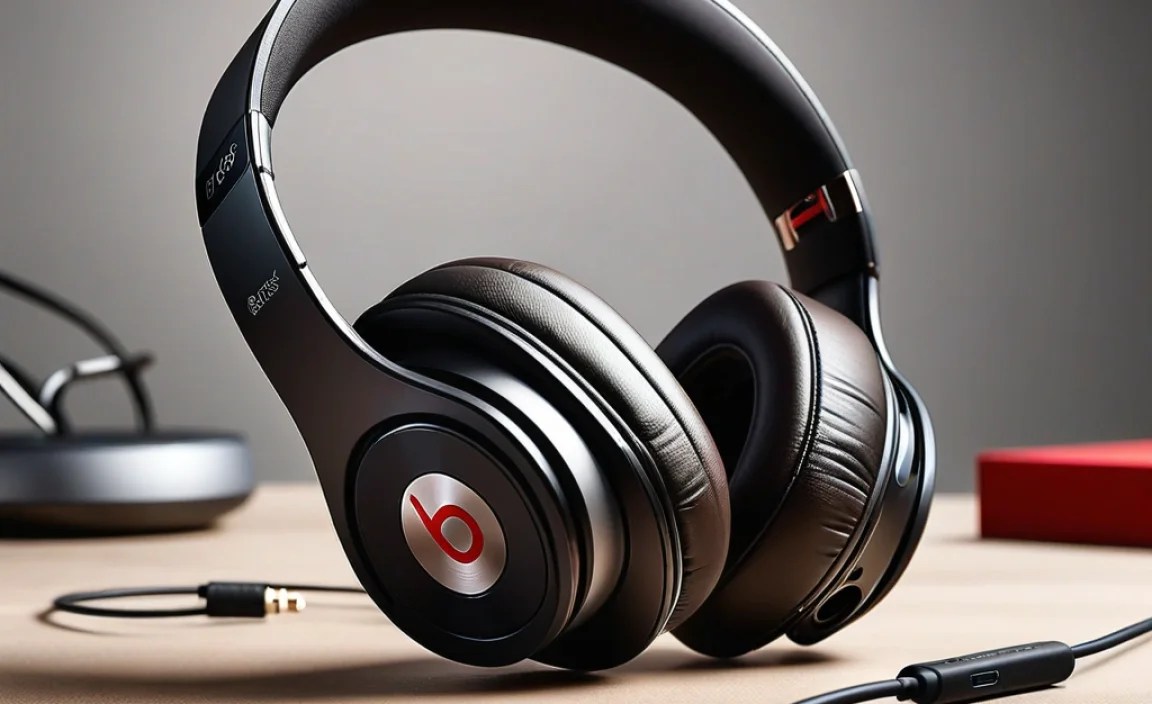
Beats headphones come with intuitive controls and features that enhance your listening experience. Familiarizing yourself with them can make using your headphones much more enjoyable.
Understanding Controls
Most Beats models share a common control layout, though there can be slight variations:
- Power/On-Off Button: Usually a small button on the earcup or earbud housing.
- “b” Button (on earcups): This is your multi-function button.
- Press once: Play/Pause music or answer/end calls.
- Press twice: Skip to the next track.
- Press three times: Go back to the previous track.
- Volume Controls: Typically marked with ‘+’ and ‘-‘. Press ‘+’ to increase volume, ‘-‘ to decrease.
- Noise Cancellation/Transparency Mode Button: On models like the Studio Pro and Fit Pro, a dedicated button or a long press of the “b” button might cycle through ANC On, ANC Off, and Transparency Mode.
Key Features to Explore
- Active Noise Cancellation (ANC): This is a game-changer for noisy environments. ANC uses microphones to detect ambient sounds and generates opposing sound waves to cancel them out. For a deeper dive into how ANC works, you can check out resources on acoustic principles. The National Academies of Sciences, Engineering, and Medicine offers insights into sound and noise control.
- Transparency Mode: The opposite of ANC, this mode uses external microphones to let in ambient sound so you can hear your surroundings without removing your headphones. Great for conversations or staying aware of traffic.
- Spatial Audio: Available on select newer models (like Fit Pro), Spatial Audio with dynamic head tracking creates an immersive, theater-like sound experience by placing sounds all around you. It feels like the sound is coming from the screen you’re watching, not just your ears.
- Siri Integration: With Apple W1 or H1 chip-equipped Beats, you can activate Siri hands-free by saying “Hey Siri” or by pressing and holding the “b” button.
- Beats App: For Android users, downloading the Beats app (available on Google Play) unlocks additional features for your Beats headphones, such as firmware updates, battery status, and customizable controls.
Battery Life and Charging: Keeping Your Beats Powered Up
One of the biggest advantages of wireless headphones is the freedom from cables, but this means managing battery life is essential. Thankfully, Beats are known for their impressive longevity.
Understanding Battery Indicators
Most Beats headphones have LED indicators that give you a general idea of the battery status. A solid green light usually means a full charge, while a red or flashing red light indicates a low battery. For a more precise reading:
- On Apple Devices: When your Beats are connected, the battery level often pops up on your screen or can be checked in the Bluetooth settings.
- On Android Devices: Use the Beats app for a clear battery percentage.
- On Beats Studio Pro: A quick press of the power button will illuminate the fuel gauge lights to show battery status.
Charging Best Practices
- Use the provided cables: Always try to use the charging cable that came with your Beats, or a certified compatible one. This ensures the correct voltage and amperage for safe and efficient charging.
- Avoid extreme temperatures: Don’t charge your headphones in very hot or very cold conditions, as this can degrade the battery over time. Aim for room temperature charging.
- Don’t overcharge repeatedly: While modern batteries have protection to prevent overcharging, it’s generally good practice to disconnect them once they reach 100%.
- Fast Fuel: Many Beats models feature “Fast Fuel,” which gives you hours of playback on just a few minutes of charging. For example, 5 minutes of charging might give you 1.5 hours of playback on Solo3 Wireless.
For detailed information on battery specifications and charging times, you can consult the official Beats Support page.
Maintaining Your Beats: Simple Steps for Longevity
Your Beats are an investment, and with a little care, they can provide you with fantastic sound for a long time. Here are some easy maintenance tips.
Cleaning Your Headphones
Keeping your headphones clean not only looks better but is also important for hygiene and proper function.
- Earpads/Earcups:
- Gently wipe them with a slightly damp (not wet!) soft cloth. A microfiber cloth is ideal.
- For stubborn marks, use a mild soap solution, but make sure any soap residue is thoroughly wiped away.
- Avoid harsh chemicals, alcohol-based cleaners, or abrasive materials, as they can damage the material.
- Headband: Wipe with a soft, dry cloth. If there’s visible grime, use a slightly damp cloth.
- Earbud Tips (for Fit Pro/Powerbeats Pro):
- Remove the silicone tips.
- Wash them gently with mild soap and water.
- Rinse thoroughly and let them air dry completely before reattaching them.
- Charging Ports: Gently swipe the charging port area with a dry cotton swab to remove any dust or debris that might affect charging.
- Mesh Grilles: Use a dry, soft brush (like a clean toothbrush) to gently sweep away any earwax or debris from the speaker grilles. Do not poke anything sharp into the grilles.
Storage and Handling
- Use the case: Whenever possible, store your headphones in their original case or a protective pouch. This prevents scratches, dust, and accidental damage.
- Avoid extreme conditions: Don’t leave your Beats in direct sunlight, in a very hot car, or in excessively humid environments.
- Be mindful of liquids: While some Beats are sweat and water-resistant (check your specific model’s rating), it’s best to avoid exposing them to heavy rain or submersion.
- Cable care (if applicable): For wired connections or charging, avoid tightly coiling or sharply bending cables, as this can damage the internal wires.
Firmware Updates
Beats headphones sometimes receive firmware updates that can improve performance, add features, or fix bugs. Ensure your headphones are connected to your primary device and check the Beats app (on Android) or System Updates on macOS/iOS for available updates.
