
Discover the best Beats headphones for your iPhone. This guide breaks down which Beats models offer the perfect sound, seamless connectivity, and essential features for iPhone users, helping you choose your ideal audio companion whether you prioritize noise cancellation, bass, or portability.
Beats Headphones for iPhones: Your Essential Audio Companion Guide

Hey there, audio adventurers! Edward Cavitt here from Headphone Horizon, your go-to spot for all things sound. If you’ve recently snagged a shiny new iPhone, you’re probably thinking about treating your ears to some equally impressive sound. And when it comes to that, Beats headphones have carved out a serious niche, especially for iPhone users.
That iconic bass-forward sound and stylish design have made them a popular choice. But with so many models out there, how do you pick the one that’s just right for your iPhone and your listening habits? This guide is here to demystify the world of Beats and help you find your perfect audio match, making sure you get the most bang for your audio buck. Let’s dive in!
Why Choose Beats Headphones with Your iPhone?

So, what makes Beats and iPhones such great partners? It’s a combination of design, features, and a little bit of Apple magic. For starters, iPhones are designed with portability and everyday use in mind, and Beats headphones often mirror that by offering comfortable designs suitable for commuting, working out, or just chilling at home.
Plus, with Apple’s ownership of Beats, there’s a natural synergy. This means you often get seamless integration with iOS features, like quick pairing and easy switching between Apple devices.
While Beats are known for their signature sound profile, many models also boast excellent Active Noise Cancellation (ANC) and Transparency Mode, which are fantastic for tuning out distractions or staying aware of your surroundings. Let’s explore some of the key reasons:
- Seamless Apple Integration: iPhones and Beats headphones often pair effortlessly thanks to Apple’s W1 and H1 chips found in many Beats models. This allows for super-fast, one-tap setup and reliable Bluetooth connectivity.
- Signature Sound: If you love a punchy bass and energetic sound, Beats deliver this in spades. While they’ve evolved, that distinct audio signature remains a draw for many music lovers.
- Stylish Design: Beats are as much a fashion statement as they are an audio device. Their bold colors and sleek designs complement the aesthetics of iPhones.
- Active Noise Cancellation (ANC): Many of their over-ear and some in-ear models offer robust ANC to block out ambient noise, perfect for noisy commutes or focused work sessions.
- Durability and Comfort: Beats are generally built to last and are designed for comfortable extended wear, whether you’re on a long flight or powering through a workout.
Top Beats Headphones for Your iPhone

Navigating the Beats lineup can feel like a trek through a sonic jungle. But don’t worry, I’m here to guide you. Here’s a breakdown of some of the best Beats headphones that pair brilliantly with your iPhone, catering to different needs and preferences.
1. Beats Studio Pro: The All-Rounder Champ
For those who want the absolute best in noise cancellation, immersive sound, and smart features, the Beats Studio Pro are a phenomenal choice. They’re designed to compete with top-tier headphones from other brands, and for iPhone users, they really shine.
- Key Features: Powerful Active Noise Cancellation (ANC), Transparency Mode, Class 1 Bluetooth, Spatial Audio with dynamic head tracking (iOS compatibility), integrated microphones for voice calls, long battery life.
- Sound Profile: Balanced sound with a satisfying bass response that doesn’t overpower the mids and highs.
- Connectivity: Features Apple’s H1 chip (or equivalent in later models) for instant pairing and seamless Apple ecosystem integration. Includes USB-C audio for high-fidelity listening.
- Comfort: Over-ear design with plush earcups for extended listening comfort.
- Who it’s for: Audiophiles, frequent travelers, commuters, and anyone who wants top-tier ANC and premium sound, especially within the Apple ecosystem.
2. Beats Fit Pro: For the Active Lifestyle
If you’re constantly on the move, whether it’s hitting the gym, exploring trails, or just navigating a busy day, the Beats Fit Pro are engineered for performance and comfort. They offer a secure fit that stays put, no matter the activity.
- Key Features: Flexible wingtips for a secure fit, Active Noise Cancellation (ANC), Transparency Mode, Spatial Audio with dynamic head tracking, IPX4-rated sweat and water resistance, Apple H1 chip.
- Sound Profile: Energetic sound with good bass. While they offer ANC, they might not isolate sound as effectively as the Studio Pro for some users, but they are highly capable for their size.
- Connectivity: Instant pairing with iPhones, auto-switching between Apple devices, and robust Bluetooth connection.
- Comfort: In-ear design with customizable eartips and secure wingtips.
- Who it’s for: Athletes, fitness enthusiasts, and anyone who needs earbuds that stay put and offer great sound with ANC on the go.
3. Beats Solo3 Wireless: The Classic Wireless Performer
The Beats Solo3 Wireless are a long-standing favorite for a reason. They’re on-ear, compact, and offer that classic Beats sound with incredible battery life.
- Key Features: Apple W1 chip for easy Apple device pairing, up to 40 hours of battery life, Fast Fuel charging (5 minutes for 3 hours of playback), built-in microphone.
- Sound Profile: Strong bass emphasis, with clear mids and highs. Best suited for those who enjoy a lively, energetic sound.
- Connectivity: Excellent with iPhones due to the W1 chip, providing stable connections.
- Comfort: On-ear design, lightweight and comfortable for shorter to medium listening sessions. They can become warm over very long periods for some.
- Who it’s for: Students, commuters, and general listeners who want a reliable, stylish, and long-lasting wireless headphone that pairs easily with their iPhone.
4. Beats Studio Buds +: Enhanced Transparency and Comfort
The Studio Buds+ represent a significant upgrade for Beats’ true wireless earbud line. They offer improved ANC, a fantastic Transparency Mode, and a more refined sound.
- Key Features: Upgraded Active Noise Cancellation, enhanced Transparency Mode, Spatial Audio support, IPX4 rating, long battery life with case, multiple ear tip sizes for a custom fit.
- Sound Profile: A more balanced sound than older Beats models, with a punchy bass that doesn’t overpower the rest of the audio spectrum.
- Connectivity: While they don’t have the H1 or W1 chip for instant Apple pairing (they use standard Bluetooth 5.3), they still connect flawlessly and offer features like voice controls that work great with Siri. They are universally compatible across Android and iOS.
- Comfort: Lightweight, in-ear design with a comfortable and secure fit thanks to multiple eartip options.
- Who it’s for: Anyone looking for a versatile true wireless earbud with effective ANC, an excellent Awareness Mode, and great sound that works seamlessly with their iPhone.
Understanding Key Features for Your iPhone
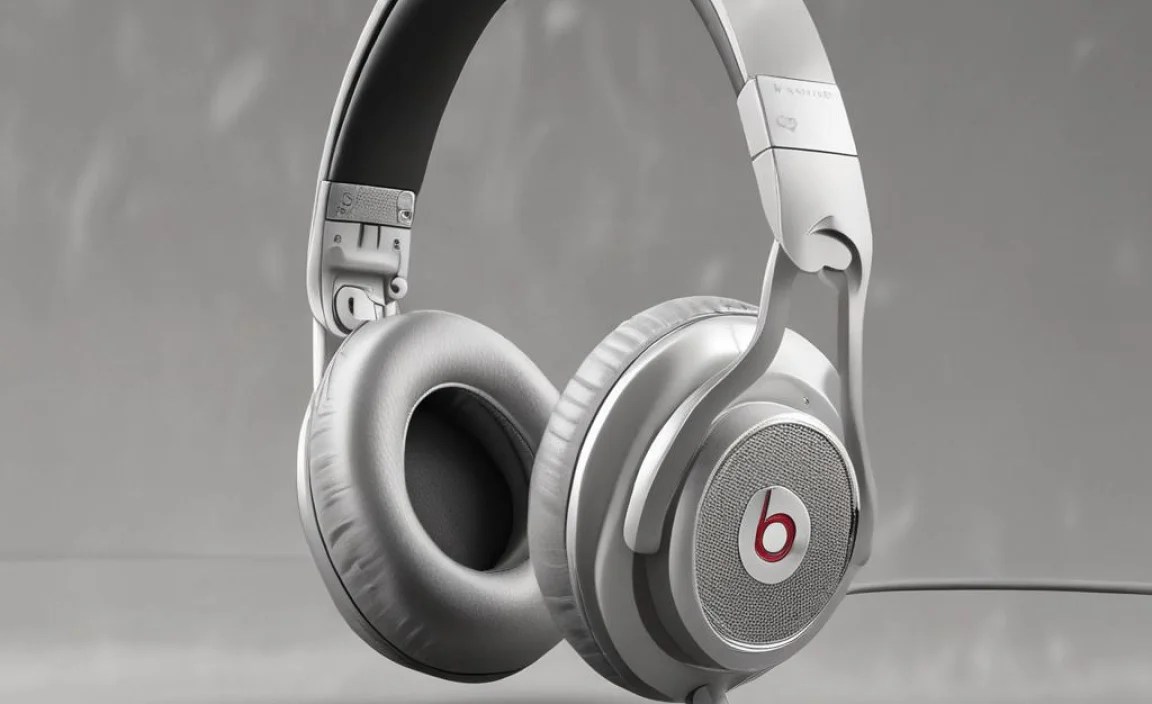
When selecting Beats headphones for your iPhone, a few features stand out as particularly beneficial. These are the elements that truly enhance your listening experience and streamline how you interact with your phone.
Active Noise Cancellation (ANC) is a game-changer. It uses microphones to detect external noise and generate an opposing sound wave to cancel it out. This allows you to immerse yourself in your music or podcasts without distractions from your surroundings. This is especially useful on public transport, in busy offices, or during flights. For a deeper dive into how ANC works, resources from institutions like the National Science Foundation might offer insights into acoustic cancellation principles.1
Transparency Mode is the inverse of ANC. It uses external microphones to let ambient sound in, so you can hear announcements, conversations, or traffic without taking your headphones off. This is crucial for safety and convenience.
Spatial Audio with Dynamic Head Tracking, available on many newer Beats models (especially those with H1/H2 chips), is an immersive audio feature. It creates a theater-like sound experience that surrounds you. Dynamic head tracking means the soundstage remains fixed even as you turn your head, making it feel incredibly realistic, as if the sound is coming from a specific point in space. This feature is particularly impressive with compatible content on Apple Music and other services.
Apple’s H1 and W1 Chips are worth understanding. Headphone models featuring these chips offer unparalleled integration with iPhones and other Apple devices. This translates to:
- Effortless Pairing: Just open the case near your iPhone, and a pop-up appears to instantly connect.
- Seamless Device Switching: Your Beats can automatically switch between your iPhone, iPad, and Mac, a feature that’s incredibly convenient for multi-device users.
- Stable Wireless Performance: These chips are optimized for robust and efficient Bluetooth connections.
Even if a Beats model doesn’t have the H1 or W1 chip, it will still connect to your iPhone via standard Bluetooth, ensuring you still get great audio and call quality, just without the deepest level of Apple ecosystem integration.
Connecting Your Beats to Your iPhone: A Simple Process
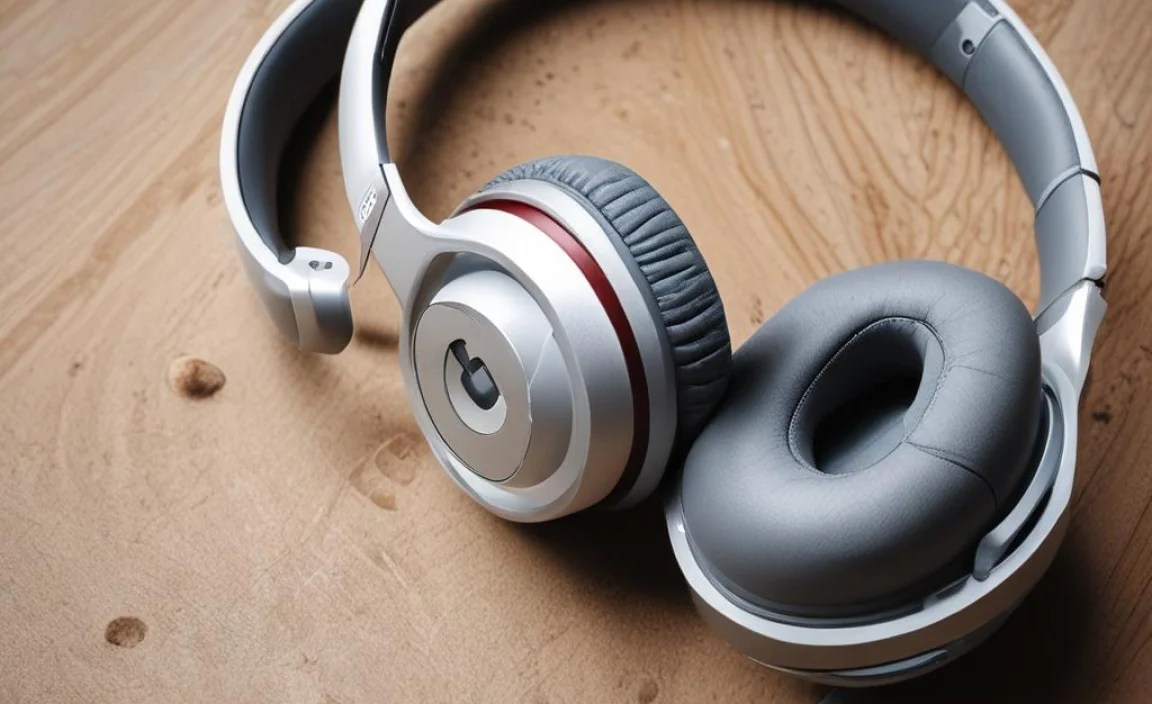
Connecting your new Beats headphones to your iPhone is typically a breeze, especially with models that feature Apple’s W1 or H1 chip. Here’s how to do it:
Step-by-Step Connection Guide
Method 1: For Beats with W1 or H1 Chip (e.g., Studio Buds +, Studio Pro, Fit Pro, Solo3 Wireless)
- Unlock your iPhone and make sure Bluetooth is turned on in Settings, or by swiping up to access the Control Center and tapping the Bluetooth icon.
- Put your Beats headphones into pairing mode. For most (like Studio Buds+, Fit Pro, Studio Pro), this involves pressing and holding the power button until the light blinks. For true wireless earbuds (like Studio Buds+), it’s often automatic when they are out of the case. For Solo3, it’s usually powering them on and pressing the system button. For Studio Pro, pressing the power button for a few seconds until you hear a chime or the LED flashes.
- Hold your Beats near your unlocked iPhone.
- A setup animation will appear on your iPhone screen. Tap “Connect.”
- Follow any on-screen prompts to complete the setup, which may include agreeing to terms or setting up features like “Hey Siri.”
Method 2: For Beats without W1 or H1 Chip (Standard Bluetooth Pairing)
- Unlock your iPhone and ensure Bluetooth is enabled.
- Put your Beats headphones into pairing mode. This usually involves pressing and holding the power button until the LED indicator light begins to flash. Refer to your specific Beats model’s manual for exact instructions, as this can vary.
- On your iPhone, go to Settings > Bluetooth.
- Your Beats headphones should appear under “Other Devices.”
- Tap on your Beats headphones’ name to pair them.
- Once paired, the headphones will say “Connected” next to their name in the Bluetooth list and should be ready to use.
Important Note on Initial Pairing: For true wireless earbuds (like Studio Buds+), always ensure both earbuds are out of the charging case and ready. For over-ear headphones, make sure they are powered on and not already connected to another device.
Maintaining Your Beats for iPhone: Tips for Longevity
Just like your iPhone, your Beats headphones are an investment. A little care goes a long way in keeping them performing at their best and looking great for years to come. Here’s how to keep them in top shape:
- Regular Cleaning: Dust and earwax can accumulate. For ear tips and earbud exteriors, use a slightly damp, lint-free cloth. For over-ear earcups, gently wipe them down. Avoid harsh chemicals or submerging them in water (unless they are specifically rated for it, like IPX4).
- Proper Storage: When not in use, store your Beats in their charging case or a protective pouch. This prevents them from getting scratched or damaged in your bag. Avoid storing them in extreme temperatures, as this can degrade the battery and materials.
- Battery Care: Avoid fully draining the battery too often, as this can stress the battery cells. For long-term storage, charge them to around 50-60%. Most modern headphones have built-in battery management systems, but good habits help. For more on battery longevity, you can check out resources like those from the U.S. Department of Energy on battery technology and care.
- Cable Care (if applicable): If you use wired connections or charging cables, avoid bending them sharply or wrapping them too tightly.
- Software Updates: For Beats models that connect via the W1/H1 chip, firmware updates are often delivered automatically through your iPhone. Ensure your iPhone is up-to-date, and your Beats are connected to receive these updates, which can improve performance and fix bugs.
Troubleshooting Common Beats & iPhone Issues
Even the best tech can sometimes face hiccups. If you encounter any problems connecting or using your Beats with your iPhone, don’t panic! Here are solutions to common issues:
Common Problems and Solutions
Issue: Beats won’t connect to iPhone.
- Check Bluetooth: Ensure Bluetooth is enabled on your iPhone (Settings > Bluetooth).
- Restart Devices: Turn off Bluetooth on your iPhone, restart your Beats, then turn Bluetooth back on. Sometimes, simply restarting both devices can resolve connection glitches.
- Clear Paired Devices: On your iPhone, go to Settings > Bluetooth, tap the “i” icon next to your Beats, and select “Forget This Device.” Then, re-pair them. For some Beats, you might need to reset them by holding down specific buttons for an extended period (check your manual).
- Charge Your Beats: A low battery can sometimes prevent successful pairing.
Issue: Sound is distorted or cutting out.
- Check Distance: Ensure your iPhone is within the Bluetooth range of your Beats (typically up to 30 feet, but walls and interference can reduce this).
- Minimize Interference: Other wireless devices, microwaves, or even dense Wi-Fi signals can interfere. Try moving to a different location.
- Update Firmware: Ensure your Beats have the latest firmware. If they use W1/H1, this usually happens automatically when connected to your iPhone.
- Test on Another Device: If possible, try pairing your Beats with a different device to see if the issue persists. This helps determine if the problem is with the headphones or your iPhone.
Issue: Microphone isn’t working for calls.
- Check Permissions: Ensure your iPhone has granted the Beats app (if applicable) or Bluetooth access to the microphone. Go to Settings > Privacy & Security > Microphone.
- Select Correct Audio Source: During a call, tap the audio source icon (it usually looks like a speaker or sound wave) and ensure your Beats are selected.
- Clean Microphone Port: Gently check the tiny microphone holes on your earbuds or headphones for any debris. Use a dry, soft brush or a can of compressed air (from a distance) to clear them.
Issue: Active Noise Cancellation (ANC) not working effectively.
- Check Fit: For earbuds, ensure you have the correct size ear tips for a good seal. For over-ear headphones, make sure the earcups are properly positioned on your ears. A good seal is crucial for ANC performance.
- Toggle ANC: Turn ANC off and then on again through your iPhone’s control center or the Beats app.
- Check for Updates: Firmware updates can sometimes enhance ANC performance.
If you’ve tried these steps and are still experiencing issues, it might be time to contact Apple Support or visit an Apple Store for further assistance. They are excellent resources for troubleshooting product performance.
Frequently Asked Questions (FAQ)
Q1: Can I use any Beats headphones with my iPhone?
Yes, you can technically use any Beats headphones with your iPhone, as they all connect via Bluetooth. However, models with Apple’s W1 or H1 chip will offer a more seamless experience, including instant pairing and automatic device switching.
Q2: Do Beats headphones have sweat resistance?
Some Beats models, particularly those designed for active use like the Beats Fit Pro and Beats Studio Buds+, have an IPX4 rating, meaning they are sweat and water-resistant. Always check the product specifications for the specific model you are interested in.
Q3: How do I update the firmware on my Beats headphones for my iPhone?
For Beats headphones with W1 or H1 chips, firmware
