
Quick Summary: Finding great budget headphones with a mic is easier than you think! This guide helps you discover affordable options that deliver clear calls and enjoyable audio for work, study, or everyday listening. We’ll cover what to look for, top picks, and how to get the most out of your purchase.
Best Budget Headphones With Mic: Your Essential Guide

Hello, audio adventurers! Edward Cavitt here from Headphone Horizon. Are you on the hunt for headphones that won’t break the bank but still deliver clear sound for your chats and music sessions? You’ve come to the right place! In today’s fast-paced world, a reliable headset with a good microphone is essential, whether you’re acing online classes, crushing virtual meetings, or just catching up with friends. But with so many options out there, it’s easy to feel overwhelmed. Don’t worry, I’m here to demystify the world of budget-friendly headphones with mics, helping you find a pair that perfectly suits your needs and your wallet. Let’s dive in and discover some fantastic audio companions!
Why You Need a Headphone With a Mic (Even on a Budget)

In our increasingly connected lives, a good microphone integrated into your headphones isn’t just a luxury; it’s a necessity. Whether it’s for work calls, online learning, or gaming, clear communication is key. A dedicated microphone on your headphones offers several advantages over your laptop or phone’s built-in mic:
- Clarity: Headphones with mics are designed to isolate your voice, reducing background noise and ensuring the person on the other end hears you clearly.
- Privacy: Using headphones keeps your conversations private, preventing others nearby from overhearing.
- Comfort: For extended calls or listening sessions, headphones are far more comfortable than holding a phone or hunching over a laptop.
- Focus: By blocking out ambient noise, headphones can help you concentrate better on both your audio and the conversation at hand.
Even on a tight budget, you can find headphones that excel in these areas, offering a significant upgrade to your daily communication and listening experience.
What to Look For in Budget Headphones With Mic

When picking out the best budget headphones with a mic, there are a few key features to keep an eye on. These will help you narrow down your choices and ensure you get the best value for your money. Think of these as your checklist for success!
1. Microphone Quality
This is arguably the most critical feature. Listen for terms like “noise-canceling” or “clear voice pickup.” A good budget mic should:
- Produce clear, intelligible voice.
- Minimize background noise (e.g., keyboard clicks, ambient chatter).
- Not sound overly tinny or distorted.
Reading reviews that specifically mention microphone performance is incredibly helpful. Real-world tests can reveal more than just specs.
2. Sound Quality
While you’re on a budget, it doesn’t mean you have to sacrifice good sound for calls and music. Look for headphones that offer balanced audio. For music, this means:
- A decent range of highs, mids, and lows.
- Avoids excessive muddiness or harshness.
- Comfortable for long listening periods.
Remember, personal preference plays a role here, but generally, more balanced sound is preferred.
3. Comfort and Fit
You’ll be wearing these, so comfort is paramount. Consider:
- Earcup Material: Soft, breathable padding is ideal.
- Adjustable Headband: Ensures a snug fit for different head sizes.
- Weight: Lighter headphones are generally more comfortable for long wear.
- Type: Over-ear, on-ear, or in-ear? Over-ear often offers better noise isolation and comfort, while in-ear can be more portable and discreet.
4. Durability and Build Quality
Budget doesn’t have to mean flimsy. Look for models with sturdy construction, flexible headbands, and reinforced cables. Reputable brands often offer better build quality even at lower price points.
5. Connectivity
Most modern headphones use either a 3.5mm audio jack or USB. Some wireless options might fall into the “budget-friendly” category during sales, but for true budget picks, wired is usually the way to go. Ensure the connection type is compatible with your devices.
6. Price
Define what “budget” means to you. Generally, budget headphones with a mic can range from $20 to $70. For this guide, we’ll focus on options that offer excellent bang for your buck within this range.
Top Budget Headphones With Mic Recommendations

Navigating the market can be tricky, so I’ve put together a list of some fantastic budget-friendly headphones with mics that consistently receive praise for their performance and value. These are great starting points for your search!
1. Logitech H390 USB Computer Headset
Logitech is a name synonymous with reliable computer peripherals, and the H390 is a prime example of their value. This headset is designed primarily for PC use, making it a solid choice for remote work, online classes, and general computer use.
- Microphone: Features a noise-canceling microphone that conveniently swivels up and out of the way when not in use. It’s designed to pick up your voice clearly without excessive background interference.
- Sound: Offers clear audio for both voice and music, with good quality for its price point.
- Comfort: Padded earcups and an adjustable headband ensure comfort for extended wear.
- Connectivity: Connects via USB, offering a digital connection for cleaner audio and easier plug-and-play setup on most computers.
- Durability: Known for its solid, no-nonsense build quality.
Ideal For: Professionals, students, anyone primarily using a PC for communication.
2. HP Stereo Headset 1500 (or similar HP/Dell models)
Many computer manufacturers, like HP and Dell, offer their own branded headsets that are often bundled with devices or sold affordably. These are designed to be compatible and functional for everyday tasks.
- Microphone: Typically features an adjustable boom mic that can be positioned for optimal voice capture. While not always explicitly “noise-canceling,” they are generally decent for clear speech.
- Sound: Provides clear, straightforward audio suitable for calls and basic media consumption.
- Comfort: Usually lightweight with basic padding for comfortable, short-to-medium use.
- Connectivity: Often uses a 3.5mm audio jack, sometimes with a splitter for separate mic and headphone ports (common on older PCs), or a single jack for newer laptops.
- Durability: Generally sufficient for intended use, though might not be as robust as dedicated peripheral brands.
Ideal For: Casual computer users, those seeking plug-and-play simplicity with a 3.5mm jack.
3. Mpow HC5 Bluetooth Headset (Often Found on Sale)
While Bluetooth headphones can sometimes push the budget, Mpow (and similar brands like Taotronics, Anker Soundcore) frequently has models on sale or at very competitive price points that offer excellent wireless convenience.
- Microphone: Often features an advanced noise-canceling microphone designed to deliver crystal-clear calls, even in noisy environments. Some models boast CVC 8.0 noise cancellation.
- Sound: Delivers a pleasant listening experience with decent bass and clear vocals, suitable for music and calls.
- Comfort: Usually features plush earcups and an adjustable headband for ergonomic comfort.
- Connectivity: Bluetooth offers freedom of movement. Look for models with multi-point pairing to connect to two devices simultaneously.
- Battery Life: Typically boasts long battery life, often 15-30 hours on a single charge.
Ideal For: Those who want wireless freedom for work and personal use, with strong emphasis on call clarity.
4. Jeecoo V500 Pro Gaming Headset (Also Great for General Use)
Gaming headsets often provide excellent value with their robust build, comfortable design, and surprisingly good microphones for their price. The Jeecoo V500 Pro is a popular choice that punches above its weight.
- Microphone: Features a 360-degree adjustable noise-canceling microphone that captures your voice with clarity, essential for gaming comms but also great for calls.
- Sound: Delivers immersive stereo sound with good bass, making it enjoyable for music and other media beyond gaming.
- Comfort: Plush memory foam earcups and a padded headband make it comfortable for long sessions.
- Connectivity: Typically uses a 3.5mm jack, often coming with a Y-splitter for PC compatibility, or a USB plug for LED lighting.
- Durability: Generally built sturdier than basic headsets, with braided cables on some models.
Ideal For: Gamers, students, and anyone looking for a durable, comfortable headset with a good mic for various uses.
5. HyperX Cloud Stinger Core (Budget Gaming Option)
Another strong contender from the gaming peripheral world, the HyperX Cloud Stinger Core is known for its comfort and solid performance at an accessible price.
- Microphone: Features a flexible, flip-to-mute microphone that’s easy to position and clearly picks up your voice.
- Sound: Delivers clear, punchy audio that’s great for games and enjoyable for listening to music and podcasts.
- Comfort: Lightweight and comfortable, with soft earcups and an adjustable headband suitable for long wear.
- Connectivity: Available in versions with a 3.5mm jack (often with splitter) or USB.
- Durability: HyperX is a reputable brand known for durable gaming gear.
Ideal For: Gamers transitioning to work-from-home, or anyone prioritizing comfort and a reliable mic.
Comparing Budget Headset Features
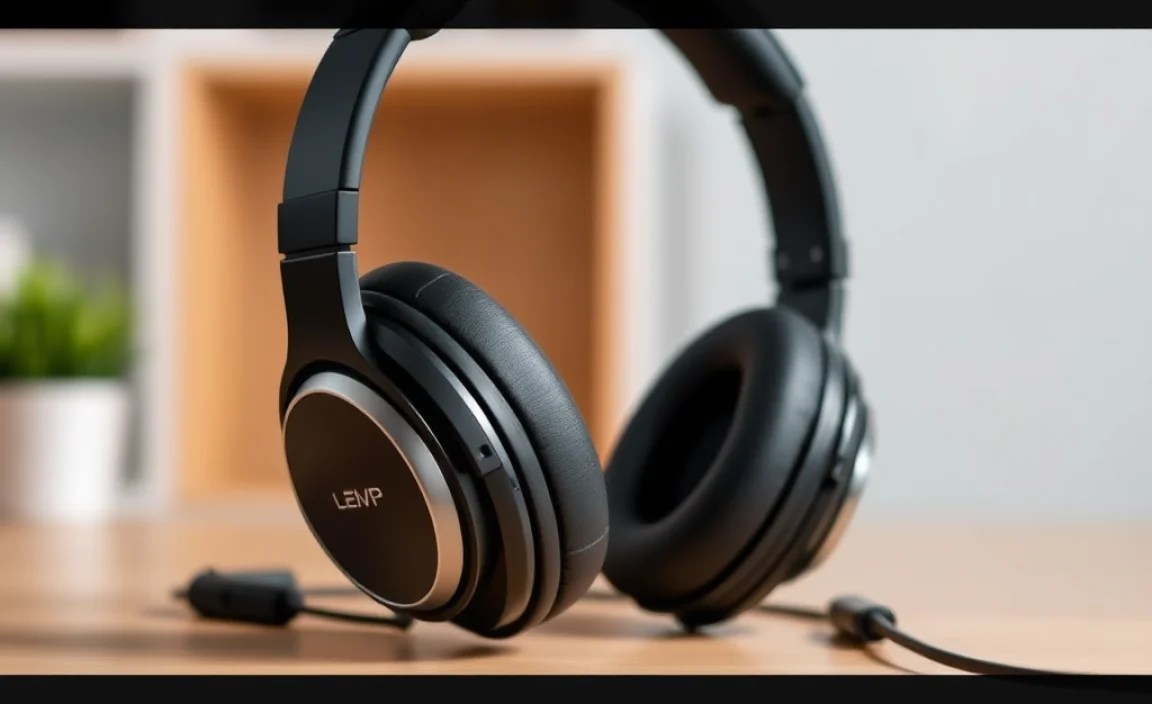
To help you make a more informed decision, here’s a table comparing some of the key aspects of the recommended budget headphones with mics. Remember that specifications can vary slightly by specific model iteration or retailer.
| Headphone Model | Primary Use Case | Microphone Type & Features | Connection Type | Pros | Cons |
|---|---|---|---|---|---|
| Logitech H390 | Work/Study (PC) | Noise-canceling, Swivel Boom | USB | Excellent PC compatibility, clear mic, comfortable | Primarily for PC, limited versatility |
| HP Stereo Headset 1500 | General Computer Use | Adjustable Boom, Basic Clarity | 3.5mm Jack (often with splitter) | Simple plug-and-play, widely compatible, affordable | Basic mic quality, less durable |
| Mpow HC5 (or similar) | Wireless Calls/Work | Advanced Noise-Canceling (e.g., CVC) | Bluetooth | Wireless freedom, excellent call clarity, good battery | Can be pricier if not on sale, potential minor Bluetooth latency |
| Jeecoo V500 Pro | Gaming/General Use | 360° Adjustable, Noise-Canceling | 3.5mm Jack (with splitter) / USB (for LEDs) | Durable build, comfortable, immersive sound, clear mic | Can be slightly bulky for extreme portability |
| HyperX Cloud Stinger Core | Gaming/Work | Flexible, Flip-to-Mute | 3.5mm Jack (with splitter) / USB | Comfortable, reliable brand, easy mic mute | Sound might be slightly bass-heavy for some purists |
Step-by-Step: How to Get the Best Performance from Your Budget Headset
Once you’ve chosen your new budget-friendly headphones with a mic, there are a few simple steps you can take to ensure you’re getting the best possible experience right out of the box.
Step 1: Unboxing and Initial Inspection
Carefully unbox your headphones. Check for any visible damage. Familiarize yourself with the cable, controls (if any), and the microphone. Ensure all parts are present according to the product manual.
Step 2: Connecting Your Headphones
For 3.5mm Jack:
- Locate the headphone jack on your device (computer, laptop, tablet, smartphone).
- If your computer has separate pink (microphone) and green (headphone) jacks, ensure you plug the headset’s corresponding connectors into the correct ports. If your headset has a single TRRS 3.5mm plug, you might need a Y-splitter (often included with gaming headsets) to use both microphone and headphone functions on a PC.
- For single-jack devices (most laptops, smartphones), simply plug the headset into the single audio port.
For USB:
- Plug the USB connector directly into an available USB port on your computer or laptop.
- Your operating system should automatically detect the headset and install necessary drivers. You may see a notification.
For Bluetooth:
- Ensure your headphones are charged.
- Turn on the headphones and put them into pairing mode (usually by holding the power button for a few seconds until an LED flashes).
- On your device (computer, phone, tablet), go to Bluetooth settings and scan for new devices.
- Select your headphones from the list of available devices to connect.
Step 3: Setting Up Your Microphone and Audio in Your Operating System
This is crucial for ensuring clear calls. Your computer needs to know which device to use for talking and listening.
On Windows:
- Right-click the speaker icon in your system tray (bottom right corner).
- Select “Open Sound settings” or “Sounds.”
- Under the “Output” section, choose your headphones as the default playback device.
- Under the “Input” section, select your headset’s microphone as the default recording device.
- Test: You can often test your microphone here. Speak into it and watch the input level meter. For Windows 10/11, go to Settings > System > Sound > Input, select your mic, and click “Device properties” to adjust volume.
On macOS:
- Click the Apple menu () in the top-left corner.
- Select “System Settings” (or “System Preferences” on older versions).
- Go to “Sound.”
- In the “Output” tab, select your headphones.
- In the “Input” tab, select your headset’s microphone.
- Test: Speak into the microphone and observe the “Input level” meter.
Step 4: Adjusting Microphone Placement
For headsets with a boom microphone, proper positioning is key. General guidelines:
- Position the microphone so it’s close to your mouth, but not directly in front of it (to avoid “plosive” sounds like P or B hitting the mic directly).
- A good starting point is about one to two finger-widths away from the corner of your mouth.
- Experiment with the angle. Sometimes a slight tilt can improve clarity.
- If the mic has a mute button or flip-to-mute feature, use it when you need to step away or don’t want to be heard.
Step 5: Testing in Applications
Before a critical meeting or call, test your headset within the application you’ll be using (Zoom, Microsoft Teams, Skype, Discord, etc.). Most of these apps have audio settings where you can select your preferred input and output devices and perform a test call.
Step 6: Checking for Software Updates
For USB headsets or Bluetooth models, check the manufacturer’s website for any available firmware or driver updates. These can sometimes improve performance, fix bugs, or add features. Staying updated ensures optimal functionality.
Troubleshooting Common Budget Headset Issues
Even the best budget headphones can sometimes present minor hiccups. Here are some common issues and simple fixes:
- No Sound:
- Check if the volume is turned up both on your device.
