
Quick Summary: Elevate your audio with a desktop headphone amp! This guide demystifies headphone amps, explaining why they’re crucial for better sound quality and how to choose the best one for your needs. We’ll cover essential features, setup, and top picks for beginners.
Hey headphone lovers! Edward Cavitt here from Headphone Horizon. Ever plugged your favorite headphones into your computer or phone and thought, “Hmm, could this sound better?” You’re not alone! While our devices have gotten incredibly powerful, their built-in audio components can sometimes be a bottleneck for truly amazing sound. That’s where a desktop headphone amplifier, often shortened to “headphone amp,” comes in. It’s a dedicated piece of gear designed to give your headphones the clean, powerful signal they need to shine. Think of it as a dedicated power boost and quality enhancer for your audio experience, turning good sound into great sound, effortlessly.
What Exactly IS a Desktop Headphone Amp?
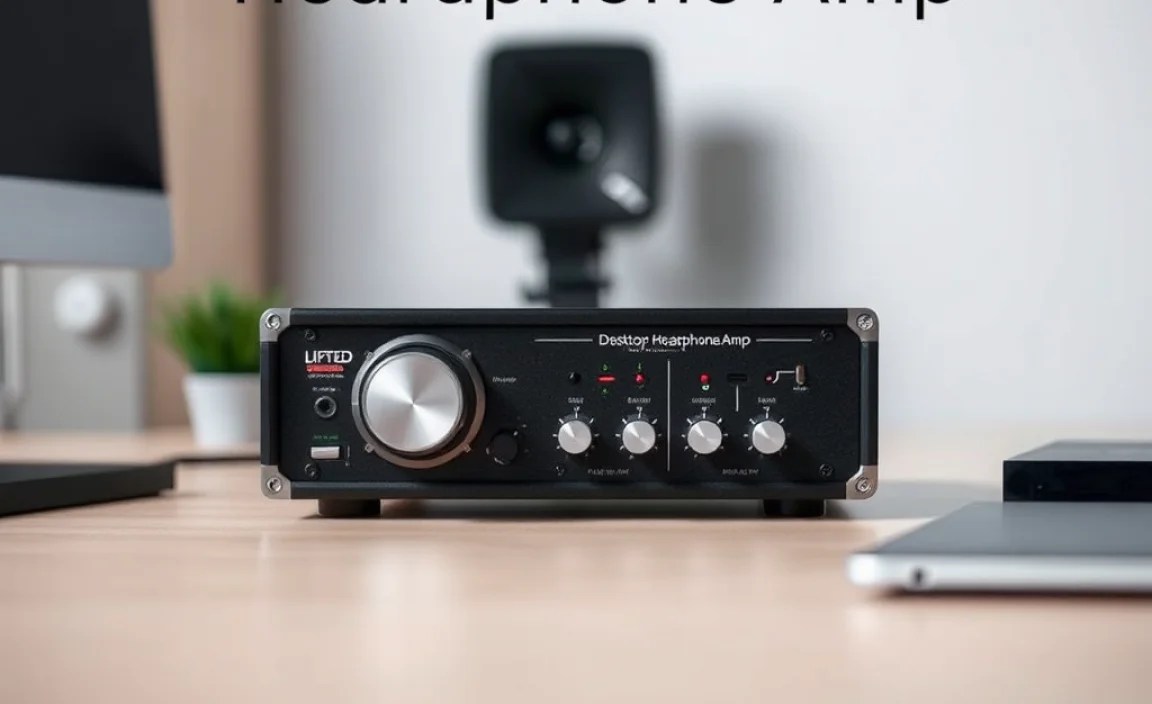
At its core, a headphone amplifier is an electronic device that increases the power of an audio signal. Your computer, smartphone, or tablet has a tiny amplifier built-in to power its headphone jack. However, these are designed to be small, efficient, and capable of driving a wide range of headphones, often with compromise. A dedicated desktop headphone amp is built with one primary goal: to deliver the best possible audio signal to your headphones.
Think of it like this: your music source (computer, phone) is like a tap providing water. The built-in amp is like a narrow hose that can only push so much water with so much force. A desktop headphone amp is like a powerful pump connected to a wider pipe, able to deliver a much stronger, cleaner flow of water – in this case, audio. This extra power and clarity can make a huge difference, especially for higher-impedance headphones which require more juice to perform at their best.
Why Do You Need a Desktop Headphone Amp?
You might be wondering if a headphone amp is really necessary. The answer depends on your headphones and your listening goals, but for many, the benefits are significant. Here’s why investing in a good desktop headphone amp can transform your listening sessions:
- Improved Sound Quality: This is the big one! A dedicated amp provides a cleaner, more powerful signal. This means better clarity, richer bass, more detail in the mids and highs, and a wider soundstage (the sense of space and instrument separation in your music).
- Driving Difficult Headphones: Some headphones, particularly audiophile-grade models, have high impedance (measured in ohms, Ω) or low sensitivity. Their built-in headphone jacks simply can’t provide enough power to make them sound their best. An amp bridges this gap, allowing these headphones to reach their full sonic potential.
- Reduced Distortion and Noise: When your source device’s built-in amp is struggling to power your headphones, it can introduce distortion and noise. A dedicated amplifier handles the load more effectively, resulting in a cleaner, more transparent sound.
- More Volume Control: Amps often offer more granular volume control, allowing for finer adjustments.
- Dedicated Audio Chain: By using an external amp, you’re creating a more focused audio path, isolating it from potential electrical interference or noise from other components in your computer.
Understanding Headphone Amp Features for Beginners

When you start looking at headphone amps, you’ll see a lot of terms and features. Don’t let them intimidate you! Here’s a breakdown of the most important ones for beginners:
Connectivity: How Does it Connect?
This is how your amplifier talks to your audio source and your headphones.
- Inputs: This is how the amp receives the audio signal.
- USB: The most common input for connecting to computers, laptops, and even some tablets. It can carry both the audio signal and power.
- Analog (3.5mm or RCA): These connect to the headphone jack or audio output of your device. RCA inputs often provide a slightly more robust connection for desktop setups.
- Outputs: This is where the amplified audio signal goes.
- Headphone Jack (3.5mm or 1/4 inch): Standard headphone outputs. The 1/4 inch (6.35mm) is common for larger, pro-style headphones. Some amps have both.
- Balanced Output (XLR or 4-pin): A more advanced connection that uses multiple wires to carry the signal. It offers better noise rejection and can provide more power for compatible headphones. For beginners, a standard unbalanced output is usually sufficient.
Power Output: How Loud and Clean?
This refers to how much power the amplifier can deliver. It’s often measured in milliwatts (mW) and is critical when matching with your headphones. You’ll see figures for different impedance loads (e.g., 100mW into 32 ohms). While it might seem technical, a higher mW value generally means more power available. For most common headphones (32-80 ohms), even a modest amp will provide plenty of volume and clarity.
DAC (Digital-to-Analog Converter): Your Digital Sound Converter
Many desktop headphone amps also include a built-in DAC. Your computer converts digital music files (like MP3s or FLACs) into analog signals that headphones can play. A DAC does this conversion. When an amp has a DAC, it’s often called an “Amp/DAC combo” or “DAC/Amp.”
Why is a built-in DAC important? Your computer’s internal DAC might not be the best. An external DAC in your amp can offer a cleaner, more accurate conversion of your digital music, leading to:
- Greater detail and nuance in your music.
- A more natural and lifelike sound.
- Quieter background noise, allowing subtle musical elements to be heard.
For many beginners, an amp with a good built-in DAC is an excellent all-in-one solution. If you’re using a digital input (like USB), the signal goes directly to the amp’s DAC, bypassing your computer’s potentially inferior sound card.
Gain Setting: Fine-Tuning Power
Some amplifiers have a “gain” switch. This essentially adjusts the amplifier’s sensitivity.
- Low Gain: Usually best for sensitive, low-impedance headphones (like earbuds or most consumer on-ear/over-ear headphones) to prevent overdriving them and causing distortion.
- High Gain: Necessary for high-impedance or less sensitive headphones to get sufficient volume and dynamics.
Start with Low Gain, and only switch to High Gain if you need more volume and your headphones aren’t sounding loud enough at the maximum volume setting.
Impedance Rating: A Quick Guide
Headphone impedance is rated in ohms (Ω). It’s a measure of how much electrical resistance your headphones offer. A higher impedance means the headphones require more power to reach a certain volume.
| Impedance (Ω) | Typical Headphone Type | Amp Requirement |
|---|---|---|
| 16 – 32 Ω | Earbuds, most portable on-ear/over-ear headphones | Generally easy to drive; most devices can manage. An amp offers quality improvement. |
| 32 – 80 Ω | Many popular consumer and studio monitor headphones | Can benefit from an amp for optimal performance and volume. |
| 80 – 250 Ω | Many semi-professional and audiophile headphones | A dedicated amp is often necessary to achieve good volume and clarity. |
| 250 Ω+ | High-end audiophile and professional studio headphones | A powerful dedicated amp is almost always required. |
Choosing Your First Desktop Headphone Amp: A Step-by-Step Approach
Ready to find the perfect amp for your setup? Follow these steps:
Step 1: Assess Your Headphones
The most crucial step is to know your headphones. What is their impedance (Ω)? Check the specifications on the box, manufacturer’s website, or your purchase receipt.
- Low Impedance (16-80 Ω): Most modern consumer headphones fall here. You’ll primarily be looking for an amp that provides a cleaner signal and better overall sound quality, rather than raw power.
- High Impedance (80 Ω+): If you have headphones in this range, you’ll definitely need an amp with sufficient power output to drive them properly.
If you’re unsure, assume you have mid-range headphones that will benefit from an amp, but don’t require extreme power.
Step 2: Determine Your Budget
Desktop headphone amps range from under $50 to well over $1,000. For a beginner looking for a noticeable upgrade, a budget of $100-$250 will open up some excellent options that offer a great balance of performance and features.
Step 3: Decide on Features: Amp Only or Amp/DAC Combo?
- Amp Only: If your computer’s audio output is decent, or you already have a separate DAC, an amplifier-only unit is an option. These are less common for beginners.
- Amp/DAC Combo: For most people starting out, a unit with both an amplifier and a DAC is the most practical and cost-effective choice. It simplifies your setup by replacing both your computer’s internal DAC and providing amplification through a single USB connection. These are often called “desktop DAC/amps.”
Step 4: Consider Your Source Device(s)
- Computer (Windows/macOS): USB connectivity is king. Look for amps that are “plug-and-play” so you don’t need to install complex drivers.
- Smartphone/Tablet (iOS/Android): Some portable amps can connect via USB-C or Lightning with the right adapter cable (often called a “camera connection kit” for iOS). Check compatibility carefully. For a desktop setup, a computer is usually the primary source.
- Other Sources (CD Player, Turntable): If you plan to use an amp with older stereo equipment, you might need analog RCA inputs on the amplifier.
Step 5: Look at Connectivity Options
- Headphone Output: Most will have a 3.5mm jack. If you use headphones with a larger 1/4 inch (6.35mm) plug, ensure the amp either has one or comes with an adapter.
- Input: For a desktop setup, a USB input is usually the most convenient for connecting to a computer.
Step 6: Read Reviews and Check Reputable Brands
Once you have an idea of what you’re looking for, check out reviews from trusted audio websites and forums. Some well-regarded brands for beginner to intermediate desktop headphone amps and DAC/amps include:
- Schiit Audio
- AudioEngine
- FiiO
- Topping
- JDS Labs
- Douk Audio (budget-friendly options)
Look for models that frequently appear on “best of” lists for your budget and feature set.
Setting Up Your Desktop Headphone Amp: Simple Steps
Getting your new amp running is usually straightforward. Here’s a general guide:
Step 1: Unpack and Inspect
Carefully unbox your amplifier and check for any physical damage. Ensure all cables and accessories are present.
Step 2: Connect to Power
Most desktop amps will come with a power adapter. Plug it into a wall outlet and then into the amp’s power port.
Step 3: Connect to Your Source (Computer)
- For USB DAC/Amps: Use the provided USB cable to connect the amplifier to a USB port on your computer.
- For Analog Inputs or Amp-Only: Connect an audio cable (e.g., 3.5mm to 3.5mm, or RCA to 3.5mm) from your computer’s headphone jack or audio output to the “Input” port on the headphone amplifier.
Step 4: Connect Your Headphones
Plug your headphones into the headphone jack on the front or back of the amplifier.
Step 5: Configure Your Computer’s Audio Settings
This is important! Your computer needs to know to use the new device.
- Windows:
- Right-click the speaker icon in your system tray (bottom right corner).
- Select “Sound settings” or “Playback devices.”
- Under “Output,” choose your headphone amplifier (it will likely be named after the brand/model, or something like “USB Audio Device”).
- If using analog output, ensure your computer’s built-in speakers are selected as the primary output and the amp is connected to the line-out port.
- macOS:
- Go to “System Preferences” (or “System Settings”).
- Click on “Sound.”
- Select the “Output” tab.
- Choose your headphone amplifier from the list.
For USB DAC/Amps, your computer will usually recognize them automatically. If drivers are required, follow the manufacturer’s instructions.
Step 6: Test and Adjust
Start playing some music. Gradually adjust the volume on your computer and then on the headphone amplifier. Begin with the amp’s volume knob at a low setting, and increase it slowly. Listen for any distortion – if you hear it, turn down the volume on the amp immediately. If your amp has a gain switch, ensure it’s set appropriately (usually “Low” to start).
This guide can also be found on resources like the Arduino website for general electronics principles, but specifically for audio, always refer to audio equipment manufacturer guides.
Recommended Desktop Headphone Amps for Beginners (Examples)
Here are a few popular and well-regarded options often recommended for beginners looking to step up their audio game. Keep in mind that models and prices can change, so always check current offerings!
| Model Example | Type | Key Features | Pros | Cons |
|---|---|---|---|---|
| FiiO K3 (Desktop) | DAC/Amp | USB-C input, 3.5mm + 2.5mm balanced headphone out, low/high gain, decent DAC. | Compact, affordable, good value, can drive a variety of headphones. | May not be powerful enough for the most demanding headphones. |
| Schiit Fulla 3 / Fulla E Transporter | DAC/Amp | USB input, 3.5mm headphone out, optional analog input, clean sound. | Excellent build quality, very clean audio, from a renowned audiophile brand, plug-and-play. | Lower power output than some competitors, limited headphone outputs. |
| AudioEngine D1 | DAC/Amp | USB and Optical inputs, 3.5mm headphone out, analog RCA outputs. | Great sound for the price, can also serve as a preamp, solid metal construction. | No balanced output, headphone output can be a bit sensitive to loud sources. |
| Topping DX3 Pro+ | DAC/Amp | USB, Optical, Coaxial inputs; Bluetooth; 3.5mm + 4.4mm balanced headphone out; high-power output. | Feature-rich, excellent DAC performance, powerful enough for most headphones, includes Bluetooth. | Can be more expensive than basic beginner units, might be overkill if needing only basic amplification. |
These are just examples, and the “best” choice depends on your specific headphones, budget, and needs. Always research current models and read reviews before purchasing.
