
Quick Summary: Finding the best headphones for your computer doesn’t have to be complicated. This guide breaks down what to look for, from comfort and audio quality to connectivity and budget, ensuring you get a pair that enhances your work, study, or gaming without breaking the bank.
Hey there, audio adventurers! Edward Cavitt here from headphonehorizon, ready to help you unlock some truly genius sound from your computer. Whether you’re diving into a critical work call, losing yourself in a gaming world, or just enjoying your favorite tunes, the right headphones can transform your experience. But with so many options out there, where do you even start? Don’t worry, we’ll cut through the jargon and confusion to find you that perfect pair, making your computer sound better than ever. Let’s get started on this sonic journey together!
Choosing Your Computer Companion: What to Look For

When we talk about the “best headphones for computers,” we’re looking for a few key things. It’s not just about how loud they go or how bassy they sound; it’s about a balanced performance that works seamlessly with your PC or Mac. We want comfort for those long sessions, clear audio for communication and immersion, and reliability that won’t let you down mid-task. Think of it as finding the perfect sidekick for your digital life.
1. Comfort is King (or Queen!)
You’re going to be wearing these for hours, right? So, comfort is non-negotiable. This boils down to a few factors:
- Earcup Design: Over-ear headphones cup your entire ear, offering good isolation and comfort. On-ear headphones sit on your ears, which can be lighter but might get less comfortable over time for some. In-ear (earbuds) are the most portable but might not be everyone’s first choice for desk work.
- Padding: Look for plush earcup padding and a well-padded headband. Memory foam is often a good sign of comfort that molds to your shape.
- Weight: Lighter headphones generally mean less strain on your head and neck during extended use.
- Clamping Force: This is how tightly the headphones grip your head. Too tight, and you’ll feel it. Too loose, and they might slip off. A gentle, secure fit is ideal.
2. Sound Quality: More Than Just Loud
For computer use, we’re aiming for clarity and balance. You want to clearly hear dialogue, subtle game effects, or the nuances in your music without a muddy or distorted sound.
- Frequency Response: This refers to the range of sounds headphones can reproduce. While specs can be misleading, a wider, flatter response generally means more natural sound. For general use, you don’t need extreme bass or super-high treble.
- Driver Size: Larger drivers (the speaker components) can often produce a fuller sound, but design and tuning are usually more important than raw size.
- Soundstage: This is how “wide” or “spacious” the audio feels. A good soundstage is great for gaming and immersive music listening, helping you pinpoint where sounds are coming from.
3. Connectivity: Wired vs. Wireless
This is a big decision and depends on your setup and priorities.
- Wired:
- Pros: Generally offer the best audio quality for the price, no batteries to charge, no potential for wireless interference or latency (delay).
- Cons: Tethers you to your computer, can get tangled.
- What to look for: A sturdy cable, a standard 3.5mm audio jack (universal), or USB connection.
- Wireless (Bluetooth):
- Pros: Freedom of movement, clutter-free desk.
- Cons: Requires charging, potential for latency (noticeable in gaming or fast-paced videos), audio quality can be slightly compromised depending on the Bluetooth codec used.
- What to look for: Latest Bluetooth version (e.g., Bluetooth 5.0 or higher) for better stability and efficiency, support for good codecs like aptX or LDAC if audio quality is paramount.
4. Microphone Quality: For Calls and Chat
If you plan to use your headphones for voice or video calls, online gaming, or streaming, the microphone is crucial. Here’s what matters:
- Clarity: Can people on the other end actually understand you without background noise?
- Noise Cancellation: Some mics have built-in noise cancellation to filter out keyboard clatter or room echo.
- Placement: A boom mic that extends closer to your mouth is often clearer than one hidden in the earcup or cable. Detachable or retractable mics offer flexibility.
5. Durability and Build Quality
You want headphones that will last. Look for robust materials like metal in the headband or hinges, and sturdy plastic for the earcups. While most reputable brands offer decent build quality, reading reviews can highlight any common weak points.
6. Your Budget
Headphones range from $20buds to $1000+ audiophile gear. For general computer use, you can find excellent options in the $50 – $150 range. If you’re a professional who relies heavily on pristine audio or a serious gamer, you might consider stepping up to the $150 – $300 bracket.
Types of Headphones Best for Computer Use
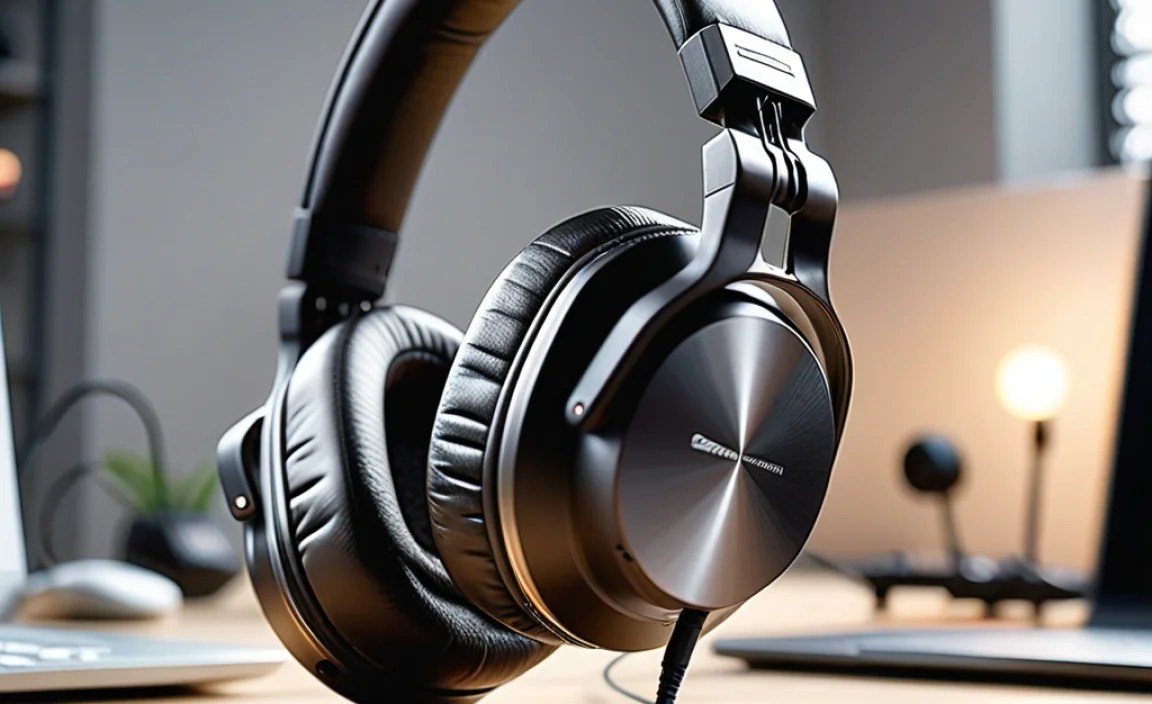
Let’s break down the common types and how they fit into your computer setup.
Over-Ear Headphones
These are generally the most popular choice for desktop and laptop use. They fully enclose your ears, offering a great balance of comfort, sound isolation, and audio immersion.
- Open-Back vs. Closed-Back:
- Open-Back: These have perforations in the earcups that allow air and sound to pass in and out.
- Pros: Often provide a more natural, spacious, and wider soundstage, which is great for critical listening and immersive gaming. They can also feel less “stuffy” over long periods.
- Cons: They leak sound, meaning others can hear what you’re listening to, and they don’t block out external noise. Not ideal for quiet offices or shared spaces.
- Closed-Back: These have solid earcups that seal around your ears.
- Pros: Excellent at isolating you from ambient noise and preventing your audio from leaking out. This makes them versatile for any environment, from a noisy dorm to a quiet office. They often provide a punchier bass response.
- Cons: Can sometimes feel warmer or “stuffy” if worn for very long periods. The soundstage might feel less expansive than open-back models.
- Open-Back: These have perforations in the earcups that allow air and sound to pass in and out.
On-Ear Headphones
These sit directly on your ears. They are often more compact and lighter than over-ear models.
- Pros: Portable, can be more comfortable for some people who find over-ear cups too warm.
- Cons: Can cause discomfort on the ears after extended use for some users, less effective sound isolation than good over-ear headphones, and sound leakage can be more of an issue.
In-Ear Monitors (IEMs) / Earbuds
These go directly into your ear canal or sit just outside it. While often associated with mobile devices, many high-quality IEMs are fantastic for computer use, especially for portability and excellent noise isolation.
- Pros: Highly portable, offer excellent passive noise isolation (especially those that seal into the ear canal), can deliver surprisingly detailed sound. Great for calls and focused work.
- Cons: Some people find them uncomfortable for extended wear, they don’t offer any “spaciousness” in the soundstage, and their small size means a less robust build or fewer features like large microphones.
Top Features for Enhancing Your Computer Audio Experience
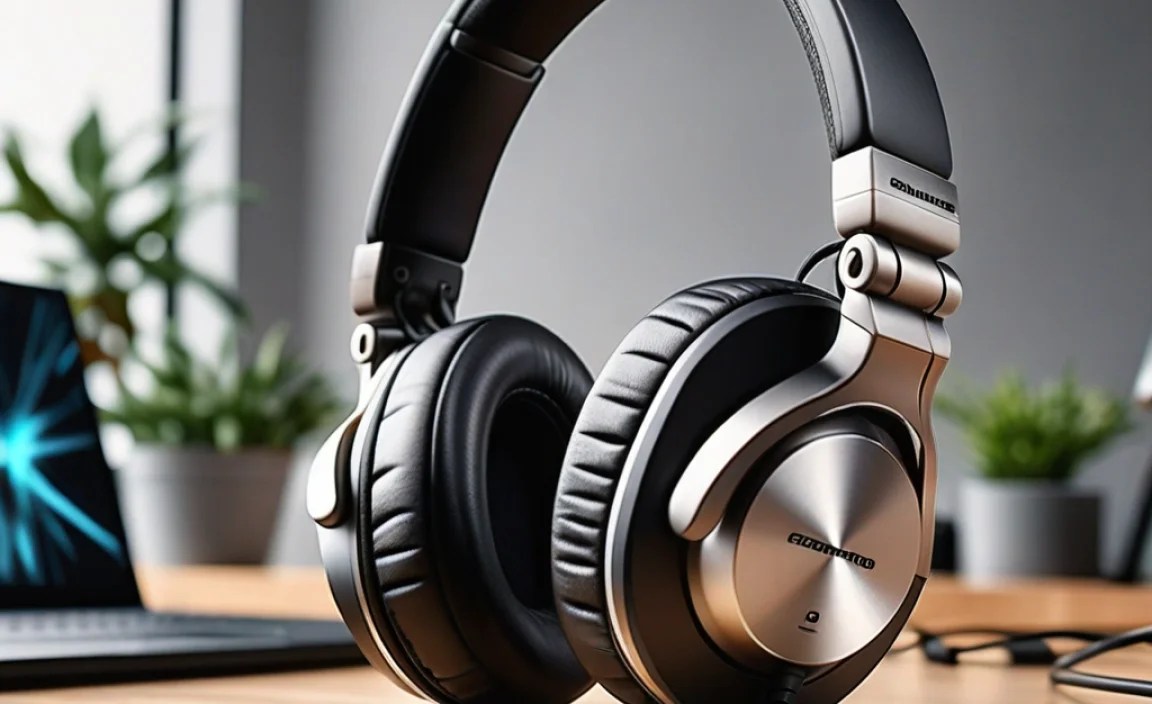
Beyond the basics, a few specific features can make a big difference for computer users.
Active Noise Cancellation (ANC)
ANC uses microphones to detect external noise and generate opposing sound waves to cancel it out. It’s a game-changer for distracting environments like open offices or busy households.
When is ANC best? If you frequently work or study in noisy places, ANC can tremendously improve focus and listening enjoyment. For gaming or critical listening where every tiny sound matters, some audiophiles prefer to avoid ANC as it can subtly alter the sound profile.
For more information on how ANC works and its benefits, you can check out resources from organizations like the Federal Communications Commission (FCC), which often discusses audio technologies in relation to communication devices.
Built-in Microphones and Controls
Many computer headphones come with integrated microphones, often with inline controls for volume, playback, and call management. This adds immense convenience.
- Inline Remote: Allows you to pause/play music, skip tracks, adjust volume, and answer/end calls without reaching for your computer.
- Microphone Quality: As discussed earlier, look for clarity and potentially noise reduction. Some headphones offer boom mics for superior voice capture.
USB vs. 3.5mm Jack Connectivity
The type of connection your headphones use can impact compatibility and features.
- 3.5mm Audio Jack: This is the standard analog connection found on most laptops, desktops, and sound cards. It’s universal and reliable.
- USB-A or USB-C: These headphones connect directly to your computer’s USB port. They have a built-in Digital-to-Analog Converter (DAC) and amplifier, which can bypass your computer’s often basic internal sound card, potentially offering cleaner and higher-quality audio. They also make it easy to use features like surround sound virtualization.
Surround Sound Technologies (Virtual Surround)
For gamers and movie buffs, virtual surround sound can create a more immersive audio experience by simulating sound coming from different directions using stereo headphones. Technologies like Dolby Surround or DTS Headphone:X are often found in gaming-focused headsets.
Is it for you? If you primarily play games or watch movies where directional audio cues are important (like hearing footsteps or explosions), then virtual surround can be a fantastic addition. For music or general productivity, it’s usually less critical and might even alter the intended stereo mix.
Recommended Headphone Categories for Computer Users
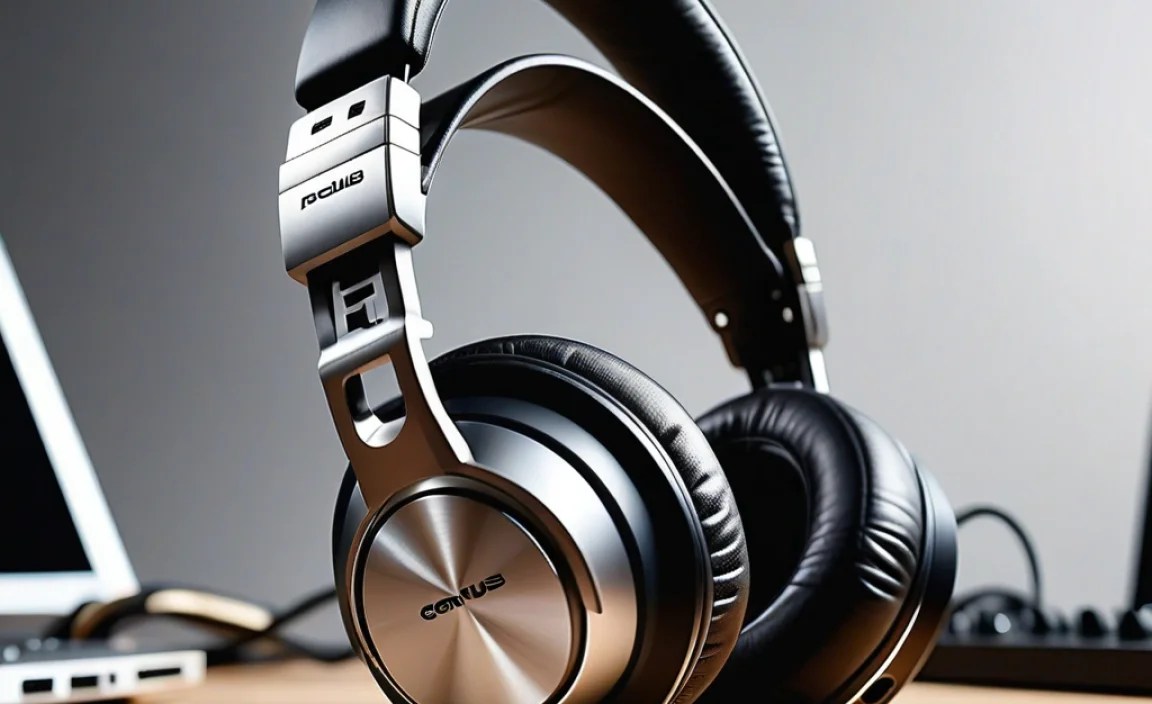
To make it even simpler, here are some categories of headphones that tend to excel for computer use.
1. Best All-Around (Wired)
These offer a solid balance of sound quality, comfort, and value, with the reliability of a wired connection.
- Key Features: Comfortable over-ear design, balanced sound profile, good build quality, 3.5mm or USB connection.
- Ideal for: Productivity, music listening, casual gaming, video calls.
2. Best Wireless Freedom
For those who crave a clean desk and the ability to move around without being tethered.
- Key Features: Reliable Bluetooth connection, good battery life, comfortable fit, clear microphone for calls.
- Ideal for: Remote work, multitasking, listening while moving around the house.
3. Best for Gaming & Immersion
These focus on soundstage, positional accuracy, and often come with features like virtual surround sound and a prominent microphone.
- Key Features: Wide soundstage (often open-back or tuned for it), clear directional audio, high-quality boom microphone, durable build.
- Ideal for: Competitive gaming, immersive single-player experiences, watching action movies.
4. Best for Calls and Clarity
Prioritizes microphone quality and clear vocal reproduction for online meetings and communication.
- Key Features: Excellent microphone clarity, comfortable for long wear, good vocal isolation, often includes inline controls.
- Ideal for: Remote work, online classes, frequent video conferencing.
5. Best Budget-Friendly Picks
Great performance without breaking the bank. These prove you don’t need to spend a fortune for good sound.
- Key Features: Good value for money, decent comfort, acceptable sound quality, basic but functional microphone.
- Ideal for: Students, casual users, backup headphones.
Example Headphone Recommendations (Illustrative)
To give you a concrete idea, here are some types of headphones that frequently receive high marks for computer use. Please note: Specific models change rapidly, so always check for the latest versions and reviews.
| Category | Example Type | Key Strengths | Considerations |
|---|---|---|---|
| All-Around Wired | Audio-Technica ATH-M series (e.g., M30x, M40x) | Balanced sound, durable, great isolation (closed-back) | Can be a bit snug initially; mic is usually external or none |
| Wireless Freedom | Logitech Zone Wireless / Bose QuietComfort series | Excellent ANC, comfort, reliable Bluetooth, good mic | Higher price point, requires charging |
| Gaming & Immersion | HyperX Cloud series / SteelSeries Arctis series | Comfortable for long sessions, great mic, virtual surround option | Can sometimes lean towards gaming aesthetics; sound might be bass-heavy for pure music |
| Calls & Clarity | Jabra Evolve series / Poly Blackwire series | Superior microphone clarity, comfortable, business-oriented design | Sound quality might be more functional than audiophile-grade; often wired |
| Budget-Friendly | Samson SR850 (semi-open) / Plantronics Blackwire C320 (USB) | Excellent value, surprising audio quality for price | Build quality can be less premium; mic less sophisticated on true budget audiophile cans |
Setting Up and Maintaining Your Computer Headphones
Once you’ve chosen your perfect pair, a little setup and care go a long way.
Step 1: Plugging In and Connecting
- Wired (3.5mm): Locate the audio-out port on your computer. It’s usually a small, green, circular jack, often marked with a headphone icon. Simply plug the headphone cable into this port.
- Wired (USB): Find an available USB port (Type-A or Type-C) and plug in the USB cable. Your computer should automatically detect the device. You might see a prompt to set it as the default audio device.
- Wireless (Bluetooth):
- Turn on your headphones and put them into pairing mode (check your headphone manual for how to do this – usually involves holding down a button).
- On your computer, go to Bluetooth settings (search for “Bluetooth” in the Windows search bar or go to System Preferences > Bluetooth on macOS).
- Click “Add Bluetooth or other device” and select “Bluetooth.”
- Your computer will scan for devices. Select your headphones from the list when they appear.
- Follow any on-screen prompts to complete the pairing.
Step 2: Setting as Default Audio Device (Windows)
Sometimes, your computer might not automatically switch sound output to your new headphones.
- Right-click the speaker icon in the system tray (bottom-right corner of your screen).
- Select “Open Sound settings” or “Playback devices.”
- Under “Output,” choose your headphones from the dropdown menu.
- If you’re in “Playback devices,” find your headphones in the list, right-click it, and select “Set as Default Device” and “Set as Default Communication Device.”
Step 3: Setting as Default Audio Device (macOS)
- Click the Apple menu at the top-left corner of your screen.
- Select “System Settings” (or “System Preferences” on older macOS versions).
- Click on ” Sound.”
- Under the “Output” tab, select your headphones from the list of devices.
- For the microphone, go to the “Input” tab and select your headphones’ microphone if that’s your preference.
Step 4: Microphone Check
Before a crucial call, do a quick microphone test.
- Windows: Go to Sound settings > Input, and speak into your mic. You should see the “Test your microphone” bar respond.
- macOS: Go to Sound settings > Input
