
Find the best headphones for PS4 gaming by focusing on comfort, sound quality, microphone clarity, and connectivity. This guide breaks down essential features, wired vs. wireless options, and top picks to enhance your PlayStation 4 gaming experience.
Best Headphones For Gaming PS4: Your Essential Guide

Hey gamers! Edward Cavitt here, your friendly guide from Headphone Horizon. Diving into the vast world of gaming audio can feel a bit overwhelming, but I’m here to make it super simple. If you’re looking to upgrade your PlayStation 4 gaming sessions with awesome sound and clear communication, you’ve come to the right place.
We’ll explore what makes a pair of headphones truly shine for PS4 gaming, from feeling great on your ears for those long raids to delivering those crucial in-game cues. Let’s find you the perfect audio sidekick for your PS4 adventures!
Why Good Gaming Headphones Matter for PS4

You might be thinking, “Do I really need special headphones for my PS4?” The answer is a resounding yes! While any headset will get sound to your ears, dedicated gaming headphones bring a whole new level to your experience. They aren’t just about hearing explosions louder; they’re designed to:
- Enhance Immersion: Directional audio cues (like footsteps or distant gunfire) help you pinpoint enemy locations and feel more connected to the game world.
- Improve Communication: A clear microphone ensures your teammates hear your calls and strategies without static or background noise.
- Boost Comfort: Long gaming sessions demand comfortable earcups and a lightweight design to avoid fatigue.
- Deliver Superior Sound Quality: From the subtle rustle of leaves to the thunderous roar of a boss’s attack, good headphones bring game audio to life.
Investing in the right pair means staying ahead of the competition and enjoying your favorite titles on a deeper level. It’s about both advantage and enjoyment, making every moment on the PS4 more engaging.
Key Features to Look For in PS4 Gaming Headphones

When you’re browsing for the best headphones for gaming on your PS4, keep these essential features in mind. They’re the building blocks for a great audio experience.
1. Sound Quality
This is paramount. For gaming, you want headphones that offer a good balance of bass, mids, and highs. Strong bass adds impact to explosions and epic moments, while clear mids and highs ensure you can hear dialogue and crucial sound effects like footsteps or reload sounds. Look for headphones that provide a wide soundstage, which means the audio feels spatially accurate, helping you determine the direction of sound sources.
2. Microphone Quality
If you play multiplayer games, a clear microphone is non-negotiable. Your teammates need to hear you loud and clear, and you need to hear them too! Look for:
- Noise Cancellation: Helps filter out background distractions like keyboard typing or room noise.
- Adjustable Boom Mic: Allows you to position the mic correctly and mute it easily when needed.
- Clarity: Does your voice come through naturally or is it tinny and distorted?
3. Comfort and Build Quality
You might wear your headphones for hours on end. Comfort is king! Consider:
- Earcup Material: Plush memory foam or breathable fabric can make a big difference.
- Headband: Padded and adjustable to fit different head sizes.
- Weight: Lighter headphones are generally more comfortable for extended wear.
- Durability: Sturdy materials mean your investment will last.
4. Connectivity Options
How will you connect your headphones to the PS4? There are a few main ways:
- 3.5mm Audio Jack: This is the most common and versatile. Most PS4 controllers have a 3.5mm port, and many wired headphones connect this way. It’s simple, reliable, and usually offers low latency (delay).
- USB Dongle (Wireless): Many wireless headsets connect to the PS4 via a USB dongle. This typically offers a stable wireless connection with minimal lag, which is crucial for gaming.
- Bluetooth: While convenient for other devices, Bluetooth can sometimes introduce noticeable audio delay (latency), which can be problematic in fast-paced games. Some PS4 headsets might offer Bluetooth as an additional feature, but the primary connection for low-latency gaming is often a USB dongle or 3.5mm cable.
For the best PS4 gaming experience, especially with wireless options, prioritize low latency. This means the sound reaches your ears almost instantly after it happens in the game.
5. Surround Sound Technology
Many gaming headsets advertise surround sound. This can be simulated (virtual) or true surround sound. For PS4, you’ll primarily find virtual surround sound technologies like:
- DTS Headphone:X
- Dolby Atmos (requires specific setup and compatible games)
- Sony’s 3D AudioTech (for PS5, but some cross-compatibility or similar tech is used in PS4 era)
These technologies create a more immersive and directional audio experience, helping you pinpoint enemy movements. While not essential, it’s a feature that can definitely enhance your gameplay.
Wired vs. Wireless Headphones for PS4
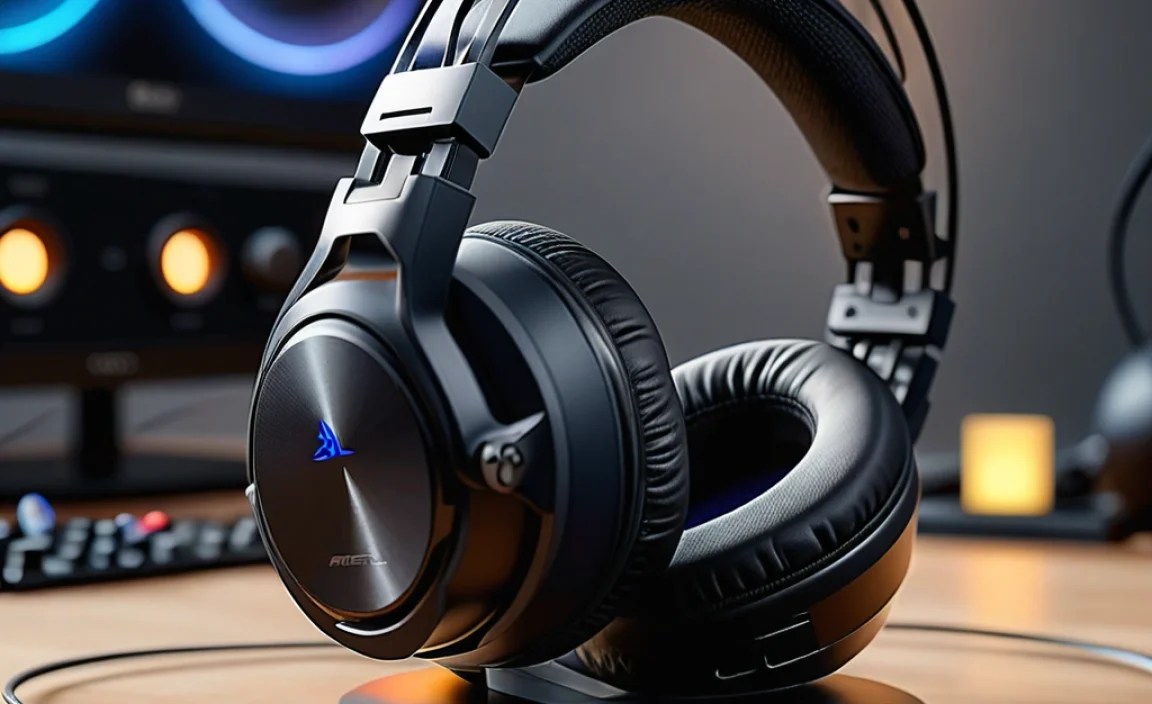
This is often the biggest decision point for gamers. Both wired and wireless have their pros and cons.
Wired Headphones
Pros:
- No Latency: Sound is delivered instantly, crucial for competitive gaming.
- Simplicity: Plug and play with the PS4 controller’s 3.5mm jack.
- No Charging Needed: You don’t have to worry about battery life.
- Often More Affordable: Generally, you get more sound quality for your money.
Cons:
- Cable Management: Wires can get tangled or restrict movement.
- Shorter Range: Limited by the length of the cable.
Wireless Headphones
Pros:
- Freedom of Movement: No wires to hold you back.
- Clean Setup: Reduces cable clutter.
Cons:
- Potential Latency: Some cheaper wireless options can have noticeable delay. Look for headsets specifically designed for low-latency gaming (usually via a USB dongle).
- Battery Life: You’ll need to charge them, and battery life can vary.
- Price: Wireless models are typically more expensive.
- Connection Stability: Can sometimes be susceptible to interference.
For PS4, if low latency is your absolute top priority, a high-quality wired headset is often the safest bet. However, many excellent wireless gaming headsets are available that use dedicated USB dongles to minimize lag, making them a viable option for those who value freedom.
Recommended Headsets: Top Picks for PS4 Gaming
Based on critical reviews, user feedback, and our own experience, here are some of the best headphones for gaming on your PS4. These cover a range of budgets and features.
1. HyperX Cloud Alpha
The HyperX Cloud Alpha is a perennial favorite for a reason. It strikes an amazing balance between comfort, build quality, and audio performance, all at a very attractive price point.
- Connectivity: Detachable 3.5mm cable.
- Microphone: Detachable, noise-cancelling.
- Comfort: Excellent plush earcups and sturdy metal frame.
- Sound: Rich, detailed sound with good stereo imaging.
- Pros: Incredible value, durable, comfortable for long sessions, excellent mic.
- Cons: Wired only.
2. Logitech G Pro X Gaming Headset
Logitech’s G Pro X is a step up, offering professional-grade features like a swappable microphone for crystal-clear voice chat and advanced software for audio customization. It also features a comfortable design with memory foam earcups.
- Connectivity: 3.5mm audio jack, USB external sound card.
- Microphone: 6mm cardioid boom mic with Blue VO!CE technology.
- Comfort: Memory foam earcups, flexible steel headband.
- Sound: Powerful 50mm drivers, customizable EQ via Logitech G HUB.
- Pros: Superb mic quality, comfortable, highly customizable sound, good build.
- Cons: Can be pricier, reliance on software for best features.
3. SteelSeries Arctis 7 (or Arctis 7P/7X for PS5 compatibility now)
The Arctis 7 (or its newer PS5-optimized successors, the 7P and 7X) offers a fantastic wireless experience for PlayStation gamers. It uses a lag-free 2.4GHz wireless connection via USB dongle and boasts a comfortable, ski-goggle headband design.
- Connectivity: Lag-free wireless via USB dongle, 3.5mm option.
- Microphone: Retractable ClearCast noise-cancelling microphone.
- Comfort: Ski-goggle headband distributes weight evenly, very comfortable.
- Sound: Well-balanced audio with good imaging for gaming.
- Pros: Excellent wireless performance, very comfortable, long battery life, good mic.
- Cons: Price, might require firmware updates for optimal PS4 performance.
4. Razer BlackShark V2 X
For budget-conscious gamers who don’t want to compromise too much on sound, the BlackShark V2 X is a solid contender. It brings a lightweight design and impressive audio drivers for its price class.
- Connectivity: 3.5mm audio jack.
- Microphone: Bendable cardioid microphone.
- Comfort: Lightweight design, breathable mesh fabric earcups.
- Sound: 50mm drivers with titanium-coated diaphragms for clarity.
- Pros: Affordable, comfortable, good sound for the price, lightweight.
- Cons: Build quality can feel less premium than higher-end options, mic is decent but not exceptional.
5. Astro A40 TR (with optional MixAmp Pro)
The Astro A40 TR is a premium option beloved by many pro gamers. It offers exceptional comfort, modular design, and customizable sound. When paired with the MixAmp Pro, it provides superior audio control and simulated surround sound.
- Connectivity: 3.5mm audio jack, TOSLINK optical, USB (with MixAmp).
- Microphone: Detachable, uni-directional mic.
- Comfort: Over-ear design with plush earcups and adjustable headband.
- Sound: Highly accurate and balanced audio. MixAmp offers Dolby Surround Sound.
- Pros: Top-tier comfort and build, highly customizable, excellent with MixAmp.
- Cons: Very expensive, especially with the MixAmp.
Setting Up Your Headphones on PS4
Connecting your new headphones to your PS4 is usually straightforward. Here’s how:
For Wired Headphones (3.5mm Jack)
This is the simplest:
- Locate the 3.5mm audio jack on your DualShock 4 controller (usually at the bottom).
- Plug the headphone’s 3.5mm cable directly into the controller.
- Your PS4 should automatically detect the headset.
- If you need to adjust settings (like game audio vs. chat mix), go to: Settings > Devices > Audio Devices.
- Under “Output Device”, select “Headset Connected to Controller”.
- Under “Output to the headset”, choose “All Audio” or “Chat Audio” depending on your preference. (“All Audio” sends game sound and chat; “Chat Audio” sends only voice chat).
- Adjust the “Volume Control (Headphones)” slider as needed.
For Wireless Headphones (USB Dongle)
Most wireless headsets use a USB dongle for their lag-free connection:
- Plug the USB wireless dongle into an available USB port on your PS4 console.
- Turn on your wireless headset. It should automatically pair with the dongle. A light on the dongle or headset usually confirms the connection.
- Go to: Settings > Devices > Audio Devices.
- Under “Input Device” and “Output Device”, select your wireless headset (it will usually be listed by its brand name, e.g., “Arctis 7 Wireless”).
- Set “Output to the headset” to “All Audio” for the best gaming experience.
- Use any in-line or headset controls to adjust volume and mic monitoring.
Important PS4 Audio Settings You Should Know
On your PS4, the Settings > Devices > Audio Devices menu is your command center for headphone management. Here are the key settings:
- Input Device: This is where your microphone is selected. Make sure your headset’s mic is chosen.
- Output Device: Select whether audio goes to your TV/sound system or your headset.
- Output to the Headset: This is critical.
- All Audio: Sends both game sound and voice chat to your headphones. This is usually what gamers want.
- Chat Audio: Sends only voice chat to your headphones. Game sound still comes from your TV/speakers.
- Volume Control (Headphones): Adjusts the overall volume sent to your headset.
- Microphone Level: Adjusts the sensitivity of your mic. You can test this here.
- Adjust 3D Audio for Headphones: (If available on your PS4 firmware) This can enhance positional audio for supported games. You can choose between several profiles or turn it off.
It’s always a good idea to play around with these settings to find what sounds and feels best for you and the games you play.
Troubleshooting Common Headphone Issues on PS4
Even the best gear can sometimes be a bit fussy. Here are some common problems and how to fix them:
No Sound or Low Volume
- Check Connections: Ensure the 3.5mm jack is fully plugged into the controller or the USB dongle is securely in the PS4.
- Check Volume Controls: Verify that the inline volume control on the cable (if any) or the volume dial on the headset itself is turned up.
- PS4 Audio Settings: Double-check that “Output Device” is set to your headset and “Output to the headset” is set to “All Audio” in Settings > Devices > Audio Devices.
- Test with Another Device: Try the headphones with a phone or computer to see if they work there. If not, the headphones might be faulty.
Microphone Not Working
- Mute Button: Make sure the mic isn’t muted. Many headsets have a physical mute switch or button.
- PS4 Audio Settings: In Settings > Devices > Audio Devices, ensure your headset is selected as the “Input Device.”
- Mic Level: Check the “Microphone Level” in the same menu. If it’s too low, your voice won’t be picked up.
- Detachable Mic: If your mic is detachable, ensure it’s fully and correctly inserted.
- Firmware Updates: For wireless headsets, check the manufacturer’s website for any available firmware updates for the headset or its dongle.
Crackling or Static Sound
- Interference (Wireless): Other wireless devices nearby can sometimes cause interference. Try moving closer to the PS4 or repositioning the USB dongle.
- Loose Connections: Wiggle the 3.5mm cable slightly at both ends to see if the crackling changes. A damaged cable might need replacement.
- Headphone Drivers: For any headset with separate earcups and a removable cable, ensure the cable is firmly seated into the earcups.
- PS4 Software Glitch: Sometimes, a simple PS4 restart can resolve temporary audio glitches.
If you’re constantly facing issues, consulting the manufacturer’s support page or website is a great idea. For example, Sony’s official PlayStation support site offers extensive troubleshooting guides for console peripherals.
