
Quick Summary: Finding the best headphones for your Mac is simple! This guide helps you choose based on sound, comfort, and connectivity. We cover wired, wireless, and noise-canceling options, ensuring you get great audio for music, calls, and work. Get ready for an enhanced Mac sound experience!
The Best Headphones for Your Mac: Your Essential Guide

Hey everyone, Edward Cavitt here from headphonehorizon! So, you’ve got a fantastic Mac, but are you truly hearing everything it has to offer? The right pair of headphones can transform your Mac experience, whether you’re deep into a Spotify playlist, on a crucial Zoom call, or editing your latest podcast.
But with so many options out there, it’s easy to feel a little lost trying to find the “best headphones for Mac.” Don’t sweat it!
This guide is designed to cut through the noise and help you find the perfect audio companion. We’ll explore what makes a pair of headphones great for Mac users, focusing on sound quality, comfort, connectivity, and key features. Let’s dive in and unlock the amazing sound your Mac is capable of!
Why Quality Headphones Matter for Your Mac

Your Mac is a powerful device, capable of delivering rich audio for everything from streaming high-fidelity music to crystal-clear video calls. However, the built-in speakers, while often good, can’t replicate the immersive experience that a great pair of headphones offers. Quality headphones can:
- Enhance Audio Fidelity: Experience music, podcasts, and movies with greater detail, depth, and clarity than your Mac’s speakers can provide.
- Improve Focus and Productivity: Block out distractions with noise-canceling features, allowing you to concentrate on your work or studies.
- Provide Privacy: Enjoy your audio without disturbing others around you.
- Offer Superior Comfort: Designed for long listening sessions, good headphones are more comfortable than straining to hear from your Mac’s speakers.
- Facilitate Clear Communication: For video calls and online meetings, a good microphone on your headphones is essential for clear communication.
Understanding Your Needs: What to Look For

Before we jump into specific recommendations, let’s think about what you’ll primarily use your headphones for. This will guide your decision-making process significantly. Consider these factors:
1. Connectivity: Wired vs. Wireless
This is often the first big decision. Both have their pros and cons when pairing with your Mac.
Wired Headphones
Pros:
- Generally offer superior audio quality for the price.
- No need to worry about battery life or Bluetooth pairing issues.
- Often more durable and can be repaired more easily.
- Can be more budget-friendly.
Cons:
- Tethered by a cable, which can limit movement.
- Newer Macs might not have a traditional headphone jack, requiring an adapter (USB-C to 3.5mm audio adapter).
Wireless Headphones (Bluetooth)
Pros:
- Freedom of movement, no tangled cables.
- Convenient for multitasking and moving around your workspace.
- Many models offer advanced features like Active Noise Cancellation (ANC).
Cons:
- Require charging (battery life varies).
- Can be more expensive than wired equivalents.
- Audio quality might be slightly compressed compared to high-end wired options, although Bluetooth codecs are improving rapidly.
- Potential for pairing issues or latency (though less common with modern Bluetooth).
2. Sound Quality: What’s Your Vibe?
Sound is subjective! What sounds “good” to one person might not to another. Think about what you listen to most:
- For Music Lovers (Critical Listening): Look for neutral, balanced sound profiles. Headphones that provide accurate sound reproduction without overly boosting bass or treble are ideal.
- For Podcasts & Audiobooks: Clear vocal reproduction is key. You want headphones that make spoken word crisp and easy to understand.
- For Movies & Gaming: A wider soundstage (the sense of space in the audio) and good bass response can enhance immersion.
3. Comfort and Fit
You’ll be wearing these, possibly for hours! Comfort is paramount.
- Over-ear (Circumaural): These fully enclose your ears, offering excellent passive noise isolation and comfort for long sessions.
- On-ear (Supra-aural): These rest on your ears. They are often lighter but can cause discomfort for some users over time and offer less noise isolation.
- In-ear (Earbuds): Compact and portable, these fit inside your ear canal. They offer good isolation but can be less comfortable for extended wear for some.
Consider the weight of the headphones, the clamping force (how tightly they grip your head), and the material of the earcups. For Macs, especially if you’re in an office or shared space, over-ear headphones often provide the best blend of comfort and isolation.
4. Active Noise Cancellation (ANC)
If you find yourself easily distracted by your surroundings – a noisy office, a bustling café, or even just household chatter – ANC is a game-changer. It uses microphones and electronics to actively cancel out ambient noise. This is especially useful if your Mac usage involves focus-oriented tasks or immersive entertainment.
5. Microphone Quality
For video calls, virtual meetings, or even dictation, the quality of the built-in microphone is crucial. Look for headphones that specifically mention clear microphone performance or noise reduction for calls.
Top Picks: Best Headphones for Mac Users

Now, let’s get to some recommendations! I’ve broken these down by category to make it easier for you to find the best fit.
Best Overall Wireless Headphones for Mac
These headphones strike an excellent balance of sound quality, comfort, features, and seamless integration with Apple devices.
Sony WH-1000XM5
The WH-1000XM5 are often at the top of many “best of” lists for a reason. They offer world-class Active Noise Cancellation, exceptional sound quality that can be tailored via an app, and supreme comfort for extended wear. They connect effortlessly via Bluetooth to your Mac.
Key Features:
- Industry-leading noise cancellation.
- Superb sound quality with customizable EQ.
- Comfortable design for long listening sessions.
- Excellent battery life.
- Clear microphones for calls.
Best Wired Audiophile Headphones for Mac
If absolute sound fidelity is your priority and you don’t mind a cable (or are using a Mac with a headphone jack or adapter), these deliver stunning audio.
Sennheiser HD 600
A legendary choice for a reason, the HD 600s provide a neutral, detailed, and natural soundstage. They are incredibly comfortable and renowned for their accuracy, making them perfect for music production, critical listening, or just enjoying your favorite tracks as the artist intended.
Key Features:
- Extremely accurate and natural sound reproduction.
- Open-back design for a wide, airy soundstage (note: these leak sound, best for quiet environments).
- Comfortable for very long listening sessions.
- Durable build quality.
Best Budget-Friendly Wireless Headphones for Mac
You don’t need to break the bank to get a great wireless listening experience with your Mac.
Anker Soundcore Life Q30
The Soundcore Life Q30 offers remarkable value. They boast impressive active noise cancellation for their price point, good sound quality with app customization, and a comfortable fit. They connect seamlessly via Bluetooth to your Mac and offer decent battery life.
Key Features:
- Effective Active Noise Cancellation.
- Good battery life (up to 40 hours with ANC on).
- Comfortable for extended listening.
- Customizable EQ via the Soundcore app.
- Affordable price point.
Best In-Ear Headphones (Earbuds) for Mac
For portability and a more discreet option, earbuds can’t be beaten.
Apple AirPods Pro (2nd generation)
If you’re deeply embedded in the Apple ecosystem, the AirPods Pro offer unparalleled integration. Seamless pairing, intuitive controls that work exceptionally well with macOS, and effective ANC make them a top choice. Spatial Audio support also adds an immersive layer to compatible content.
Key Features:
- Effortless Apple device switching and pairing.
- Impressive Active Noise Cancellation.
- Transparency mode to hear your surroundings.
- Comfortable fit with multiple ear tip sizes.
- Spatial Audio for immersive sound.
Sony WF-1000XM5 (Truly Wireless Earbuds]
For those who want top-tier ANC and sound in a compact earbud form factor, these are a fantastic option, even if you’re not exclusively in the Apple ecosystem. They deliver a premium audio and noise-canceling experience.
Key Features:
- Best-in-class noise cancellation for earbuds.
- Excellent sound quality.
- Comfortable and secure fit.
- Good battery life for earbuds.
Best Headphones for Video Calls on Mac
Clear communication is vital for modern work. These focus on microphone quality.
Bose QuietComfort Ultra Headphones / Bose 700
While known for their excellent ANC and comfort, Bose headphones also typically feature very good microphones. The Bose 700, in particular, was praised for its call quality. The newer QuietComfort Ultra maintain this legacy with stellar ANC and, while not exclusively a “mic” product, offer robust audio performance that includes clear voice pickup for calls.
Key Features:
- Exceptional Active Noise Cancellation.
- Premium comfort and build.
- Very good microphone array for clear calls.
- Balanced, pleasing sound.
Comparing Key Features: A Quick Glance
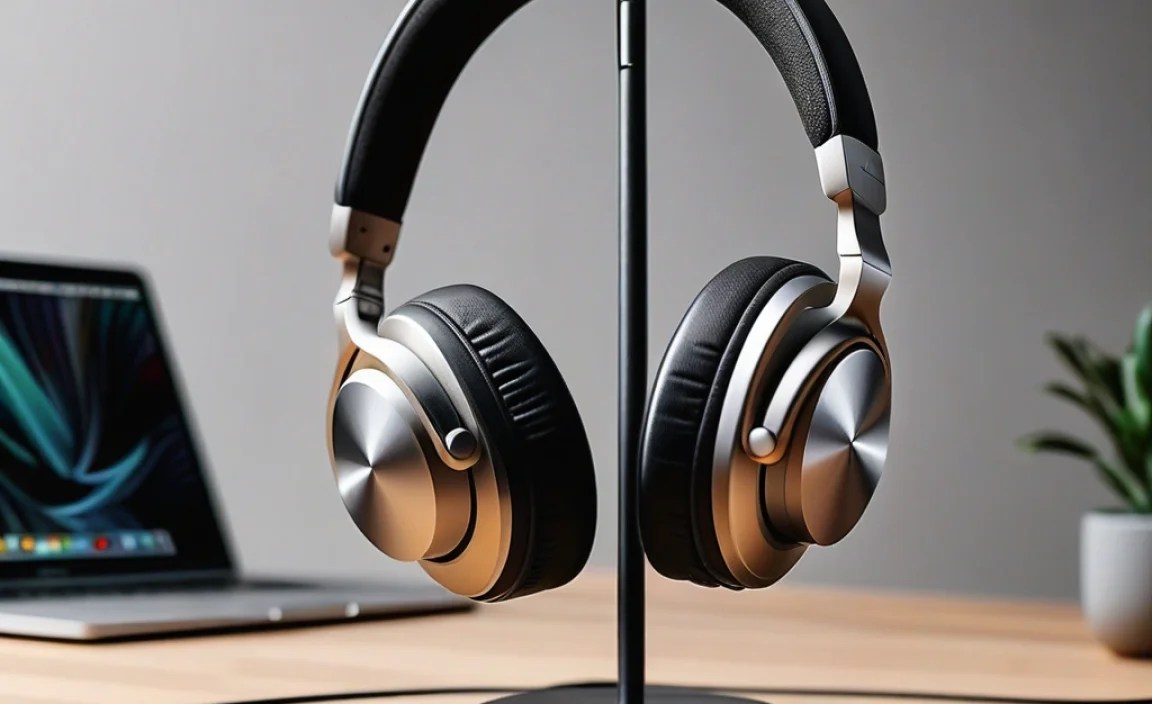
Here’s a quick table to help you compare some of these popular models side-by-side. Keep in mind that prices can fluctuate!
| Headphone Model | Type | Connectivity | Active Noise Cancellation (ANC) | Microphone Quality | Price Range (Approx.) |
|---|---|---|---|---|---|
| Sony WH-1000XM5 | Over-ear | Bluetooth 5.2 | Excellent | Very Good | $$$ |
| Sennheiser HD 600 | Over-ear (Open-back) | Wired (3.5mm) | No | Good (for wired) | $$ |
| Anker Soundcore Life Q30 | Over-ear | Bluetooth 5.0 | Good | Decent | $ |
| Apple AirPods Pro (2nd Gen) | In-ear | Bluetooth (Apple H2 chip) | Excellent | Very Good | $$ |
| Sony WF-1000XM5 | In-ear | Bluetooth 5.3 | Excellent | Very Good | $$$ |
| Bose QuietComfort Ultra | Over-ear | Bluetooth 5.3 | Exceptional | Excellent | $$$ |
Pricing Key:
- $ = Under $100
- $$ = $100 – $250
- $$$ = $250+
Setting Up Your New Headphones with Your Mac
Getting your new headphones connected and working with your Mac is usually straightforward. Here’s a general guide.
For Wired Headphones:
- Check Your Mac’s Ports: Most recent Macs use USB-C ports. If your headphones have a 3.5mm jack and your Mac doesn’t have a dedicated headphone port, you’ll need a USB-C to 3.5mm audio adapter. You can find reliable ones from Apple or reputable third-party brands.
- Connect the Cable: Plug the headphone cable directly into the appropriate port on your Mac or the adapter.
- Select in System Settings: Go to System Settings (or System Preferences on older macOS versions) > Sound. Under the “Output” tab, select your headphones as the sound output device. Your Mac should automatically detect them.
For Wireless (Bluetooth) Headphones:
- Put Headphones in Pairing Mode: This varies by model. Usually, you press and hold a power or Bluetooth button until an indicator light flashes. Consult your headphone’s manual.
- Open Bluetooth Settings on Your Mac: Go to System Settings > Bluetooth.
- Find and Connect: Your Mac will scan for nearby Bluetooth devices. Your headphones should appear in the list. Click “Connect” next to their name.
- Confirm Connection: Once paired and connected, their status will update in the Bluetooth menu.
- Select in System Settings: As with wired headphones, ensure they are selected as the “Output” device in System Settings > Sound if you don’t hear audio immediately.
Tip for Apple Users: AirPods automatically “pair” when you’re near your Mac and the AirPods are in their case with the lid open. A prompt will appear on your Mac to connect. They also “switch” between your Apple devices (iPhone, iPad, Mac) more seamlessly.
Maximizing Your Headphone Experience on Mac
Once connected, there are a few things you can do to get the most out of your audio.
- Adjust Volume: Use the volume keys on your Mac or the volume controls on your headphones.
- Customize Sound (EQ): Many wireless headphones come with companion apps that allow you to adjust the equalizer (EQ) to fine-tune the sound to your preferences. Look for this in the app store.
- Utilize Spatial Audio (if applicable): If your headphones and Mac support Spatial Audio (e.g., AirPods Pro, AirPods Max), explore this feature in Apple Music or compatible apps for a more immersive, theater-like sound experience. You can often manage Spatial Audio settings within System Settings.
- Manage Noise Cancellation: If your headphones have ANC, experiment with different modes (e.g., fully on, transparency, off) to find what works best for your environment and task.
- Check for Updates: Keep your macOS and headphone firmware (updated via companion apps) up-to-date for the best performance and bug fixes. For Apple’s own audio devices, macOS Sonoma provides several new audio features, as noted by AppleSupport.
Troubleshooting Common Issues
Even the best tech can sometimes act up. Here are a few common issues and how to fix them:
- No Sound: Ensure your headphones are selected as the output device in System Settings > Sound. If wireless, check they are properly connected and charged. For wired, ensure the cable is fully plugged in.
- Bluetooth Pairing Problems: Turn Bluetooth off and on again on your Mac. Restart both your Mac and your headphones. If persistent, “forget” the device in your Mac’s Bluetooth settings and try pairing again.
- Poor Audio Quality: For Bluetooth, ensure you’re using a modern codec (like AAC or LDAC if supported) and that there aren’t too many Bluetooth devices active nearby, which can cause interference. For wired, check the cable for damage and ensure it’s fully plugged in.
- Microphone Not Working: Check that your headphones are selected as the input device in System Settings > Sound under the “Input” tab. Also, ensure no other application is using the microphone exclusively. Some apps might also require permission to access the microphone.
- Low Battery Life: For wireless, ensure you’re charging them fully. Some features like ANC and high volume can drain battery faster.
Frequently Asked Questions (FAQ)
Q1: Do I need a special adapter for wired headphones on my Mac?
Many newer Macs have replaced the traditional 3.5mm headphone jack with USB-C ports. If your headphones use a 3.5mm plug, you will likely
