
Quick Summary: Choosing the best headphones for your MacBook, whether for work, music, or calls, involves understanding your needs. This guide simplifies the options, covering wired, wireless, noise-canceling, and comfort-focused choices to ensure you find the perfect audio companion for your Apple device.
Best Headphones for MacBook: Your Essential Guide
Hey headphone lovers! Edward Cavitt here from Headphone Horizon. If you’re looking to pair your trusty MacBook with some awesome audio gear, you’ve come to the right place. Whether you’re a student jamming to study playlists, a professional on back-to-back video calls, or an audiophile wanting to dive deep into your favorite tracks, the right headphones can make a world of difference. But with so many choices out there, how do you pick the best headphones for your MacBook? Fear not! We’re going to break down everything you need to know, from what makes a headphone “good” for a Mac to specific recommendations that’ll leave your ears singing.
Why the Right Headphones Matter for Your MacBook

Your MacBook is a versatile machine, handling everything from creative projects to casual browsing. But its built-in speakers, while functional, rarely offer the immersive, high-fidelity sound you might crave. Good headphones do more than just amplify sound; they:
- Enhance Audio Quality: Experience crisp highs, rich mids, and deep bass that bring music, movies, and podcasts to life.
- Boost Productivity: Active Noise Cancellation (ANC) can dramatically reduce distractions, allowing for focused work sessions or uninterrupted calls.
- Improve Communication: Clear microphones ensure your voice is heard perfectly on Zoom, Teams, or FaceTime calls.
- Offer Personalization: Many headphones come with apps that let you tweak EQ settings and customize features to your liking.
- Provide Portability: Wireless options offer freedom of movement, essential for working from a coffee shop or simply moving around your home.
Understanding Headphone Types for Your MacBook
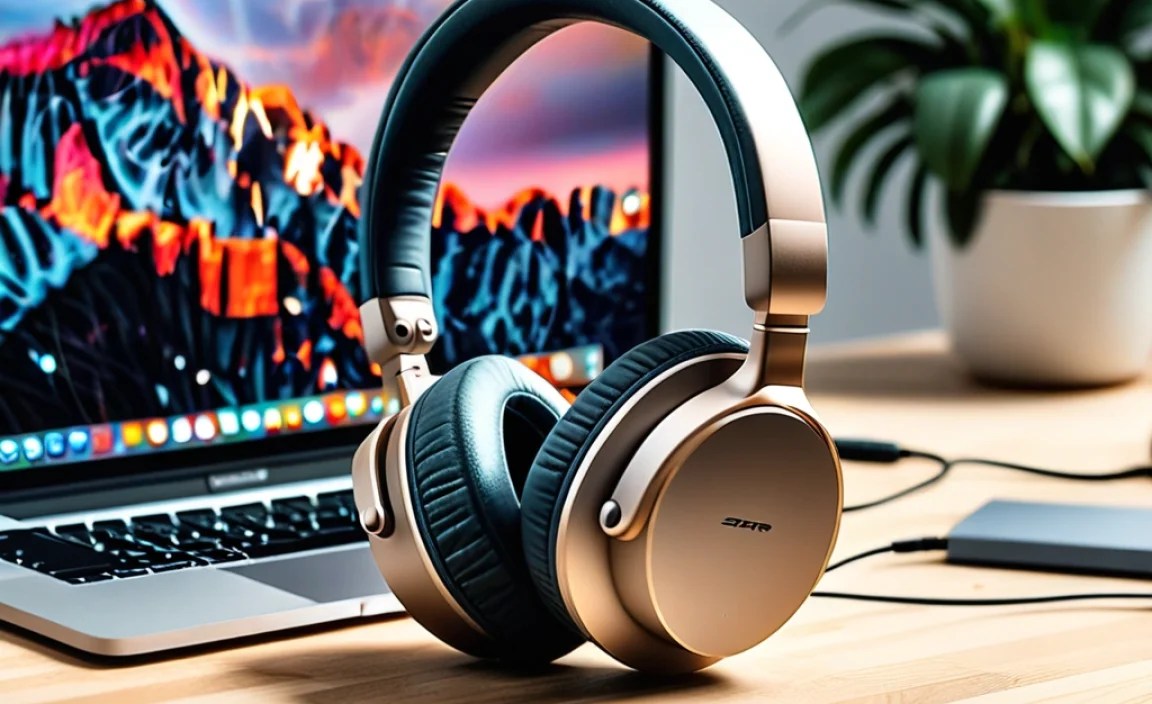
Before we dive into specific models, let’s quickly touch on the main categories of headphones you’ll encounter. Each has its own strengths:
1. Wired Headphones
These connect to your MacBook via a physical cable, typically using a 3.5mm headphone jack or a USB-C connector. Wired headphones are known for their reliable connection (no Bluetooth dropouts!) and often deliver excellent audio quality without needing to worry about battery life.
- Pros: No battery to charge, latency-free audio, generally more affordable, often superior sound fidelity for the price.
- Cons: Cable can be restrictive, requires a compatible port (or adapter for newer MacBooks without a headphone jack).
2. Wireless (Bluetooth) Headphones
These connect to your MacBook wirelessly via Bluetooth. They offer the ultimate freedom of movement and are incredibly convenient. With advancements in Bluetooth technology (like advanced codecs such as AAC, which Apple devices favor), sound quality can be exceptional.
- Pros: Freedom of movement, clutter-free experience, easy pairing.
- Cons: Require charging, potential for slight audio lag (latency), can be more expensive.
3. Noise-Cancelling Headphones (ANC)
Both wired and wireless headphones can feature Active Noise Cancellation. This technology uses microphones to detect ambient noise and then generates an opposite sound wave to cancel it out. It’s a game-changer for noisy environments like airplanes, busy offices, or bustling cafes.
- Pros: Significantly reduces background noise for focused listening or calls.
- Cons: Can add to the cost, might slightly alter the perceived sound signature.
4. Open-Back vs. Closed-Back
- Closed-back: These have a sealed ear cup design, which isolates sound and prevents audio from leaking out. Great for public use and for producers who need to avoid mic bleed.
- Open-back: These have ventilated ear cups, allowing air and sound to pass through. They offer a more natural, spacious soundstage, ideal for critical listening in quiet environments. However, they leak sound and offer little isolation.
Key Features to Consider for MacBook Users

When selecting headphones, keep these features in mind, specifically in relation to how they’ll interact with your MacBook:
Connectivity Options: Essential for MacBooks
Most modern MacBooks rely on Thunderbolt/USB-C ports, with only the latest MacBook Air and MacBook Pro models retaining a 3.5mm headphone jack. This means:
- USB-C: Many headphones now offer direct USB-C connectivity or come with USB-C adapters. This is often the most straightforward plug-and-play option for newer MacBooks.
- Bluetooth 5.0 and Higher: Look for headphones with newer Bluetooth versions for stable, efficient, and higher-quality wireless connections. Apple devices pair seamlessly with Bluetooth headphones.
- AAC Codec Support: While not strictly necessary, if you’re an Apple user, headphones supporting the Advanced Audio Coding (AAC) codec can offer slightly better wireless audio quality over standard SBC.
Microphone Quality for Calls
If you plan on using your headphones for video conferences or calls, a good built-in microphone is crucial. Look for descriptions highlighting clear voice pickup, noise reduction for the mic, or features like beamforming microphones designed to focus on your voice.
Comfort and Fit
You’ll be wearing these for hours, so comfort is paramount. Consider:
- Over-ear: Cups that fully enclose your ears. Offer good isolation and often superior comfort for long sessions.
- On-ear: Cups that rest on your ears. Can be lighter but may press uncomfortably over time for some.
- In-ear (Earbuds): Small buds that sit inside the ear canal. Highly portable, great for active use, but fit can be hit-or-miss.
Material (plush leather, breathable fabric) and headband adjustability also play a big role.
Battery Life (for Wireless)
If you opt for wireless, check the advertised battery life. Most good ANC wireless headphones offer 20-30 hours on a single charge, which is usually more than enough for a full workday or a long flight. Quick charging features can also be a lifesaver – often giving you a few hours of playback from just a 10-15 minute charge.
Additional Features
- Companion Apps: Many brands offer apps to customize EQ, ANC levels, button controls, and firmware updates.
- Multipoint Pairing: Allows headphones to connect to two devices simultaneously (e.g., your MacBook and your iPhone). A real convenience for switching between work and personal calls.
- Transparency Mode/Ambient Sound: Lets you hear your surroundings without taking off your headphones – great for quick conversations or hearing announcements.
The Best Headphones for MacBook: Top Picks for 2024

Now, let’s get to the good stuff. Here are some of the top headphone choices that work exceptionally well with MacBooks, catering to different needs and budgets.
1. For Premium ANC and All-Around Excellence: Sony WH-1000XM5
Often hailed as the king of noise-cancelling, the Sony WH-1000XM5 pair seamlessly with MacBooks via Bluetooth. Their industry-leading ANC, superb sound quality, and exceptional comfort make them ideal for any task, from focused work to immersive music listening.
- Connectivity: Bluetooth 5.2, USB-C for charging.
- Key Features: Top-tier ANC, Speak-to-Chat, multipoint pairing, excellent battery life (30 hours).
- Best For: Frequent travelers, noisy environments, anyone prioritizing top-tier noise cancellation and audio.
2. For Seamless Apple Ecosystem Integration: Apple AirPods Max
If you live and breathe the Apple ecosystem, the AirPods Max offer unparalleled integration. They connect instantly, feature stellar Active Noise Cancellation and Transparency modes, spatial audio for immersive movie/music experiences, and a premium build. They connect via Bluetooth but can also use a USB-C to 3.5mm adapter for wired listening through their Lightning port.
- Connectivity: Bluetooth 5.0, Lightning port (can be used wired with adapter).
- Key Features: Deep Apple ecosystem integration, Adaptive EQ, Spatial Audio with dynamic head tracking, excellent ANC.
- Best For: Die-hard Apple users, those who value seamlessness, and audiophiles looking for a high-end wireless experience.
3. For Excellent ANC and Comfort on a Budget: Sennheiser Momentum 4 Wireless
Sennheiser consistently delivers fantastic audio, and the Momentum 4 are a great choice if you want premium features without the absolute top-tier price tag of some competitors. They boast impressive ANC, a comfortable design, and a remarkable battery life of up to 60 hours.
- Connectivity: Bluetooth 5.2, USB-C for charging and optional wired audio.
- Key Features: Long battery life (up to 60 hours), very good ANC, customizable EQ via app, comfortable fit.
- Best For: Long listening sessions, budget-conscious buyers seeking strong ANC and audio quality.
4. For a Great Value Wireless Option: Anker Soundcore Space Q45
Anker’s Soundcore line offers incredible bang for your buck. The Space Q45 deliver surprisingly effective ANC, good sound quality, and a comfortable build for a fraction of the price of premium models. They also support LDAC for higher-resolution wireless audio if your MacBook and audio sources support it.
- Connectivity: Bluetooth 5.3, USB-C for charging.
- Key Features: Affordable ANC, long battery life (50 hours with ANC on), customizable EQ, multipoint connection.
- Best For: Budget-conscious users, students, casual listeners wanting a solid wireless experience.
5. For Incredible Wired Audio Quality and Isolation: Beyerdynamic DT 770 PRO
If you prioritize pure audio fidelity and don’t mind a cable, especially for studio work or critical listening at home, the Beyerdynamic DT 770 PRO are legendary. They offer exceptional detail, a comfortable fit, and excellent passive noise isolation due to their closed-back design. You’ll likely need a USB-C to 3.5mm adapter for newer MacBooks.
- Connectivity: 3.5mm jack (comes with a 1/4″ adapter), requires a USB-C adapter for most modern MacBooks.
- Key Features: Professional-grade sound reproduction, durable build, comfortable velour earpads, excellent isolation.
- Best For: Music production, audio engineering, critical listening, users who need no-compromise sound and are okay with a wired connection.
6. For Excellent Open-Back Soundstage: Audio-Technica ATH-R70x
For open-back enthusiasts who want a natural, expansive soundstage perfect for detailed listening at a desk, the ATH-R70x are a superb choice. They are incredibly lightweight and comfortable, designed for extended wear. Their open design means they’re best suited for quiet home or office environments.
- Connectivity: 3.5mm jack (comes with a 1/4″ adapter), requires a USB-C adapter for most modern MacBooks.
- Key Features: Very natural and spacious sound, extremely lightweight and comfortable, professional open-back design.
- Best For: Critical listening, mixing/mastering (if you prefer open-back), audiophiles in quiet spaces.
How to Connect Your New Headphones to Your MacBook
Connecting your headphones to your MacBook is usually a breeze. Here’s how for each type:
Connecting Wired Headphones
- Check Your Ports: If your MacBook has a 3.5mm headphone jack, simply plug in your wired headphones.
- Using USB-C: If your headphones have a USB-C connector, plug them directly into a USB-C port on your MacBook.
- Using an Adapter: If your headphones have a 3.5mm jack and your MacBook only has USB-C ports, you’ll need a USB-C to 3.5mm headphone jack adapter. Plug this into your MacBook’s USB-C port, then plug your headphones into the adapter.
Your MacBook should automatically detect the headphones and switch audio output. You can verify this in System Settings > Sound > Output.
Connecting Wireless (Bluetooth) Headphones
- Put Headphones in Pairing Mode: Refer to your headphones’ manual. Usually, this involves holding down a Bluetooth button until an indicator light flashes.
- Open Bluetooth Settings on Your MacBook: Go to Apple Menu > System Settings > Bluetooth.
- Scan for Devices: Make sure Bluetooth is turned on. Your MacBook will scan for available devices.
- Select Your Headphones: Your headphones should appear in the list of nearby devices. Click on them to connect.
- Confirm Connection: Once connected, your headphones will appear under “My Devices.” macOS will automatically route audio through them.
For subsequent use, your headphones should automatically reconnect when they are on, in range, and Bluetooth is enabled on your MacBook.
When to Use Wired vs. Wireless with Your MacBook
The choice often depends on your activity:
| Scenario | Recommended Type | Why |
|---|---|---|
| Critical Listening/Audio Production | Wired (especially open-back) | No latency, often superior sound fidelity for the price, no worry about battery. Open-back offers a natural soundstage. |
| Video Calls/Conferencing | Wireless with good mic, or Wired with good mic | Wireless offers freedom. Crucially, ensure the microphone is clear to avoid sounding muffled or distant. USB-C wired options can offer excellent mic quality. |
| Commuting/Traveling | Wireless with ANC | ANC blocks out engine noise, wireless provides freedom from cables. Long battery life is key. |
| Working in a Noisy Cafe/Office | Wireless with ANC | ANC isolates you from distractions, enabling focus. |
| General Daily Use (web browsing, music) | Wireless (convenience) or Wired (simplicity) | Wireless is easy and clutter-free. Wired is reliable and requires no charging. |
Maintaining Your Headphones for Longevity
To get the most out of your headphones and ensure they last, follow these simple maintenance tips:
- Keep them Clean: Gently wipe down earcups and headbands with a soft, dry cloth. For stubborn grime, use a slightly damp cloth (water only) and ensure they are completely dry before use. Avoid harsh chemicals.
- Handle with Care: Avoid yanking on cables (if wired) or dropping your headphones. Store them in a case or on a stand when not in use to protect them from damage and dust.
- Battery Care (Wireless): Avoid leaving wireless headphones on a very low charge for extended periods, as this can degrade battery health over time. Aim to keep them charged between 20% and 80% for optimal long-term battery performance. For prolonged storage, charge them to around 50%. This is in line with general lithium-ion battery best practices, as recommended by sources like Battery University.
- Store Properly: If your headphones come with a case, use it! Otherwise, find a safe place where they won’t be crushed or tangled.
- Update Firmware: For wireless headphones with companion apps, keep the firmware updated. Updates often include performance improvements, bug fixes, and sometimes even enhanced features.
Frequently Asked Questions (FAQ)
Q1: Do I need a special adapter to connect headphones to my MacBook?
It depends on your MacBook model and the headphones you choose. If your MacBook has a 3.5mm headphone jack and your headphones use it, you won’t need an adapter. However, most newer MacBooks only have USB-C ports. In this case, if your headphones have a 3.5mm plug, you will need a USB-C to 3.5mm adapter. Many headphones also come with direct USB-C connectors or offer Bluetooth connectivity.
Q2: Can I use gaming headsets with my MacBook?
Yes, you certainly can! Many gaming headsets use a USB-A or USB-C connector, or a 3.5mm jack. If they use USB-C, they’ll plug right in. If they use USB-A, you might need a USB-A to USB-C adapter. Headsets with a 3.5mm jack will require a USB-C to 3.5mm adapter on newer
