
Quick Summary: Finding the best headphones for your Microsoft Surface enhances your audio experience, whether for work, entertainment, or calls. This guide covers how to choose, essential features to look for, and recommended types of headphones that seamlessly integrate with your Surface device, focusing on connectivity, comfort, and sound quality for everyday users.
Hello and welcome to headphonehorizon! As Edward Cavitt, I’m thrilled to guide you through the exciting world of audio gear. Today, we’re diving into a topic that’s super important for anyone who loves their Microsoft Surface: finding the best headphones for Microsoft Surface. It’s not just about plugging something in; it’s about unlocking the full potential of your Surface device for crystal-clear calls, immersive music, and productive work sessions. Whether you’re a student, a busy professional, or just someone who enjoys their tunes, picking the right headphones can make a world of difference. Let’s explore how to make a smart choice that suits your needs and budget, ensuring a fantastic listening experience every time.
Why the Right Headphones Matter for Your Microsoft Surface

Your Microsoft Surface is a versatile powerhouse, designed for productivity and entertainment on the go. But to truly enjoy its capabilities, you need audio that keeps pace. Think about it: you might be on an important video conference, trying to focus with a podcast, or unwinding with your favorite album. The wrong headphones can lead to distracting background noise, tinny sound, uncomfortable ears, or even frustrating connection issues. On the other hand, the right pair can transform your Surface into a private concert hall, a focused work environment, or a seamless communication tool. It’s about more than just listening; it’s about enhancing your interaction with your device.
Key Features to Look for in Headphones for Microsoft Surface

When you’re on the hunt for the perfect headphones to pair with your Microsoft Surface, several key features can significantly impact your overall experience. Let’s break down what to keep an eye out for.
Connectivity Options
This is arguably the most crucial aspect. Microsoft Surfaces primarily rely on Bluetooth for wireless connections. Ensure the headphones you choose have a stable and reliable Bluetooth implementation. Newer Bluetooth versions (like 5.0, 5.1, 5.2, or even 5.3) offer better range, faster pairing, and more efficient power consumption.
- Bluetooth Version: Aim for at least Bluetooth 5.0 for a robust connection.
- Multipoint Pairing: This allows headphones to connect to two devices simultaneously (e.g., your Surface and your smartphone). It’s incredibly convenient for switching between listening to music on your Surface and taking a call on your phone without re-pairing.
- Wired Option: Some headphones also offer a 3.5mm audio jack, which can be a lifesaver if your Surface has one or if you encounter any Bluetooth issues.
Sound Quality
This is subjective, but generally, you want headphones that offer a balanced sound profile. This means clear highs, well-defined mids, and a present, but not overpowering, bass. Depending on what you do most, you might prioritize:
- Balanced Audio: Great for general listening, podcasts, and music.
- Clear Vocals: Essential for video calls and voice chats.
- Rich Bass: Preferred by many for music genres like electronic, hip-hop, and rock.
Comfort and Design
You’ll likely be wearing these for extended periods, so comfort is paramount. Consider the form factor:
-
Over-Ear Headphones:
These fully enclose your ears, offering good passive noise isolation and comfort for long sessions. Look for plush earcups and an adjustable headband.
-
On-Ear Headphones:
These rest on your ears. They can be lighter but may become uncomfortable for some users during marathon listening.
-
In-Ear Earbuds:
These go inside your ear canal. They are portable and often come with multiple ear tip sizes for a secure and comfortable fit. They are great for active use and travel.
Material Matters: Soft, breathable earpad materials (like memory foam or velour) prevent heat build-up and pressure points.
Noise Cancellation (ANC)
Active Noise Cancellation (ANC) uses microphones to detect and counteract ambient sounds, creating a quieter listening environment. This is incredibly beneficial if you work in a noisy office, commute frequently, or simply want to immerse yourself in your audio without distractions. For calls, ANC can also help filter out background noise for the person on the other end.
Microphone Quality
If you plan on using your headphones for video calls, online meetings, or taking calls on the go, a good microphone is non-negotiable. Look for reviews that specifically mention mic performance in various environments. Some headphones feature beamforming microphones or noise-reduction technology for the mic itself.
Battery Life
For wireless headphones, battery life is key. Consider how long you typically use your headphones between charges. Most modern wireless headphones offer anywhere from 15 to 40+ hours of playback on a single charge, often with fast-charging capabilities.
Tip: Check if the headphones support quick charging. A 10-15 minute charge can sometimes provide hours of playback, which is a lifesaver when you’re in a rush.
Durability and Build Quality
Your headphones should be able to withstand daily use. Look for sturdy materials and a design that feels robust. If you’re a frequent traveler, a carrying case is a great bonus.
Types of Headphones to Consider for Your Microsoft Surface

With the features in mind, let’s explore the most popular types of headphones that integrate well with Microsoft Surface devices.
1. True Wireless Earbuds
These are incredibly popular due to their compact size and complete lack of wires. They usually come with a charging case that provides extra battery life on the go.
Pros:
- Extremely portable and discreet.
- No wires to get tangled.
- Charging case provides multiple charges.
- Often come with various ear tip sizes for a custom fit.
Cons:
- Can be small and easy to misplace.
- Battery life per charge might be shorter than larger headphones (though the case compensates).
- Microphone quality can vary significantly.
Best Use Cases:
Commuting, workouts, travel, quick calls, general listening on the move.
2. Wireless Over-Ear Headphones
These offer a more immersive audio experience and typically boast superior comfort and battery life, often with the best noise-cancellation features.
Pros:
- Excellent sound quality and immersive listening.
- Top-tier Active Noise Cancellation.
- Comfortable for long listening sessions.
- Long battery life.
- Often have the best microphone performance among wireless options.
Cons:
- Bulkier and less portable than earbuds.
- Can be warm for ears in hot weather.
- May be more expensive.
Best Use Cases:
Office work, studying, long flights, focused listening sessions, professional calls.
3. Wireless On-Ear Headphones
A middle ground between earbuds and over-ear headphones, these are generally lighter than over-ear models but offer a larger driver than most earbuds.
Pros:
- More portable than over-ear headphones.
- Can be more comfortable for some than earbuds.
- Decent sound quality.
Cons:
- Less passive noise isolation than over-ear.
- Can press uncomfortably on ears for some users over time.
- ANC is less common or less effective than on flagship over-ear models.
Best Use Cases:
Casual listening, commuting, moderate work environments.
4. Noise-Cancelling Headphones (with a focus on ANC)
While this isn’t a distinct form factor, it’s a crucial feature. Many top-tier earbuds and over-ear headphones come with excellent ANC. If your primary goal is to block out distractions, prioritize models with strong ANC capabilities.
An important aspect to consider for your Surface is how the headphones integrate with Windows. Microsoft has its own audio technologies, and some manufacturers design their headphones with Windows integration in mind. For example, some headphones offer:
- Windows Quick Pair: Similar to fast pairing on Android, this allows for quick and easy Bluetooth pairing with your Windows device.
- Dedicated App Support: An accompanying app can allow you to customize EQ settings, adjust ANC levels, and update firmware directly from your Surface.
For a deeper dive into how audio works on Windows, you can refer to Microsoft’s official documentation on troubleshooting Bluetooth devices.
Recommended Brands and Models (Examples for Illustration)
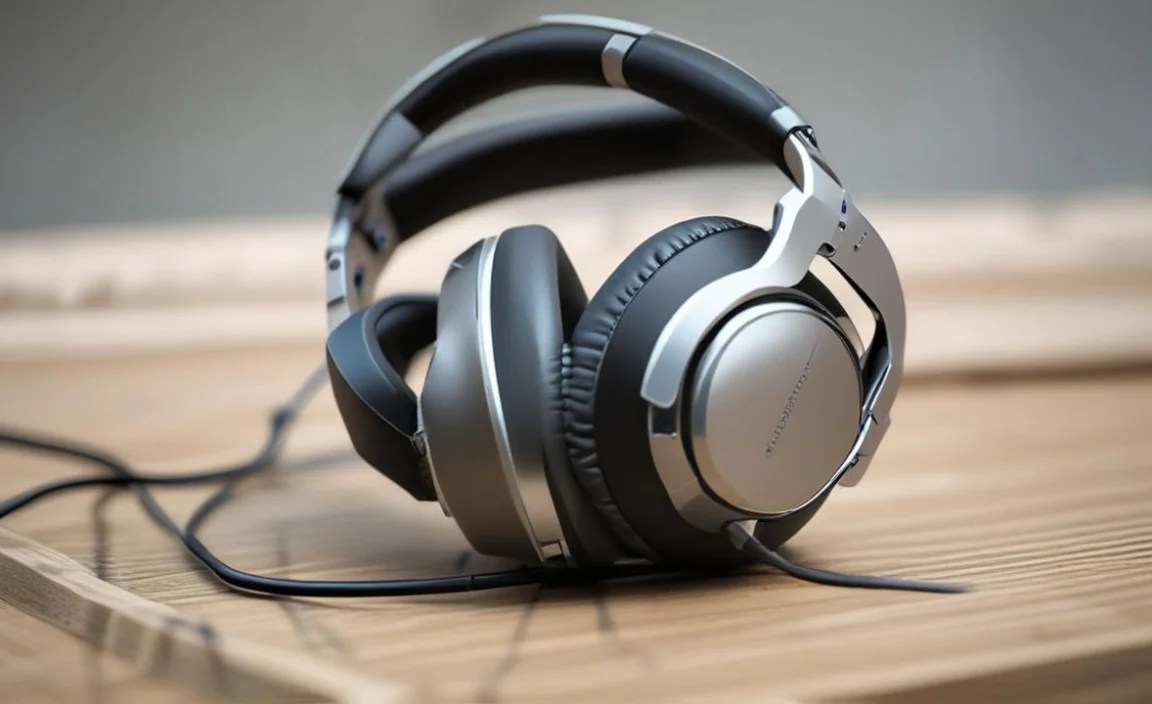
While specific models change frequently, here are some reputable brands known for producing excellent headphones that pair well with Microsoft Surface devices. It’s always best to check the latest reviews for the newest offerings.
| Brand/Model Type | Connectivity | Key Features | Best For |
|---|---|---|---|
| Sony WH-1000XM Series (Over-Ear) | Bluetooth 5.0+ | Industry-leading ANC, excellent sound quality, long battery life, multipoint pairing. | Travelers, office workers, music lovers seeking quiet. |
| Bose QuietComfort Series (Over-Ear/Earbuds) | Bluetooth 5.0+ | Superior comfort, effective ANC, balanced sound, reliable performance. | Long commutes, office use, comfort seekers. |
| Apple AirPods Pro/Max (if you also use Apple devices) | Bluetooth (Apple H1/H2 Chip) | Seamless Apple device integration, good ANC and transparency mode, spatial audio. Note: While they work with Windows via Bluetooth, some advanced features might be limited. | Users in the Apple ecosystem looking for easy switching. |
| Sennheiser Momentum Series (Over-Ear/True Wireless) | Bluetooth 5.0+ | Exceptional audio fidelity, premium build, good ANC. | Audiophiles, premium sound enthusiasts. |
| Jabra Elite Series (True Wireless Earbuds) | Bluetooth 5.0+ | Excellent call quality, good ANC on many models, durable, sometimes great multipoint. | Professionals, frequent callers, active users. |
User Tip: Always check the product specifications for Bluetooth version and multipoint support when making your selection for your Surface.
Step-by-Step: Connecting Your Headphones to Your Microsoft Surface

Connecting your new headphones to your Surface is usually a straightforward process. Here’s how to do it for both Bluetooth and, if applicable, wired connections.
Step 1: Prepare Your Headphones
First, ensure your headphones are charged and in pairing mode. The way to activate pairing mode varies by manufacturer:
- Consult your headphone manual: This is the most reliable way to know exactly how to put your specific model into pairing mode.
- Common methods:
- Press and hold a dedicated Bluetooth button.
- Press and hold the power button for an extended period until an indicator light flashes (often blue or white).
- Some earbuds activate pairing mode automatically when you open their charging case for the first time.
- Indicator Light: Look for a blinking LED light on your headphones, which usually signifies they are discoverable.
Step 2: Access Bluetooth Settings on Your Surface
Now, let’s get your Surface ready to find your headphones:
- Click on the Start button (the Windows icon) in the bottom-left corner of your screen.
- Click on the Settings icon (it looks like a gear).
- In the Settings window, click on Devices.
- Select Bluetooth & other devices from the left-hand menu.
- Ensure that Bluetooth is toggled to On. You’ll see a blue toggle switch.
Step 3: Add a Device
Your Surface will now start searching for nearby Bluetooth devices. To initiate the search:
- Click on the + Add Bluetooth or other device button at the top of the “Bluetooth & other devices” settings page.
- A new window will pop up. Select Bluetooth from the options.
- Your Surface will scan for devices that are in pairing mode.
Step 4: Select Your Headphones
Once your headphones appear in the list of found devices:
- Click on the name of your headphones in the list.
- Your Surface will attempt to connect. This might take a few seconds.
- You’ll likely see a confirmation message on your screen indicating that your device is connected.
- Click Done.
Step 5: Test the Audio
It’s always good to confirm everything is working:
- Play some music or a video on your Surface.
- Check if the sound is coming through your headphones.
- If you made a call or joined a meeting, test the microphone by asking someone if they can hear you clearly. You can also test mic input in Windows settings under Sound.
Optional Step: Wired Connection
If your headphones have a 3.5mm audio cable and your Surface has a corresponding port:
- Plug one end of the audio cable into your headphones.
- Plug the other end into the headphone jack on your Surface.
- Note: Some newer, sleeker Surface models may not have a 3.5mm jack and will require a USB-C to 3.5mm adapter or USB-C headphones.
For more detailed troubleshooting on Windows, Microsoft offers a helpful guide on fixing Bluetooth problems.
Troubleshooting Common Connection Issues
Even with the best technology, hiccups can happen. Here are some common issues and their simple fixes:
Headphones Not Showing Up in Bluetooth List
- Ensure Pairing Mode: Double-check that your headphones are definitely in pairing mode. Try re-activating it.
- Turn Bluetooth Off and On: In your Surface’s Bluetooth settings, toggle Bluetooth off, wait a few seconds, and toggle it back on.
- Restart Devices: Turn off your headphones completely and then back on. Restart your Surface as well.
- Check Distance: Make sure your headphones are close to your Surface (within 30 feet/10 meters, ideally closer).
Connection Keeps Dropping
- Low Battery: Both your headphones and Surface might need charging.
- Interference: Other wireless devices, microwaves, or even thick walls can interfere. Try moving to a different location.
- Outdated Drivers: Ensure your Surface’s Bluetooth drivers are up to date. You can usually do this through Windows Update or your Surface’s manufacturer support page.
- Forget Device and Re-pair: In your Surface’s Bluetooth settings, click on your headphones, then click “Remove device.” After that, put your headphones back into pairing mode and re-add them as a new device.
No Audio from Headphones
- Check Volume: Ensure the volume is up on both your headphones (if they have physical controls) and your
