
Quick Summary: Enhance your virtual meetings with the best headphones for Microsoft Teams calls. Discover options focusing on clear microphone quality, comfortable wear for long sessions, and seamless connectivity to ensure every conversation is smooth and productive.
Navigating the sea of headphones available for online collaboration can feel a bit overwhelming, can’t it? You’re looking for that perfect pair that makes your Microsoft Teams calls crystal clear, both for you and for everyone on the other end. It’s not just about listening; it’s about being heard too, without any frustrating background distractions or muffled voices. Finding the right headset can dramatically improve your productivity, reduce misunderstandings, and make those endless video chats feel a lot more natural and less draining. Let’s dive in and find a pair that makes communicating effortless.
Why Dedicated Headphones Are a Game-Changer for Microsoft Teams

You might be thinking, ‘Can’t I just use any old headphones?’ While a basic pair might get the job done, dedicated communication headphones are designed with specific features that address the unique demands of online meetings. They’re built to excel where general-use headphones might fall short, especially when it comes to voice clarity and comfort during extended wear.
Superior Microphone Quality: Being Heard Loud and Clear
The most critical component for any Teams call is the microphone. Professional-grade headphones often feature noise-canceling microphones that actively filter out background sounds like keyboard typing, barking dogs, or the hum of an air conditioner. This ensures that your voice comes through clearly and isn’t lost in the noise. A good microphone means fewer interruptions and less repetition, making your meetings more efficient.
Comfort for Extended Wear
Many of us spend hours each day on calls. Over-ear headphones with plush earcups and adjustable headbands distribute pressure evenly, preventing discomfort and ear fatigue. Lightweight designs are also a huge plus, making you forget you’re even wearing them. This comfort is essential for maintaining focus and energy throughout your workday.
Enhanced Audio for Clear Listening
While the microphone is key for speaking, the listening experience is equally important. Headphones designed for communication often have finely tuned speakers that deliver clear, crisp audio. This means you can easily catch every word from your colleagues, understand nuances in their tone, and follow along without straining to hear.
Seamless Connectivity and Integration
The best headphones for Teams calls often offer plug-and-play USB connectivity, ensuring a quick and easy setup. Many also come with inline controls for managing calls (answering, ending, muting) directly from the headset, without needing to interact with your computer or phone. Some even integrate directly with Microsoft Teams for advanced features.
Key Features to Look for in the Best Headphones for Teams Calls
![Top Picks: The Best Headphones for Teams Calls in [Current Year]](https://i2.wp.com/headphonehorizon.com/wp-content/uploads/2026/03/top-picks-the-best-headphones-for-teams-calls-in-current-year.webp)
When you’re on the hunt for the perfect headset, a few key features can make all the difference. Focusing on these will help you narrow down your choices and find a pair that truly enhances your communication experience on Microsoft Teams.
Microphone Type and Features
- Noise Cancellation: Essential for blocking out distracting background noise. Look for active noise cancellation (ANC) for the microphone.
- Microphone Placement: A boom microphone that can be positioned closer to your mouth generally provides clearer audio. Many are also designed to mute when flipped up.
- Frequency Response: A wider frequency response on the microphone means it can pick up a broader range of your voice’s natural tones.
Comfort and Design
- Earcup Material: Soft, breathable materials like memory foam or plush fabric prevent sweating and discomfort.
- Headband Adjustability: A well-padded and adjustable headband ensures a secure yet comfortable fit for various head sizes.
- Weight: Lighter headphones are less likely to cause neck strain or feel heavy during long calls.
- On-Ear vs. Over-Ear: Over-ear designs tend to offer better passive noise isolation, while on-ear can be lighter. For maximum comfort and immersion, over-ear is usually preferred.
Connectivity Options
- USB Connection: The most common and reliable for computers, offering plug-and-play ease.
- Bluetooth: Provides wireless freedom, convenient for moving around your workspace or taking calls on the go. Ensure it has a reliable connection and supports low latency.
- 3.5mm Jack: A versatile option that works with a wide range of devices, though audio quality might be slightly less consistent than USB.
- Multipoint Pairing: Allows connection to two devices simultaneously (e.g., your computer and smartphone).
Audio Quality (for Listening)
- Driver Size: Larger drivers (typically 40mm or more) can produce richer sound, but for calls, clarity is often prioritized over deep bass.
- Frequency Response: A good range ensures you can hear speech clearly.
- Sound Isolation: Helps block out ambient noise so you can focus on your call.
Inline Controls and Software Features
- Call Management: Easy access buttons for answering, ending, muting, and adjusting volume.
- Software: Some headphones come with companion apps that allow for EQ adjustments, microphone sensitivity settings, and firmware updates.
- Microsoft Teams Certification: Some headsets are specifically certified by Microsoft for Teams, offering enhanced integration and features.
Top Picks: The Best Headphones for Teams Calls in [Current Year]
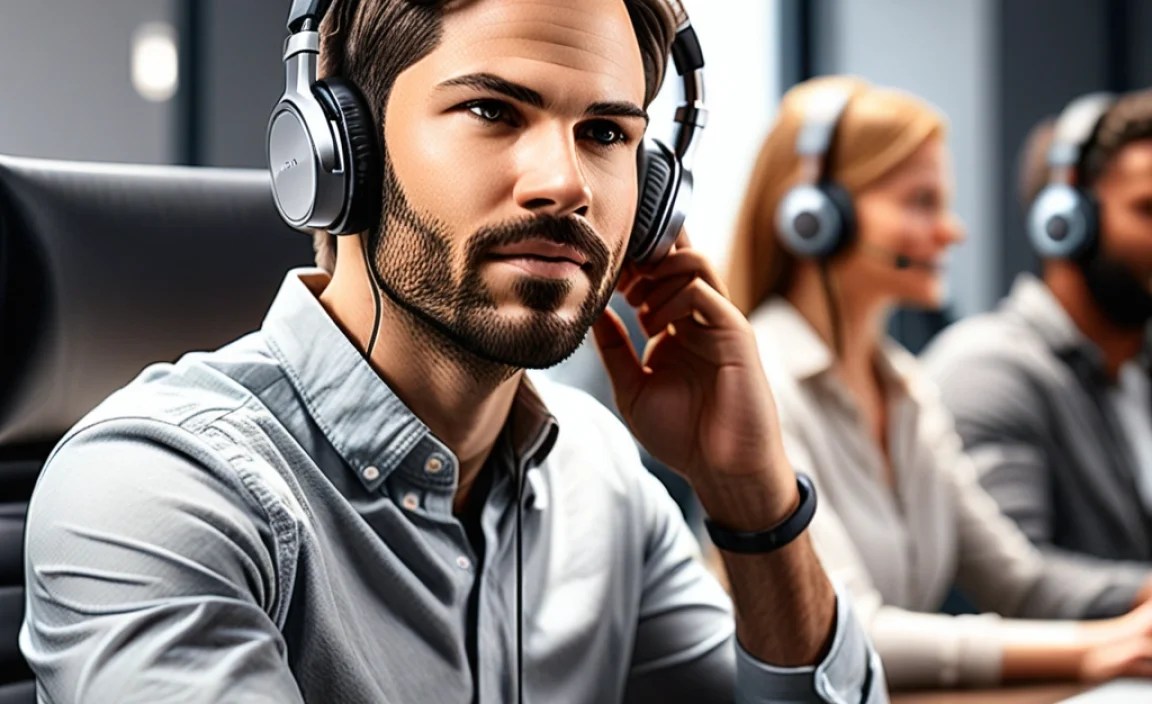
After considering all those features, let’s look at some of the top contenders that consistently perform well for Microsoft Teams calls. These options cater to different needs and budgets, ensuring there’s a great fit for almost everyone.
1. Jabra Evolve Series (e.g., Evolve2 65, Evolve2 75)
Jabra is a powerhouse in the business headset market, and their Evolve series is a consistent favorite for Teams users. These headphones are built for productivity, offering excellent microphone noise cancellation and great audio clarity.
- Microphone: Multi-microphone system with advanced noise cancellation. Discreet boom arm.
- Comfort: Lightweight design with soft, high-quality earcups.
- Connectivity: USB-A or USB-C, Bluetooth with multipoint pairing.
- Teams Integration: Excellent, with many models featuring a dedicated Teams button.
- Pros: Superb microphone, comfortable for all-day wear, reliable connection, good battery life (especially wireless models).
- Cons: Can be pricier than consumer-grade options, audio quality for music might not be as rich as dedicated audiophile headphones.
2. Logitech Zone Wireless / Zone Wireless 2
Logitech is known for its peripherals, and their Zone Wireless headsets are designed for a comfortable and productive workday. They strike a great balance between professional features and everyday usability.
- Microphone: Noise-canceling microphone with a flexible boom arm.
- Comfort: Lightweight, ergonomic design with comfortable earcups.
- Connectivity: USB receiver, Bluetooth, multipoint connectivity.
- Teams Integration: Works seamlessly with Teams, often with easy call controls.
- Pros: Comfortable, good microphone, reliable wireless connection, decent battery life, often more affordable than top-tier business brands.
- Cons: Microphone noise cancellation is good but might not be as advanced as Jabra’s top models.
3. Poly (formerly Plantronics) Voyager Series (e.g., Voyager 4320)
Poly has a long-standing reputation for audio quality and reliability in the business communication space. Their Voyager headsets are known for their excellent microphones and comfort.
- Microphone: Advanced noise-canceling microphone array.
- Comfort: Designed for long wear with plush ear cushions and adjustable headbands.
- Connectivity: USB transceiver, Bluetooth (with multipoint).
- Teams Integration: Strong compatibility with Teams and other UC platforms.
- Pros: Crystal clear voice transmission, very comfortable, robust build quality, excellent battery life.
- Cons: Can be a significant investment, audio for music may be secondary to call performance.
4. Bose QuietComfort 45 (with a good mic setup)
While primarily known for its world-class noise cancellation for listening, the Bose QuietComfort series can also be an excellent choice for Teams calls if your priority is extreme comfort and masking ambient noise. You’ll rely more on its overall mic quality rather than specific business-grade features.
- Microphone: Uses multiple microphones to pick up your voice and reduce background noise.
- Comfort: Legendary Bose comfort with plush earcups.
- Connectivity: Bluetooth with multipoint.
- Teams Integration: Works as a standard Bluetooth headset; no special Teams button.
- Pros: Unbeatable active noise cancellation for listening, supreme comfort, good for travel and noisy environments.
- Cons: Microphone technology isn’t as specialized for business calls as dedicated UC headsets, can be expensive, music audio is its primary strength.
5. EPOS Adapt Series (e.g., Adapt 200, Adapt 360)
EPOS (formerly Sennheiser Communications) offers professional headsets that deliver exceptional audio quality and robust features. Their Adapt series is designed for modern professional use.
- Microphone: Excellent noise-filtering microphones for clear speech.
- Comfort: Lightweight and ergonomic design for long-term wear.
- Connectivity: Available in USB, Bluetooth, or both, often with multipoint.
- Teams Integration: Strong compatibility with Microsoft Teams and other collaboration tools.
- Pros: High-fidelity audio, superior microphone performance, professional and durable build.
- Cons: Can be on the pricier side, less common in consumer markets compared to Bose or Jabra.
Comparing USB vs. Bluetooth Headsets for Teams

When choosing your headphones, one of the biggest decisions is whether to go wired (USB) or wireless (Bluetooth). Each has its own set of advantages and disadvantages that can impact your daily workflow.
| Feature | USB Headsets | Bluetooth Headsets |
|---|---|---|
| Connectivity Stability | Generally very stable, plug-and-play. No pairing issues. | Can sometimes experience dropouts or lag, especially with older Bluetooth versions or in crowded wireless environments. |
| Audio Quality | Often provides higher fidelity audio transmission due to bandwidth. | Can be excellent, but quality can vary depending on codecs used and signal strength. Some might have slightly higher latency. |
| Latency | Minimal to no noticeable latency. | Can have slight latency, though modern Bluetooth standards are very good. |
| Range & Mobility | Limited by cable length. | Offers freedom of movement up to 30-100 feet, depending on the model. |
| Battery Life | N/A (powered by USB connection). | Requires charging. Battery life varies significantly by model (e.g., 10-40+ hours). |
| Setup | Plug and play; usually requires no software installation. | Requires pairing with your device. |
| Cost | Can sometimes be more affordable for comparable features. | Wireless tech can add to the price. |
For the absolute most reliable and consistent experience, especially if you spend most of your time at your desk, a high-quality USB headset is often the safest bet. However, if you need the freedom to move around, take calls away from your desk, or multitask while on a call, a Bluetooth headset with good battery life and multipoint connectivity is invaluable.
Setting Up Your New Headphones for Teams: A Simple Guide
Once you’ve picked out your ideal headphones, getting them set up for Microsoft Teams is usually a breeze. Here’s a general step-by-step process:
Step 1: Connect Your Headphones
- USB: Simply plug the USB connector into an available USB port on your computer. Windows and macOS will typically recognize the device automatically.
- Bluetooth:
- Make sure your headphones are in pairing mode (check your headphone manual for how to do this, often by holding a Bluetooth button).
- On your computer, go to Settings > Bluetooth & devices (or similar) and click “Add device.”
- Select your headphones from the list of available devices.
- If prompted for a passcode, it’s usually ‘0000’ or ‘1234’, or sometimes it’s not needed.
Step 2: Configure Audio Devices in Microsoft Teams
This is the most important step to ensure Teams uses your new headset correctly.
- Open Microsoft Teams on your computer.
- Click on your profile picture or initials in the top right corner.
- Select “Settings” from the dropdown menu.
- In the Settings menu, navigate to the “Devices” tab.
- Under “Audio devices,” you’ll see options for “Speaker” and “Microphone.”
- From the dropdown menus, select your new headphones for both “Speaker” and “Microphone.” Look for the model name of your headset.
- You can also configure your “Ringer” device here if you want calls to ring through your headphones when Teams is minimized.
Step 3: Test Your Setup
Microsoft Teams offers a built-in way to test your audio devices, which is highly recommended!
- Still in the “Devices” settings in Teams, click the “Make a test call” button.
- A test bot will record a short message from you.
- After you speak, the bot will play back your recording. Listen carefully to ensure your microphone is picking up your voice clearly and that you can hear the playback perfectly.
- If you have any issues, double-check that you’ve selected the correct devices in Teams settings and that your headphones are properly connected and turned on.
Step 4: Adjusting Microphone Sensitivity (If Needed)
In some cases, your microphone might be too sensitive (picking up too much background noise) or not sensitive enough (people can’t hear you well). You can often adjust this at the operating system level:
- Windows: Go to Settings > System > Sound. Under “Input,” select your microphone and adjust the “Input volume” or “Test your microphone” level. You might also find advanced mic settings under “Device properties.”
- macOS: Go to System Settings (or System Preferences) > Sound. Under “Input,” select your microphone and adjust the “Input volume” slider.
Tips for Optimal Performance and Longevity
To get the most out of your investment and ensure your headphones serve you well for a long time, follow these simple tips:
- Keep Them Clean: Regularly wipe down the earcups and headband with a damp (not wet) cloth. Most earphone cushions can be gently removed for cleaning according to the manufacturer’s instructions. This prevents buildup of sweat and oils and keeps them fresh.
- Store Them Properly: When not in use, store your headphones in a safe place, ideally in their original case or a protective pouch. This prevents them from getting scratched or damaged.
- Manage Battery Life (for Wireless): For Bluetooth headphones, try not to let the battery drain completely too often. Charging them when they’re at around 20-30% can help prolong battery health over time. Avoid extreme temperatures.
- Handle with Care: Avoid yanking on the cables when disconnecting USB or audio jacks. When adjusting the headset, do so gently.
- Update Firmware: If your headphones come with companion software, check for firmware updates periodically. These updates can improve performance, fix bugs, and even add new features.
- Use in Appropriate Environments: While noise-canceling mics are great, avoid extremely loud environments if possible. Even the best microphones have their limits. You can learn more about noise cancellation technology on the FCC’s consumer guide.
Frequently Asked Questions (FAQ)
Here are some common questions beginners have about choosing and using headphones for Microsoft Teams calls.
Q1: Do I need a special headset for Microsoft Teams?
No, you don’t need a specifically certified Microsoft Teams headset, but it’s highly recommended for the best experience. Standard USB or Bluetooth headphones with a decent microphone will work with Teams. However, certified headsets often offer seamless integration, dedicated Teams buttons, and optimized audio profiles for better collaboration.
