
Quick Summary: Finding the best headphones for video calls means prioritizing clear microphone pickup and comfortable wear. Look for models with noise-canceling for your mic, good sound quality for hearing others, and a comfortable fit for long meetings. This guide breaks down what matters most to help you choose the perfect pair for seamless online communication.
Best Headphones For Video Calls: Your Essential Guide
Hello and welcome to Headphone Horizon! In today’s world, video calls have become a daily routine for many of us, whether for work, school, or just catching up with loved ones. But let’s be honest, struggling with a crackly microphone or an uncomfortable headset can quickly turn a pleasant chat into a frustrating experience. That’s where the right headphones come in! Choosing a pair specifically designed for clear communication not only makes you sound better but also helps you hear every word without distraction. This guide is here to demystify the options and help you find the perfect headset, making your next video call your best one yet.
Why Good Headphones Matter for Video Calls

It might seem like any old headphones will do for a quick Zoom or Teams meeting, but when you rely on them daily, the difference becomes significant. Poor audio quality can lead to misunderstandings, lost productivity, and even an unprofessional impression. Having headphones with a quality microphone ensures your voice is transmitted clearly, while good audio output lets you hear your colleagues or friends without strain. Furthermore, comfort plays a huge role in your ability to stay focused during longer virtual sessions. Let’s explore what makes a pair of headphones truly great for video calls.
Key Features to Look For

When you’re on the hunt for the best headphones for video calls, a few specific features rise to the top. These aren’t just fancy extras; they directly impact your experience and the clarity of your conversations.
1. Microphone Quality: Hear and Be Heard Clearly
This is arguably the most crucial feature. A good microphone will:
- Clear Voice Pickup: It should accurately capture your voice without distortion or muffling.
- Noise Cancellation (for the mic): This is vital. It helps filter out
background noise like keyboard clicks, traffic, or the hum of your air conditioner, so the other participants only hear you. Many modern headphones use beamforming microphones or AI to achieve this. - Placement: A boom mic that can be positioned closer to your mouth often provides the best results, but many in-line mics are surprisingly effective.
2. Comfort and Fit: For Extended Wear
You might be on calls for hours, so comfort is king. Consider:
- Earcup Material and Design: Soft earcups (like plush leatherette or breathable fabric) that don’t clamp too tightly are essential for long-term wear. Over-ear headphones generally offer more comfort than on-ear or in-ear models for extended sessions.
- Weight: Lighter headphones are less likely to cause fatigue.
- Adjustability: A well-designed headband that adjusts easily ensures a good fit for different head sizes.
3. Audio Quality for Listening: Hear Conversations Better
While the mic is for speaking, you also need to hear. Look for headphones that offer:
- Balanced Sound: You want to hear voices clearly, without excessive bass or treble that can make speech sound unnatural.
- Good Isolation: This helps block out ambient noise so you can focus on the call. Active Noise Cancellation (ANC) can be a bonus here, further eliminating background distractions.
4. Connectivity Options: Hassle-Free Setup
How you connect your headphones can make a big difference in convenience:
- Wired (USB or 3.5mm jack): Offers reliable, low-latency connections. USB connections often provide better audio quality and reduce the need for a dedicated sound card on your computer.
- Wireless (Bluetooth): Offers freedom of movement. Look for newer Bluetooth versions (like 5.0 or higher) for better stability and efficiency. Some wireless headsets come with a USB dongle for a more stable, dedicated connection.
- Multi-device Pairing: The ability to connect to both your computer and phone simultaneously is incredibly convenient.
5. Durability and Build Quality: A Long-Term Investment
You want headphones that can withstand daily use. Check for:
- Sturdy Materials: Metal reinforcements in the headband or robust plastic construction are good signs.
- Cable Quality (for wired models): Braided cables are often more durable than standard rubber ones.
Types of Headphones for Video Calls

Not all headphones are created equal, and the type you choose can significantly impact your video call experience. Here’s a breakdown of the most common types and how they fare for online communication.
Over-Ear Headphones
These are perhaps the most popular choice for dedicated office or home office setups. They completely enclose your ears, providing excellent passive noise isolation. Many come with dedicated boom microphones, making voice clarity a top priority.
- Pros: Superior comfort for long sessions, excellent passive noise isolation, often feature high-quality boom mics.
- Cons: Can be bulky, may cause ears to get warm over time.
On-Ear Headphones
These sit on top of your ears. They are generally more portable than over-ear models, but the sound isolation isn’t as effective, and comfort can be an issue for some during prolonged use.
- Pros: More portable than over-ear, less ear heat.
- Cons: Less effective noise isolation, comfort can be questionable for extended wear, mic quality can vary greatly.
In-Ear Headphones (Earbuds)
These fit inside the ear canal. While great for portability and music, their suitability for video calls depends heavily on the microphone quality. Many earbuds designed for calls have improved microphone technology.
- Pros: Highly portable, good for on-the-go calls, many offer decent noise isolation.
- Cons: Comfort can be subjective, microphone quality can be inconsistent, easy to lose.
Headsets (Dedicated Communication Devices)
These are specifically designed for communication. They almost always feature a boom microphone and are optimized for clear voice transmission and comfortable wear during long calls. They can be wired or wireless.
- Pros: Optimized for voice clarity, built-in noise cancellation on mics is common, designed for long-term comfort.
- Cons: Can be more expensive, might not be ideal for music listening compared to dedicated audio headphones.
Top Picks: Best Headphones for Video Calls
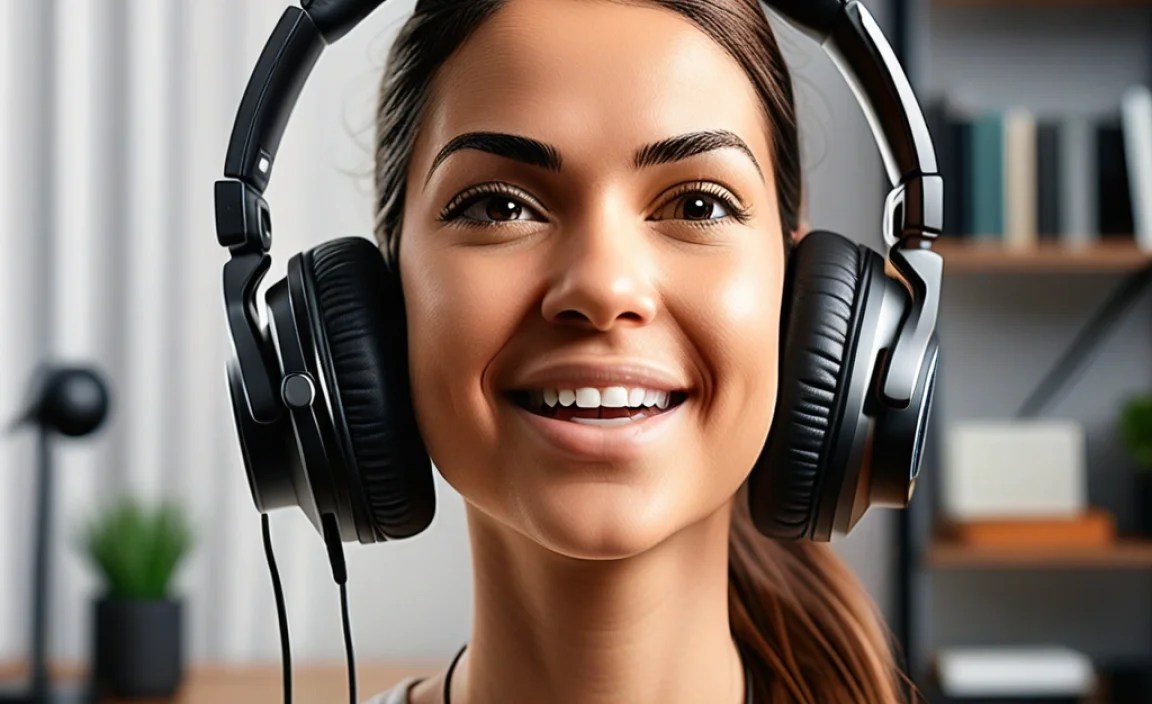
To help you get started, here are a few categories of headphones that consistently perform well for video calls. Remember, the “best” largely depends on your specific needs and budget!
Best Overall: Jabra Evolve2 65 UC
The Jabra Evolve series is renowned for its professional audio and communication features. The Evolve2 65 offers excellent microphone quality with advanced noise cancellation, superior comfort for all-day wear, and reliable connectivity. It’s a workhorse for professionals.
Best Budget Option: Logitech H390 USB Computer Headset
For an incredibly affordable yet effective solution, the Logitech H390 is hard to beat. It offers a decent microphone with noise reduction and comfortable earcups. It plugs in via USB, making setup a breeze.
Best Wireless Freedom: Bose QuietComfort 45
While primarily known for their incredible Active Noise Cancellation for listening, the QuietComfort 45 also boasts a surprisingly good microphone system for calls. If you want to block out the world and have crystal-clear conversations, these are a premium choice.
Best for Portability (Earbuds): Jabra Elite 7 Pro
If you prefer earbuds, the Jabra Elite 7 Pro features multi-microphone technology that significantly enhances voice clarity and reduces background noise during calls, making them one of the best wireless earbuds for communication.
Best for Immersive Audio & Calls: Sony WH-1000XM5
These headphones are legendary for their noise cancellation and audio fidelity. Sony has also made significant improvements to their call quality, making them an excellent option if you want a premium listening experience that also excels at handling your video calls.
Setting Up Your Headphones for Optimal Performance
Once you’ve got your headphones, making sure they are set up correctly is key. This ensures the microphone is active and picked up by your calling software.
Step-by-Step Setup Guide:
- Connect Your Headphones:
- Wired: Plug the 3.5mm jack into your computer’s audio port or the USB cable into an available USB port. If it’s a USB-C connection, ensure you have the right port.
- Wireless (Bluetooth): Turn on your headphones, put them in pairing mode (check your manual for how), and then go to your computer’s Bluetooth settings to scan for devices and connect.
- Wireless (Dongle): Plug the USB dongle into your computer and turn on your headphones. They should pair automatically.
- Select as Default Device:
- Windows: Right-click the speaker icon in your taskbar, select “Sound settings” or “Open Sound settings.” Under “Output” and “Input,” choose your headphones.
- macOS: Go to “System Preferences” > “Sound.” Select your headphones under both “Output” and “Input” tabs.
- Configure in Your Calling Software: Open your preferred video conferencing application (Zoom, Microsoft Teams, Google Meet, etc.). Go to the audio settings and ensure your newly connected headphones are selected as both the microphone and speaker.
- Test Your Microphone: Most calling applications have a microphone test feature. Use it to ensure your voice is coming through clearly and that background noise is minimized. Speak normally and at varying volumes.
Troubleshooting Common Video Call Audio Issues
Even with the best headphones, you might encounter occasional glitches. Don’t worry, most issues are easily fixed!
Problem: Others Can’t Hear Me
- Check Connections: Ensure headphones are properly plugged in or paired.
- Volume Levels: Verify your microphone volume isn’t muted or turned down too low in your system or application settings.
- Correct Device Selected: Double-check that your headphones are still selected as the input device in your operating system and calling app.
- Restart: Sometimes a simple restart of your computer and/or the calling app can resolve detection issues.
Problem: I Can’t Hear Others
- Check Speaker Selection: Make sure your headphones are selected as the output device.
- Volume Levels: Adjust your system and application volume. Check if your headphones have an in-line volume control that might be turned down.
- Mute Button: Ensure you haven’t accidentally muted yourself on the headphones or in the software.
Problem: Too Much Background Noise
- Check Mic Noise Cancellation: If your headphones have dedicated noise cancellation for the mic, ensure it’s enabled.
- Positioning: If you have a boom mic, try adjusting its position closer to your mouth.
- Environment: If possible, move to a quieter location or close doors and windows.
- Software Settings: Some calling apps have their own noise suppression settings. Explore these options within the app’s audio settings.
Problem: Audio Echoes
Echoes usually happen when the microphone picks up the sound coming from your speakers. This is why headphones are so useful!
- Always Use Headphones: This is the best preventative measure.
- Adjust Volume: Lowering your speaker volume (if not using headphones) or the volume of the call can sometimes help.
- Speakerphone Off: Ensure your computer’s built-in speakerphone isn’t accidentally activated.
Maintaining Your Headphones for Longevity
Taking good care of your headphones will ensure they perform well and last longer. It’s simpler than you might think!
Cleaning Your Headphones: A Step-by-Step Approach
- Turn Off and Unplug: Always power off wireless headphones and unplug wired ones before cleaning.
- Earcup Cleaning:
- Detachable Earcups: If your earcups are removable, consult your manual. Some can be gently hand-washed with mild soap and water and left to air dry completely.
- Non-Detachable: Use a slightly damp, lint-free cloth (microfiber is ideal) to wipe down the earcups. Avoid getting moisture into the drivers. For stubborn grime, use a tiny amount of mild soap diluted in water on the cloth, then wipe with a clean damp cloth.
- Headband Cleaning: Wipe the headband with a slightly damp cloth. If it’s fabric, you might be able to spot clean with a mild detergent if necessary.
- Microphone Boom: Gently wipe the microphone boom with a dry or very lightly damp cloth. Avoid touching the microphone grille directly with harsh materials.
- Cable and Connectors: For wired headphones, gently wipe the cable with a dry cloth. If you notice lint or dust on the connectors (USB or 3.5mm jack), use a dry cotton swab to carefully clean them.
- Storage: When not in use, store your headphones in a protective case or on a stand to prevent dust accumulation and accidental damage.
Quick Maintenance Tips:
- Avoid Extreme Temperatures: Don’t leave your headphones in direct sunlight or a hot car.
- Handle with Care: Avoid dropping or yanking on cords.
- Keep Dry: Protect them from rain or spills.
- Regular Gentle Wipes: A quick wipe-down after use can prevent buildup.
The Importance of a Quality Microphone in the Digital Age
In an era where our digital presence is often our primary interaction point, the quality of our voice communication matters. A clear microphone isn’t just about avoiding technical issues; it’s about effective communication. It allows for nuances in tone to be conveyed, reduces misinterpretations, and fosters a more engaged and productive conversation. For professionals, it instills confidence and a sense of preparedness. For students, it ensures they can participate fully in online classes. For everyone, it simply makes connecting with others more enjoyable and less strained.
Industry standards and best practices, often outlined by organizations like the Federal Communications Commission (FCC), highlight the importance of clear communication signals. While the FCC primarily focuses on broadcast and telecommunications regulations, the underlying principle applies: clear, unhindered transmission is essential for effective information exchange. Investing in headphones with a good microphone directly supports this principle in your daily online interactions.
Frequently Asked Questions (FAQ)
Q1: Do I really need special headphones for video calls?
While any headphones with a microphone can technically work, specialized headphones for video calls are designed with a superior microphone that filters out background noise and ensures your voice is clear. They also tend to be more comfortable for extended wear, making them a worthwhile investment if you’re on calls frequently.
Q2: What’s the difference between a boom mic and an in-line mic?
A boom mic is a flexible arm that extends from the earcup and is positioned close to your mouth. This proximity helps it pick up your voice clearly while minimizing background noise. An in-line mic is typically found on earbuds or some smaller headsets and is integrated directly into the cable or earcup. While convenient, in-line mics may not offer the same level of noise cancellation and voice clarity as a well-positioned boom mic.
Q3: Is Active Noise Cancellation (ANC) important for video calls?
ANC is primarily for the listener, helping to block out ambient sounds so you can hear the other person better. While it doesn’t directly improve your microphone’s outgoing audio quality, it significantly enhances your ability to focus on the conversation, especially in noisy environments. For outgoing audio, microphone noise cancellation is more important.
Q4: Can I use gaming headsets for video calls?
Yes, absolutely! Many gaming headsets feature excellent boom microphones with good noise-canceling capabilities, designed for clear communication with teammates. They often offer great comfort as well, making them a fantastic option for video calls, especially if you also enjoy gaming.
Q5: What does “UC” mean on some headset models (like Jabra Evolve2 65 UC)?
“UC” stands for Unified Communications. This means the headset is optimized to work seamlessly with a wide range of communication platforms like Microsoft Teams, Zoom, Cisco, and others, often featuring plug-and-play compatibility without requiring complex software installation.
Q6: How do I know if my headphones are compatible with my computer or mobile device?
For wired headphones, check if your device has the correct port (USB-A, USB-C,
