
Quick Summary: Choosing the best laptop headphones enhances your digital experience, from crystal-clear calls to immersive entertainment. This guide breaks down key features like comfort, sound quality, connectivity, and noise cancellation, helping beginners find the perfect pair for productivity and enjoyment without the tech overwhelm.
Best Laptop Headphones: Essential Sound for Every User

Hey there, audio adventurers! Edward Cavitt here from Headphone Horizon. Ever feel like your laptop’s built-in speakers are just… missing something? Maybe your video calls sound a bit muffled, or your favorite music doesn’t quite hit the right notes. You’re not alone! The right headphones can transform your laptop experience from meh to magnificent. Whether you’re a student powering through lectures, a remote worker nailing client calls, or a music lover craving vibrant sound, the “best laptop headphones” are out there waiting for you. Don’t worry if tech specs seem daunting; we’re going to break it all down into simple, everyday terms so you can confidently find your perfect audio companion.
Why Good Headphones Matter for Your Laptop
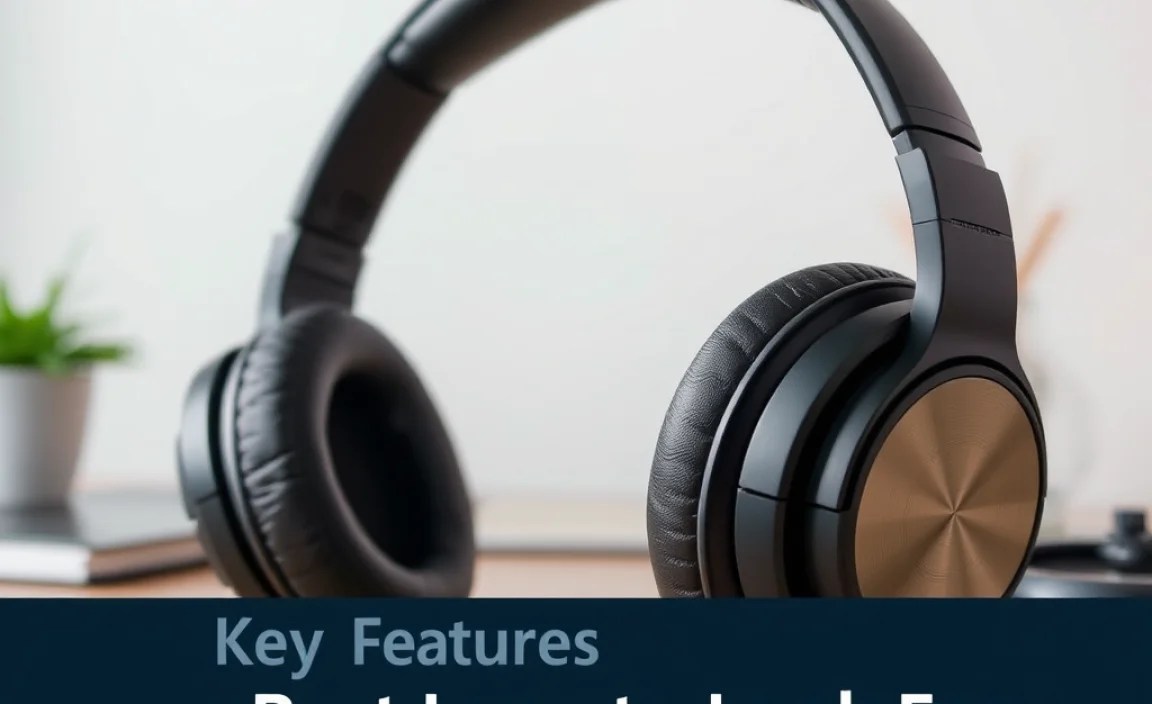
Think of your laptop as a gateway to so many experiences – work, entertainment, learning, and connection. Great headphones act as the perfect portal, delivering crisp, clear audio that unlocks the full potential of these activities. They create a personal sound bubble, minimizing distractions and immersing you in whatever you’re doing. For professional tasks, clear audio is non-negotiable. For fun, it’s about feeling every beat, every whisper, and every explosion. Investing in a good pair of laptop headphones is an investment in a better digital life.
Key Features to Look For: Decoding the Jargon

Navigating the world of headphones can seem overwhelming with all the technical terms. Let’s demystify them so you can focus on what matters to you.
1. Comfort is King (or Queen!)
You’ll be wearing these for potentially hours at a time, so comfort is paramount. What feels good on one person might not on another, so consider these points:
- Earcup Material: Look for plush padding like memory foam or soft leatherette. Breathable materials can prevent sweaty ears.
- Headband Design: A padded headband distributes weight evenly. Adjustable headbands ensure a snug fit for different head sizes.
- Weight: Lighter headphones generally mean more comfort for extended use.
- Fit Type: Do you prefer on-ear (rests on the ear) or over-ear (encloses the ear)? Over-ear is often more comfortable for long sessions and provides better passive noise isolation.
2. Sound Quality: What Does It Mean for You?
This is where the magic happens! Here’s a simplified breakdown:
- Clarity: You want to hear every spoken word in a video call or podcast distinctly.
- Bass, Mids, and Treble: These refer to the low (bass), middle (mids), and high (treble) frequencies of sound. Good headphones offer a balanced profile where no single frequency overpowers the others, unless that’s a specific sound signature you enjoy (like extra bass for electronic music).
- Soundstage: This describes how “wide” or “spacious” the sound feels. A good soundstage can make you feel like you’re in the room with the music or sounds.
3. Connectivity: Wired vs. Wireless
This is a big decision that impacts convenience and compatibility:
- Wired (3.5mm Jack):
- Pros: Generally more affordable, no battery to worry about, often superior audio quality with no compression.
- Cons: Cable can get tangled, limits your movement.
- Wireless (Bluetooth):
- Pros: Freedom of movement, no tangled cables, convenient for calls and multitasking.
- Cons: Requires charging, potential for audio latency (delay), sound quality can be affected by Bluetooth codecs.
- USB-C: Increasingly common, offering digital audio output and sometimes charging. Great for modern laptops without a standard headphone jack.
Which is best? For maximum portability and freedom, wireless is fantastic. If you’re a gamer or work in audio production where latency is critical, or if your laptop has a great DAC (Digital-to-Analog Converter), wired might be your preference. For general use and modern laptops, USB-C offers a solid, high-quality connection.
4. Noise Isolation and Cancellation: Your Peace and Quiet
This is a game-changer for focus and immersion.
- Passive Noise Isolation: This is achieved through the physical design of the headphones – how well they seal around your ears to block out external sounds. Think of it like wearing earplugs made of soft material. Over-ear headphones generally offer the best passive isolation.
- Active Noise Cancellation (ANC): This is more advanced technology. Microphones on the headphones detect ambient noise and generate an opposite sound wave to cancel it out. It’s incredibly effective for blocking out steady, low-frequency noises like airplane hum, office chatter, or traffic. You can learn more about how noise cancellation works from NASA, which uses similar principles in aerospace!
Who needs ANC? If you work in a noisy environment, travel frequently, or simply want to focus on your audio without distractions, ANC is a worthy feature.
5. Microphone Quality: Be Heard Clearly
For video calls, online meetings, and voice chats, a good microphone is crucial. Look for headphones that boast clear voice pickup. Some headphones have adjustable or boom microphones, which can offer superior voice quality compared to built-in mics.
6. Battery Life (for Wireless)
If you opt for wireless, battery life is key. Most wireless headphones offer anywhere from 8 to 30+ hours on a single charge. Consider how long you typically use your headphones between charges and choose accordingly.
Types of Headphones for Your Laptop

Let’s narrow down the options based on how they’re worn and what they’re best for.
Over-Ear Headphones
These encompass your entire ear and are often the most comfortable for extended listening sessions. They provide excellent passive noise isolation and generally deliver rich sound.
- Pros: Superior comfort, best passive noise isolation, often best sound quality and bass.
- Cons: Can be bulky, might cause heat buildup for some.
On-Ear Headphones
These rest directly on your ears. They are typically smaller and lighter than over-ear models.
- Pros: More portable than over-ear, allow some ambient sound (which can be good for awareness).
- Cons: Can cause ear fatigue or pressure for some users, less noise isolation than over-ear.
In-Ear Headphones (Earbuds)
These fit inside your ear canal and are incredibly portable. New generations of wireless earbuds (true wireless) offer excellent sound and features.
- Pros: Extremely portable, good passive noise isolation (when fitted correctly), discreet.
- Cons: Comfort can be hit-or-miss depending on ear shape, sound quality can vary widely, easy to lose.
Top Laptop Headphones: Recommendations (Beginner-Friendly)
While personal preference plays a big role, here are some categories and examples of headphones that consistently perform well for laptop use. Remember, models change, so always check the latest reviews!
For General Productivity & Calls:
- Logitech Zone Wireless: Excellent for office or home office use, comfortable, great mic, and good battery life.
- Jabra Evolve Series: Designed specifically for professional use, focusing on call clarity and comfort.
For Immersive Music & Entertainment:
- Sony WH-1000XM5 (Over-Ear, Wireless, ANC): Industry-leading noise cancellation, fantastic sound quality, and superb comfort. A premium choice for audiophiles and travelers.
- Bose QuietComfort 45 (Over-Ear, Wireless, ANC): Renowned for their comfort and effective ANC, delivering a balanced and pleasant listening experience for music and calls.
- Sennheiser HD 599 (Over-Ear, Wired): Open-back design offering a wide, natural soundstage, perfect for critical listening at home or in a quiet space.
For Portability & Convenience:
- Apple AirPods Pro (2nd Gen) (In-Ear, Wireless, ANC): Seamless integration with Apple devices, excellent ANC, and surprisingly good sound for earbuds.
- Google Pixel Buds Pro (In-Ear, Wireless, ANC): Great for Android users, good ANC, comfortable fit, and solid audio performance.
- Jabra Elite Active 75t (In-Ear, Wireless): Durable, great sound, and a secure fit, making them good for active users who also need them for laptop work.
Setting Up Your New Laptop Headphones
Getting your new headphones connected and ready to go is usually straightforward. Here’s how to approach it:
Connecting Wired Headphones
- Find the Port: Locate the headphone jack on your laptop. It’s usually a small, round port marked with a headphone icon, often on the sides or front. Modern laptops might use a USB-C port for audio.
- Plug Them In: Insert the audio jack (usually 3.5mm) from your headphones into the port.
- Select as Output (if needed): Your laptop should automatically switch the audio output to your headphones. If not, go to your sound settings (usually found by right-clicking the speaker icon in the taskbar on Windows or in System Preferences > Sound on macOS) and select your headphones as the audio output device.
Connecting Wireless (Bluetooth) Headphones
- Charge Your Headphones: Make sure your headphones have enough battery power.
- Enable Bluetooth on Your Laptop:
- Windows: Go to Settings > Devices > Bluetooth & other devices, and toggle Bluetooth on.
- macOS: Go to System Preferences > Bluetooth and turn Bluetooth on.
- Put Headphones in Pairing Mode: This process varies by brand, but usually involves holding down the power button or a specific Bluetooth button until an indicator light flashes or you hear a pairing sound. Consult your headphone manual if unsure.
- Find and Connect: On your laptop, your headphones should appear in the list of available Bluetooth devices. Click on them and select “Connect.”
- Confirm Connection: Once paired and connected, your laptop’s audio should play through your headphones.
Connecting via USB-C
- Plug In: Connect the USB-C cable from your headphones to a USB-C port on your laptop.
- Automatic Detection: Most modern laptops will automatically recognize USB-C audio devices. If not, follow step 3 from connecting wired headphones to set it as the audio output.
Basic Maintenance for Longevity
A little care goes a long way in keeping your headphones sounding great and lasting longer.
Cleaning Your Headphones
- Earcup Covers/Pads: For detachable pads, follow the manufacturer’s instructions. Often, they can be wiped gently with a damp, soft cloth. For non-detachable pads, use a slightly damp cloth and avoid getting moisture into the drivers.
- Headband: Wipe with a dry or slightly damp, soft cloth.
- Earcups (Plastic/Metal): Use a dry microfiber cloth to remove fingerprints and dust. For tougher grime, a slightly damp cloth can be used, ensuring no liquid enters the speaker grilles.
- Earbud Nozzles: Use a dry cotton swab or a soft brush to gently remove earwax or debris from the mesh. Be very careful not to push debris further into the nozzle or damage the mesh.
- Cables: Wipe down with a dry cloth. Avoid harsh chemicals.
Storage
When not in use, store your headphones in a protective case or on a stand to prevent damage from accidental drops or being crushed.
Cable Care (for Wired Headphones)
- Avoid tightly wrapping cables. Instead, use a loose loop.
- Don’t let cables dangle where they can be stepped on or pulled.
- Store them untangled to prevent straining the internal wires.
Troubleshooting Common Headphone Issues
Encountering a hiccup? Here are some quick fixes for common problems.
| Problem | Possible Solutions |
|---|---|
| No Sound |
|
| Low Volume |
|
| Sound Only in One Ear (Wired) |
|
| Bluetooth Won’t Connect |
|
| Crackling or Static Sound |
|
Frequently Asked Questions (FAQ)
Q1: Do I need special headphones for my laptop?
A1: Not necessarily! Standard headphones designed for phones or audio players will work. However, headphones with a good microphone are ideal for calls, and those with USB-C connectivity are great for newer laptops. The “best” depends on your primary use.
Q2: What’s the difference between noise-canceling and noise-isolating headphones?
A2: Noise-isolating headphones block sound physically, like earplugs, due to their seal. Noise-canceling headphones use technology to actively cancel out ambient sounds by producing opposing sound waves. While both reduce external noise, ANC is generally more effective for consistent, low-frequency sounds.
Q3: Are Bluetooth headphones good enough for online meetings?
A3: Yes, for most users, Bluetooth headphones are perfectly adequate for online meetings. High-quality Bluetooth headphones offer good microphones and stable connections. Those very sensitive to latency might prefer wired options, but for typical video conferencing, Bluetooth is a convenient and reliable choice.
Q4: Can I use a gaming headset with my laptop for everyday tasks?
A4: Absolutely! Gaming headsets often have excellent microphones and comfortable designs built for long sessions, which translate well to productivity and entertainment. The sound profile might be more bass-heavy, which you might enjoy for music, or you can often adjust EQ settings on your laptop.
Q5: How long should my laptop headphones last?
A5: With proper care, good quality headphones can last anywhere from 3 to 10 years. Factors like usage frequency, storage habits, and inherent build quality play a role. For wireless headphones, battery degradation is a common factor that might limit their practical lifespan before they need replacement.
Q6: What does it mean when headphones have a “frequency response”?
A6: Frequency response (e.g., 20 Hz – 20,000 Hz) indicates the range of sound frequencies a headphone can produce. The human hearing range is typically considered to be from about 20 Hz.
