
Quick Summary: Discover the best Lenovo headphones for your needs. This guide simplifies choosing the right pair, whether for work, music, or gaming, focusing on comfort, sound quality, and value. Get essential tips for making a smart audio investment with Lenovo.
Best Lenovo Headphones: Essential Audio for Every Listener

Hello audio adventurers, Edward Cavitt here from Headphone Horizon! Choosing the right headphones can feel like navigating a maze of technical terms and endless options. But don’t worry, that’s where I come in! Today, we’re diving into the world of Lenovo headphones.
Lenovo, known for its reliable laptops and tech, also offers some surprisingly great audio gear. Whether you’re a student needing focus, a professional on calls, or just someone who loves to get lost in music, finding the “best” pair is all about matching features to your lifestyle. Let’s make your next headphone purchase a confident and crystal-clear one!
Why Consider Lenovo Headphones?

Lenovo isn’t always the first name that springs to mind when thinking about high-end audio, but they offer a compelling range of headphones that often hit a sweet spot between affordability, functionality, and decent performance. They build their headphones with the same dedication to quality and user experience that has made their computers so popular.
This means you’re likely to get a product that’s built to last, comfortable for extended wear, and packed with features that enhance everyday listening. For anyone seeking reliable audio solutions without breaking the bank, Lenovo deserves a closer look.
Understanding Your Audio Needs
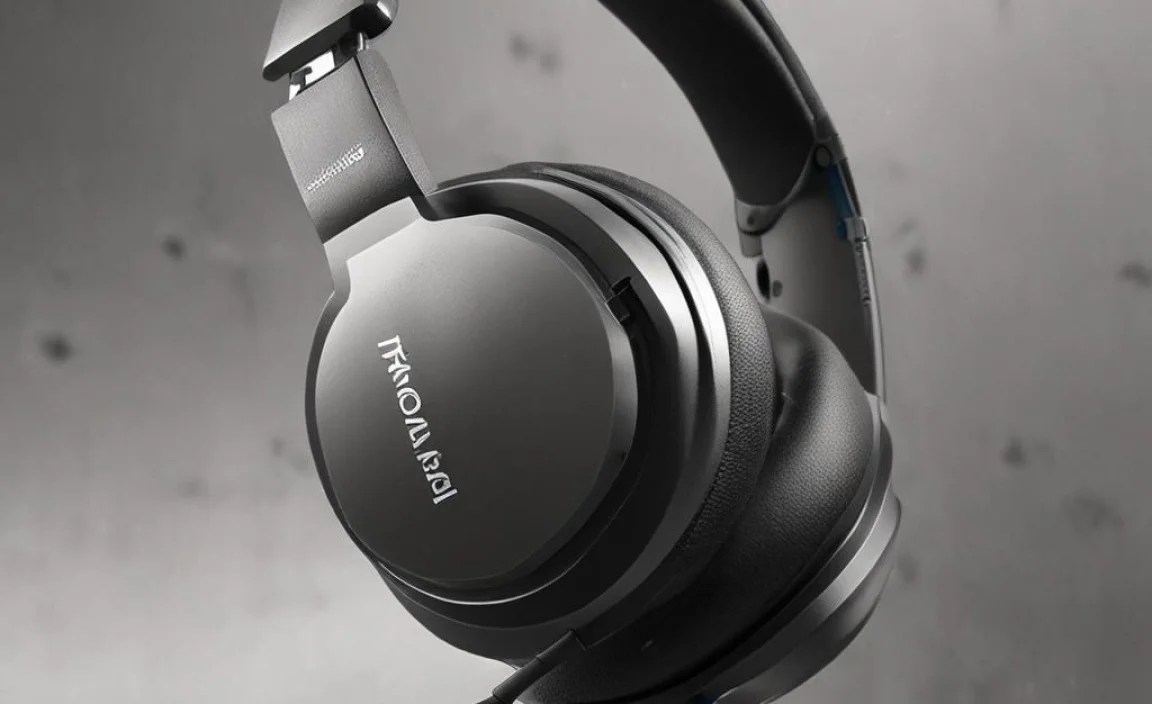
Before we jump into specific models, let’s figure out what you need from your headphones. Think about how and where you’ll be using them most often. This will help narrow down the vast selection significantly.
1. Listening Environment:
- Quiet Office/Home: You might prioritize comfort and perhaps open-back designs for a more natural sound.
- Commuting/Travel: Noise cancellation is key here to block out distractions.
- Gym/Exercise: Look for sweat resistance and a secure fit.
- Gaming: Features like good surround sound, a clear microphone, and low latency are important.
2. Sound Preference:
- Balanced: A mix of clear highs, mids, and lows, great for most music genres.
- Bass-Heavy: If you love the thump for electronic music or hip-hop.
- Clear Vocals: Ideal for podcasts, audiobooks, or vocal-centric music.
3. Connectivity & Features:
- Wired vs. Wireless (Bluetooth): Wireless offers freedom, while wired can sometimes offer superior sound quality and no battery worries.
- Microphone Quality: Essential for calls and online meetings.
- Noise Cancellation (ANC): Active Noise Cancellation truly blocks out ambient sound.
- Comfort & Fit: Over-ear, on-ear, or in-ear? Each has its pros and cons for long listening sessions.
- Durability: How robust do they need to be for daily use?
Top Lenovo Headphone Categories & Recommendations

Lenovo offers a diverse range, but we can generally sort them into a few key categories. While specific model availability can change, these categories represent their strengths.
Over-Ear Headphones: For Immersive Comfort
Over-ear headphones cup your entire ear, offering a comfortable seal and often the most immersive sound experience. They are great for long listening sessions at home, in the office, or during travel.
Lenovo ThinkBook Wireless ANC Headset: The Professional’s Choice
This headset is often geared towards professionals who spend a lot of time on calls and need a reliable ANC solution. It usually boasts excellent microphone clarity and effective noise cancellation, making your work calls crisp and clear, even in noisy environments. Comfort is typically a priority, with plush earcups designed for all-day wear.
- Best For: Business professionals, remote workers, frequent travelers.
- Key Features: Active Noise Cancellation (ANC), clear microphone, comfortable design, Bluetooth connectivity.
- Potential Drawbacks: May come with a professional-oriented price tag; sound profile might be more vocal-focused than bass-heavy for music enthusiasts.
Lenovo Legion H5 Headset: For Gaming Dominance
For gamers, the Lenovo Legion line often delivers. The H5 specifically is usually designed with gaming audio in mind, offering 7.1 surround sound (on PC) for precise in-game audio cues. A clear, detachable microphone is standard, crucial for team communication. Comfort is also a focus, with lightweight materials and breathable earcups for marathon gaming sessions.
- Best For: PC and console gamers.
- Key Features: 7.1 Surround Sound (PC), clear directional audio, comfortable build, detachable microphone.
- Potential Drawbacks: May not be the best choice for general music listening; surround sound relies on software for optimal performance.
On-Ear Headphones: A Balance of Portability and Sound
On-ear headphones rest directly on your ears. They offer a good compromise between the immersive sound of over-ears and the portability of in-ears. They tend to be lighter and more compact.
Lenovo Essential Wireless Headphones (e.g., specific model numbers like HS25): Portability and Simplicity
Lenovo often has “Essential” or “Basic” lines that focus on delivering good sound and wireless convenience without excessive features. These can be excellent for casual listening, commuting, or as a secondary pair. They prioritize ease of use, decent audio quality for the price, and a comfortable, lightweight build.
- Best For: Casual listeners, students, daily commutes.
- Key Features: Wireless Bluetooth connectivity, lightweight design, good battery life, straightforward controls.
- Potential Drawbacks: May lack advanced features like ANC; sound quality might be good but not audiophile-grade.
In-Ear Headphones/Earbuds: For Ultimate Portability
In-ear headphones (earbuds) fit inside your ear canal. They are incredibly portable, great for workouts, and can offer good passive noise isolation. Lenovo offers both wired and true wireless options.
Lenovo LP Series (e.g., LP1, LP40, LP5): True Wireless Freedom
The LP series often represents Lenovo’s foray into true wireless earbuds. These are typically designed for everyday use, offering a compact charging case, Bluetooth connectivity, and decent sound for music and calls. Look for different models that might offer features like water resistance (for workouts) or slightly different sound signatures.
- Best For: Commuters, gym-goers, those seeking maximum portability.
- Key Features: True wireless design, compact charging case, Bluetooth, often water-resistant.
- Potential Drawbacks: Battery life is limited by the earbuds themselves (though the case recharges them); fit can be personal and might require trying different ear tip sizes.
Lenovo Wired Earbuds (various models): Reliable and Budget-Friendly
For those who prefer a wired connection or a budget-friendly option, Lenovo’s wired earbuds are a solid bet. They’re simple, require no charging, and can offer surprisingly good sound quality for their price point. They are perfect as a backup pair or for situations where Bluetooth isn’t ideal.
- Best For: Budget-conscious users, backup audio, situations where wireless isn’t practical.
- Key Features: Wired 3.5mm jack, no charging needed, simple plug-and-play.
- Potential Drawbacks: Cable can tangle; sound quality and features are basic compared to higher-end options.
Key Features to Look For in Lenovo Headphones

When comparing Lenovo headphones, keep these important features in mind:
Audio Quality
This is subjective, but generally, look for clear mids, well-defined highs, and present (but not overpowering) bass for a balanced listening experience. Check reviews for how well they handle different music genres.
Comfort and Fit
Especially for over-ear and on-ear styles, ensure the earcups are soft and the headband is adjustable and not too tight. For earbuds, different ear tip sizes are crucial for a secure and comfortable seal. A good fit also impacts sound quality.
Build Quality and Durability
Lenovo products generally have good build quality. Look for materials that feel sturdy and durable enough for your intended use. Hinges on foldable headphones and cable thickness on wired models are good indicators.
Battery Life (Wireless Models)
For Bluetooth headphones and earbuds, check the stated battery life. Consider how long you typically listen between charges and whether the charging case (for earbuds) provides enough extra juice for your needs. Reputable sources like the FCC provide information on wireless device regulations, though specific battery life claims are best found in product reviews.
Microphone Performance
If you plan to take calls, watch reviews that specifically test microphone quality. A clear mic makes a huge difference in professional and personal communication.
Active Noise Cancellation (ANC)
If you need to block out distractions, ANC is a must. Understand that ANC effectiveness can vary; higher-end models generally perform better. Learn more about how ANC works to appreciate its capabilities.
Comparing Lenovo Headphones: A Quick Overview (Example Models)
Below is a simplified table to illustrate how different Lenovo headphones might stack up. Note that specific models and features can change, so always check the latest product details.
| Feature | Lenovo ThinkBook Wireless ANC Headset | Lenovo Legion H5 Headset | Lenovo LP Series Earbuds |
|---|---|---|---|
| Primary Use | Professional Calls, Travel | Gaming | Everyday Music, Commuting |
| Type | Over-Ear | Over-Ear | True Wireless Earbuds |
| Noise Cancellation | Active (ANC) | Passive (Earcup isolation) | Passive (Eartip seal) |
| Microphone | Clear, integrated | Detachable, clear | Integrated (quality varies) |
| Connectivity | Bluetooth, sometimes USB-C | Wired 3.5mm, sometimes USB-C | Bluetooth |
| Price Range (Approx.) | Mid to High | Mid | Low to Mid |
Setting Up Your Lenovo Headphones
Getting your new Lenovo headphones ready to go is usually a straightforward process.
For Wired Headphones:
- Check the Connector: Ensure your headphones have the correct plug (usually a 3.5mm audio jack) for your device (laptop, phone, tablet, PC). Some newer devices may require a USB-C adapter.
- Plug In: Connect the headphone jack securely into the audio port of your device.
- Audio Settings: Your device should automatically recognize the headphones. You can confirm this by checking your sound output settings to make sure the headphones are selected as the audio device.
For Wireless (Bluetooth) Headphones:
- Charge Them Up: First, fully charge your headphones using the provided USB cable. A full charge ensures you have ample time to set them up without interruption.
- Enable Pairing Mode: Turn on your headphones. There’s usually a specific button combination (often holding the power button for a few seconds after turning them on) that puts them into pairing mode. Look for a flashing LED light, which typically indicates they are ready to connect.
- Open Bluetooth Settings on Your Device:
- On Windows: Go to Settings > Devices > Bluetooth & other devices, and click “Add Bluetooth or other device.”
- On macOS: Go to System Preferences > Bluetooth.
- On Smartphones/Tablets: Go to Settings > Bluetooth.
- Select Your Headphones: Your Lenovo headphones should appear in the list of available devices. Click or tap on their name (it might be something like “Lenovo HS25” or the specific model name) to initiate the pairing process.
- Confirm Connection: Once paired, the LED light on the headphones will usually change (e.g., from flashing to solid) and your device will show them as “Connected.” You’re now ready to enjoy your audio wirelessly!
Maintaining Your Lenovo Headphones for Longevity
Just like your favorite gadgets, your headphones need a little TLC to keep them sounding great and working reliably. Here are some simple maintenance tips:
Cleaning Your Headphones
- Earcups (Over-ear & On-ear): Gently wipe the earcups with a slightly damp, soft cloth. For tougher grime, use a mild soap solution, but ensure the cloth is only slightly damp to avoid water damage. Never submerge them in water. Allow them to air dry completely before use.
- Earbuds: Use a dry cotton swab or a soft, lint-free cloth to clean the exterior of the earbuds and the charging contacts in the case. For the speaker mesh on earbuds, you can gently use a dry, soft brush or a toothpick to dislodge any debris. Be very careful not to push debris further into the mesh.
- Headband: Wipe down the headband similarly to the earcups. If it’s fabric, a gentle brush might help remove surface dust.
- Cables (Wired): Periodically wipe down audio cables with a dry cloth to remove any dirt or oil buildup. Avoid kinking or tightly wrapping the cables.
Proper Storage
- Use a Case: If your headphones came with a case, use it! It protects them from dust, impacts, and tangles.
- Avoid Extreme Temperatures: Don’t leave your headphones in a hot car or a freezing environment, as extreme temperatures can damage the batteries and materials.
- Store Safely: When not in use, store them in a drawer, bag, or on a stand where they won’t be sat on or have heavy objects placed on them.
Battery Care (Wireless Models)
- Avoid Deep Discharges: Try to avoid letting the battery drain completely on a regular basis. Charging them when they reach around 20% is often a good practice.
- Don’t Overcharge: Modern batteries have protection, but it’s still good practice to unplug them once fully charged. Leaving them on the charger for excessively long periods after reaching 100% is generally not recommended for long-term battery health.
- Charge Regularly: If you store wireless headphones for a long period, try to charge them at least once every few months to maintain battery health.
Troubleshooting Common Lenovo Headphone Issues
Even the best gear can sometimes act up. Here are solutions to a few common problems:
Issue: No Sound
- Check Connections: For wired headphones, ensure the plug is fully seated in the audio jack. For wireless, make sure they are paired and connected to your device.
- Volume Levels: Double-check that the volume is turned up on both your device and the headphones themselves (if they have independent volume controls).
- Correct Audio Output: On your computer or phone, go to sound settings and ensure your Lenovo headphones are selected as the default playback device.
- Restart Device: Sometimes a simple restart of your phone or computer can resolve connection glitches.
Issue: Audio is Distorted or Skipping (Wireless)
- Bluetooth Interference: Other wireless devices (microwaves, Wi-Fi routers, other Bluetooth devices) can interfere. Try moving closer to your audio source or reducing the number of active wireless devices nearby.
- Low Battery: A low battery on either the headphones or the source device can cause audio issues. Charge them up.
- Re-pair: “Forget” the headphones in your device’s Bluetooth settings and then re-pair them.
Issue: Microphone Not Working
- Permissions: Ensure that the application you’re using (e.g., Zoom, Discord, phone app) has permission to access your microphone. You can usually check this in your device’s privacy or app settings.
- Mute Button: Check if there’s a physical mute button on the headphones or inline controls that might be accidentally engaged.
- Select Correct Mic: In your device’s sound settings or within the application’s settings, make sure your Lenovo headphones are selected as the input audio device.
Issue: One Earbud Not Working (True Wireless)
- Clean Contacts: Ensure the metal charging contacts
