
Quick Summary: Finding the best PC headphones with a mic is crucial for clear communication and immersive audio. This guide breaks down key features like comfort, sound quality, mic performance, and connectivity to help you choose the perfect pair for work, gaming, or calls. We’ll cover top options suited for every budget.
Best PC Headphones With Mic: Your Essential Guide

Hello there! Edward Cavitt here from headphonehorizon. Navigating the world of PC headphones can seem a bit daunting sometimes, especially when you need a great microphone to go along with it. Whether you’re in back-to-back video calls, diving into your favorite game, or just enjoying some tunes, having reliable PC headphones with a mic makes all the difference. We’re going to demystify what makes a good pair, explore some fantastic options, and help you find the perfect match without getting lost in technical jargon. Let’s make sure your voice is heard loud and clear and your audio experience is top-notch!
Why You Need a Good PC Headset with a Mic

In today’s connected world, a quality headset with a microphone isn’t just a luxury; it’s practically a necessity for many of us. For remote workers and students, it’s the primary tool for effective communication in meetings and online classes. For gamers, a clear mic means better teamwork and strategy, and for anyone who loves to communicate online, it ensures you’re understood without having to repeat yourself. A good headset elevates your entire digital experience, making it more productive, social, and enjoyable.
Key Features to Consider When Buying
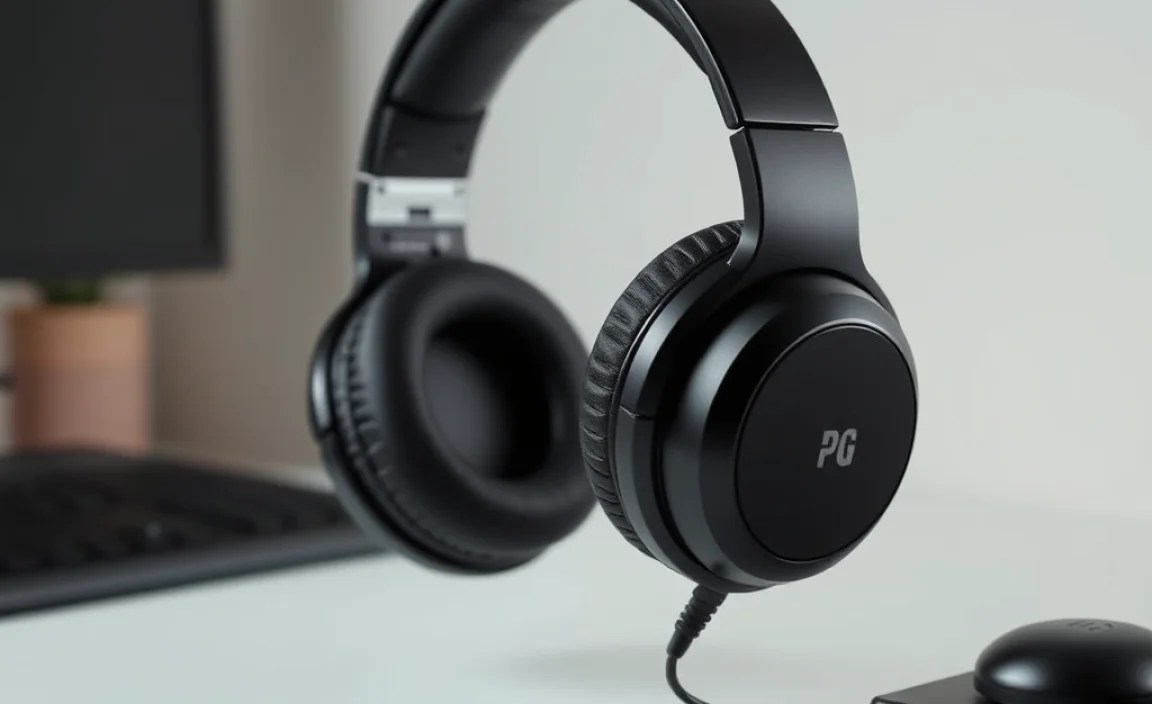
When you’re shopping for PC headphones with a mic, there are a few core things to keep your eyes on. Each feature plays a role in how you’ll experience your audio and how clearly others will hear you. Let’s break them down:
1. Comfort and Design
You’re likely going to be wearing these for extended periods, so comfort is paramount. Look for:
- Earcups: Plush, soft materials like memory foam or velour are usually winners. Over-ear designs tend to be more comfortable for long sessions than on-ear ones.
- Headband: An adjustable, padded headband disperses weight evenly, preventing pressure points.
- Weight: Lighter headsets are generally more comfortable.
- Build Quality: Sturdy materials mean your headset will last longer.
2. Sound Quality
This is about how good the audio sounds through the headphones. While perfect audio is subjective, here’s what to look for:
- Drivers: Larger drivers (measured in millimeters) often produce a fuller sound, but driver quality is more important than size alone.
- Frequency Response: A wider range (e.g., 20Hz to 20kHz) means the headset can reproduce more of the audible spectrum, from deep bass to high treble.
- Clarity and Balance: Listen for clear mids, highs, and a satisfying, but not overpowering, bass.
3. Microphone Performance
This is where the “with mic” part shines. A good mic ensures you’re heard clearly. Consider:
- Microphone Type:
- Electret Condenser: Common, good for voice, often found in gaming headsets.
- Dynamic: More robust, can handle louder sounds, often used in broadcast mics but sometimes in higher-end headsets.
- Noise Cancellation: This filters out background noise (like typing or fan hum) so only your voice is picked up. This is a huge plus for professional use.
- Microphone Placement: Look for a boom mic that can be positioned close to your mouth for optimal clarity and easily flipped up or muted when not in use. Some headsets have a boom mic that retracts into the earcup.
- Mute Functions: An easily accessible mute button is essential for privacy and convenience.
4. Connectivity Options
How your headset connects to your PC matters for ease of use and compatibility.
- 3.5mm Jack: The traditional analog connection. Versatile, works with most PCs, but can sometimes pick up interference. Some headsets use two separate 3.5mm jacks (one for audio, one for mic), while others use a single TRRS jack. A Y-splitter adapter might be needed for PCs with separate ports.
- USB: Digital connection. Often provides better sound quality and can power active features like noise cancellation. Plug-and-play simplicity is a big advantage.
- Wireless (Bluetooth or RF Dongle): Offers freedom of movement. Bluetooth can have slight latency, while RF dongles typically offer a more stable, low-latency connection for gaming. Battery life is a key consideration here.
5. Durability and Build Materials
Nobody wants a headset that falls apart after a few months. Inspect the materials: metal reinforcements in the headband or hinges often indicate better durability than all-plastic designs.
Top Picks: Best PC Headphones With Mic (Categorized)

To give you a head start, here are some of the best PC headphones with mics across different categories. These have been chosen for their balance of features, performance, and value.
Best Overall: Logitech G Pro X (Wired)
This headset is a favorite among professional gamers and content creators for a reason. It strikes an excellent balance between superb audio, a highly customizable microphone, and comfortable design. The included software allows for advanced microphone tuning, ensuring your voice sounds incredibly clear.
Best for Budget: Razer BlackShark V2 X
If you’re looking for a fantastic all-rounder without breaking the bank, the BlackShark V2 X is a strong contender. It offers impressive audio drivers for its price, a comfortable fit, and a decent cardioid mic that does a good job of picking up your voice without too much background noise. It’s a solid option for everyday use, gaming, and calls.
Best Wireless: SteelSeries Arctis Nova 7 Wireless
For those who crave the freedom of wireless, the Arctis Nova 7 delivers. It boasts a long battery life, a comfortable ski-goggle headband for excellent weight distribution, Great audio quality, and a retractable ClearCast microphone that offers impressive clarity for a wireless gaming headset. It also supports simultaneous Bluetooth and 2.4GHz wireless connections.
Best for Professional Calls: Jabra Evolve 75
When crystal-clear voice communication is paramount for professional use, the Jabra Evolve 75 is hard to beat. Focused primarily on voice, it features advanced noise cancellation for both the microphone and speakers, ensuring professional-sounding calls even in noisy environments. It offers both Bluetooth and USB connectivity flexibility.
Best for Immersive Gaming: HyperX Cloud II
A long-standing favorite, the HyperX Cloud II is renowned for its comfort and impressive soundstage, making it ideal for positional audio in games. The detachable microphone is also quite good, offering clear vocal reproduction. It’s a wired option that consistently delivers great value and performance.
Let’s look at a quick comparison of some of these choices:
| Headset Model | Connectivity | Microphone Type | Key Feature | Approximate Price Range |
|---|---|---|---|---|
| Logitech G Pro X | Wired (USB/3.5mm) | Electret Condenser (G Hub Tunable) | Pro-grade mic customization, excellent audio | $$$ |
| Razer BlackShark V2 X | Wired (3.5mm) | Cardioid Electret Condenser | Great value, good all-around performance | $ |
| SteelSeries Arctis Nova 7 Wireless | 2.4GHz Wireless, Bluetooth | Retractable ClearCast (Electret Condenser) | Wireless freedom, dual connectivity, long battery life | $$$ |
| HyperX Cloud II | Wired (USB/3.5mm) | Electret Condenser | Comfort, immersive sound, durable build | $$ |
Price ranges: $ = under $70, $$ = $70-$150, $$$ = $150+
Step-by-Step: Setting Up Your New PC Headphones
Once you’ve chosen your perfect headset, setting it up on your PC is usually straightforward. Here’s a general guide:
Step 1: Unboxing and Inspection
Carefully unpack your headphones and check for any visible damage. Ensure all included cables and accessories are present as listed in the manual.
Step 2: Connecting Your Headset
This depends on your headset’s connectivity:
- For 3.5mm Jack Headsets:
- Locate the audio input and microphone input ports on your PC. They are usually color-coded (green for audio, pink for mic) or have symbols.
- If your headset has two separate plugs, connect the audio plug to the green port and the microphone plug to the pink port.
- If your headset has a single plug (TRRS), it might connect to a dedicated headset port. If your PC only has separate ports, you’ll need a 3.5mm “Y-splitter” adapter, which splits the single plug into two for mic and audio.
- For USB Headsets:
- Simply plug the USB connector into any available USB port on your computer.
- Your computer should automatically detect the device and usually install necessary drivers.
- For Wireless Headsets (2.4GHz Dongle):
- Plug the USB wireless dongle into an available USB port on your PC.
- Turn on your headset. It should pair automatically with the dongle.
- For Wireless Headsets (Bluetooth):
- Turn on your headset and put it into pairing mode (refer to your headset’s manual).
- On your PC, go to Settings > Bluetooth & devices > Add device.
- Select Bluetooth, and your headset should appear in the list. Click to connect.
Step 3: Configuring Audio Devices in Windows
Even after plugging in, you need to tell Windows to use your new headset.
- Right-click the speaker icon in your system tray (usually near the clock).
- Select “Sound settings.”
- Under “Output,” make sure your headset is selected as the default device for sound.
- Under “Input,” ensure your headset’s microphone is selected as the default device.
For more detailed audio configurations and microphone settings (like sensitivity or noise reduction features), you might need to install specific software provided by the headset manufacturer (e.g., Logitech G Hub, SteelSeries Engine, Razer Synapse).
Step 4: Testing Your Microphone
It’s crucial to test your mic before important calls or sessions.
- Go back to the “Sound settings” in Windows.
- Under the “Input” section, you should see a “Test your microphone” bar or meter. Speak into the microphone.
- The bar should move as you speak, indicating it’s picking up sound.
- For a more thorough test, you can use Windows’ built-in Voice Recorder app or an application like Discord, Zoom, or Skype and run their microphone setup tests.
Maintaining Your PC Headphones for Longevity
A little care goes a long way in keeping your investment sound and your audio clear.
Cleaning Your Headset
Regular cleaning prevents buildup that can affect sound and comfort:
- Earcups: Gently wipe with a damp (not wet) microfiber cloth. For removable earcups, you might be able to hand wash them with mild soap and water, but always check the manufacturer’s instructions. Ensure they are completely dry before reattaching.
- Headband: Wipe with a damp cloth.
- Microphone Boom: Wipe gently. Be careful not to dislodge the microphone capsule.
- Cable and Connectors: Inspect cables for damage. Gently clean connectors with a dry cotton swab if they appear dusty.
Proper Storage
When not in use, store your headset in a safe place to prevent damage:
- Use the original box or a dedicated headset stand.
- Avoid leaving them where they could be stepped on, crushed, or exposed to extreme temperatures.
- If the headset has a detachable cable, consider disconnecting it to reduce strain on the ports.
Handling the Microphone
Be gentle with the microphone, especially if it’s a boom mic. Avoid slamming it into its resting position or forcing it at awkward angles.
Troubleshooting Common Headset Issues
Even the best gear can sometimes throw a curveball. Here are solutions to common problems:
No Sound from Headphones
- Check Connections: Ensure the audio cable or USB is firmly plugged in.
- Select Correct Output Device: Confirm your headset is set as the default playback device in your PC’s sound settings.
- Volume Levels: Check headset volume controls, PC volume, and the volume within any applications you’re using.
- Restart PC: Sometimes a simple restart can resolve driver issues.
- Try Another Port/Device: Test your headset on another USB port or even another computer to rule out a faulty port or PC issue.
Microphone Not Working
- Check Connections: Ensure the microphone plug (if separate) or headset is connected.
- Select Correct Input Device: Verify your headset’s mic is chosen as the default recording device in sound settings.
- Mute Button: Double-check that the microphone isn’t muted by a physical button on the headset or an inline controller.
- Microphone Privacy Settings (Windows 10/11):
- Go to Settings > Privacy > Microphone.
- Ensure “Allow apps to access your microphone” is turned ON.
- Also, check the list of apps below to ensure the specific program you’re using has permission.
- Driver Issues: Try uninstalling and reinstalling the audio drivers for your headset or your PC’s motherboard.
Poor Microphone Audio Quality (Static, Muffled, Too Quiet)
- Mic Placement: Ensure the microphone is positioned correctly near your mouth.
- Clean the Mic: Gently check for dust or debris blocking the mic capsule.
- Adjust Microphone Boost: In Windows Sound settings (under Input > Device properties), you might find a “Levels” tab where you can adjust “Microphone Boost.” Use this sparingly, as too much boost can introduce static.
- Noise Cancellation Settings: If your headset has software for this, ensure it’s enabled and configured appropriately.
- Check for Interference: If using a 3.5mm connection, sometimes other electronic devices can cause interference. Moving your PC or headset cables might help.
Wireless Headset Connection Issues
- Re-pair Device: For Bluetooth, try removing the headset from your PC’s Bluetooth list and re-pairing it. For dongles, try unplugging and replugging.
- Battery Life: Ensure the headset is adequately charged.
- Distance: Stay within the recommended range for wireless operation.
- Interference: Other wireless devices (Wi-Fi routers, microwaves) can sometimes interfere. Try moving them or changing channels if possible.
Frequently Asked Questions (FAQ)
Here are answers to some common questions beginners have about PC headphones with mics.
Q1: Do I need a special adapter for my headset with a single 3.5mm jack?
A: It depends on your PC. If your PC has separate microphone and headphone ports (usually pink and green), you’ll need a 3.5mm “Y-splitter” adapter to convert the single jack into two. Many modern laptops and some desktop motherboards have a combined headset port that works directly.
Q2: What’s the difference between a USB headset and a 3.5mm headset?
A: USB headsets offer a digital connection, which can provide cleaner audio and power extra features like active noise cancellation or surround sound. They are often plug-and-play. 3.5mm headsets use an analog connection, are widely compatible, and don’t rely on PC drivers for basic function, but can sometimes pick up interference.
