
Quick Summary: Discover your perfect PC wireless headphones with this beginner’s guide. We break down key features like wireless tech, comfort, sound quality, and connectivity to help you find a pair that fits your needs and budget, ensuring an excellent audio experience for gaming, music, and calls.
Hello there! I’m Edward Cavitt, your guide to all things audio here at Headphone Horizon. Today, we’re diving into a world of freedom and fantastic sound: PC wireless headphones. If you’re tired of tangled cords holding you back, whether you’re deep in a gaming session, enjoying your favorite album, or on an important video call, then this guide is for you! Navigating the options can seem a bit daunting with all the technical terms flying around, but don’t worry. We’ll simplify everything, from understanding different wireless technologies to choosing the most comfortable fit. Get ready to find the best PC wireless headphones that will truly elevate your listening experience without any wires holding you back.
Why Go Wireless for Your PC?
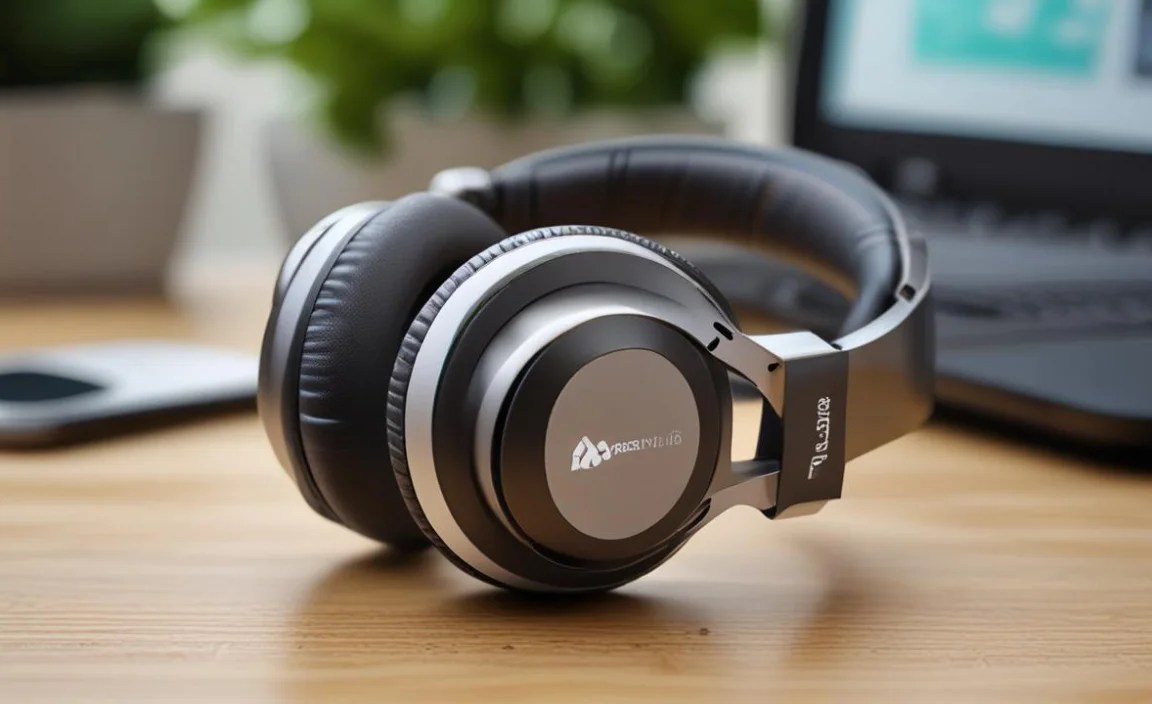
The allure of wireless headphones for your PC is undeniable. It’s not just about a cleaner desk; it’s about a more immersive and flexible experience. Imagine gaming without the worry of a cable getting snagged, or kicking back on your couch to watch a movie without being tethered to your computer. The freedom of movement is a game-changer for productivity and entertainment alike. Plus, modern wireless technology offers sound quality that often rivals their wired counterparts, with convenience that’s hard to beat.
Understanding Wireless Connectivity: Bluetooth vs. RF
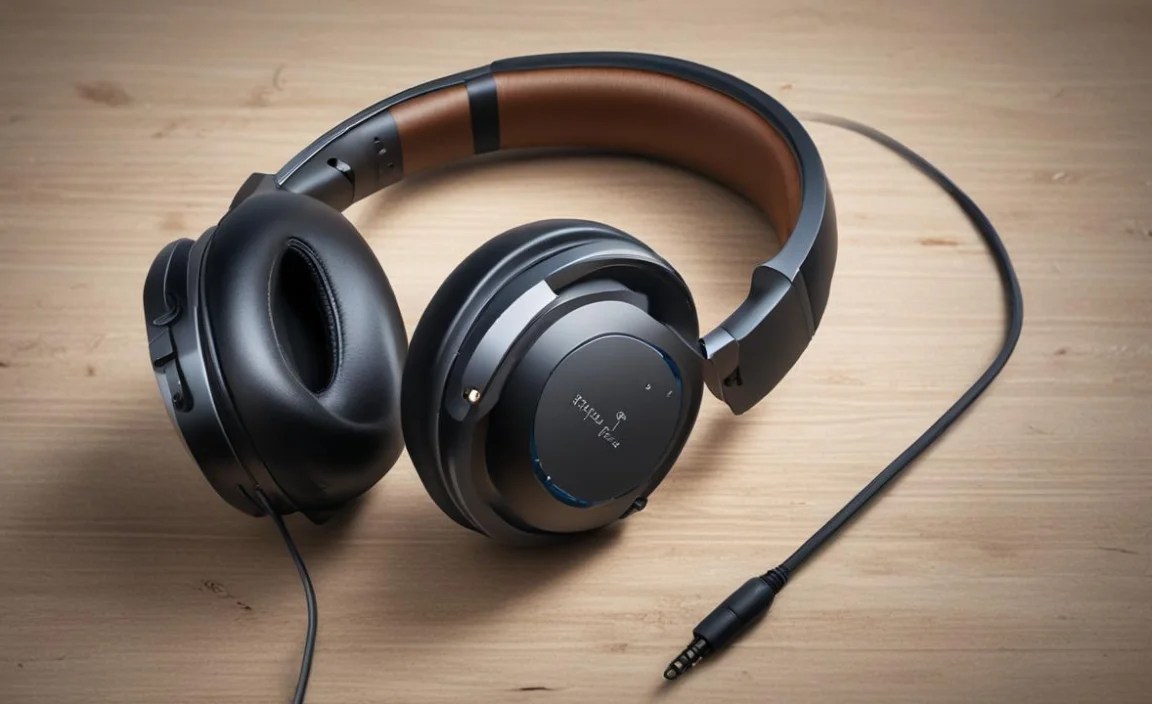
When picking out PC wireless headphones, the first major decision you’ll face is the type of wireless technology they use. The two main players are Bluetooth and Radio Frequency (RF). Each has its own strengths and is suited for different uses.
Bluetooth Headphones
Bluetooth is the wireless technology you find in most everyday devices, like smartphones and tablets. For PC headphones, it’s a widely adopted standard known for its versatility and power efficiency. Most modern PCs come with built-in Bluetooth, making setup a breeze.
- Pros:
- Universal compatibility with most modern PCs and devices.
- Often more energy-efficient, leading to longer battery life.
- Great for general use, calls, music, and casual gaming.
- Can connect to multiple devices simultaneously (with newer versions).
- Cons:
- Latency (delay) can sometimes be an issue, especially for competitive gaming or watching videos where audio sync is critical.
- Sound quality can vary widely depending on the Bluetooth version and codecs used (like aptX for better audio).
- Range can be limited, typically around 30 feet (10 meters) in optimal conditions.
For a more in-depth look at Bluetooth audio codecs and what they mean for sound quality, you can check out resources from organizations like the Bluetooth SIG.
RF (Radio Frequency) Headphones
RF headphones typically come with a dedicated USB dongle that plugs into your PC. They operate on their own radio frequencies, often in the 2.4 GHz range, which is generally less prone to interference than Bluetooth and offers a more stable connection.
- Pros:
- Generally offer lower latency, making them excellent for gaming and watching movies where audio-video sync is crucial.
- Often boast a stronger, more stable connection with a longer effective range than standard Bluetooth.
- Can sometimes offer better overall audio quality due to a dedicated, higher-bandwidth connection.
- Cons:
- Require a USB port for the dongle, which might be an issue if your PC is short on ports.
- Less versatile than Bluetooth; primarily for PC use only and won’t easily connect to other devices.
- Can sometimes be susceptible to interference from other 2.4 GHz devices like Wi-Fi routers or microwaves, though this is less common with higher-end models.
Which is right for you? If you’re a serious gamer who needs zero lag or you want a rock-solid, long-range connection for your PC, RF is often the way to go. For everyday listening, commuting (if you take your headphones off the PC), and general-purpose use, Bluetooth is usually more convenient and versatile.
Key Features to Consider
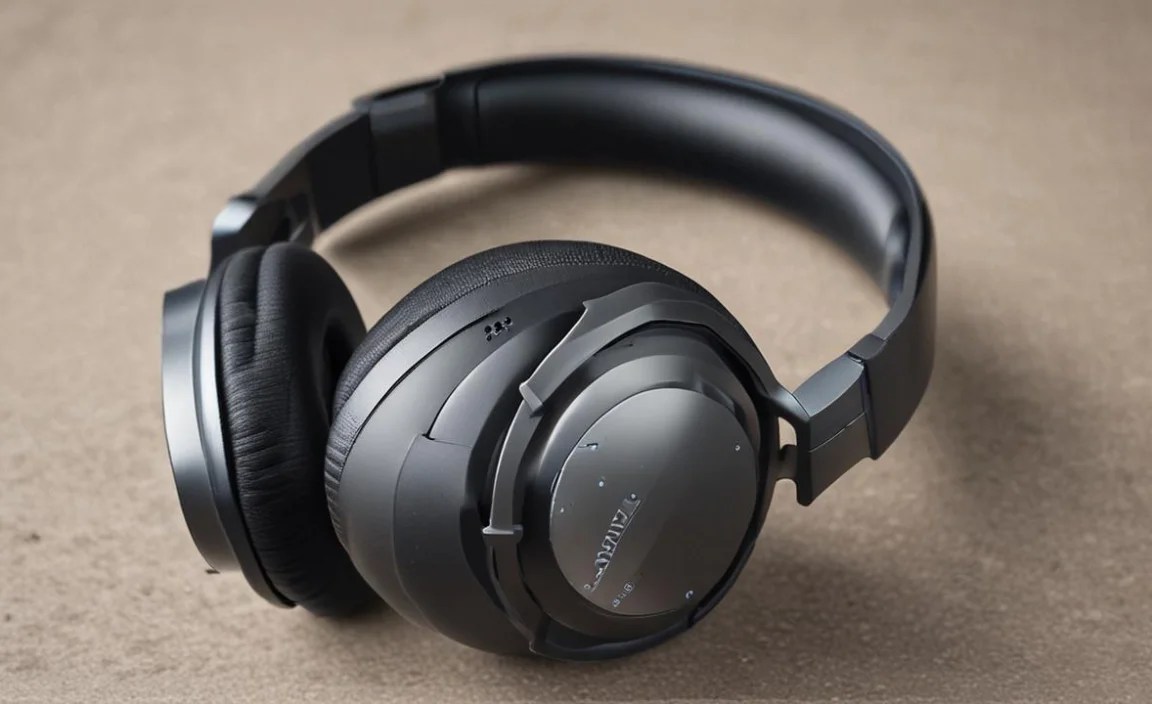
Beyond just the wireless tech, several other factors contribute to what makes a pair of PC wireless headphones “the best” for you. Let’s break them down:
1. Sound Quality
This is, of course, paramount! What sounds “good” is subjective, but here are some pointers:
- Drivers: These are the speakers inside the headphones. Larger drivers (measured in millimeters, like 40mm or 50mm) generally produce a fuller sound, but driver quality and tuning are more important than sheer size.
- Frequency Response: This indicates the range of sound frequencies the headphones can reproduce (e.g., 20Hz – 20kHz). A wider range generally means more detailed sound, but again, how well they are tuned is key.
- Sound Profile: Do you prefer a balanced sound for accurate music reproduction, a bass-heavy sound for gaming and electronic music, or a clear, crisp sound for vocals and podcasts? Many headphones offer customizable EQ settings via software to let you tailor the sound to your liking.
For more on understanding audio fidelity, you might find resources on the Audio Engineering Society (AES) website helpful, though they can delve into technical details.
2. Comfort and Fit
You’ll be wearing these for hours, so comfort is non-negotiable! Consider:
- Ear Cup Design:
- Over-ear (Circumaural): These cups completely enclose your ears. They offer great passive noise isolation and are often the most comfortable for long sessions.
- On-ear (Supra-aural): These cups rest on your ears. They can be lighter but might become uncomfortable after extended use and offer less noise isolation.
- Weight: Lighter headphones are generally more comfortable, especially for long wear.
- Materials: Look for plush ear pads (memory foam is a popular choice) and an adjustable, well-padded headband to distribute pressure evenly.
3. Battery Life
A major perk of wireless is ditching the charger for longer. However, battery life varies significantly.
- How many hours? Aim for headphones that offer at least 15-20 hours on a single charge. Premium models can offer 30+ hours.
- Quick Charging: Some headphones offer a quick charge feature (e.g., 15 minutes of charging for 2-3 hours of playback), which can be a lifesaver.
- Wired Option: Many wireless headphones also include a detachable cable, allowing you to use them in wired mode if the battery dies or when connecting to a device without wireless capabilities.
4. Microphone Quality
If you use your headphones for voice calls, gaming chat, or video conferencing, a good microphone is essential. Look for:
- Clarity: Does the mic pick up your voice clearly without too much background noise?
- Noise Cancellation: Some microphones have built-in noise cancellation to filter out ambient sounds.
- Mute Function: An easily accessible mute button is a handy feature. Detachable or flip-to-mute boom mics are often preferred for the best quality and convenience.
5. Connectivity and Ease of Use
Setting up your headphones should be straightforward.
- Pairing Process: How easy is it to pair with your PC? For Bluetooth, it should be a simple process via your PC’s settings. For RF, it’s usually just plugging in the dongle.
- Simultaneous Connections: If you want to connect to your PC and smartphone at the same time, look for headphones supporting Bluetooth multipoint.
- Controls: Are the volume, playback, and call controls intuitively placed and easy to use on the headphones themselves?
6. Durability and Build Quality
Wireless headphones can sometimes feel less robust than wired ones. Check for:
- Materials: Sturdy plastics, metal reinforcements in the headband, and well-constructed hinges add to longevity.
- Cable Design (if applicable): If it includes a detachable cable, ensure it feels durable and has a good connector.
Top Picks for PC Wireless Headphones (Beginner-Friendly Categories)

To help you get started, here are a few categories of excellent PC wireless headphones that cater to different needs:
| Category | Best For | Key Features | Example (Illustrative, actual models vary) |
|---|---|---|---|
| All-Around Versatility | General use, music, moderate gaming, video calls. | Balanced sound, comfort, good battery life, decent mic, Bluetooth connectivity. | Logitech G Pro X Lightspeed (often praised for its wireless performance and sound), Sony WH-1000XM4 (if prioritizing ANC and overall audio quality, though primarily a consumer headphone) |
| Pro-Level Gaming | Competitive gaming, immersive single-player experiences. | Ultra-low latency (RF often preferred), excellent spatial audio, clear detachable boom mic, long battery. | SteelSeries Arctis Nova Pro Wireless, Razer BlackShark V2 Pro |
| Budget-Friendly | Students, casual users, those on a tighter budget. | Reliable connection, decent sound, comfortable enough for shorter sessions, good value for money. | Corsair HS70 Wireless, HyperX Cloud II Wireless (often hits a sweet spot) |
| Noise Cancellation Focus | Busy environments, travel, focus work, immersive audio. | Industry-leading Active Noise Cancellation (ANC), excellent music playback, comfortable for long periods. | Sony WH-1000XM5, Bose QuietComfort Ultra Headphones |
Note: Specific model recommendations can change rapidly. Always check recent reviews and specifications.
Setting Up Your Wireless Headphones
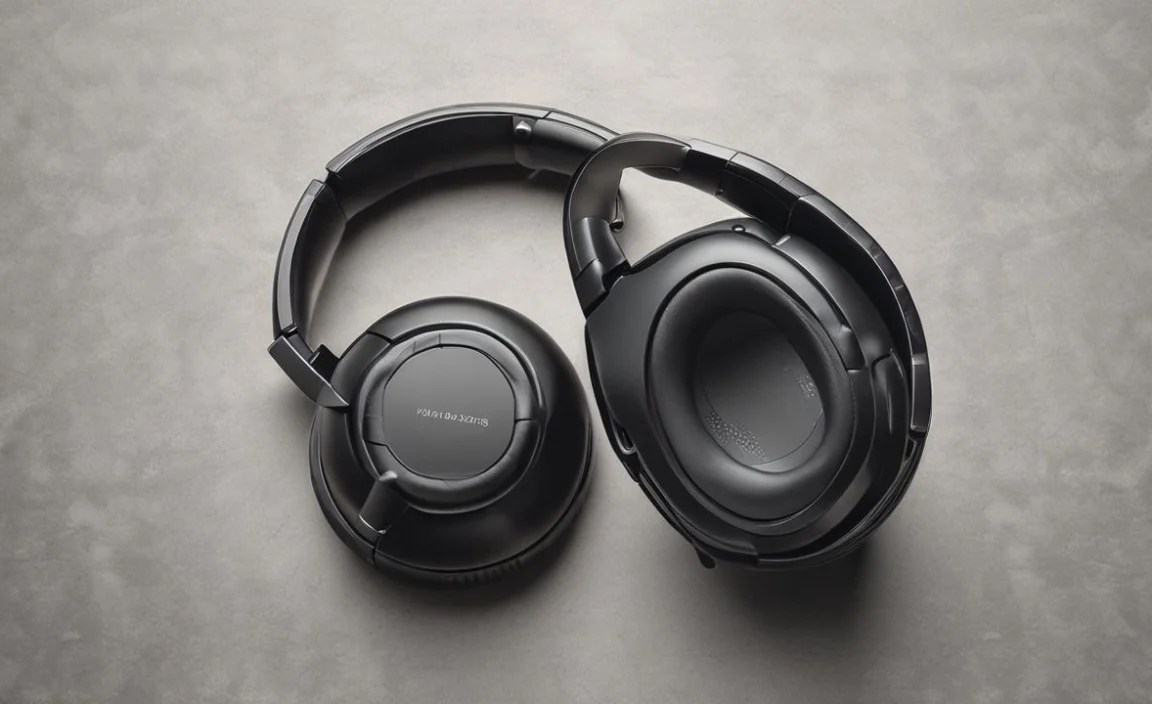
Getting your new wireless headphones connected to your PC is usually a straightforward process. The exact steps might vary slightly depending on your operating system (Windows or macOS) and the type of wireless connection.
For Bluetooth Headphones:
- Ensure Headphones are Discoverable: Turn on your headphones and put them into pairing mode. This often involves pressing and holding the power button or a dedicated Bluetooth button until an indicator light flashes (consult your headphone’s manual for specific instructions).
- Open Bluetooth Settings on your PC:
- Windows: Go to Settings > Devices > Bluetooth & other devices.
- macOS: Go to System Preferences > Bluetooth.
- Add a Device: Click “Add Bluetooth or other device” (Windows) or “Set up new device” (macOS). Select “Bluetooth”.
- Select Your Headphones: Your PC will scan for nearby Bluetooth devices. Find your headphones in the list (they’ll usually be named after the brand or model) and click to connect.
- Confirm Pairing: You might be asked to confirm a pairing code. Once connected, your headphones should appear in your list of connected devices.
- Set as Default Audio Device: Ensure your headphones are selected as the playback device in your sound settings.
For RF Wireless Headphones (with Dongle):
- Plug in the Dongle: Insert the USB dongle that came with your headphones into an available USB port on your PC.
- Turn on Headphones: Power on your headphones.
- Automatic Connection: For most RF headsets, the connection is plug-and-play. The dongle and headphones are pre-paired and should connect automatically within a few seconds.
- Check for Software (Optional): Some gaming headsets come with companion software that allows you to customize EQ settings, microphone levels, and lighting. If provided, download and install it from the manufacturer’s website.
- Set as Default Audio Device: Similar to Bluetooth, make sure your RF headphones are selected as the primary audio output and input device in your PC’s sound settings.
Basic Maintenance for Longevity
To keep your PC wireless headphones sounding great and working reliably for years to come, a little bit of care goes a long way. It’s not complicated at all!
Cleaning Your Headphones
Regular cleaning is essential, especially for ear pads that come into contact with skin and hair – which can also be a culprit for ear infections if not cleaned. For general cleaning:
- Ear Pads: Gently wipe them down with a slightly damp (not wet) microfiber cloth. For deeper cleaning of fabric or leatherette pads, you can use a mild soap mixed with water on the cloth, then wipe again with a clean, damp cloth and let them air dry completely. Avoid harsh chemicals.
- Headband: Wipe the headband with a similar damp cloth.
- Exterior: Use a dry or slightly damp microfiber cloth to wipe down the plastic or metal parts.
- Grilles/Mesh: Use a dry, soft brush (like a clean toothbrush or makeup brush) to gently remove dust and debris from speaker grilles.
Battery Care
To maximize battery lifespan:
- Avoid Extreme Temperatures: Don’t leave your headphones in a very hot car or a freezing garage.
- Don’t Over-Discharge: While modern batteries are more forgiving, it’s generally good practice to charge them before they drop to critically low levels consistently.
- Storage: If you plan to store them for an extended period (weeks or months), it’s often recommended to store them with a partial charge (around 50-60%) rather than fully depleted or fully charged.
Storage
Proper storage prevents damage:
- Use the Case: If your headphones came with a carrying case, use it! This protects them from dust, bumps, and scratches, especially if you transport them.
- Safe Place: When not in use, store them somewhere safe where they won’t be crushed or have things piled on top of them.
Troubleshooting Common Issues
Even the best headphones can sometimes have hiccups. Here are a few common problems and simple fixes:
