
Quick Summary: Finding the best PlayStation headphones enhances your gaming immersion. This guide breaks down essential features, popular brands, and practical tips to help you choose and maintain the perfect headset for your PS4 or PS5, ensuring clear communication and incredible in-game sound.
Best PlayStation Headphones: Essential Gaming Audio
Hey everyone, Edward Cavitt here from headphonehorizon! Diving into the world of PlayStation gaming is an adventure, and one of the most overlooked ways to truly elevate that experience is with the right audio. Forget just hearing the game; we’re talking about feeling it. The best PlayStation headphones can transform a good gaming session into an epic one, letting you pinpoint enemy footsteps, get lost in cinematic soundscapes, and communicate crystal-clear with your squadmates. Whether you’re a seasoned pro or just starting your PlayStation journey, picking the right headset is crucial. Let’s explore what makes a gaming headset “great” for your PS4 or PS5!
Why Good Headphones Matter for PlayStation Gaming

You might be wondering if a dedicated gaming headset is really necessary. After all, your TV or a standard pair of earbuds might do the trick. But trust me, the difference is night and day. A quality headset designed for gaming offers a few key advantages that standard audio gear often lacks:
- Immersive Soundscapes: Gaming headsets are engineered to reproduce a wide range of audio frequencies, from the deep rumble of explosions to the subtle rustle of leaves. This creates a much more immersive environment, pulling you deeper into the game’s world.
- Positional Audio: With features like virtual surround sound, gaming headsets help you pinpoint the direction of sounds. This is invaluable in competitive games, allowing you to hear approaching enemies before you see them, giving you a significant tactical advantage.
- Clear Communication: Most gaming headsets come with a built-in microphone. A good mic ensures your teammates can hear your callouts clearly, and you can hear theirs, leading to better teamwork and coordination.
- Comfort for Long Sessions: Gamers often play for extended periods. Headsets designed for gaming prioritize comfortable earcups, adjustable headbands, and lightweight designs to prevent fatigue.
- Reduced Distractions: Over-ear designs often provide excellent passive noise isolation, helping to block out external distractions so you can focus solely on the game.
Key Features to Look For in PlayStation Headphones
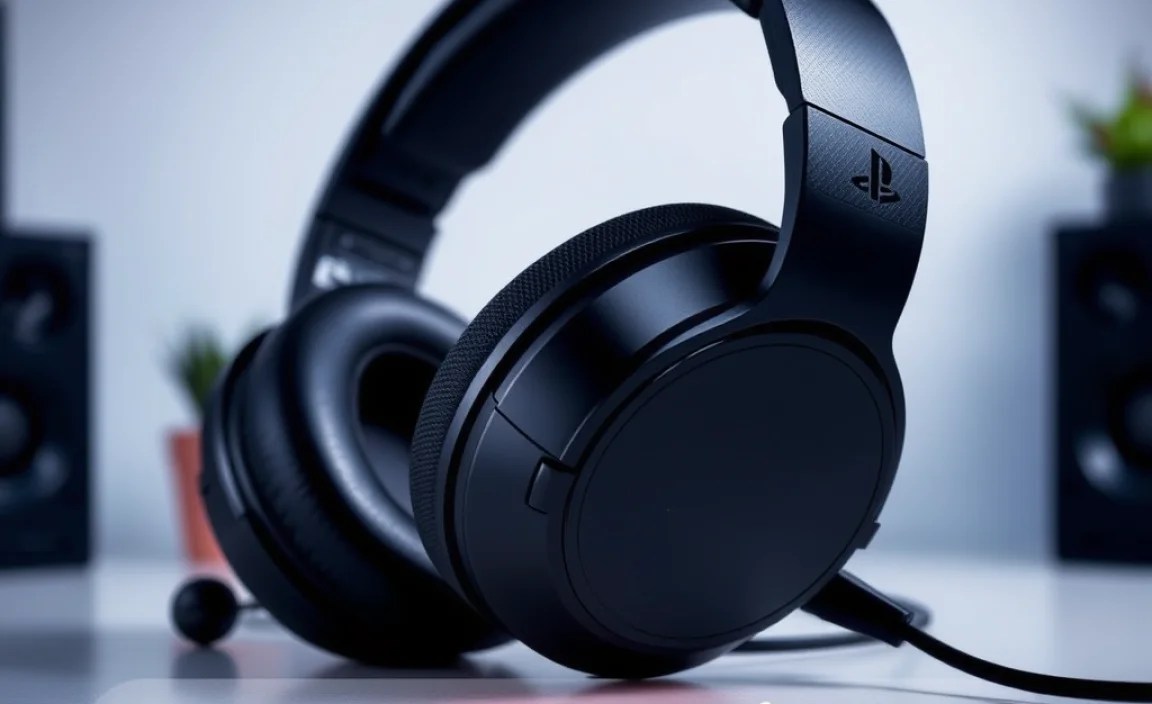
When hunting for the official PlayStation accessories or other compatible options, several features stand out. Understanding these will help you make an informed decision based on your personal preferences and gaming style.
Wired vs. Wireless
This is often the first major decision point:
- Wired Headphones:
- Pros: Generally offer superior audio quality with no compression, zero latency (delay), often more affordable, and no need to worry about battery life.
- Cons: Cable can be restrictive, limiting movement. The cable can also be a tripping hazard or get tangled.
- Wireless Headphones:
- Pros: Offer freedom of movement, a cleaner setup with fewer cables. Many come with convenient features like on-ear controls for volume and mic mute.
- Cons: Can introduce slight latency (though modern wireless tech is very good), require charging, and are typically more expensive. Audio quality can sometimes be compressed unless using high-fidelity wireless codecs.
Connectivity Options
How your headphones connect to your PlayStation is vital:
- 3.5mm Jack: This is the most versatile connection. It works with the DualSense controller (PS5) and DualShock 4 controller (PS4), as well as many PCs and mobile devices. Look for headsets with a detachable 3.5mm cable for added flexibility.
- USB Dongle (Wireless): Many wireless headsets use a USB dongle that plugs into your PlayStation. This typically offers a stable, low-latency wireless connection.
- Bluetooth: While some headsets support Bluetooth, it’s not always the best choice for gaming due to potential latency issues. If a headset uses Bluetooth, check if it also supports low-latency codecs like aptX Low Latency, or if it has a dedicated wireless dongle.
Comfort and Design
You’ll be wearing these for hours, so comfort is non-negotiable:
- Earcup Material: Look for breathable materials like fabric or velour for long sessions. Leatherette can feel premium but might get warm.
- Padding: Generous padding on the earcups and headband prevents pressure points.
- Adjustability: An adjustable headband ensures a snug, comfortable fit for different head sizes.
- Weight: Lighter headsets generally mean less fatigue.
Microphone Quality
If you play multiplayer games, your mic is as important as your audio:
- Detachable vs. Built-in: A detachable mic offers flexibility—remove it when not needed. Boom mics (the longer arm mics) often offer better voice pickup than smaller, integrated mics.
- Noise Cancellation: Look for mics with noise-canceling features to filter out background sounds like keyboard clicks or fan noise.
- Mute Function: An easily accessible mute button is a must-have feature.
Surround Sound Technology
This is where gaming headsets truly shine:
- Virtual Surround Sound: Technologies like Sony’s Tempest 3D AudioTech (for PS5) or Dolby Atmos simulate surround sound using stereo headphones. This helps create a more immersive 3D audio environment, crucial for directional awareness in games. Some headsets have their own proprietary virtual surround sound processing.
- Compatibility: Ensure the surround sound technology is compatible with your PlayStation console.
Top PlayStation Headset Brands and Models

While many brands offer excellent gaming headsets, a few consistently stand out for their quality, features, and compatibility with PlayStation consoles.
Sony (Official PlayStation)
Sony’s own headsets are designed with PlayStation consoles in mind, often offering deep integration.
Recommended Model: Sony PULSE 3D Wireless Headset
This is the go-to wireless headset officially designed for the PlayStation 5. It’s built to take full advantage of the PS5’s Tempest 3D AudioTech for immersive sound. The design is sleek, comfortable for long gaming sessions, and features a well-integrated, noise-canceling microphone.
| Feature | Details |
|---|---|
| Connectivity | Wireless (USB dongle), 3.5mm jack |
| Platform Compatibility | PS5, PS4, PC, Mac (3.5mm jack compatibility may vary) |
| Key Tech | Tempest 3D AudioTech optimized |
| Microphone | Dual noise-canceling microphones |
| Battery Life | Up to 12 hours wireless |
Astro Gaming
Astro has a long-standing reputation for crafting high-quality gaming peripherals, known for their durability and excellent audio.
Recommended Model: Astro A40 TR
The A40 TR is a favorite among esports professionals and serious gamers. It offers a modular design with swappable components (like speaker tags and microphone placement) and exceptional audio fidelity. It can be used wired or with a separate MixAmp Pro TR for enhanced audio control and virtual surround sound.
| Feature | Details |
|---|---|
| Connectivity | Wired (3.5mm/USB) |
| Platform Compatibility | PS5, PS4, PC, Xbox, Switch (USB/3.5mm) |
| Key Tech | Mod Kit compatible, great audio fidelity |
| Microphone | phía trái (can be switched to right) Noise-canceling |
| Comfort | Premium materials, adjustable |
HyperX
HyperX, a division of HP, is known for delivering excellent value with their gaming peripherals, offering a strong balance of features, performance, and price.
Recommended Model: HyperX Cloud II (or Cloud Alpha)
The HyperX Cloud II is legendary for its comfort and solid audio performance. It features a durable aluminum frame, plush memory foam earcups, and a detachable, noise-canceling microphone. While it has a USB audio sound card for virtual 7.1 surround sound on PC/PS4, it also functions perfectly with a 3.5mm jack for direct console connection.
| Feature | Details |
|---|---|
| Connectivity | Wired (3.5mm jack, USB sound card) |
| Platform Compatibility | PS5, PS4, PC, Xbox, Switch, Mobile |
| Key Tech | Virtual 7.1 surround sound (via USB dongle) |
| Microphone | Detachable noise-canceling |
| Comfort | Memory foam earcups, durable design |
SteelSeries
SteelSeries is a major player in the gaming peripheral market, offering innovative designs and high-performance headsets.
Recommended Model: SteelSeries Arctis 7P+ (or Arctis Nova 7 Wireless)
The Arctis 7P+ is specifically designed for PlayStation compatibility and offers excellent wireless performance with a USB-C dongle for low latency. It boasts a comfortable ski-goggle headband, a retractable ClearCast microphone, and a long battery life. The newer Arctis Nova 7 Wireless offers even more features and versatility across multiple platforms.
| Feature | Details |
|---|---|
| Connectivity | Wireless (USB-C dongle), Bluetooth, 3.5mm jack |
| Platform Compatibility | PS5, PS4, PC, Switch, Mobile |
| Key Tech | Lossless 2.4GHz wireless |
| Microphone | Retractable ClearCast microphone |
| Comfort | “Ski-goggle” elastic headband, lightweight |
Setting Up Your PlayStation Headphones

Getting your new headset connected and ready to go is usually straightforward. Here’s a general guide for both PS5 and PS4.
For PlayStation 5 (PS5)
- Wireless Headsets (USB Dongle):
- Plug the USB wireless dongle into one of the PS5’s USB ports (front or back).
- Turn on your headset. It should automatically connect to the dongle.
- Go to Settings > Sound > Audio Output.
- Under Output Device, select your headset (it will usually be named after the headset or “USB Headset”).
- Under Output to the headset, select All Audio.
- Under Volume Control (Headphones), adjust the balance between game and chat audio using the controls on your headset or in the console settings.
- Wired Headsets (3.5mm Jack):
- Plug the 3.5mm cable into the headphone jack on the bottom of your DualSense controller.
- Go to Settings > Sound > Audio Output.
- Under Output Device, select Controller Headset.
- Ensure Output to the headset is set to All Audio.
- For wired headsets that also connect via USB (often for charging or additional features), you might need to configure both.
- 3D Audio: To enable Tempest 3D AudioTech for compatible games, go to Settings > Sound > Audio > Temporal and select Prioritize 3D Audio for Headphones.
For PlayStation 4 (PS4)**
- Wireless Headsets (USB Dongle):
- Plug the USB wireless dongle into a PS4 USB port.
- Turn on your headset. It should pair automatically.
- Go to Settings > Devices > Audio Devices.
- Under Input Device and Output Device, select your headset.
- Under Output to Headphones, select All Audio.
- Adjust the Volume Control (Headset) for game and chat mix.
- Wired Headsets (3.5mm Jack):
- Plug the 3.5mm cable into the headphone jack on the bottom of your DualShock 4 controller.
- Go to Settings > Devices > Audio Devices.
- Set Input Device and Output Device to Headset Connected to Controller.
- Ensure Output to Headphones is set to All Audio.
Maintaining Your PlayStation Headphones for Longevity
Treating your headphones well means they’ll last longer and continue to sound great. Here are some simple maintenance tips from headphonehorizon:
Cleaning Your Headphones
Regular cleaning keeps your headset hygienic and performing at its best.
What you’ll need:
- Soft, lint-free cloths (microfiber is ideal)
- Mild soap (like dish soap) or an electronics-safe cleaner
- Water
- Cotton swabs
- Optional: Isopropyl alcohol (at least 70%) for disinfecting
Cleaning Steps:
- Power Off: Always turn off your headset and unplug it from the console or charger.
- Earpads and Headband:
- For removable earpads, gently detach them.
- Wipe down the earpads and headband with a slightly damp cloth. If they are very dirty, use a cloth dampened with a very mild soap and water solution. Do not oversaturate.
- For fabric earpads, you might be able to wash them gently by hand with mild soap and water, but ensure they are completely dry before reattaching. Check the manufacturer’s instructions first.
- Wipe with a clean, dry cloth afterwards.
- Headset Housing: Use a dry or very slightly damp microfiber cloth to wipe down the plastic and metal parts of the headset. For tougher marks, a tiny bit of electronics cleaner or a diluted alcohol solution can work, but apply it to the cloth, not directly to the headset.
- Microphone (Boom Mic): Gently wipe the microphone boom with a dry or slightly damp cloth. Be careful not to bend or damage it.
- Grills and Ports: Use a dry cotton swab to gently clean around speaker grilles and ports to remove dust and debris. Be very gentle.
- Drying: Allow all parts to air dry completely before reassembling or using the headset. This is especially important for earpads you’ve washed.
Cable Care
If you use a wired headset, take care of the cable:
- Avoid tightly coiling the cable; gentle looping is better.
- Don’t let the cable hang unsupported from the controller or device; this puts stress on the connection points.
- Store cables untangled.
Battery Care (Wireless Headsets)
To maximize battery life:
- Avoid draining the battery completely every time. Charging it when it gets low is fine.
- Don’t leave it plugged in constantly after it’s fully charged for extended periods (months at a time).
- Store it in a cool, dry place if not using it for a long time.
Storage
When not in use, store your headphones in a safe place:
- Consider a headset stand to keep them off surfaces and prevent dust buildup.
- If using the original box or a carrying case, ensure it’s clean and dry.
- Keep them away from direct sunlight, excessive heat, or moisture.
Troubleshooting Common PlayStation Headset Issues
Even with the best gear, occasional issues can pop up. Here
