
Quick Summary: Looking for the best rated wireless headphones for TV? This guide breaks down essential features, connectivity options, and top picks for an immersive, interruption-free viewing experience. We’ll help you find the perfect pair to enhance your home entertainment without the wires.
Best Rated Wireless Headphones For TV: Your Essential Guide
Tired of straining to hear dialogue or disturbing others with your TV volume? You’re in the right place! Wireless headphones for TV are a fantastic way to enjoy your favorite shows, movies, and games with crystal-clear audio and complete freedom. But with so many options out there, choosing the “best rated” can feel a bit overwhelming. Don’t worry, I’m Edward Cavitt from headphonehorizon, and my goal is to make this process super simple. We’ll dive into what makes a great TV headphone, explore different technologies, and highlight some top contenders that will transform your home viewing. Let’s get you set up for an amazing audio experience!
Why Wireless Headphones Are a Game-Changer for TV

Imagine this: you’re engrossed in a thrilling movie scene, and you don’t miss a single whispered word or the subtle rustle of leaves. Or perhaps you want to crank up the volume to catch every detail of a sports broadcast without waking up the whole house. Wireless TV headphones make this a reality. They offer:
- Uninterrupted Audio Clarity: Hear every sound effect, piece of dialogue, and musical cue with precision, often with noise-canceling features that block out background distractions.
- Personalized Volume Control: Set the volume exactly how you like it, without affecting anyone else in the room.
- Freedom of Movement: No more being tethered to your TV by cords. Get up, grab a snack, or move around your living room without losing your connection.
- Improved Accessibility: For individuals with hearing difficulties, wireless headphones can significantly enhance their ability to enjoy television content.
Understanding Wireless Technologies for TV
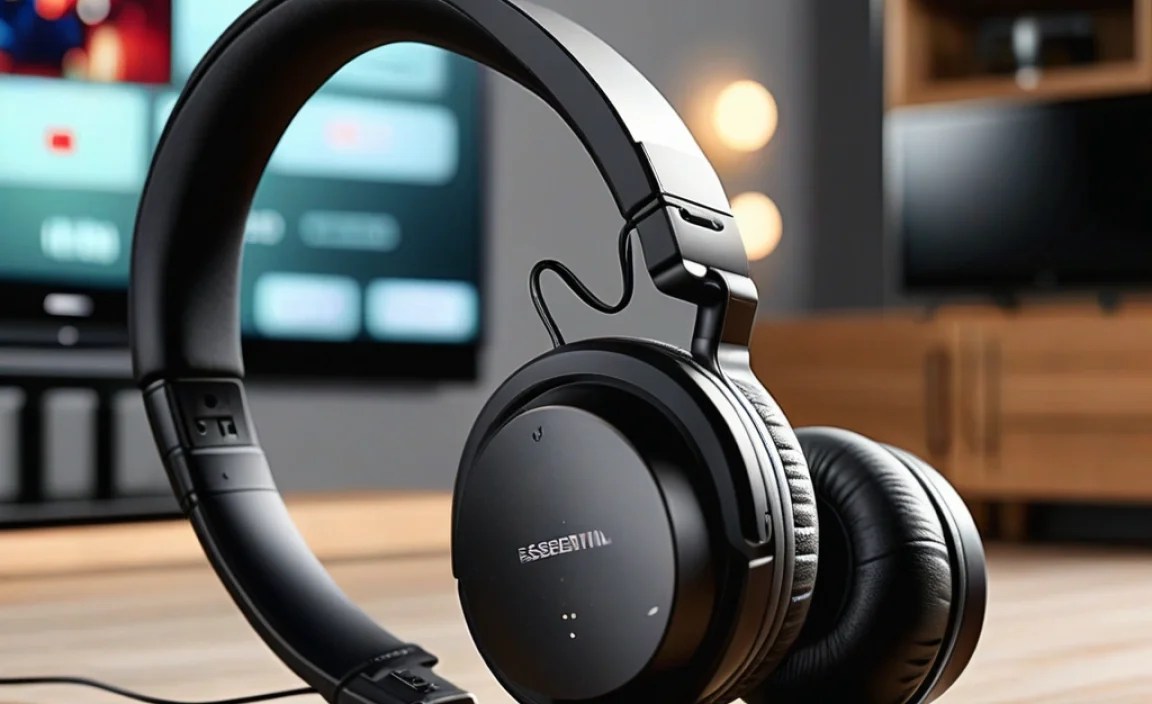
When choosing wireless headphones for your TV, you’ll encounter a few key technologies. Knowing the basics will help you pick the best fit for your setup and needs. The most common are Bluetooth and RF (Radio Frequency).
Bluetooth Technology
Bluetooth is the wireless standard you’ll find on many devices today, including headphones, speakers, and smartphones. For TV use, you’ll need a TV with built-in Bluetooth or a separate Bluetooth transmitter/adapter to connect to your TV’s audio output.
Pros of Bluetooth for TV:
- Versatility: Can often connect to multiple devices, not just your TV.
- Wide Availability: Most modern TVs have Bluetooth, and adapters are readily available.
- Simple Pairing: Usually a straightforward process to connect devices.
Cons of Bluetooth for TV:
- Potential for Latency: The delay between the video and audio (lip-sync issues) can be noticeable with some Bluetooth headphones, especially older versions or those without low-latency codecs like aptX Low Latency.
- Range Limitations: While improving, the effective range is typically around 30-50 feet (9-15 meters) and can be affected by obstacles.
- Audio Quality: Can vary greatly depending on the Bluetooth version and supported codecs.
RF (Radio Frequency) Technology
RF headphones typically come with a base station that connects to your TV and transmits the audio signal wirelessly. This technology is specifically designed for home entertainment and is a popular choice for TV listening.
Pros of RF for TV:
- Low Latency: Generally offers very little to no noticeable delay, ensuring perfect lip-sync.
- Extended Range: Often provides a longer and more stable connection than Bluetooth, sometimes up to 100-200 feet (30-60 meters) indoors.
- Dedicated Connection: Designed to avoid interference and provide a robust audio stream for your TV.
Cons of RF for TV:
- TV Specific: Usually designed to work only with their accompanying base station and not other devices.
- Less Versatile: Cannot typically be used for music listening on your phone or other Bluetooth-enabled devices.
- Setup: Requires connecting the base station to your TV’s audio output.
Understanding Codecs (for Bluetooth)
If you go the Bluetooth route, codecs play a crucial role in audio quality and latency. Codecs are like translators for digital audio data. Common ones include SBC (standard), AAC (better for Apple devices), and aptX/aptX HD (better quality, lower latency). For TV, look for headphones and transmitters that support aptX Low Latency (aptX LL), as this is specifically designed to minimize that annoying audio delay.
To learn more about Bluetooth technology and its advancements, you can refer to resources like the official Bluetooth specifications.
Key Features to Look For in TV Headphones

Beyond the wireless technology, several other features contribute to a great TV listening experience. Here’s what to keep an eye out for:
- Comfort: You’ll be wearing these for extended periods. Look for plush earcups, an adjustable headband, and a lightweight design. Over-ear headphones are generally more comfortable for long sessions than on-ear or in-ear models.
- Sound Quality: While not always the absolute priority for casual TV watching, balanced audio with clear dialogue is essential. Some headphones offer adjustable EQ settings or specific “dialogue boost” modes.
- Battery Life: Nobody wants their headphones to die mid-episode. Aim for headphones with at least 15-20 hours of playback on a single charge. Many come with convenient charging stands or cases.
- Ease of Use: Simple controls for power, volume, and pairing are a must. Look for intuitive designs that don’t require a manual to operate.
- Connectivity Options: Ensure the headphones and their transmitter (if applicable) support your TV’s audio output ports (e.g., 3.5mm headphone jack, RCA, optical audio).
- Volume Limiter: Some headphones have a feature to prevent the volume from exceeding a certain safe level, which is great for protecting your hearing.
- Simultaneous Audio: Some systems allow you to connect two pairs of headphones to a single transmitter, perfect for couples or families.
Connecting Your Wireless TV Headphones: A Step-by-Step Guide

The connection process will vary slightly depending on whether you’re using Bluetooth or an RF system. Here’s a general breakdown:
Scenario 1: Using Bluetooth Headphones with a Bluetooth-Enabled TV
- Enable Bluetooth on Your TV: Navigate to your TV’s settings menu. Look for an option like “Sound,” “Audio Output,” or “Bluetooth Settings.” Turn Bluetooth on.
- Put Headphones in Pairing Mode: Follow your headphone manufacturer’s instructions to put them into pairing mode. This usually involves pressing and holding a power or Bluetooth button until an indicator light flashes.
- Scan for Devices on Your TV: On your TV, select the option to “Scan for Devices” or “Add Device.”
- Select Your Headphones: Your headphones should appear in the list of available devices. Select them to begin the pairing process.
- Confirm Pairing: You may need to confirm the pairing on your TV or headphones. Once connected, your TV’s audio should now be routed to your headphones.
- Check Audio Output Settings: In your TV’s sound settings, ensure that the audio output is set to “Bluetooth” or your specific headphone model.
Scenario 2: Using RF Headphones with a Base Station
- Connect the Base Station to Your TV: Use the included audio cables to connect the base station to your TV’s audio output. Common connections include:
- 3.5mm Headphone Jack: Plug one end into the TV’s headphone port and the other into the corresponding input on the base station.
- RCA Cables: Connect the red and white RCA cables from your TV’s audio out ports to the matching ports on the base station.
- Optical Audio (TOSLINK): Connect the optical cable from your TV’s optical out port to the base station’s optical input. Ensure the protective caps are removed from the cable ends.
- Power On the Base Station and Headphones: Plug in the base station’s power adapter and turn it on. Then, turn on your wireless headphones.
- Automatic Pairing: Most RF systems are pre-paired and will connect automatically once powered on. You should see an indicator light on both the base station and headphones show a stable connection.
- Adjust TV Audio Output: This is a crucial step! In your TV’s audio settings, you likely need to change the audio output from its default (e.g., TV Speakers) to the type of connection you used for the base station (e.g., Headphone, Audio Out, Optical Out). If using optical, you may also need to set the digital audio format to PCM. If you experience no sound, consult your TV’s manual.
- Adjust Volume: Volume is usually controlled directly on the headphones themselves.
Scenario 3: Using Bluetooth Headphones with a TV Without Built-in Bluetooth
If your TV doesn’t have Bluetooth, you’ll need a Bluetooth transmitter (sometimes called an adapter or dongle). These devices plug into your TV’s audio output and broadcast the sound via Bluetooth.
- Connect the Bluetooth Transmitter: Plug the transmitter into your TV’s audio output (3.5mm, RCA, or Optical) using the appropriate cables.
- Power the Transmitter: Most transmitters are powered via USB. Plug the USB cable into a USB port on your TV or a wall adapter.
- Put Transmitter in Pairing Mode: Press the pairing button on the transmitter.
- Put Headphones in Pairing Mode: As described in Scenario 1.
- Pair Transmitter and Headphones: The transmitter and headphones should automatically find and pair with each other. Some transmitters require you to press a button to confirm pairing.
- Adjust TV Audio Output: Similar to the RF setup, you’ll need to change your TV’s audio output to match the connection you used for the transmitter (e.g., Headphone, Audio Out, Optical Out).
For detailed instructions specific to your TV and headphones, always refer to the user manuals provided by the manufacturers.
Top Rated Wireless Headphones for TV (Features & Recommendations)

Finding the absolute “best rated” can depend on individual preferences, but certain models consistently receive high marks for their performance, comfort, and ease of use for TV watching. Here’s a look at some types and models that are often highly recommended:
Category: RF Wireless Systems for Ultimate Simplicity & Low Latency
These are often praised for their plug-and-play nature and minimal audio delay, making them excellent for movies and gaming where lip-sync is critical.
| Model Example | Key Features | Pros for TV | Cons | Ideal For |
|---|---|---|---|---|
| Sennheiser RS 5000 / RS 175 | RF, Long Range (Up to 100 ft), Comfortable, Long Battery Life, Mono/Stereo/Surround Sound Modes | Excellent sound clarity, very low latency, easy setup, comfortable for long wear. | Not portable, only connects to the base station. | Home theater enthusiasts, those prioritizing no lag. |
| Artiste Wireless TV Headphones (various models) | RF, Long Range, Rechargeable, Neckband or Over-Ear styles, Multiple Inputs Supported | User-friendly, good value for money, often come as a complete set (headphones + transmitter). | Sound quality can be good but may not match premium audio brands. | Budget-conscious buyers, beginners, seniors. |
| Sony WH-RF400 | RF, 150 ft Range, Long Battery Life (approx. 20 hrs), Clear Dialogue Mode | Reliable long-range connection, comfortable design, good for extended listening. | Can be bulky, sound profile might lean towards clarity over depth. | Anyone needing a robust, long-range RF solution. |
Category: Bluetooth Headphones with Low Latency (aptX LL)
If you prefer the versatility of Bluetooth and want to minimize latency, look for headphones and transmitters that specifically support aptX Low Latency. This often requires a separate transmitter if your TV doesn’t support aptX LL natively.
| Model Example | Key Features | Pros for TV | Cons | Ideal For |
|---|---|---|---|---|
| Avantree Audition Pro (Headphones) + Oasis Plus (Transmitter) | Bluetooth 5.0, aptX HD & aptX LL support, Long Range, Dual Link (connect 2 headphones) | Excellent low latency when used with aptX LL transmitter, versatile for other devices, good sound. | Requires a separate transmitter for best TV performance, can be a bit complex to set up initially. | Users who want Bluetooth versatility with minimal lag, can use one transmitter for multiple devices. |
| Anker Soundcore Life Q30 / Q35 | Bluetooth 5.0, Active Noise Cancellation (ANC), Long Battery Life (40+ hrs), Multi-point connection | Very comfortable, excellent battery life, great value, ANC can enhance immersion. | Needs aptX LL transmitter for best TV lip-sync, standard Bluetooth latency might be an issue without one. | Those looking for comfortable, feature-rich Bluetooth headphones that can also be used for TV. |
| Sennheiser Momentum 4 Wireless | Bluetooth 5.2, aptX Adaptive, excellent battery life (60+ hrs), superior sound quality, ANC | Top-tier audio quality, great noise cancellation, very comfortable. | High price point, latency might still be an issue for very sensitive users without an aptX LL transmitter. | Audiophiles who want premium sound and comfort for all their listening, including TV. |
Important Note on Connections
When connecting any wireless headphones to your TV, always check your TV’s audio output options. You can usually find this in the ‘Sound’ or ‘Audio’ settings. Options typically include headphone jack (3.5mm), RCA (red and white ports), optical audio (TOSLINK), or HDMI ARC (Audio Return Channel). Ensure your chosen headphones or transmitter are compatible with your TV’s available ports.
Tips for Optimizing Your TV Headphone Experience
Once you’ve got your new headphones, here are a few tips to make sure you’re getting the most out of them:
- Check Your TV’s Audio Settings: As mentioned, this is key! Make sure your TV is outputting audio to the correct device (Bluetooth, Audio Out, etc.). Sometimes, you need to disable the TV’s internal speakers.
- Positioning is Key (for RF): For RF headphones, the base station’s placement can affect the signal strength. Try to keep it in a central location, away from large metal objects or other wireless devices that might cause interference.
- Charge Fully Before First Use: Most manufacturers recommend a full charge to ensure optimal battery performance.
- Experiment with EQ Settings: If your headphones or TV offer sound profiles or EQ adjustments, play around with them to find what sounds best for dialogue-heavy shows or action-packed movies.
- Keep Firmware/Drivers Updated: For Bluetooth devices, check for firmware updates for both your headphones and transmitter. This can sometimes improve performance and fix bugs.
- Clean Regularly: Earcups can accumulate oils and earwax. Gently clean the earcups and any visible mesh with a soft, slightly damp cloth and mild soap, or use specialized headphone cleaning wipes. Ensure they are completely dry before use.
For more on audio best practices, the American Speech-Language Hearing Association (ASHA) offers valuable insights into safe listening practices, which are relevant even when watching TV.
Frequently Asked Questions (FAQ)
Q1: What is latency, and why is it a problem for TV headphones?
Latency is the delay between the video an image appears on your screen and the audio you hear through your headphones. For TV, it’s crucial that the audio and video are in sync, so you don’t see characters speaking with their voices lagging behind. Bluetooth can sometimes introduce noticeable latency, while RF systems are designed to minimize this.
