
Quick Summary: Discover top wireless headphones with mics, perfect for enhancing your work calls and focus. Our guide breaks down key features like sound quality, comfort, and battery life, helping busy professionals and students choose the ideal pair for seamless communication and productivity.
Best Wireless Headphones with Mic: Essential Gear for Your Workday

Hello there! Edward Cavitt here from Headphone Horizon. In today’s busy world, staying connected and focused is more important than ever, especially when work calls from your home office or on the go.
Having the right tools can make all the difference, and for professionals, students, and anyone juggling work tasks, a great pair of wireless headphones with a microphone isn’t just a nice-to-have – it’s essential. Clear calls, comfortable wear for hours, and the freedom to move without being tethered – that’s what we’re talking about! Let’s dive into finding the perfect pair to boost your productivity and make your workday smoother.
Why Wireless Headphones with a Mic Are a Work Game-Changer

Think about your typical workday. You might be jumping between video conferences, listening to important podcasts, or needing to block out distractions to concentrate on a complex task. A reliable headset with a good microphone transforms these scenarios.
No more fumbling with tangled wires, no more asking people to repeat themselves because of poor audio pickup. Wireless headphones offer the freedom to stand up, stretch, or grab a cup of coffee without interrupting your call. And a quality microphone ensures your colleagues and clients hear you clearly, projecting professionalism and ensuring your message gets across without a hitch.
Key Features to Look For in Work Headphones
When you’re on the hunt for the best wireless headphones with a microphone for work, several features stand out. These aren’t just about fancy tech; they directly impact your daily experience:
- Microphone Quality: This is paramount. Look for microphones with noise cancellation to block out background chatter, keyboard clicks, or the hum of the air conditioner. Features like beamforming microphones can help isolate your voice.
- Comfort and Fit: You’ll likely be wearing these for extended periods. Over-ear headphones offer plush earcups for long-term comfort and better passive noise isolation, while on-ear or earbuds can be more portable. Ensure the headband is adjustable and the materials are breathable.
- Battery Life: A dead battery mid-meeting is a productivity killer. Aim for headphones that offer at least 15-20 hours of battery life on a single charge, with quick charging capabilities for those moments you forget to plug them in.
- Connectivity & Bluetooth Version: Reliable Bluetooth is key. Look for Bluetooth 5.0 or higher for a stable connection, longer range, and better power efficiency. Multi-point connectivity, which allows you to connect to two devices simultaneously (like your laptop and phone), is incredibly useful.
- Audio Quality (for Listening): While call quality is crucial, you also want your music, podcasts, or conference audio to sound good. Clear mids and highs are important for voice clarity, and a balanced sound profile is pleasant for longer listening sessions.
- Noise Cancellation (ANC): Active Noise Cancellation can be a lifesaver in noisy environments. It actively counters ambient sounds, allowing you to focus better and hear calls more clearly.
- Durability and Build Quality: For something you’ll use daily, robust construction is a plus. Materials that feel solid and can withstand some wear and tear are worth considering.
- Controls: Easy-to-access buttons or touch controls for volume, play/pause, answering calls, and activating voice assistants make managing your audio and communication a breeze.
Top Picks: Best Wireless headphones with microphone for Work

Finding the “best” is subjective, as it depends on your specific needs and budget. However, some models consistently rise to the top for their performance in professional settings. Here are a few standout options that users rave about for work-related tasks:
1. Jabra Evolve2 75
The Jabra Evolve2 75 is engineered from the ground up for the hybrid worker. It boasts an advanced microphone system designed for incredible call clarity, with multiple microphones and advanced noise cancellation to ensure your voice is heard clearly while background noise is suppressed. The earcups are designed for all-day comfort, and it offers exceptional battery life.
- Pros: Outstanding microphone quality, excellent ANC, comfortable for long wear, long battery life, multi-device connectivity.
- Cons: Premium price point, can be a bit bulky compared to earbuds.
2. Bose QuietComfort 35 II (or newer QC45)
While primarily known for their industry-leading noise cancellation, the Bose QuietComfort series also features a capable microphone. They create an oasis of calm, perfect for focused work. The microphones are decent for calls, and the comfort is legendary. If your priority is blocking out the world so you can concentrate, these are hard to beat.
- Pros: World-class noise cancellation, superb comfort, good audio quality for listening, reliable connectivity.
- Cons: Microphone quality is good but not as specialized for calls as dedicated office headsets, controls can be a bit basic.
3. Logitech Zone Wireless
Logitech has a strong reputation in the productivity space, and the Zone Wireless headset is a testament to that. It offers a professional look and feel, with a mic boom that can be flipped up to mute. They are designed for all-day comfort and feature noise-cancelling microphones to ensure clear communication. They also offer seamless switching between your computer and smartphone.
- Pros: Great value for the features, comfortable design, good mic quality with mute functionality, multi-device pairing.
- Cons: ANC is good but not top-tier compared to Bose, some users report slightly less premium build feel.
4. Sony WH-1000XM5
The latest iteration of Sony’s highly acclaimed noise-cancelling headphones also includes an excellent microphone system. These headphones use multiple beamforming microphones and AI processing to isolate and clarify your voice during calls. Combined with industry-leading ANC and fantastic sound quality, they are a premium all-rounder that excels in both professional and personal use.
- Pros: Exceptional ANC, excellent call quality with advanced mic tech, superb audio for listening, comfortable design, long battery life.
- Cons: Higher price, the design is less foldable than previous models.
5. Anker Soundcore Life Q30
For those on a tighter budget, the Anker Soundcore Life Q30 offers remarkable value. They provide good active noise cancellation, comfortable earcups, and decent battery life. While the microphone might not be as sophisticated as premium options, it’s perfectly adequate for most everyday work calls, especially in quieter environments.
- Pros: Very affordable, good ANC for the price, long battery life, comfortable fit.
- Cons: Microphone quality is average, build materials feel less premium.
Understanding Microphone Technology in Headphones

The microphone is the unsung hero of your communication headset. It’s not just about picking up sound; it’s about picking up your sound clearly and minimizing everything else. Here’s a quick breakdown of common microphone features you’ll find:
Types of Microphones and Their Benefits
- Omnidirectional Microphone: Picks up sound equally from all directions. Good for capturing ambient sound but not ideal for noisy environments.
- Unidirectional/Cardioid Microphone: Picks up sound primarily from the front, rejecting sound from the sides and rear. This is better for isolating your voice.
- Noise-Cancelling Microphone: Uses two or more mic elements; one captures your voice, and the other captures ambient noise. The headset’s processor then subtracts the ambient noise, leaving a cleaner voice signal.
- Beamforming Microphones: These use an array of microphones to focus on your voice and a specific direction, effectively steering the microphone’s pickup pattern to isolate your voice. This is increasingly common in higher-end headphones.
What is Voice Pickup Pattern?
The “pickup pattern” refers to the directionality of the microphone. For work, you generally want a microphone with a directional or beamforming pattern to ensure it’s focused on your voice and not the surrounding noise. According to research from the International Telecommunication Union (ITU), the acoustic characteristics of a microphone significantly impact the perceived quality of a voice transmission.
Table: Microphone Feature Comparison
Here’s a simplified look at how microphone features contribute to call quality:
| Feature | What it Does | Benefit for Work |
|---|---|---|
| Noise Cancellation | Filters out background sounds. | Ensures your voice is clear and audible in noisy environments. |
| Beamforming | Directs microphone focus to your voice. | Improves clarity and reduces interference from other speakers or sounds. |
| Mute Functionality | Quickly turns off the microphone. | Provides privacy and prevents accidental speaking during sensitive moments. |
| Boom Mic Design | A physical arm extending the microphone closer to your mouth. | Often provides superior voice pickup and isolation. |
Step-by-Step: Setting Up and Using Your Wireless Headphones for Work
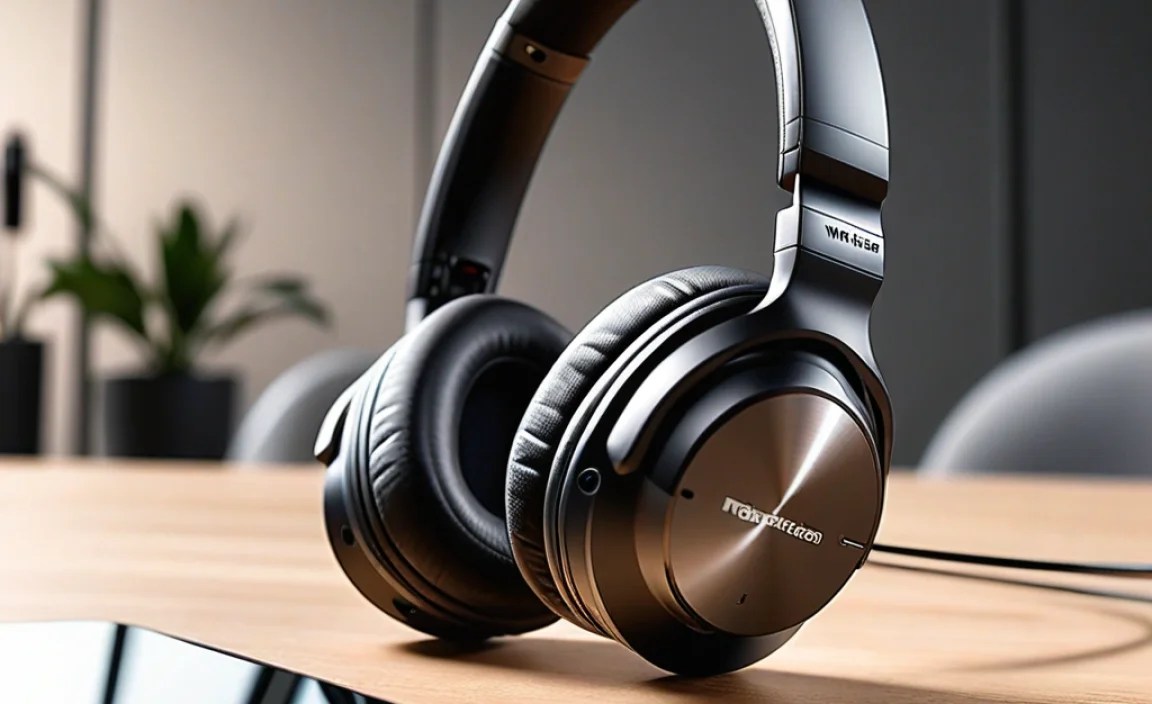
Getting your new wireless headphones ready for your workday is straightforward. Follow these steps to ensure a smooth setup and optimal usage:
Step 1: Unboxing and Initial Charge
- Carefully open the packaging and identify the headphones, charging cable, and any included accessories (like a carrying case or USB dongle).
- Before first use, it’s always a good idea to give your headphones a full charge. Connect the charging cable to the headphones and a power source (like a USB port on your computer or a wall adapter).
- Refer to your product manual for specific charging indicators. Most devices will have an LED light that changes color or turns off when fully charged.
Step 2: Pairing with Your Device(s)
This process will vary slightly depending on your headphones and the device you’re connecting to (laptop, smartphone, tablet). Modern headphones typically use Bluetooth.
For Bluetooth Pairing:
- Turn on your headphones: Press and hold the power button until you see a blinking LED light or hear an audio cue indicating they are in pairing mode.
- Enable Bluetooth on your device:
- On Windows: Go to Settings > Devices > Bluetooth & other devices, then click “Add Bluetooth or other device.”
- On macOS: Go to System Preferences > Bluetooth, then click “Set Up New Device.”
- On Smartphones/Tablets: Go to Settings > Bluetooth and ensure it’s turned on.
- Select your headphones: Your headphones should appear in the list of available devices. Click or tap on their name to connect.
- Confirm Pairing: You might need to confirm a code on both devices. Once paired, the LED indicator on your headphones will usually turn solid, and you’ll hear a confirmation sound.
Using a USB Dongle (if applicable):
Some professional headsets come with a USB dongle that provides a dedicated, often more stable, wireless connection. Simply plug the dongle into a USB port on your computer, and the headphones should connect automatically.
Step 3: Testing the Microphone
Before your first important call, test your microphone to ensure it’s working correctly.
- On Windows: Go to Settings > System > Sound. Under the “Input” section, select your headphones and click “Device properties.” You’ll see a meter showing your voice input. You can also use the “Test your microphone” feature.
- On macOS: Go to System Preferences > Sound > Input. Select your headphones, and you’ll see an input level meter respond to your voice.
- In Apps: Most communication apps (Zoom, Microsoft Teams, Slack, etc.) have a microphone test feature in their settings. You can also simply make a test call to a colleague or a friend. Ensure they can hear you clearly and that background noise isn’t too intrusive.
- Adjusting Volume: If your voice is too quiet or too loud, adjust the microphone volume in your device’s sound settings or using the controls on the headphones themselves.
Step 4: Configuring for Your Workflow
Once connected, you might want to fine-tune your setup.
- Default Audio Device: Ensure your headphones are set as the default audio output and input device in your operating system and communication apps.
- Noise Cancellation Settings: If your headphones have adjustable ANC, experiment with different levels to find what works best for your environment without making you feel completely isolated from your surroundings, if that’s a concern.
- Multi-Point Connectivity: If your headphones support connecting to two devices simultaneously, pair them with both your laptop and your phone. This is incredibly convenient for taking calls on your phone while working on your computer.
Tips for Maximizing Your Work Headphones
To get the most out of your investment and ensure a smooth workday, consider these practical tips:
- Keep Them Charged: Make it a habit to charge your headphones overnight or during breaks. A quick 15-minute charge can often provide hours of additional talk or listening time on many models.
- Regularly Clean Your Headphones: Earcups can accumulate oils and sweat. Gently clean them with a soft, slightly damp cloth. For earbud tips, remove and clean those separately. Proper maintenance prolongs their life and keeps them hygienic.
- Store Them Safely: When not in use, store your headphones in their protective case. This prevents scratches and damage, especially if you travel or move between different workspaces.
- Update Firmware: Manufacturers often release firmware updates that can improve performance, fix bugs, or add new features. Check the manufacturer’s app or website periodically for updates.
- Understand Your Controls: Familiarize yourself with the buttons or touch controls on your headphones. Knowing them by heart will allow you to manage calls and music discreetly without fumbling.
- Position the Microphone Correctly: If your headphones have a boom microphone, ensure it’s positioned close to your mouth but not directly in your breath stream. This helps the microphone capture your voice best.
- Manage Notifications: If you use your headphones for calls, be mindful of a loud ringtone from another device. Many headphones have features to manage audio priorities.
Troubleshooting Common Issues
Even the best tech can sometimes act up. Here are common issues and simple fixes:
- Problem: Headphones won’t pair.
- Solution: Ensure Bluetooth is on on your device. Turn both the headphones and your device off and then on again. Make sure the headphones are in pairing mode. If they’ve been paired to another device before, you might need to “forget” them in your device’s Bluetooth list and re-pair.
- Problem: No sound from headphones.
- Solution: Check the volume on both your headphones and your device. Make sure your headphones are selected as the audio output device. Try playing sound through a different app or device to rule out a software issue.
- Problem: Microphone isn’t working or sounds muffled.
- Solution: Check that the microphone isn’t accidentally muted on the headphones or in your software settings. Ensure it’s selected as the input device. Restart your device and headphones. For boom mics, ensure they are properly positioned.
- Problem: Audio is cutting out or choppy.
- Solution: Move closer to your connected device, as you might be out of range. Reduce the number of Bluetooth devices connected to your source device. Turn off other wireless devices temporarily that might be causing interference (e.g., certain cordless phones, microwaves).
- Problem: Headphones won’t charge.
- Solution: Try a different USB cable and power source. Ensure the charging port on the headphones is clean and free of debris. If using a charging dock, ensure it’s properly connected.
For more in-depth troubleshooting, always consult your product’s user manual or the manufacturer’s support website. For example, Rtings.com provides detailed reviews and testing methodologies for headphones, which can be a valuable resource for understanding performance nuances.
Frequently Asked Questions (FAQ)
Here are answers to some common questions beginners have about wireless headphones for work:
Q1: Do I really need a microphone on my wireless headphones for work?</
