
Quick Summary: Enjoy clear, private TV audio with the best wireless headphones. This guide simplifies choosing and using models that connect easily, offer superior comfort, and provide an immersive listening experience without complicated setups, perfect for any viewer.
Best Wireless TV Headphones: Effortless Sound for Every Viewer
Tired of blurry dialogue or disturbing housemates with your TV volume? Wireless headphones for your TV are a fantastic solution, offering a personal audio sanctuary. Whether you’re catching up on shows late at night, enjoying a movie with crystal-clear sound, or simply need to turn up the volume without bothering anyone, the right pair of wireless TV headphones can truly transform your viewing experience. Forget tangled wires and complicated setups; modern wireless options are designed for ease of use and exceptional sound quality. Let’s dive into how you can find the perfect pair to bring effortless sound directly to your ears.
Why Choose Wireless Headphones for Your TV?

The appeal of wireless headphones for television viewing is immense. It’s not just about cutting the cord; it’s about enhancing your entire home entertainment setup. For many, especially those with hearing difficulties, the ability to set their own volume independent of the TV’s speakers is a game-changer. Others appreciate the freedom to move around their living space without being tethered. Let’s break down the key benefits:
- Personalized Volume Control: Adjust the sound to your perfect level without affecting others in the room. This is especially helpful for individuals with hearing impairments who may need a higher volume than others.
- Freedom of Movement: No more tripping over cables! You can lean back in your chair, grab a snack from the kitchen, or even step out onto the balcony while still immersed in your show or movie.
- Enhanced Audio Clarity: Wireless headphones often provide superior sound quality compared to TV speakers, delivering richer dialogue, more impactful sound effects, and immersive music scores.
- Privacy: Enjoy your favorite content at any hour without disturbing family members or housemates who are sleeping or trying to concentrate.
- Reduced Interference: Modern wireless technologies ensure a stable connection, minimizing dropouts and ensuring a smooth listening experience.
Understanding Wireless Technologies for TV Headphones

When shopping for wireless TV headphones, you’ll encounter a few different technologies for how they communicate with your TV. Understanding these will help you pick the best fit for your setup. While Bluetooth is prevalent in many wireless devices, it’s not always the ideal solution for TV connectivity due to potential latency (audio lag) and the fact that older TVs might not have Bluetooth built-in. This is where dedicated RF (Radio Frequency) and sometimes proprietary 2.4GHz wireless technologies shine.
RF (Radio Frequency) Headphones
RF headphones are a popular choice for TV use because they typically come with a dedicated base station or transmitter that plugs directly into your TV’s audio output. This setup creates a direct, robust connection, minimizing latency and offering excellent range.
- How they work: The transmitter connects to your TV (usually via RCA, 3.5mm, or optical audio out) and broadcasts an audio signal using radio frequencies. The headphones then tune into this signal.
- Pros:
- Low latency: Ideal for watching movies and TV where lip-sync is crucial.
- Excellent range: Often allows you to move freely around your home.
- Easy setup: Typically plug-and-play with your TV.
- Works with older TVs that lack Bluetooth.
- Cons:
- Can sometimes pick up interference from other wireless devices (though less common with newer models).
- The base station needs to be placed near the TV.
2.4GHz Wireless Headphones
These operate on a similar principle to RF but often use a more advanced digital transmission. They also come with a dedicated transmitter/base station and offer a very stable, low-latency connection. Many modern high-quality TV headphone systems utilize this technology.
- How they work: Similar to RF, a transmitter connects to your TV and broadcasts a digital signal, which the headphones receive.
- Pros:
- Very low latency, excellent for video.
- Strong, stable connection.
- Often deliver high-fidelity sound.
- Good range.
- Cons:
- Can be more expensive than basic RF models.
- Requires a dedicated transmitter.
Bluetooth Headphones (with caveats for TV)
Many people are familiar with Bluetooth, but it’s important to choose Bluetooth headphones specifically designed for TV or those that support low-latency codecs like aptX Low Latency. Standard Bluetooth can introduce a noticeable delay between the picture and sound, which is very distracting.
- How they work: They pair directly with a Bluetooth-enabled TV or a Bluetooth transmitter.
- Pros:
- No dedicated base station needed if your TV has Bluetooth.
- Can connect to multiple devices (phone, tablet, etc.).
- Wide variety of models available.
- Cons:
- Latency: Can have significant audio lag unless using low-latency codecs.
- TV Compatibility: Older TVs don’t have Bluetooth. You’ll need a separate Bluetooth transmitter.
- Range: Generally less range than RF or 2.4GHz.
- Note on Bluetooth Transmitters: If your TV lacks Bluetooth but you prefer Bluetooth headphones, you can purchase a separate Bluetooth transmitter. Look for one that supports aptX Low Latency for the best TV experience. Visit the aptX website to learn more about low-latency audio technologies.
Key Features to Consider
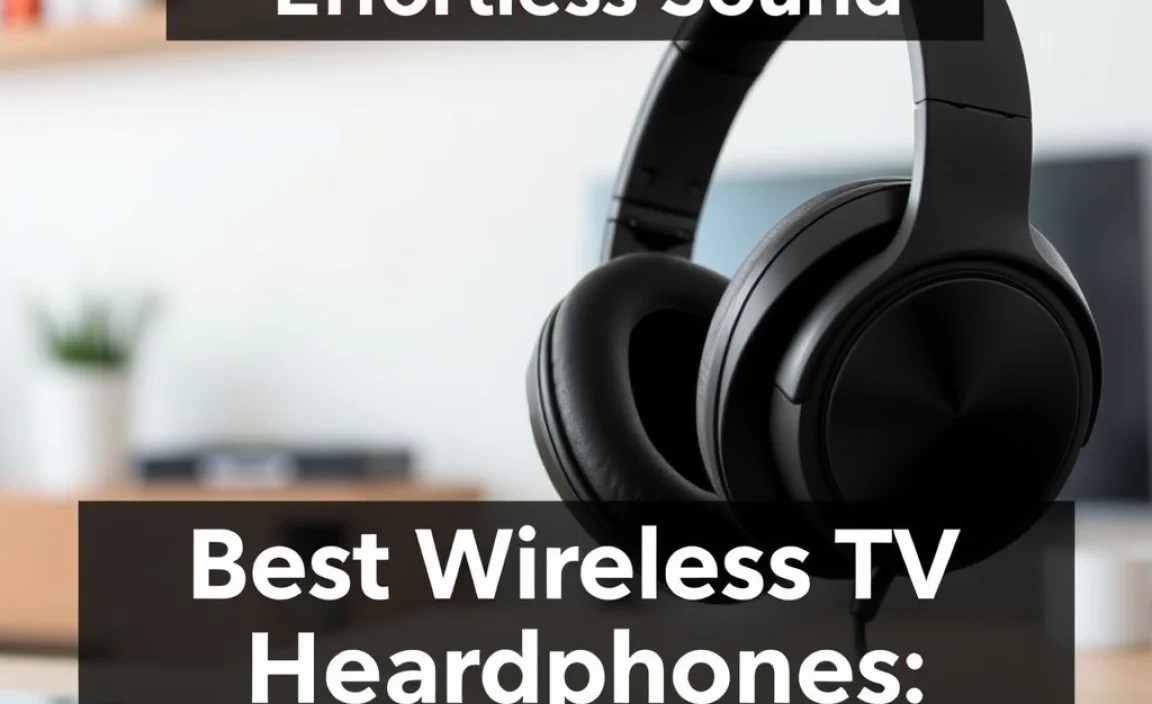
Beyond the wireless technology, several other factors contribute to making a pair of TV headphones the “best” for you. Think about your personal needs and preferences:
- Comfort and Fit: You’ll likely be wearing these for extended periods. Look for plush earcups, an adjustable headband, and a lightweight design. Over-ear headphones generally offer better comfort and noise isolation than on-ear or in-ear models for long viewing sessions.
- Battery Life and Charging: How long can you watch without needing a recharge? Most good wireless TV headphones offer 15-30 hours of playback. Also, consider how easy they are to charge – a charging stand or dock can be very convenient.
- Sound Quality and Tuning: While a warm, clear sound profile is generally preferred for dialogue, some users might want a more dynamic sound for action movies. Some headphones offer adjustable EQ settings.
- Ease of Setup: For beginners, a simple plug-and-play experience is paramount. RF and 2.4GHz systems with dedicated transmitters are often the easiest.
- Range: How far do you typically move away from the TV? Ensure the headphones’ stated range (often up to 100-200 feet for RF/2.4GHz) meets your needs.
- Multiple Headphone Support: Some transmitters allow you to connect more than one pair of headphones, perfect for couples or families who want to watch together with individual volume control.
- Voice Enhancement Features: Many TV headphones include features specifically designed to boost dialogue clarity, making it easier to understand speech even at lower volumes.
Top Wireless TV Headphone Systems to Consider (Examples)

While product availability can change, here are some types of systems and brands that are generally well-regarded for wireless TV listening. These examples illustrate different technologies and feature sets.
| Brand/Model Type | Primary Technology | Key Features | Best For |
|---|---|---|---|
| Sennheiser RS Series (e.g., RS 5000, RS 175) | 2.4GHz/proprietary wireless | Excellent audio clarity, long battery life, simple setup, multi-headphone support (on some models), voice enhancement. | Audiophiles, those needing superior voice clarity, and users wanting a robust, easy-to-use system. |
| Avantree Casti/Audition Series (e.g., Casti/Audition Pro) | Bluetooth with aptX Low Latency | Low latency for movies/TV, long range, supports dual headphones, versatile (can connect to non-Bluetooth devices via transmitter). | Users who want a versatile system that also works with other Bluetooth devices, and those needing to overcome TV Bluetooth limitations with aptX LL. |
| SoniTalk S-380/S-385 & Others (Dedicated RF systems) | RF (Radio Frequency) | Plug-and-play simplicity, long range (often 100ft+), affordable, good for basic TV watching. Some models offer multiple channels to avoid interference. | Beginners, budget-conscious buyers, and those prioritizing simplicity and range over premium audio features. |
| Bose QuietComfort 45 (with a Bluetooth Transmitter) | Bluetooth (requires aptX LL transmitter) | Industry-leading noise cancellation, superb comfort, excellent sound quality for music and movies. | Users who already own premium Bluetooth headphones and want to add TV connectivity, or those prioritizing noise cancellation and comfort above all else. |
Disclaimer: Product models and features are subject to change. Always check the latest specifications before purchasing.
How to Set Up Your Wireless TV Headphones: A Step-by-Step Guide
Setting up most wireless TV headphones is straightforward. The exact steps can vary slightly depending on the brand and technology, but here’s a general guide:
Step 1: Unpack and Identify Components
Carefully unpack your headphones and their base station/transmitter. You should typically find:
- The headphones
- A base station or transmitter unit
- An audio cable (often 3.5mm to 3.5mm, or 3.5mm to RCA)
- A power adapter for the base station
- Possibly a charging cradle for the headphones
- User manual
Step 2: Connect the Transmitter to Your TV
This is the most critical step. Your transmitter needs to receive audio from your TV. Identify the audio output ports on your TV. Common options include:
- 3.5mm Headphone Jack: The simplest connection. Use the 3.5mm-to-3.5mm cable.
- RCA Audio Out (Red and White ports): Use a 3.5mm-to-RCA adapter cable if your transmitter only has a 3.5mm input.
- Optical Audio Out (Toslink – a small square port with a flap): This provides digital audio. You might need an optical cable, and some transmitters have an optical input.
Important: Consult your TV’s manual to find the best audio output and to ensure you select the appropriate cable. You may need to go into your TV’s audio settings menu to disable its internal speakers or choose the correct audio output source. For example, on many smart TVs, you’ll find an ‘Audio Output’ or ‘Sound’ menu where you can select ‘Headphones,’ ‘Optical,’ or ‘External Speakers’. If you connect via optical, you might need to set the audio format to ‘PCM’ if your headphones don’t support Dolby Digital. You can find more information on common TV audio settings on sites like Rtings.com, a reputable source for TV reviews and setup guides.
Step 3: Power Up the Transmitter and Headphones
Connect the power adapter to the transmitter and plug it into a wall outlet. Then, turn on your headphones. They may need to be charged first; check the user manual for initial charging requirements.
Step 4: Establish the Wireless Connection
For RF and 2.4GHz systems, the headphones often automatically connect to the base station once powered on and within range. Some systems may have a pairing button you need to press on both the transmitter and headphones. For Bluetooth, you’ll need to put both your TV (or Bluetooth transmitter) and headphones into pairing mode and then select the headphones from your TV’s Bluetooth device list.
- Check for Indicator Lights: Most devices have indicator lights that show power, connection status, and battery level.
- Troubleshooting Connection: If you don’t get sound, double-check all cable connections, ensure the correct audio output is selected on your TV, and confirm the headphones are paired to the transmitter.
Step 5: Adjust Volume and Enjoy!
Once connected, put on your headphones and adjust the volume using the controls on the headphones themselves. You can now set your preferred listening level without affecting anyone else.
- If you hear static or interference: Try moving the base station slightly, moving closer to it, or ensuring it’s not placed directly next to other wireless devices or large metal objects. Some RF systems have multiple channels; try switching if available.
Best Wireless TV Headphones Without Bluetooth
For viewers who want the absolute best in low latency and a straightforward, dedicated connection without worrying about Bluetooth compatibility or potential lag, dedicated RF and 2.4GHz systems remain the top choice. These setups bypass the complexities and potential issues sometimes associated with Bluetooth for TV. They are purpose-built for this task, ensuring that what you see on screen perfectly matches the audio you hear. When searching for “best wireless headphones for tv without bluetooth,” focus on systems from reputable audio brands that explicitly state they use RF or 2.4GHz wireless technology and come with their own base station.
Maintaining Your Wireless TV Headphones
To ensure your headphones provide excellent sound and reliable performance for years to come, a little regular maintenance goes a long way.
- Cleaning the Earcups: Gently wipe down the earcups with a soft, damp cloth. For leather or pleather earcups, use a cleaner specifically designed for those materials. Avoid harsh chemicals.
- Cleaning the Headband: Wipe the headband with a damp cloth. If it’s padded, follow the same cleaning advice as the earcups.
- Cleaning the Earphone Grills/Drivers: Be very careful here. Use a dry, soft brush (like a clean toothbrush or a dedicated cleaning brush) to gently remove any dust or debris from the speaker grills. Never use liquids or sharp objects.
- Battery Care: For models with rechargeable batteries, follow the manufacturer’s recommendations for charging. Avoid leaving them plugged in constantly after they’re fully charged, as this can sometimes degrade battery health over time. Most modern devices have smart charging circuits to prevent this, so check your manual.
- Storage: When not in use, store your headphones in a clean, dry place, ideally on their charging stand or in their original box/case to protect them from dust and damage.
- Cable Care: If your system uses any audio cables, ensure they are not bent at sharp angles or kinked, as this can damage the internal wiring.
Frequently Asked Questions About Wireless TV Headphones
Can I use regular Bluetooth headphones with my TV?
You can, but it’s not always ideal. Standard Bluetooth can have a noticeable delay (latency) between the video and the audio, which is very distracting. For the best experience, use Bluetooth headphones that specifically support a low-latency codec like aptX Low Latency, and ensure your TV or a connected transmitter also supports it. If your TV doesn’t have Bluetooth, you’ll need to buy a separate Bluetooth transmitter that supports aptX Low Latency.
How do I reconnect my wireless headphones if they lose connection?
For RF/2.4GHz systems, try turning both the base station and headphones off and then on again. Ensure they are within the recommended range. If there’s a pairing button, consult your manual to re-pair them. For Bluetooth, remove the headphones from your TV’s paired device list and then re-pair them.
My wireless headphones are buzzing or have static. What can I do?
This is often due to interference. Try moving the transmitter base station away from other wireless devices (like routers, microwaves, or cordless phones). Ensure the headphones are within the optimal range and not blocked by thick walls or metal objects. Some RF systems have multiple channels; try switching to a different one. Make sure the charging contacts on the headphones and base are clean.
Do I need to disable my TV’s speakers when using wireless headphones?
Yes, in most cases, you should disable your TV’s internal speakers. This is usually done through the TV’s audio settings menu. When you connect headphones (either wired or wirelessly through an audio output), the TV should automatically mute its speakers, or you’ll find an option to do so in the sound settings. This prevents echo if both your TV and headphones
