
Wondering how to make your favorite wired headphones wireless? A Bluetooth adapter for your headphone jack is an incredibly simple and affordable way to upgrade your listening experience. This guide explains what it is, how it works, and how to choose and use one, transforming your existing headphones into a modern, wire-free marvel.
Bluetooth Adapter for Headphones Jack: The Genius Upgrade You Didn’t Know You Needed

Hey headphone enthusiasts! Edward Cavitt here from Headphone Horizon, your friendly guide to all things audio. We all love our trusty wired headphones, right? The pristine sound quality, the no-fuss connection – they’re classics for a reason. But in today’s wireless world, tangled cords can feel like a relic.
What if I told you there’s a super simple, budget-friendly way to give your beloved wired headphones a modern Bluetooth makeover?
Enter the Bluetooth adapter for your headphones jack. It’s a tiny gadget that packs a huge punch, letting you stream audio wirelessly without buying a whole new pair of headphones. Let’s dive in and see how this little device can be a total game-changer for your listening pleasure!
What Exactly is a Bluetooth Adapter for Headphones Jack?

Imagine your favorite pair of wired headphones. Now, imagine them working with your smartphone, tablet, or laptop without a cable getting in the way. That’s precisely what a Bluetooth adapter for a headphone jack does!
At its core, it’s a small, portable device that plugs into your existing 3.5mm headphone port. It then receives audio wirelessly via Bluetooth from your source device (like your phone) and transmits that audio to your headphones.
Think of it as a wireless bridge, connecting your old-school audio gear to the new age of wireless connectivity. They typically come in two main forms: plug-in dongles that attach directly to your headphones, or small receivers that plug into a car stereo or home speaker, giving those devices Bluetooth capabilities.
Why You Need This Genius Little Gadget: The Benefits Unpacked
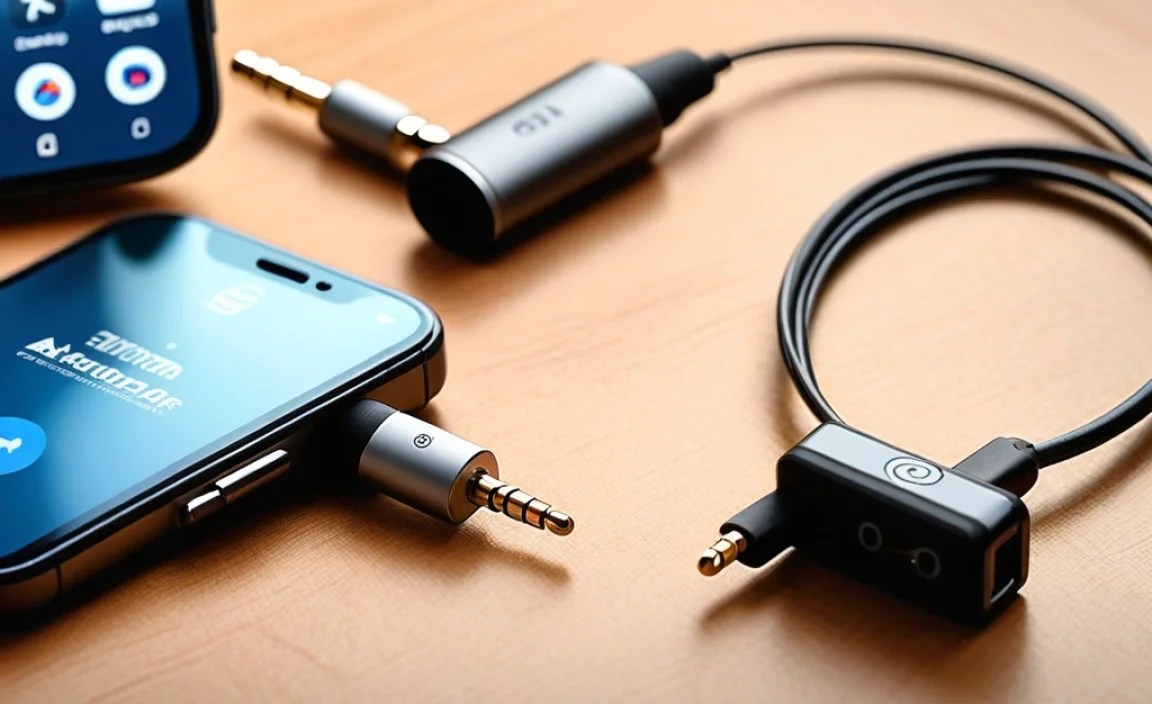
So, why go through the trouble of adding a Bluetooth adapter? The benefits are surprisingly numerous for such a small piece of tech. It’s not just about cutting the cord; it’s about enhancing your entire audio experience. Let’s break down why this is such a smart upgrade:
- Freedom from Wires: This is the most obvious benefit. No more tangled messes in your pocket or bag. Walk around, exercise, commute, or even just move around your house without being tethered to your device.
- Revitalize Your Existing Headphones: You might have invested a good amount in a quality pair of wired headphones. Instead of buying a new, often expensive, wireless set, this adapter lets you keep what you love and make it wireless. It’s an eco-friendly and cost-effective solution.
- Car Audio Upgrade: Many older cars still lack built-in Bluetooth. A Bluetooth receiver adapter can turn your car’s aux-in port into a wireless audio streaming hub, letting you play music, podcasts, or take calls hands-free.
- Home Stereo Enhancement: Similarly, if you have a classic home stereo system you adore, a Bluetooth receiver can add modern wireless streaming capabilities without replacing the entire unit.
- Cost-Effective Solution: Compared to buying a brand-new pair of high-quality wireless headphones, a Bluetooth adapter is significantly cheaper. You get the convenience without the hefty price tag.
- Universal Compatibility: Most Bluetooth adapters use the standard 3.5mm headphone jack, making them compatible with a vast range of devices – from smartphones and laptops to older MP3 players and car audio systems.
- Simplicity and Portability: These adapters are generally small, lightweight, and easy to use. They’re perfect for tossing in a bag or keeping in your car.
How Does It Actually Work? The Simple Science

Don’t worry, we’re not diving deep into the complexities of radio waves here! The magic of a Bluetooth adapter is surprisingly straightforward. Here’s the simplified breakdown:
- Bluetooth Connection: The adapter has a built-in Bluetooth transmitter. You pair it with your audio source device (like your smartphone) just like you would any other Bluetooth device (e.g., wireless earbuds or a speaker). This pairing creates a secure wireless link.
- Receiving Audio: Once paired, your source device sends the audio signal wirelessly to the Bluetooth adapter.
- Transmitting to Headphones: The adapter then receives this digital audio signal and converts it into an analog signal that your headphones can understand.
- Sound Output: This analog signal travels through the 3.5mm cable to your wired headphones, and voila! You’re listening to sound wirelessly.
For adapters designed to give Bluetooth to speakers or car stereos, the process is similar, just in reverse. The adapter plugs into the speaker/stereo’s aux input and receives Bluetooth audio from your phone, then plays it through the speaker. Some adapters also have built-in microphones, allowing for hands-free calling when paired with your smartphone.
Types of Bluetooth Adapters for Your Headphones Jack
While the core function is the same, Bluetooth adapters come in a few different styles to suit various needs. Knowing these options can help you pick the perfect one:
1. Single-Purpose Dongles (for Headphones)
These are the most common type for upgrading headphones. They are small, lightweight, and plug directly into your headphone jack. They often have a clip to attach to your clothing, keeping them secure. Many are designed for one primary function: receiving Bluetooth audio.
2. Car Audio Bluetooth Adapters (Transmitters/Receivers)
These are often designed to plug into a car’s 12V socket (cigarette lighter adapter) or USB port and then transmit audio via an FM radio frequency or directly to the car’s aux input. Some are simple receivers that plug into the aux port. They usually have longer cords to position the adapter for better reception or easier access.
3. Home Stereo Bluetooth Receivers
These are usually slightly larger than headphone dongles and are designed to plug into the aux input of a home stereo or powered speaker. They often require a separate power source (USB or wall adapter) and are meant to stay in one place. They prioritize audio quality for a more stationary setup.
4. Dual-Purpose Adapters (Transmitter & Receiver)
These are versatile little gadgets that can act as both a transmitter (e.g., connecting a non-Bluetooth TV to wireless headphones) and a receiver (e.g., making your wired speaker system wireless). They often have a switch to toggle between modes.
Choosing the Right Bluetooth Adapter: Key Features to Consider
With so many options, how do you pick the best one for your needs? Here are some crucial features to keep an eye on:
- Bluetooth Version: Look for Bluetooth 4.0 or higher (e.g., 5.0, 5.1, 5.2). Newer versions offer better stability, longer range, lower power consumption, and improved audio quality (though the latter also depends on the codecs supported). Bluetooth 5.0 is a great sweet spot for performance and compatibility.
- Audio Codecs: Codecs are like translators that compress and decompress audio. For the best sound quality, especially if your source device supports it, look for codecs like aptX, aptX HD, or LDAC. Standard SBC is common but offers lower fidelity. If your phone only supports SBC, an adapter that only supports SBC is fine. For premium sound, aim for an adapter and source that support higher-quality codecs.
- Battery Life: If you’re using it with headphones, battery life is crucial. Check the listed playback time and consider how often you’ll need to recharge. Some can be used while charging.
- Range: Bluetooth range can vary. Most adapters offer around 30 feet (10 meters), but some newer ones boast up to 60 feet (20 meters). Consider where you’ll be using it – if you want to move far from your device, a longer range is beneficial.
- Microphone Quality: If you plan to use the adapter for hands-free calls, check if it has a built-in microphone and read reviews about call quality.
- Ease of Pairing: Most are simple, but some might have a slightly more intuitive or quicker pairing process.
- Durability and Build Quality: Especially for portable use, a solid build can make a difference.
- Charging Method: Most use Micro-USB or USB-C. USB-C is becoming the standard for faster charging and universal compatibility.
Feature Comparison: Picking Your Perfect Match
Here’s a quick comparison table to highlight some key differences you might encounter:
| Feature | Basic Dongle | Car Receiver | Home Receiver | Dual-Purpose Adapter |
|---|---|---|---|---|
| Primary Use | Headphones | Car Audio | Home Stereo/Speakers | Multiple Devices/Scenarios |
| Portability | Extremely High | Moderate | Low | High |
| Power Source | Rechargeable Battery | Car Power (12V/USB) or Battery | Wall/USB Power | Rechargeable Battery |
| Audio Codec Support | Varies (SBC, aptX possible) | Varies (SBC common) | Varies (often higher quality options) | Varies widely |
| Hands-Free Calling | Often included | Often included | Rarely included | Often included |
Step-by-Step: How to Use Your Bluetooth Adapter
Using a Bluetooth adapter is surprisingly easy. Whether you’re upgrading headphones or a car stereo, the process is generally quite similar. Let’s break it down:
Phase 1: Setting Up Your Adapter
- Charge the Adapter: If your adapter has a built-in battery (most headphone ones do), plug it in using the provided USB cable and charge it fully before first use. Check the indicator lights to know when it’s ready. This is a crucial first step to ensure a smooth experience.
- Turn on the Adapter: Once charged, press and hold the power button (usually a multi-function button) until an indicator light flashes, signifying it’s powered on and ready to pair.
Phase 2: Pairing with Your Device
This is where your adapter becomes a wireless receiver.
- Enable Bluetooth on Your Source Device: Go to the Bluetooth settings on your smartphone, tablet, or computer and turn Bluetooth on.
- Put the Adapter in Pairing Mode: If it didn’t automatically enter pairing mode after turning on (indicated by a rapid flashing light), you might need to press and hold the power button again for a few seconds until the light flashes differently. Consult your adapter’s manual if unsure.
- Scan for Devices: On your source device, initiate a Bluetooth scan. Your adapter should appear in the list of available devices. It might be listed by its brand name or a generic name.
- Select and Connect: Tap on your adapter’s name in the list to connect. You might hear a confirmation sound, or see a solid light on the adapter, indicating a successful connection. Some devices may ask you to confirm a PIN (usually 0000 or 1234), but this is less common with modern adapters.
Phase 3: Connecting to Your Headphones (or Speaker/Car)
This is the final step to enjoying your audio.
- Plug into Your Audio Device: Plug the Bluetooth adapter firmly into the 3.5mm headphone jack of your wired headphones, your car stereo’s aux input, or your home speaker.
- Play Your Audio: Now, play any music, podcast, or video on your source device. The audio should stream wirelessly to the adapter and then through your headphones or speakers.
- Adjust Volume: You can usually control the volume from your source device. Some adapters also have volume control buttons.
Tips for Success:
- Keep Devices Close: For the initial pairing, it’s best to keep your source device and adapter within a few feet of each other.
- Check Volume Levels: Ensure the volume is turned up on both your source device and the adapter (if it has its own controls).
- Troubleshooting: If you lose connection, simply turn off Bluetooth on your source device and then turn it back on. You may also need to re-pair the adapter. Turning both devices off and on can also often resolve connection issues.
Connecting to Multiple Devices (Advanced Feature)
Some higher-end Bluetooth adapters support multi-point connectivity. This allows the adapter to be paired with and actively connected to two devices simultaneously (e.g., your phone and your laptop). If you receive a call on your phone while listening to music from your laptop, some adapters will automatically switch, or allow you to switch easily between them.
To use multi-point:
- Pair the adapter with your first device and establish a connection.
- Turn off Bluetooth on the first device briefly.
- Put the adapter back into pairing mode and pair it with your second device.
- Once paired with the second device, re-enable Bluetooth on the first device. The adapter should automatically reconnect to both.
Maintaining Your Bluetooth Adapter
These little gadgets are pretty low-maintenance, but a little care goes a long way:
- Keep it Clean: Gently wipe the adapter and its connectors with a dry, soft cloth. Avoid using liquids or harsh chemicals.
- Avoid Extreme Temperatures: Don’t leave your adapter in direct sunlight for extended periods or in a very cold car, as extreme temperatures can affect battery life and internal components.
- Handle with Care: While most are designed to be durable, avoid dropping them or subjecting them to excessive force.
- Firm Connection: Ensure the adapter is plugged in securely into the headphone jack to prevent intermittent audio or connection issues.
Real-World Use Cases: Where These Adapters Shine
Let’s think about some everyday situations where a Bluetooth adapter for your headphone jack becomes an absolute lifesaver:
- Your Morning Commute: Ditch the cord tangles in your pocket or bag as you navigate to the train or bus. Effortlessly stream your favorite podcasts or music from your phone to your comfy wired headphones.
- Gym Sessions: Move freely during your workout without your phone being yanked from your pocket. Clip the adapter to your shirt and enjoy wire-free tunes.
- Office and Home Use: Listen to music or take calls at your desk without being tied to your computer. You can step away to grab a coffee and stay connected.
- Reviving Old Devices: Have an MP3 player or an older laptop without Bluetooth? A simple adapter bridges the gap, giving these devices wireless capabilities.
- Enhancing Your Car Stereo: For cars with only an auxiliary input, a Bluetooth receiver is a must-have. Stream navigation, music, and take calls safely and conveniently. This is a significant upgrade for any driver.
- Home Entertainment: Connect your TV to your favorite wired headphones wirelessly. No more disturbing family members or missing dialogue due to low TV volume.
These use cases highlight how versatile and impactful this small accessory can be. It seamlessly integrates into various aspects of your life, offering convenience and an upgraded experience.
Potential Hiccups and How to Solve Them
While generally reliable, sometimes you might encounter minor issues. Here are a few common ones and their simple fixes:
- No Sound:
- Check if the adapter is charged and powered on.
- Ensure it’s successfully paired with your source device.
- Verify that the volume is turned up on both your source device and the adapter (if applicable).
- Make sure the 3.5mm jack is fully inserted into your headphones/speaker/car and that your audio app is playing sound.
- Ensure your source device is set to output audio through Bluetooth, not its internal speaker.
- Poor Audio Quality/Choppiness:
- Ensure you are within the Bluetooth range (usually about 30ft/10m). Obstructions like walls can reduce range and quality.
- Minimize interference: Other wireless devices (Wi-Fi routers, microwaves, other Bluetooth devices) operating on the 2.4GHz band can sometimes interfere. Try moving away from these sources.
- Check if your source device and adapter support higher-quality codecs like aptX. If both do, ensure they are enabled.
- Restart both the adapter and your source device.
- Connection Drops:
- This often points to range or interference issues. Try moving closer to your source device.
