
Quick Summary: A Bluetooth adapter for headphones is a small, inexpensive device that unlocks wireless freedom for your wired headphones. It easily connects to your audio source (like a TV or computer) and then wirelessly transmits sound to your Bluetooth-enabled headphones, eliminating tangled cords and opening up a world of convenience for everyday listening.
Bluetooth Adapter for Headphones: Your Essential Guide to Wireless Freedom

Hey headphone enthusiasts! Edward Cavitt here from headphonehorizon. Ever found yourself wishing you could ditch those pesky headphone cords? Maybe you love your current pair of wired headphones but dream of cutting the cable, especially when watching TV from the couch or working out at the gym. What if I told you there’s a simple, affordable way to make that happen? It’s all thanks to a little gadget called a Bluetooth adapter for headphones. This guide is designed to demystify these handy devices, showing you just how easy it is to add Bluetooth capability to your favorite wired headphones. We’ll cover what they are, how they work, how to choose the right one, and get you set up for a tangle-free audio experience in no time. Let’s dive in!
What Exactly is a Bluetooth Adapter for Headphones?

Think of a Bluetooth adapter for headphones as a translator, but for sound and wireless technology. Your favorite wired headphones are fantastic, but they rely on a physical cable to get audio from your device to your ears. Most modern devices, however, are increasingly ditching headphone jacks and embracing the wireless world of Bluetooth. A Bluetooth adapter bridges this gap. It’s a small device that plugs into your headphones (or the audio source) and uses Bluetooth technology to send and receive audio signals wirelessly.
Essentially, it gives your old-school wired headphones a brand-new superpower: the ability to connect wirelessly to smartphones, laptops, TVs, and any other device with Bluetooth capabilities.
Why Would You Want a Bluetooth Adapter for Headphones?

The reasons are plentiful and often revolve around convenience and versatility. Here are some of the most compelling:
- Cut the Cord: The most obvious benefit! No more tangled cables getting in your way while you’re moving around your house, working at your desk, or exercising.
- Revive Your Favorite Headphones: You might have a pair of high-quality wired headphones that you absolutely adore for their sound. Instead of buying a new, expensive Bluetooth pair, an adapter can give your existing ones a wireless upgrade.
- Connect to Devices Lacking Headphone Jacks: Many newer smartphones and laptops have removed the traditional 3.5mm headphone jack. A Bluetooth adapter provides a simple solution to enjoy audio from these devices.
- Add Bluetooth to Non-Bluetooth Audio Sources: This is where things get really interesting! You can use an adapter to make non-Bluetooth devices like older TVs, desktop computers, gaming consoles, or even your home stereo system able to transmit audio wirelessly to Bluetooth headphones.
- Improved Mobility: Enjoy your music or podcasts while doing chores, cooking, or simply relaxing without being tethered to your device.
- Cost-Effective Solution: Generally, Bluetooth adapters are significantly cheaper than purchasing a brand-new pair of high-quality wireless headphones.
How Do Bluetooth Adapters for Headphones Work?
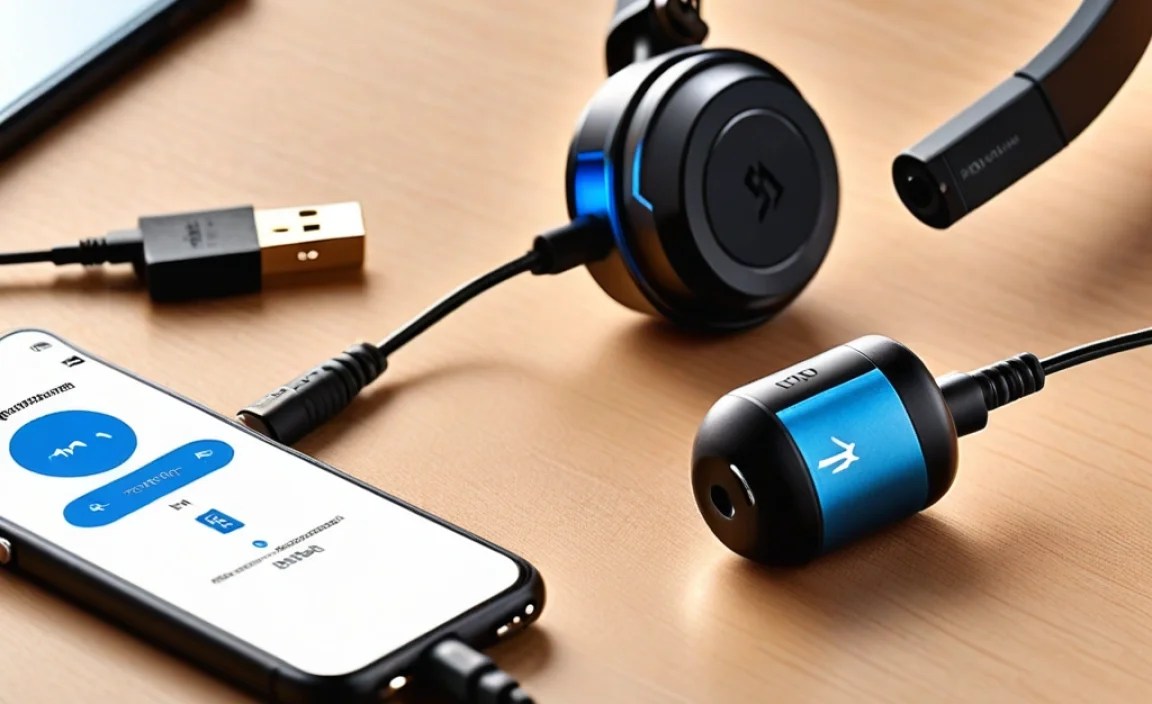
The magic happens through a few key technologies. At its heart, a Bluetooth adapter uses Bluetooth radio waves to transmit audio data. There are two main types of adapters you’ll encounter:
Transmitter Adapters (TX)
These adapters plug into an audio output port (like a headphone jack or RCA ports) on a device that doesn’t have Bluetooth. They then broadcast the audio signal wirelessly to your Bluetooth headphones. This is perfect for making your TV, MP3 player, or non-Bluetooth computer transmit audio to your wireless headphones.
Receiver Adapters (RX)
These adapters plug into your headphones (usually via the 3.5mm jack) and receive audio signals from a Bluetooth-enabled source device (like your smartphone or laptop). This allows your wired headphones to pick up audio from your device wirelessly. Some adapters are receiver-only.
Transmitter/Receiver Adapters (TX/RX)
The most versatile and often the best value, these dual-mode adapters can both transmit and receive audio. You can use them to connect non-Bluetooth devices to your headphones (TX mode), or to connect your wired headphones to a Bluetooth source (RX mode). Many also have built-in microphones, allowing for hands-free calling when used in receiver mode.
The Pairing Process
Regardless of the type, the fundamental process involves “pairing.” This is how the adapter and your Bluetooth headphones (or source device) establish a secure connection. It usually involves:
- Putting the Bluetooth adapter into pairing mode (typically by holding down a button).
- Putting your Bluetooth headphones into pairing mode.
- Letting the two devices discover each other. They will then connect automatically.
Most modern Bluetooth adapters and headphones will try to reconnect automatically to the last paired device when turned on, making the process very seamless after the initial setup.
Key Features to Look For in a Bluetooth Adapter

With a growing market, choosing the right Bluetooth adapter can seem a bit daunting. Here’s a breakdown of the crucial features to consider:
Bluetooth Version
This dictates the speed, range, and efficiency of the wireless connection. Higher numbers are generally better.
- Bluetooth 4.0/4.2: Still common, offers decent range and battery efficiency.
- Bluetooth 5.0/5.1/5.2: The current standard. Offers significantly improved range (up to 4x), faster speeds, better power efficiency, and more stable connections compared to older versions. It also supports features like LE Audio for lower power consumption.
- Bluetooth 5.3: The latest, offering even more enhancements in stability, efficiency, and features, though devices supporting this are still less common.
For the best experience, aim for Bluetooth 5.0 or higher.
Audio Codecs
Codecs are algorithms that compress and decompress audio data for transmission. The codec supported by both the adapter and your headphones determines the quality of the sound you’ll receive.
- SBC (Subband Coding): The default, mandatory codec for all Bluetooth audio. It’s universally compatible but offers the lowest quality.
- AAC (Advanced Audio Coding): Developed by Apple. Offers better quality than SBC, especially on Apple devices, and is a good step up.
- aptX (Audio Compression Technology): Developed by Qualcomm. Offers near CD-quality sound with lower latency. Different aptX versions exist:
- aptX: Good quality, lower latency than SBC/AAC.
- aptX HD: Near Hi-Res audio quality.
- aptX Low Latency (aptX LL): Crucial for watching videos or gaming, as it minimizes the delay between audio and video.
- aptX Adaptive: Dynamically adjusts to provide the best Bluetooth audio quality and connection stability, balancing between aptX HD and aptX LL based on your environment.
- LDAC: Developed by Sony. Offers the highest audio quality, capable of transmitting Hi-Res audio. It’s often found on higher-end devices.
Recommendation: If you care about audio quality for music, look for aptX HD or LDAC. For watching videos or gaming, aptX Low Latency is king. If your headphones only support SBC, an adapter with a better codec like aptX will still improve the quality over an older Bluetooth version with only SBC.
Connectivity and Ports
Consider how the adapter connects and what kind of audio outputs it has.
- 3.5mm Audio Jack: The most common. Perfect for plugging directly into your headphones or the headphone jack of a device.
- RCA or Optical (TOSLINK) Inputs: Some TV-focused adapters have these, allowing you to connect to the audio output of modern smart TVs.
- USB-C or USB-A: Some adapters might plug into a USB port for power or even direct audio, though this is less common for headphone adapters specifically and more for general Bluetooth dongles.
Battery Life and Charging
If the adapter has its own battery (common for portable TX/RX units), check its advertised battery life. Also, look at how it’s charged – usually USB. Some adapters can be powered continuously while in use if plugged into a USB power source.
Microphone
If you plan to use the adapter for calls or voice commands, ensure it has a built-in microphone and supports a Bluetooth profile like HFP (Hands-Free Profile).
Multipoint Pairing
This feature allows the adapter to connect to two Bluetooth devices simultaneously. For example, you could be listening to music from your laptop and then seamlessly take a call from your phone without re-pairing.
Form Factor and Portability
Will it be permanently attached to your TV, or do you plan to carry it around? Consider its size and weight if portability is important.
Choosing the Right Adapter: A Decision Tree
To help you narrow down your options, let’s consider common use cases.
Scenario 1: Making Your TV Bluetooth-Ready for Headphones
Goal: Wirelessly connect your Bluetooth headphones to your non-Bluetooth TV.
What to look for:
- Transmitter Mode (TX) or TX/RX: Essential for sending audio from the TV.
- Audio Inputs: Look for 3.5mm, RCA, or Optical (TOSLINK) inputs to match your TV’s audio output.
- Bluetooth 5.0+ for range: You might be sitting across the room.
- aptX Low Latency (aptX LL) or aptX Adaptive: CRITICAL for avoiding lip-sync issues when watching movies or TV.
- Long battery life or USB power: You don’t want it dying mid-movie.
Example: TaoTronics TT-BA09 (older but reliable), Anker Soundsync A3341.
Scenario 2: Making Your Wired Headphones Wireless
Goal: Connect your favorite wired headphones to your Bluetooth-enabled smartphone or laptop.
What to look for:
- Receiver Mode (RX) or TX/RX: Essential for receiving audio to your headphones.
- 3.5mm output jack: To plug your headphones into.
- Bluetooth 5.0+ for stability and efficiency.
- Support for good audio codecs (AAC, aptX) if your source device has them.
- Built-in microphone: If you want to take calls.
- Compact and lightweight: For easy portability.
Example: Mpow BH232, Avantree Audition Pro (has aptX HD and LL).
Scenario 3: All-in-One Versatility
Goal: Need to be able to both transmit audio from non-Bluetooth devices AND receive audio on your wired headphones from Bluetooth sources.
What to look for:
- TX/RX Dual Mode: This is the key feature.
- All the features from Scenarios 1 & 2: Bluetooth 5.0+, good codecs (especially aptX LL if TV use is a priority), multiple input/output options, decent battery.
Example: Various models from brands like Mpow, TaoTronics, Avantree, and UGREEN often offer this versatility.
Setting Up Your Bluetooth Adapter: A Step-by-Step Guide
Getting your Bluetooth adapter up and running is usually straightforward. Here’s a general outline:
For TV or Non-Bluetooth Audio Source (Transmitter Mode)
- Charge the Adapter: If your adapter has a built-in battery, ensure it’s fully charged. Many can also be powered directly via USB while in use.
- Connect the Adapter to Your Audio Source:
- Using 3.5mm: Plug one end of a 3.5mm audio cable into the adapter’s input and the other into the headphone jack or audio-out port of your TV/device.
- Using RCA: Use an RCA to 3.5mm cable if your TV has RCA output (red and white ports).
- Using Optical (TOSLINK): If your TV supports it and your adapter has an optical input, use an optical cable for potentially higher fidelity. Ensure your TV’s audio output is set to PCM or Bitstream in its settings if using optical.
- Power On and Enter Pairing Mode: Turn on the adapter. It usually has a button you need to press and hold for a few seconds to enter pairing mode. A light will typically blink rapidly to indicate it’s searching.
- Put Your Bluetooth Headphones in Pairing Mode: Turn on your Bluetooth headphones and put them into pairing mode. This process varies by headphone model but often involves holding the power button or a dedicated Bluetooth button until a light blinks.
- Wait for Pairing: Keep both devices near each other. They should discover one another and connect automatically within a minute. The blinking lights on the adapter and headphones will usually turn solid or blink slowly to indicate a successful connection.
- Adjust TV Audio Settings: You might need to go into your TV’s audio settings and select “External Speaker,” “Headphones,” or disable its internal speakers to ensure audio is routed correctly to the adapter.
- Test the Audio: Play something on your TV and enjoy the wireless sound in your headphones!
For Wired Headphones and Bluetooth Source (Receiver Mode)
- Charge the Adapter: Ensure any built-in battery is charged.
- Plug Your Headphones into the Adapter: Connect your wired headphones to the 3.5mm output jack on the Bluetooth adapter.
- Power On and Enter Pairing Mode: Turn on the adapter and put it into pairing mode (usually by holding a button until a light blinks).
- Enable Bluetooth on Your Source Device: Go to the Bluetooth settings on your smartphone, tablet, or computer and turn Bluetooth on.
- Scan for Devices and Pair: Your source device will scan for nearby Bluetooth devices. Look for the name of your adapter (e.g., “Mpow BH232,” “Avantree”) in the list and select it to pair.
- Confirm Connection: Once paired, the adapter’s indicator light will usually change to show a stable connection.
- Play Audio: Play music or any audio from your source device. It should now be routed wirelessly to your headphones via the adapter.
Tips for the Best Experience
- Keep Devices Close: While Bluetooth 5.0+ offers good range, performance is always best when the transmitting and receiving devices are within reasonable proximity (e.g., 10-20 feet).
- Minimize Interference: Other wireless devices (microwaves, Wi-Fi routers, other Bluetooth devices) can sometimes cause interference. Try to keep them apart if you experience dropouts.
- Firmware Updates: Some higher-end adapters might offer firmware updates. Check the manufacturer’s website periodically.
- Use the Right Cables: For optical connections, use a proper TOSLINK cable. Ensure your 3.5mm cables are in good condition.
- Troubleshooting: If pairing fails, try restarting both devices, turning Bluetooth off and on again on your source device, or resetting the adapter (often by holding the pairing button for an extended period). Consult your adapter’s manual!
Bluetooth Adapter vs. Built-in Bluetooth vs. Bluetooth Transmitters/Receivers
It’s good to understand how a dedicated adapter fits into the broader landscape of Bluetooth connectivity.
| Feature | Bluetooth Adapter for Headphones | Device with Built-in Bluetooth (e.g., Smartphone, Laptop) | Standalone Bluetooth Transmitter/Receiver (often larger) |
|---|---|---|---|
| Primary Function | Adds Bluetooth to wired headphones OR makes non-Bluetooth audio sources wireless. | Built-in wireless audio transmission/reception for its own audio output/input. | Dedicated device for transmitting or receiving Bluetooth audio, often with more input/output options. |
| Portability | Highly portable, often small and lightweight. | Integrated into the host device. | Can vary, some are portable, others more suited for home use. |
| Target Use | Upgrading existing wired headphones, connecting to older TVs/devices. | Connecting to wireless headphones/speakers directly from modern devices. | Making wired home stereo systems wireless, multiple TV audio connection options. |
| Power Source |
