
Quick Summary: This guide explains how a Bluetooth adapter can transform your PC, enabling seamless wireless connections for headphones, speakers, and other devices. We’ll walk you through what it is, why you need one, how to choose the right one, and the simple steps to get it set up for an enhanced audio experience.
Hey there, audio adventurers! Edward Cavitt here from headphonehorizon, and today we’re diving into a simple yet powerful upgrade for your trusty PC: the Bluetooth adapter. If you’ve ever found yourself tangled in wires or wished your computer could talk wirelessly to your favorite headphones or speakers, you’re in the right place. Think of a Bluetooth adapter as a little magic wand that brings wireless freedom to your desktop or laptop, unlocking a world of convenience and better sound. We’ll break down everything you need to know in plain English, so you can feel totally confident in making this smart little addition to your tech setup. Get ready to go wireless!
What Exactly is a Bluetooth Adapter for PC?
At its core, a Bluetooth adapter for your PC is a small device that adds Bluetooth connectivity to your computer. Many desktop computers, and even some older laptops, don’t come with built-in Bluetooth. This means they can’t communicate wirelessly with other Bluetooth-enabled devices like headphones, speakers, keyboards, mice, or even your smartphone. A Bluetooth adapter acts as a translator, allowing your PC to send and receive data wirelessly over short distances using Bluetooth technology.
Think of it like this: your PC is a room, and a Bluetooth adapter is a special door that opens up a wireless courtyard. Through this door, you can connect all sorts of gadgets without needing physical cables. This significantly declutters your workspace and offers a much more flexible listening or working experience. It’s especially a game-changer for audio enthusiasts who want to enjoy high-quality wireless sound without compromising on audio fidelity.
Why Your PC Needs a Bluetooth Adapter: The Essential Upgrade
In today’s connected world, wireless is king. A Bluetooth adapter isn’t just a nice-to-have; it’s becoming an essential upgrade for several compelling reasons. Let’s break down why adding Bluetooth to your PC can make a world of difference:
1. Untangle Your Life with Wireless Headphones
This is arguably the most popular reason people get a Bluetooth adapter for their PC. Are you tired of headphone cables getting caught on your desk, pulled out when you stand up, or just generally being a nuisance? A Bluetooth adapter lets you connect your favorite wireless headphones or earbuds. This frees you up to move around your workspace, grab a drink, or even step away from your desk for a moment without interrupting your music or calls. Plus, it keeps your desk looking neat and tidy!
2. Seamlessly Connect Wireless Speakers
Want to fill your room with sound from your PC without a mess of speaker wires? A Bluetooth adapter allows you to pair your PC with Bluetooth speakers. This is perfect for setting up a more immersive audio environment for movies, music, or even gaming. No more struggling with audio cables running across your floor!
3. Expand Your Peripherals Beyond the Cable
Bluetooth isn’t just for audio. It’s a versatile standard for short-range wireless communication. With an adapter, you can connect a wide range of accessories:
- Wireless Keyboards and Mice: Enjoy a cleaner desk and more freedom in how you position your input devices.
- Game Controllers: Many modern game controllers use Bluetooth, allowing for a lag-free wireless gaming experience.
- Smart Device Connectivity: Easily transfer files or stream audio to and from your smartphone or tablet.
- Other Gadgets: From smartwatches to fitness trackers, many devices can be managed or synced with your PC via Bluetooth.
4. Future-Proofing Your Setup
As more and more devices are designed with Bluetooth as the primary or sole connectivity option, having a Bluetooth-enabled PC ensures you won’t be left behind. It keeps your setup modern and compatible with the latest technology.
5. Enhance Your Productivity and Comfort
Imagine taking a phone call wirelessly, without needing to switch audio devices. Or being able to walk around your office while still on a video conference. Bluetooth opens up new possibilities for how you interact with your computer, making tasks more convenient and your overall experience more comfortable.
Types of Bluetooth Adapters for PC

When you start looking for a Bluetooth adapter, you’ll notice a few different types. They’re all designed to do the same core job, but they have slight variations in how they connect and their features. Understanding these will help you pick the perfect one for your needs.
1. USB Bluetooth Adapters (Dongles)
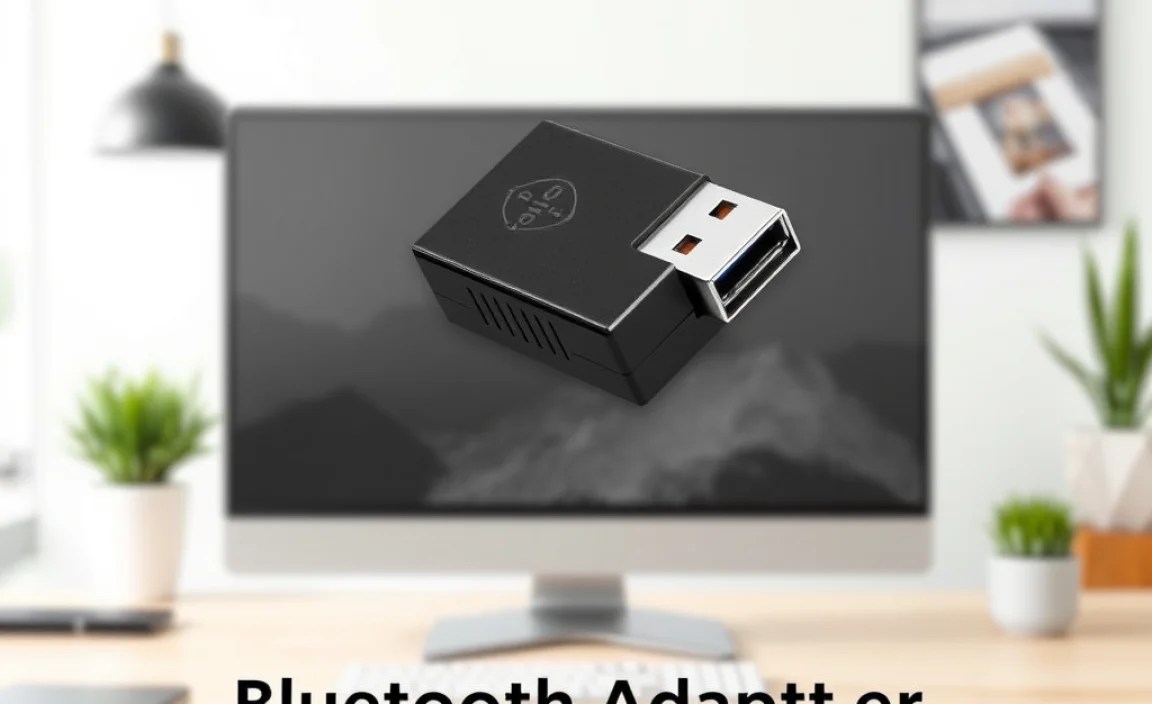
This is by far the most common and easiest type to find. These adapters plug directly into a USB port on your computer. They’re small, often no bigger than your thumb, and are incredibly simple to install. You just plug it in, install any necessary drivers (though Windows often recognizes them automatically), and you’re good to go.
- Pros: Extremely easy to use, portable, widely available, supports the latest Bluetooth versions.
- Cons: Takes up a USB port, performance can vary depending on the specific adapter and USB port used.
2. Internal PCIe Bluetooth Cards
For desktop PC users who want a more permanent and integrated solution, internal PCIe cards are an option. These cards install directly into a PCIe slot inside your computer’s case. They often come bundled with Wi-Fi capabilities as well, providing both features from a single addition. These are a bit more involved to install, requiring you to open your PC case.
- Pros: Very stable connection, often include Wi-Fi, cleaner look as no external dongle is visible.
- Cons: Requires opening the PC case and installation, not suitable for laptops, generally more expensive.
3. Sometimes Built-in (but check!)
It’s worth noting that many modern laptops and some All-in-One or higher-end desktop PCs come with Bluetooth built-in. Before you buy an adapter, always check your PC’s specifications or look for a Bluetooth icon in your system tray. You can usually check in your Windows settings: go to Settings > Devices > Bluetooth & other devices. If you see a toggle for Bluetooth, you already have it!
Choosing the Right Bluetooth Adapter: Key Features to Look For
With so many options out there, how do you pick the “best” Bluetooth adapter for your PC? Here are some key features and specifications to consider:
1. Bluetooth Version
Bluetooth technology has evolved over the years. Newer versions offer better performance, improved power efficiency, and enhanced features. Look for adapters supporting at least:
- Bluetooth 4.0: Still common, offers low energy consumption (Bluetooth LE) and decent range.
- Bluetooth 4.2: Improvements in speed and security.
- Bluetooth 5.0 / 5.1 / 5.2 / 5.3: These are the latest standards. They offer significantly faster speeds, longer range, improved power efficiency, and features like better audio quality (with advanced codecs) and lower latency, which is crucial for gaming and video. For the best experience, aim for Bluetooth 5.0 or higher.
You can learn more about the evolution of Bluetooth and its various versions on the official Bluetooth SIG website.
2. Range
Bluetooth adapters typically have a range of about 10-30 meters (33-100 feet) in open, unobstructed spaces. However, this can be affected by walls, interference, and the devices you’re connecting to. Some higher-end adapters boast extended range capabilities, which might be useful if you need a strong connection further away from your PC.
3. Chipset/Brand Reputation
Just like with any tech component, the quality of the chipset inside the adapter matters. Brands like Intel, Realtek, and Broadcom are known for reliable Bluetooth chipsets. Reputable adapter brands often use these chipsets and provide good driver support.
4. Plug-and-Play vs. Driver Installation
Most modern USB adapters are plug-and-play, meaning Windows (and macOS) will recognize them and install the necessary drivers automatically. However, some might require you to download drivers from the manufacturer’s website. Check reviews and product descriptions to see if driver installation is straightforward.
5. Supported Profiles
Bluetooth adapters support various “profiles,” which are essentially sets of rules for how devices communicate. For connecting headphones and speakers, you’ll want to ensure it supports profiles like:
- A2DP (Advanced Audio Distribution Profile): Essential for stereo audio streaming.
- HFP (Hands-Free Profile) / HSP (Headset Profile): For voice calls and using microphones.
Most adapters will support these common audio profiles.
6. Power Consumption
If you’re using a laptop and want to conserve battery, look for adapters that support Bluetooth Low Energy (BLE). Most Bluetooth 4.0+ adapters do.
Comparison of Bluetooth Adapter Features
Here’s a quick look at how different adapter types might stack up:
| Feature | USB Bluetooth Dongle (Basic) | USB Bluetooth Dongle (Advanced/BT 5.x) | Internal PCIe Card (with Wi-Fi) |
|---|---|---|---|
| Bluetooth Version | Typically 4.0, sometimes 4.2 | 5.0, 5.1, 5.2, 5.3 | Usually 5.0 or higher |
| Installation | Plug-and-Play | Mostly Plug-and-Play | Requires opening PC, installation of card |
| Portability | High | High | Low (fixed to PC) |
| Additional Features | Bluetooth only | Bluetooth only | Often includes Wi-Fi |
| Range | Standard (up to 10-20m) | Standard to Extended (up to 30m+) | Standard to Extended |
| Best For | Basic connectivity, budget-friendly | Best wireless audio, gaming, multiple devices | Desktop users wanting integrated, stable Wi-Fi & Bluetooth |
How to Install a Bluetooth Adapter for PC (Step-by-Step Guide)
Installing a Bluetooth adapter is usually a straightforward process, especially for USB dongles. We’ll focus on the most common type: the USB adapter.
Step 1: Purchase Your Bluetooth Adapter
Based on the features discussed above, choose a USB Bluetooth adapter that meets your needs, ideally supporting Bluetooth 5.0 or higher for the best performance.
Step 2: Prepare Your PC
Ensure your PC is running. It’s a good practice to close any unnecessary applications, though it’s not strictly required for this simple installation.
Step 3: Plug In the Adapter
Locate an available USB port on your computer. This could be on the front, back, or side of your PC, or on your laptop’s side. Gently but firmly insert the USB Bluetooth adapter into the port.
Tip: If you have a USB 3.0 (blue colored) port, use it for potentially faster data transfer speeds, although for most Bluetooth functions, USB 2.0 is perfectly adequate.
Step 4: Driver Installation (If Necessary)
For most modern systems (Windows 10/11 and macOS): Your operating system should automatically detect the new hardware and begin installing the necessary drivers. You might see a notification pop up in the corner of your screen indicating that the device is being set up. This can take a minute or two.
If drivers are not automatically installed:
- Check the packaging or the manufacturer’s website for driver download links.
- Download the latest drivers for your specific adapter model and operating system.
- Run the installer file and follow the on-screen prompts. This usually involves agreeing to terms and clicking “Next” a few times.
- You may be prompted to restart your computer after the driver installation is complete.
You can also often find driver management within your operating system’s settings. For Windows, search for “Device Manager.” Your Bluetooth adapter should appear there, ideally without any warning icons (like a yellow exclamation mark).
Step 5: Verify Bluetooth is Enabled
Once the drivers are installed, you need to ensure Bluetooth is turned on in your system settings.
On Windows 10/11:
- Click the Start button.
- Go to Settings (the gear icon).
- Click on Devices (or Bluetooth & devices in Windows 11).
- Look for Bluetooth in the left-hand menu.
- Ensure the Bluetooth toggle switch is turned to the On position.
If you don’t see a Bluetooth option, the adapter might not be recognized, or the drivers might not be installed correctly. Revisit Step 4.
Step 6: Pair Your First Bluetooth Device
Now for the fun part! Let’s connect your wireless headphones or speaker.
- Put your Bluetooth headphones or speaker into pairing mode. This usually involves pressing and holding a Bluetooth button until a light blinks or you hear an audio cue. Check your device’s manual for specific instructions.
- On Windows: In the same Bluetooth & devices settings window, click on Add device (or Add Bluetooth or other device).
- Select Bluetooth from the list of device types.
- Your PC will start searching for nearby Bluetooth devices. Wait for your headphones or speaker to appear in the list.
- Click on your device’s name when it appears.
- Follow any on-screen prompts to complete the pairing process. It might involve confirming a code or simply waiting for the connection to establish.
Once paired, your device should show up under the list of connected devices, and you should be able to play audio through it. You might need to select it as your audio output device in your system’s sound settings.
Step 7: Enjoy Your New Wireless Freedom!
You’ve successfully installed your Bluetooth adapter and connected a device! Now you can enjoy wireless audio, connect other peripherals, and declutter your workspace. Happy listening!
Troubleshooting Common Bluetooth Issues
While generally reliable, Bluetooth can sometimes be a bit finicky. Here are some common issues and how to solve them:
Problem 1: PC Not Detecting Bluetooth Adapter
- Solution:
- Ensure the adapter is securely plugged into the USB port. Try a different USB port.
- Restart your computer. This can resolve temporary glitches.
- Check Device Manager (search for it in Windows search bar) to see if the adapter is listed. If it has a yellow exclamation mark, drivers are missing or corrupted. Reinstall the drivers from the manufacturer’s website.
- If using an internal PCIe card, ensure it’s properly seated in the slot and any necessary power connectors are attached.
Problem 2: Bluetooth Device Not Showing Up in Pairing List
- Solution:
- Make sure your Bluetooth device is in pairing mode. This is the most common oversight. Refer to your device’s manual.
- Ensure your Bluetooth adapter is enabled in PC settings.
- Move your device closer to your PC.
- Turn off Bluetooth on your PC and then turn it back on.
- Restart both your Bluetooth device and your PC.
Problem 3: Audio Stuttering or Dropping Out
This can be caused by interference or distance.
- Solution:
- Move your Bluetooth device closer to the PC.
- Minimize physical obstructions like walls or large metal objects between the adapter and your device.
- Check for interference from other wireless devices (like Wi-Fi routers, microwaves, other Bluetooth devices). Try turning off other unused wireless devices temporarily.
- If using a USB 2.0 port, try a USB 3.0 port, as they can sometimes offer better performance and less interference.
- Ensure your Bluetooth adapter and device drivers are up to date.
- If your adapter supports Bluetooth 5.0+, ensure your headphones also support a compatible codec for better stability.
Problem 4: Device Connected But No Sound
- Solution:
- Go to your PC’s sound settings (right-click the speaker icon in the taskbar).
