
Quick Summary: Unlock a wireless listening experience for your Beats headphones! This guide explains how to add Bluetooth, whether your Beats are wired or older wireless models needing a boost. Discover simple, affordable upgrades to enjoy music freedom without tangled cables.
Hey everyone, Edward here from headphonehorizon! If you’ve got a fantastic pair of Beats headphones, you probably love their sound and style. But what if they aren’t wireless, or their built-in Bluetooth isn’t cutting it anymore? Don’t worry, upgrading to a seamless Bluetooth experience is totally achievable, even for beginners. We’ll walk through simple methods to get your Beats connected wirelessly, freeing you from cords and enhancing your everyday listening. Get ready to enjoy your favorite tunes untethered!
Why Go Bluetooth with Your Beats? The Freedom Factor

Beats headphones are iconic for their powerful sound and distinct look. For many, the desire to go wireless is about more than just convenience; it’s about a richer, more liberated listening experience. Imagine moving around your home, gym, or office without being tethered to your device. No more accidental yanks that can damage your headphones or your phone. Bluetooth technology makes this a reality, offering a significant upgrade that transforms how you interact with your audio.
For Beats models that came with Bluetooth, older versions might feel sluggish or struggle with modern devices. For those with wired Beats, adding Bluetooth is a game-changer, instantly bringing them into the modern age of audio. This shift isn’t just about ditching wires; it’s about seamless connectivity, extended range, and the ability to pair with multiple devices. It’s an essential upgrade for anyone looking to maximize their Beats headphone investment and enjoy unparalleled listening freedom.
Understanding Your Beats: Wired vs. Wireless

Before we dive into the upgrades, it’s crucial to know what kind of Beats you have. This will determine the best Bluetooth solution for you.
Wired Beats Headphones: Adding Bluetooth from Scratch
If your Beats headphones have a standard 3.5mm audio jack but no built into Bluetooth, you’re in luck! There are several straightforward ways to add wireless capabilities. This is often the most budget-friendly route to achieving a Bluetooth experience with high-quality wired headphones.
Method 1: The Bluetooth Audio Receiver (The Easiest Way)
This is by far the most popular and easiest method. A Bluetooth audio receiver is a small device that plugs into your headphone’s audio jack. It then connects wirelessly to your phone or music player via Bluetooth. Your headphones effectively become wireless!
What is a Bluetooth Audio Receiver?
Think of it as a tiny translator. Your phone speaks Bluetooth, and your headphones traditionally speak “wired.” The receiver listens to the Bluetooth signal from your phone and converts it into an audio signal that your wired headphones can understand. It’s a simple, plug-and-play solution.
How to Use a Bluetooth Audio Receiver
- Charge the Receiver: Most receivers have a built-in rechargeable battery. Connect it to a power source using the included USB cable.
- Pair the Receiver: Turn on the receiver. It will enter pairing mode (usually indicated by a blinking light). Follow the receiver’s instructions to pair it with your smartphone, tablet, or computer. This usually involves going to your device’s Bluetooth settings and selecting the receiver from the list of available devices.
- Connect Your Beats: Plug your Beats headphones into the 3.5mm audio jack on the Bluetooth receiver.
- Play Music: Start playing music or any audio from your Bluetooth-enabled device. The sound will now stream wirelessly to the receiver and then through your Beats headphones.
Pros and Cons of Bluetooth Receivers
Here’s a quick look at what makes this method great, and what to watch out for:
| Pros | Cons |
|---|---|
| Extremely easy to use, no technical skills required. | Adds a small dongle to your setup; can be easy to lose. |
| Works with virtually any headphones that have a 3.5mm jack. | Battery life depends on the receiver; needs regular charging. |
| Affordable solution for going wireless. | Sound quality can vary between models; some might introduce a slight delay. |
| Portable and great for making any wired audio device wireless. | Requires an additional step of pairing and charging. |
Method 2: The Bluetooth Audio Transmitter/Receiver Combo
These devices are more versatile. They can act as either a transmitter (sending Bluetooth audio from a non-Bluetooth source, like a TV, to wireless headphones) or a receiver (like the dongle discussed above). For our purpose of adding Bluetooth to wired Beats, we’d use it in receiver mode.
When to Choose a Combo Unit
If you also want to make other devices, like a home stereo or TV, capable of sending Bluetooth audio, a combo unit is a smart investment. It offers more flexibility for future use cases.
Setting Up a Combo Unit (in Receiver Mode)
The setup process is very similar to a dedicated Bluetooth audio receiver:
- Set to Receiver Mode: Most combo units have a switch to select between transmitter and receiver mode. Ensure it’s set to “RX” or “Receiver.”
- Charge or Power: Connect the unit to a power source via USB.
- Pair with Your Device: Put the unit into pairing mode and connect it to your smartphone or tablet via Bluetooth.
- Connect Your Beats: Plug your Beats headphones into the combo unit’s audio jack.
- Enjoy Wireless Audio: Play your audio content.
Older Wireless Beats Headphones: Boosting Your Bluetooth
If you have an older model of Beats that originally came with Bluetooth, you might be experiencing some limitations. This could include:
- Shorter battery life.
- Outdated Bluetooth codecs (affecting sound quality or stability).
- Pairing issues with newer devices.
- Limited range.
While you can’t typically “upgrade” the internal Bluetooth chip of your existing headphones, you can enhance your wireless experience in other ways. Sometimes, the issue might be with the source device or interference.
Troubleshooting Old Bluetooth Beats
Before considering a hardware upgrade, try these steps:
- Reset Your Headphones: Many Beats models have a reset procedure. Check your specific model’s manual on the official Apple/Beats support page for instructions.
- Update Your Source Device: Ensure your smartphone or tablet has the latest firmware and operating system updates.
- Forget and Re-pair: In your device’s Bluetooth settings, “forget” your Beats headphones and then re-pair them as if they were new.
- Reduce Interference: Other wireless devices (microwaves, other Bluetooth gadgets) can interfere. Try moving away from potential sources of interference.
- Check Battery Health: Older Bluetooth headphones might have degraded batteries. While this doesn’t address the Bluetooth chip itself, a weak battery can sometimes affect performance.
External Bluetooth Adapters for Wireless Headphones (Less Common for Beats)
In some niche cases, particularly with professional audio gear, external Bluetooth adapters can be added to devices that already have Bluetooth but lack modern features. However, for most Beats users, the methods above are more practical and cost-effective.
Choosing the Right Bluetooth Upgrade

The market is flooded with Bluetooth receivers and transmitters. Here’s what to look for to ensure you get a good experience, especially for your Beats:
Key Features to Consider
- Bluetooth Version: Aim for Bluetooth 5.0 or higher. This offers better range, faster speeds, and improved power efficiency compared to older versions (like Bluetooth 4.0 or 4.2). For example, Bluetooth 5.0 supports Enhanced Data Rates (EDR), which can improve audio quality and connection stability.
- Supported Codecs: Codecs are like languages for Bluetooth audio. Common ones include SBC (basic, widely compatible), AAC (good for Apple devices), aptX, aptX HD, and LDAC (higher fidelity). For the best sound quality with your Beats, look for support for AAC or aptX if your source device also supports it.
- Battery Life: Check the advertised playtime on a full charge. For a travel day or long listening session, you’ll want something that lasts at least 8-10 hours. Many can also be used while charging.
- Portability and Design: How small and light is it? Does it have a clip to attach to your shirt? Some receivers come with a built-in microphone for hands-free calls.
- Ease of Use: Simple pairing and intuitive controls are a must for beginner-friendliness.
Top Picks for Bluetooth Upgrades (Examples)
While specific models change, here are types of devices that generally perform well:
- For Simplicity: Look for small, dongle-style Bluetooth receivers with good reviews and Bluetooth 5.0. Brands like Mpow, Ugreen, and Anker often have reliable, affordable options.
- For Versatility: Consider a 2-in-1 Bluetooth transmitter/receiver if you have other audio devices you might want to make wireless in the future. TaoTronics and Comsoon are popular brands in this category.
Always check recent reviews and product specifications before purchasing. A quick search for “best Bluetooth audio receiver for headphones” will yield many current options from reputable tech reviewers.
Step-by-Step: Adding Bluetooth with a Receiver to Your Wired Beats

Let’s break down the process of turning your wired Beats into wireless wonders!
What You’ll Need:
- Your wired Beats headphones with a 3.5mm audio jack.
- A Bluetooth audio receiver (ensure it’s charged or has power).
- Your smartphone, tablet, or computer with Bluetooth enabled.
- The charging cable for your Bluetooth receiver.
The Process:
Step 1: Charge Your Bluetooth Receiver
Even if it has some charge, it’s a good idea to fully charge your receiver before its first use. Plug it into a USB port on your computer, a wall adapter, or a power bank. The indicator light will usually change color or turn off when charging is complete.
Step 2: Power On and Enter Pairing Mode
Press and hold the power button on the receiver. It should then automatically enter pairing mode. This is often indicated by a rapidly flashing LED light, usually blue or red/blue. Consult the receiver’s manual if you’re unsure.
Step 3: Pair with Your Device
On your smartphone, tablet, or computer:
- Go to Settings.
- Select Bluetooth.
- Make sure Bluetooth is turned ON.
- Your device will scan for nearby Bluetooth devices.
- Look for the name of your Bluetooth receiver in the list of available devices (e.g., “Mpow Receiver,” “BT-330”).
- Tap on the receiver’s name to connect.
You’ll usually hear a voice prompt or a distinct beep from the receiver, and the light will change (e.g., from flashing rapidly to flashing slowly or staying a solid color) to indicate a successful connection.
Step 4: Connect Your Beats Headphones
Now, take your Beats headphones and plug the 3.5mm audio cable directly into the designated audio jack on the Bluetooth receiver. Make sure it’s plugged in securely.
Step 5: Play Your Audio!
Open your music app, podcast player, or any other audio source on your paired device. Press play. The sound should now stream wirelessly from your device to the Bluetooth receiver, and then through your Beats headphones. Congratulations, you’re now listening wirelessly!
Step 6: Managing Connections
If your receiver supports multi-point connection (connecting to two devices at once), check its manual. Typically, you pair it with the first device, then put it back into pairing mode to connect to the second device. You can then switch audio sources between them.
Important Note on Latency: For most music and general listening, the slight delay (latency) common with Bluetooth is unnoticeable. However, if you’re watching videos or gaming, you might detect a small lag between the action on screen and the audio. Bluetooth 5.0 and newer codecs like aptX Low Latency (if supported by both the receiver and your device) can minimize this, but it’s something to be aware of.
Maintaining Your Bluetooth Upgrade
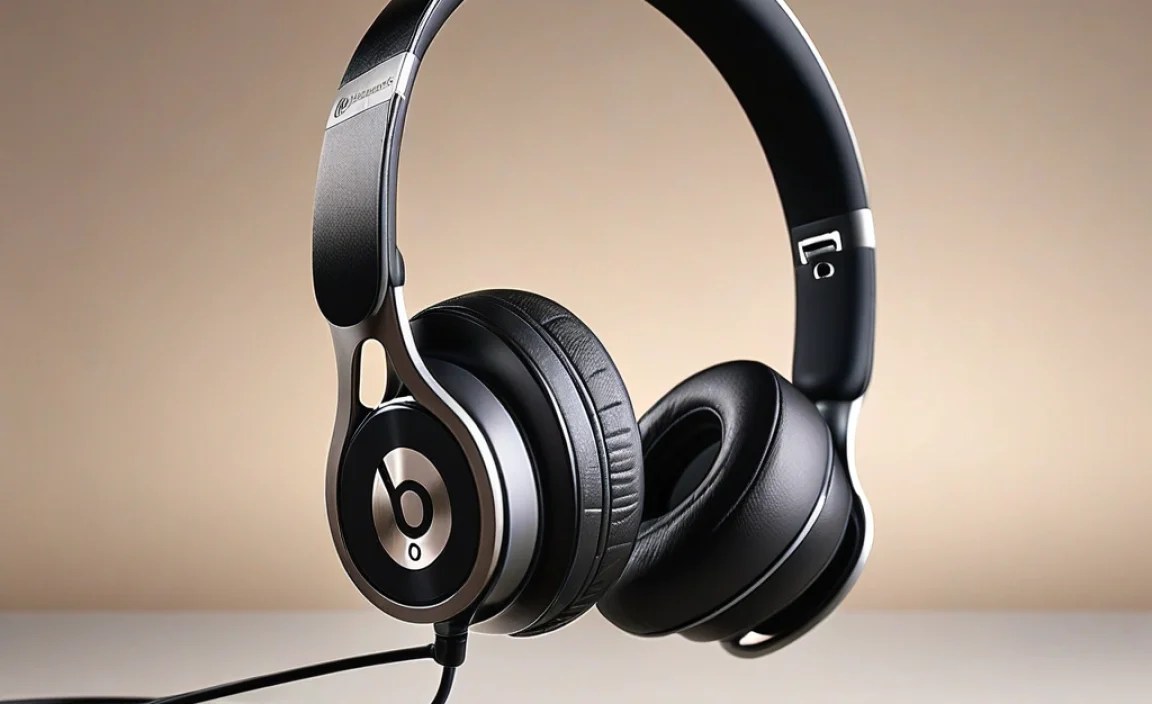
Just like your headphones, your Bluetooth receiver needs a little care to keep it performing well.
- Regularly Charge: Keep an eye on the battery level. Fully charging it when you can will maintain battery health.
- Clean Connectors: Occasionally, gently clean the 3.5mm plug on your headphones and the jack on the receiver with a dry cotton swab to ensure a clean connection.
- Protect When Not in Use: Store the receiver in a small pouch or pocket to prevent scratches or damage, especially when it’s not plugged into your headphones.
- Firmware Updates: While rare for simple receivers, some more advanced Bluetooth devices might have firmware updates. Check the manufacturer’s website if you encounter persistent issues.
FAQ: Your Bluetooth Beats Questions Answered
Here are some common questions beginners have about adding Bluetooth to their Beats headphones:
Q1: Will adding Bluetooth make my wired Beats sound worse?
A: Not necessarily. Basic Bluetooth receivers use the SBC codec, which is standard but not the highest fidelity. However, many modern receivers support AAC or aptX, which can provide near CD-quality audio, especially when paired with a compatible device. For most listeners, the convenience of wireless freedom outweighs any very subtle difference in audio compression.
Q2: How long does the battery on a Bluetooth receiver usually last?
A: Battery life varies by model, but most good-quality Bluetooth receivers offer anywhere from 6 to 15 hours of continuous playtime on a single charge. Always check the product’s specifications for the most accurate information.
Q3: Can I use the same Bluetooth receiver with my car stereo?
A: Yes, absolutely! If your car stereo has anAUX-in port (a 3.5mm audio jack), you can plug the Bluetooth receiver into it. This will allow you to stream music wirelessly from your phone to your car speakers, as long as the receiver is in “RX” (Receiver) mode.
Q4: What is multi-point pairing and do I need it?
A: Multi-point pairing allows a Bluetooth device, like your receiver, to connect to two audio sources simultaneously. For example, you could be connected to your phone and your laptop at the same time. You can listen to music from your laptop and then seamlessly take a call from your phone without re-pairing. It’s a handy feature if you often switch between devices.
Q5: My Bluetooth receiver keeps disconnecting. What can I do?
A: First, ensure both the receiver and your source device are fully charged. Try forgetting the receiver from your device’s Bluetooth list and re-pairing it. Also, move closer to your source device and try to minimize interference from other wireless signals (like Wi-Fi routers or microwaves). If the problem persists, the receiver itself might be faulty.
Q6: Is it better to buy new Bluetooth Beats or add Bluetooth to my old ones?
A: This depends on your budget and your current headphones. If you have high-quality wired Beats that you love, adding Bluetooth is a very cost-effective way to get wireless functionality. If your current headphones are old or you’re looking for the latest features (like active noise cancellation or water resistance), investing in a newer, built-in Bluetooth model might be worthwhile. For many, the adapter route is a fantastic, budget-friendly upgrade.
Q7: Can I use the built-in microphone on the receiver for calls with my Beats?
A: Many Bluetooth receivers come with a built-in microphone, allowing you to take calls directly through the receiver and your connected headphones. The quality can vary, but it’s a convenient feature if your Beats don’t have an integrated mic or if you want a hands-free option for any wired headphones.
Conclusion: Embrace the Wireless Future with Your Beats
Upgrading your Beats headphones to a wireless Bluetooth experience is more accessible and affordable than you might think. Whether you’re breathing new life into a beloved wired pair with a simple Bluetooth receiver or ensuring your older wireless Beats are performing their best, the freedom and convenience that Bluetooth offers are undeniable.
By understanding your options and following these straightforward steps, you can easily eliminate cable clutter, enjoy an enhanced listening experience, and truly unlock the full potential of your audio gear. So, go ahead, press play, and enjoy the liberated sound of wireless Beats!
