
A Bluetooth dongle for headphones is a small device that adds Bluetooth capability to non-Bluetooth audio sources like older computers or stereos. It’s an easy way to enjoy wireless audio without buying new headphones, offering simple setup and enhanced freedom of movement. This guide explains what they are, how they work, and how to choose the right one for your needs.
Bluetooth Dongle for Headphones: Your Essential Guide to Wireless Freedom

Ever wished you could ditch those pesky headphone wires and go truly wireless, but your trusty headphones aren’t Bluetooth-enabled? Or perhaps your beloved computer or stereo system lacks that modern Bluetooth magic? Don’t worry, there’s a simple, affordable solution: a Bluetooth dongle.
Think of it as a clever little adapter that breathes new life into your existing audio gear, letting you effortlessly connect non-Bluetooth headphones or speakers to your devices. This guide will walk you through everything you need to know about Bluetooth dongles, making it easy for you to unlock wireless listening without any tech headaches.
What Exactly is a Bluetooth Dongle for Headphones?

Let’s break down what a Bluetooth dongle is in plain English. At its core, a Bluetooth dongle is a small hardware add-on, usually a compact USB device, that provides Bluetooth connectivity to a device that wouldn’t otherwise have it. For headphones, it acts as a bridge between your audio source (like a desktop PC, laptop, or TV) and your wireless headphones. Instead of relying on a built-in Bluetooth chip in your source device, the dongle provides that functionality. You plug the dongle into your device, and then you can pair your Bluetooth headphones with it, just as you would with a smartphone or modern tablet. It’s a straightforward way to upgrade your audio experience.
Why Would You Need a Bluetooth Dongle?
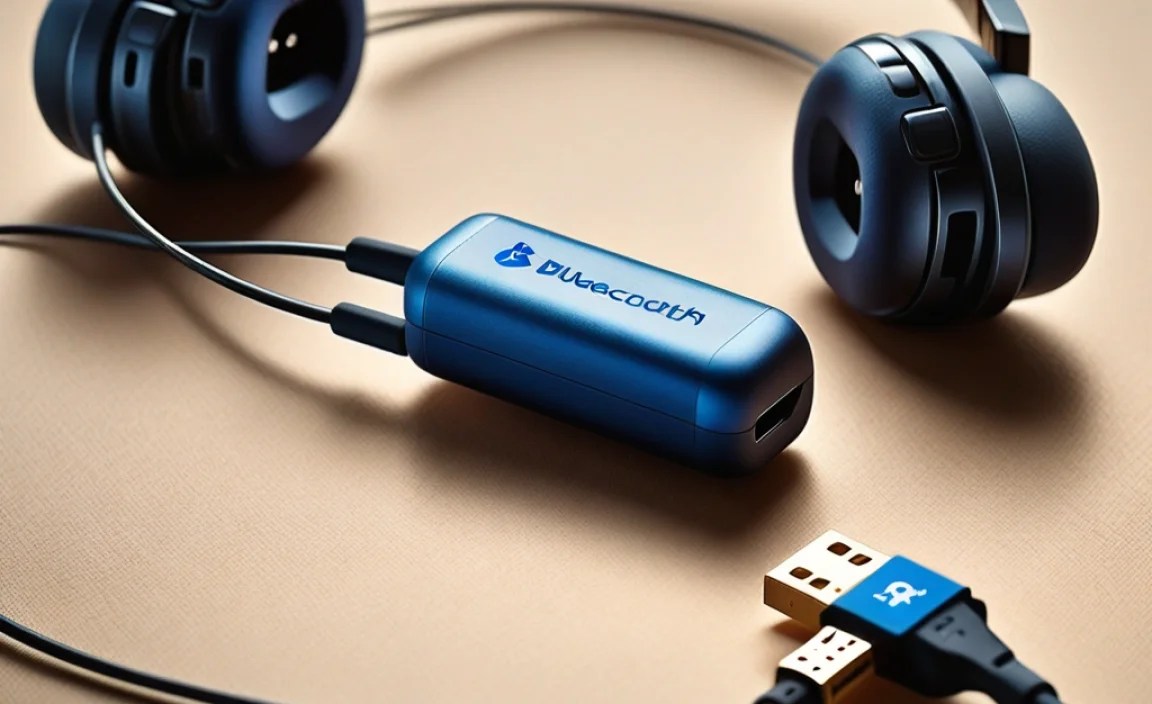
You might find yourself needing a Bluetooth dongle for several compelling reasons, all centered around expanding your audio options:
- Bringing Wireless to Wired Devices: The most common reason is to add Bluetooth capability to devices that lack it. This includes older computers, many televisions, gaming consoles, and home stereo systems.
- Improving Existing Bluetooth: Sometimes, a device’s built-in Bluetooth might have a weak signal, poor audio quality, or compatibility issues. A dedicated dongle can often offer a more robust and higher-quality connection.
- Extending Range: Some Bluetooth dongles are designed with better antennas or newer Bluetooth versions, potentially offering a longer wireless range than your device’s internal Bluetooth.
- Cost-Effectiveness: Instead of buying an entirely new set of Bluetooth headphones or a new music player, a relatively inexpensive dongle can extend the life and utility of your current equipment.
- Dedicated Connection: For tasks requiring a stable, dedicated wireless connection (like audio monitoring or presentations), a dongle can ensure your headphones stay connected without interference from other wireless devices.
How Does a Bluetooth Dongle for Headphones Work?

The process is surprisingly simple, much like connecting any other Bluetooth device:
- Plug It In: You typically plug the Bluetooth dongle into a USB port on your audio source device (e.g., your computer). Some might require a 3.5mm audio jack, but USB is far more common for audio transmission.
- Driver Installation (Sometimes): Most modern operating systems (like Windows 10/11 or macOS) will recognize the dongle automatically and install the necessary drivers. In rarer cases, you might need to install drivers from a disc or download them from the manufacturer’s website.
- Pairing Mode: Once installed, you’ll need to put both the dongle and your Bluetooth headphones into pairing mode. The dongle usually has a button you press and hold. Your headphones have their own pairing process, which you’ll find in their manual.
- Connection: Your source device (now with Bluetooth thanks to the dongle) will detect your headphones in pairing mode. You select your headphones from the list of available devices on your computer or TV.
- Listen Wirelessly: Once paired, your headphones will connect to the dongle, and any audio playing on your source device will be transmitted wirelessly to your headphones.
Types of Bluetooth Dongles

While they all serve a similar purpose, Bluetooth dongles can differ:
1. USB Bluetooth Adapters
These are the most common type. They plug into a USB-A port and provide Bluetooth connectivity. They are versatile and can be used with computers, laptops, and sometimes even TVs or game consoles that have USB ports. They often support the latest Bluetooth versions for better performance.
2. Bluetooth Audio Transmitters (Stereo Jack)
These are less common for general computer use but are popular for connecting wireless headphones to devices with only a 3.5mm audio jack, like older non-smart TVs or portable audio players. They typically plug into the headphone or audio-out port and transmit audio wirelessly. Some can also act as receivers.
Table 1: Common Dongle Types and Their Uses
| Dongle Type | Connection Port | Primary Use | Device Compatibility | Notes |
|---|---|---|---|---|
| USB Bluetooth Adapter | USB-A | Adding Bluetooth to PCs, Laptops | Computers, Laptops | Most common, supports latest Bluetooth versions |
| Bluetooth Audio Transmitter | 3.5mm Audio Jack | Wireless audio for TVs, Stereos | TVs, Stereo Systems, MP3 Players | Often doubles as a receiver; check for aptX support for better audio. |
Key Features to Look For in a Bluetooth Dongle
When shopping for a Bluetooth dongle, keep these features in mind:
- Bluetooth Version: Look for Bluetooth 5.0 or higher for the best performance. Newer versions offer improved speed, range, stability, and power efficiency. Bluetooth 4.0 is still adequate, but 5.0+ is preferable. You can learn more about the evolution and benefits of Bluetooth technology from the official Bluetooth SIG website.
- Audio Codec Support (e.g., aptX Low Latency, LDAC): If audio quality is paramount, check for support of advanced audio codecs.
- SBC (Subband Coding): The baseline codec, universally supported but offers moderate quality.
- AAC (Advanced Audio Coding): Common on Apple devices, offers better quality than SBC.
- aptX: Developed by Qualcomm, offers higher fidelity and lower latency than SBC/AAC.
- aptX Low Latency: Crucial if you’re watching videos or gaming, as it significantly reduces audio delay.
- LDAC: Developed by Sony, offers very high-resolution audio, often found on premium Android devices and headphones.
For the best experience, ensure your dongle and headphones support the same advanced codec.
- Range: Most standard dongles offer about 10 meters (33 feet). Some higher-end models or those with external antennas can offer extended range.
- Plug-and-Play: For ease of use, opt for a dongle that is plug-and-play, meaning your operating system recognizes it immediately without manual driver installation.
- Multi-Device Support: Some dongles can connect to multiple devices simultaneously or remember multiple paired devices.
- Form Factor: Consider the size. Nano dongles are very small and unobtrusive, while slightly larger ones might offer better antennas or features.
How to Set Up Your Bluetooth Dongle: A Step-by-Step Guide
Here’s how to get your Bluetooth dongle up and running. This guide will primarily focus on USB dongles used with computers, as they are the most common.
Step 1: Preparation
Before you begin, make sure you have:
- Your Bluetooth dongle.
- Your Bluetooth headphones.
- The device you want to connect to (e.g., computer).
- Your device’s user manual (optional, but helpful if you encounter issues).
Step 2: Plug In the Dongle
Locate a free USB port on your computer or other source device. Insert the Bluetooth dongle. If it’s a nano dongle, it will sit almost flush with the device. If it’s a larger one, ensure it has enough space.
Step 3: Driver Installation (If Necessary)
For Windows:
- Windows should automatically detect the dongle and begin installing drivers from Windows Update. You might see a notification in the bottom-right corner.
- If it doesn’t install automatically, check the dongle’s packaging or manufacturer’s website for driver download instructions.
- Once drivers are installed, you should see a Bluetooth icon in your system tray (near the clock) or in your device settings. Ensure Bluetooth is turned ON.
For macOS:
- macOS usually handles Bluetooth drivers automatically for most common dongles. Plug it in, and it should just work.
- If not, check the manufacturer’s website for macOS compatible drivers.
- Go to System Preferences > Bluetooth to ensure it’s enabled and visible.
Step 4: Put Your Headphones in Pairing Mode
This process varies by headphone model. Typically:
- Turn your headphones OFF.
- Press and hold the power button until the LED indicator flashes in a specific way (often blue and red, or alternating colors) – this signifies pairing mode. Consult your headphone manual for precise instructions.
Step 5: Pair the Dongle with Your Headphones
This step is done on your computer or source device:
For Windows:
- Click the Bluetooth icon in the system tray, then select “Add Bluetooth or other device.”
- Alternatively, go to Settings > Devices > Bluetooth & other devices, and click “Add Bluetooth or other device.”
- Select “Bluetooth.”
- Your computer will scan for available Bluetooth devices.
- Your headphones should appear in the list. Click on their name to select them.
- The computer will confirm when pairing is successful.
For macOS:
- Open System Preferences > Bluetooth.
- Ensure Bluetooth is On.
- Your Mac will scan for devices. Your headphones should appear in the list.
- Click “Connect” next to your headphones.
- A confirmation message will appear once connected.
Step 6: Select Your Headphones as the Audio Output
Even after pairing, your computer or device might still be using its default speakers/output. You need to tell it to use your newly connected Bluetooth headphones:
For Windows:
- Click the speaker icon in the system tray.
- Look for a dropdown menu or button that shows the current audio output device.
- Select your Bluetooth headphones from the list.
For macOS:
- Go to System Preferences > Sound.
- Click the “Output” tab.
- Select your Bluetooth headphones from the list of output devices.
Step 7: Test the Audio
Play some music or a video to ensure the audio is coming through your headphones and that the connection is stable. You’re now enjoying wireless audio!
Troubleshooting Common Issues
Occasionally, you might run into a hiccup. Here’s how to solve common problems:
- Dongle Not Recognized:
- Try a different USB port.
- Restart your computer.
- Ensure you’ve installed the correct drivers from the manufacturer’s website.
- Headphones Not Pairing:
- Make sure headphones are fully charged and in pairing mode.
- Turn both the dongle and headphones off and then on again.
- Forget the device on your computer and try re-pairing.
- Ensure there are no other Bluetooth devices trying to connect to your headphones simultaneously.
- Audio Stuttering or Cutting Out:
- Move closer to the dongle.
- Minimize other wireless devices (Wi-Fi routers, microwaves) that might cause interference.
- Ensure the dongle and headphones support a strong codec like aptX.
- Update your computer’s Bluetooth drivers.
- Restart your computer and headphones.
- No Sound in Headphones:
- Check that your headphones are selected as the audio output device in your system’s sound settings (as described in Step 6).
- Ensure the volume is turned up on both your headphones and your device.
- Test the headphones with another Bluetooth device (like a phone) to confirm they are working correctly.
- High Latency (Lip Sync Issues):
- For video or gaming, ensure both your dongle and headphones support aptX Low Latency.
- Check if your device has specific settings to adjust audio latency.
Pros and Cons of Using a Bluetooth Dongle
Like any technology, Bluetooth dongles have their advantages and disadvantages:
Pros:
- Adds Wireless Capability: The primary benefit is easily enabling wireless listening for non-Bluetooth devices.
- Cost-Effective: Significantly cheaper than replacing your entire audio system or buying a new set of Bluetooth headphones.
- Improved Audio Experience: Some dongles offer better Bluetooth versions and codecs than older built-in solutions, potentially improving sound quality and reducing latency.
- Extended Range: Certain dongles can offer a stronger signal and longer range than integrated Bluetooth.
- Freedom of Movement: Enjoy your audio without being tethered to your device.
Cons:
- Requires an Extra Device: It’s another piece of hardware to manage and potentially lose.
- Potential for Interference: Like all wireless technologies, Bluetooth can be subject to interference from other devices.
- Codec Limitations: If your dongle and headphones don’t support the same advanced audio codecs, you might not get the best possible sound quality.
- Driver Issues: Though less common now, some dongles might require fiddly driver installations.
- USB Port Dependency: Requires a free USB port on your source device.
Bluetooth Dongles vs. Built-in Bluetooth
Many modern laptops, smartphones, and tablets come with built-in Bluetooth. So, when would you still choose a dongle?
Table 2: Dongle vs. Built-in Bluetooth
| Feature | Bluetooth Dongle | Built-in Bluetooth |
|---|---|---|
| Purpose | Adds Bluetooth to devices without it, or upgrades older versions. | Standard feature on most modern devices. |
| Compatibility | Works with a wide range of devices, especially older ones. | Limited to devices that have it integrated. |
| Performance (Version/Codecs) | Often offers the latest Bluetooth versions (5.0+) and advanced codecs (aptX, LDAC). Can be a performance upgrade. | Varies greatly by device; can be older versions (e.g., 4.0) with basic codecs. |
| Cost | Relatively inexpensive add-on. | Included in the device cost; no additional purchase needed. |
| Portability/Management | An extra device to carry and potentially lose. | Integrated, no extra hardware. |
| Reliability | Can be highly reliable, especially with good drivers and modern versions. | Generally reliable, performance can be limited by internal antenna/chipset. |
Essentially, a dongle is your solution when built-in Bluetooth is absent or underperforming. It provides a guaranteed path to wireless audio for older or less-equipped devices.
Frequently Asked Questions (FAQ)
Q1: Can I use a Bluetooth dongle with any headphones?
Yes, as long as your headphones are Bluetooth-enabled, they should be compatible with any standard Bluetooth dongle. The dongle acts as the Bluetooth transmitter
