
Quick Summary: Enhance your PS5 gaming with a Bluetooth headphones adapter. Easily connect your favorite wireless headphones for immersive audio and clear chat without wires. This guide explains how to choose, set up, and maximize your PS5 wireless audio experience, making it a simple, essential upgrade.
The Bluetooth Headphones Adaptor for PS5: Your Essential Upgrade for Immersive Gaming Audio

Hey everyone, Edward Cavitt here from Headphone Horizon! Ever found yourself tangled in wires while battling aliens or scoring the winning goal on your PlayStation 5? Or maybe you’ve got a fantastic pair of Bluetooth headphones but wished you could use them seamlessly with your PS5 without breaking the bank on proprietary headsets? If so, you’re in the right place! Many gamers dream of that freedom – the ability to enjoy crystal-clear game audio and chat through their beloved wireless cans, all while kicking back on the couch.
The good news is, it’s entirely achievable. This guide is all about the Bluetooth headphones adapter for PS5, an often overlooked but incredibly useful accessory that can dramatically upgrade your gaming experience. We’ll break down exactly what these adapters are, why you might need one, how to pick the right one, and walk you through the simple setup. Get ready to untether your audio and elevate your PS5 gameplay – it’s easier than you think!
Why Go Wireless? The Case for a PS5 Bluetooth Adapter
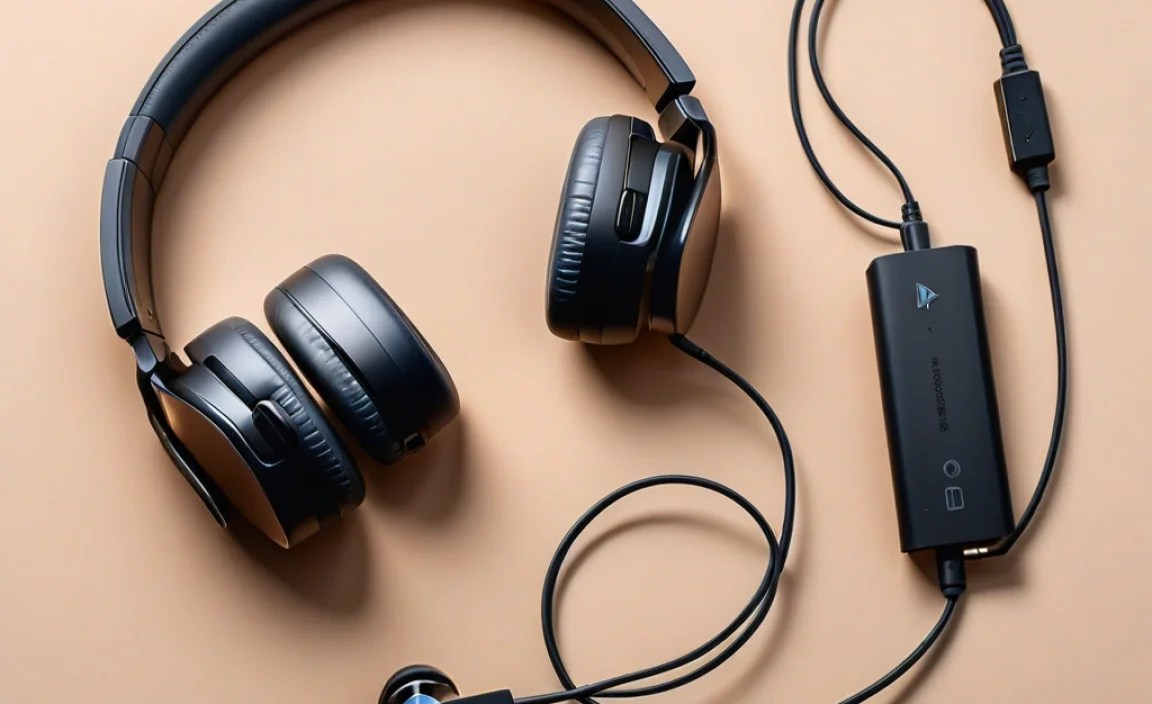
Let’s dive into why a Bluetooth headphones adapter for PS5 is such a smart move for many gamers. While Sony has improved native headset support on the PS5 compared to previous generations (especially with its own Pulse 3D headset), there are still limitations and a world of fantastic Bluetooth headphones out there that you might already own or want to use. Here’s a breakdown of the benefits:
- Freedom from Wires: This is the big one. No more tripping over cables, no more being tethered to your console. You can lean back, get comfortable, or even move around slightly without losing audio.
- Using Your Favorite Headphones: You might have invested in high-end audiophile headphones or comfortable gaming headsets that use Bluetooth. Why buy a whole new PS5-specific headset when an adapter lets your existing gear work wonders?
- Improved Audio Quality (Potentially): Depending on your headphones, you might experience better audio fidelity than with some standard wired or proprietary wireless headsets. Bluetooth audio codecs have come a long way.
- Dual Audio Output: Some adapters allow you to connect two Bluetooth devices simultaneously, meaning you could potentially pair your headphones and a Bluetooth speaker at the same time (though this varies by adapter).
- Clearer Chat: Many adapters also include a microphone or support audio input, ensuring your voice comes through clearly to your teammates without the need for a separate boom mic.
- Cost-Effective: Compared to purchasing a brand new, official PS5 wireless headset, a good Bluetooth adapter is often a much more budget-friendly solution.
Understanding How PS5 Bluetooth Adapters Work
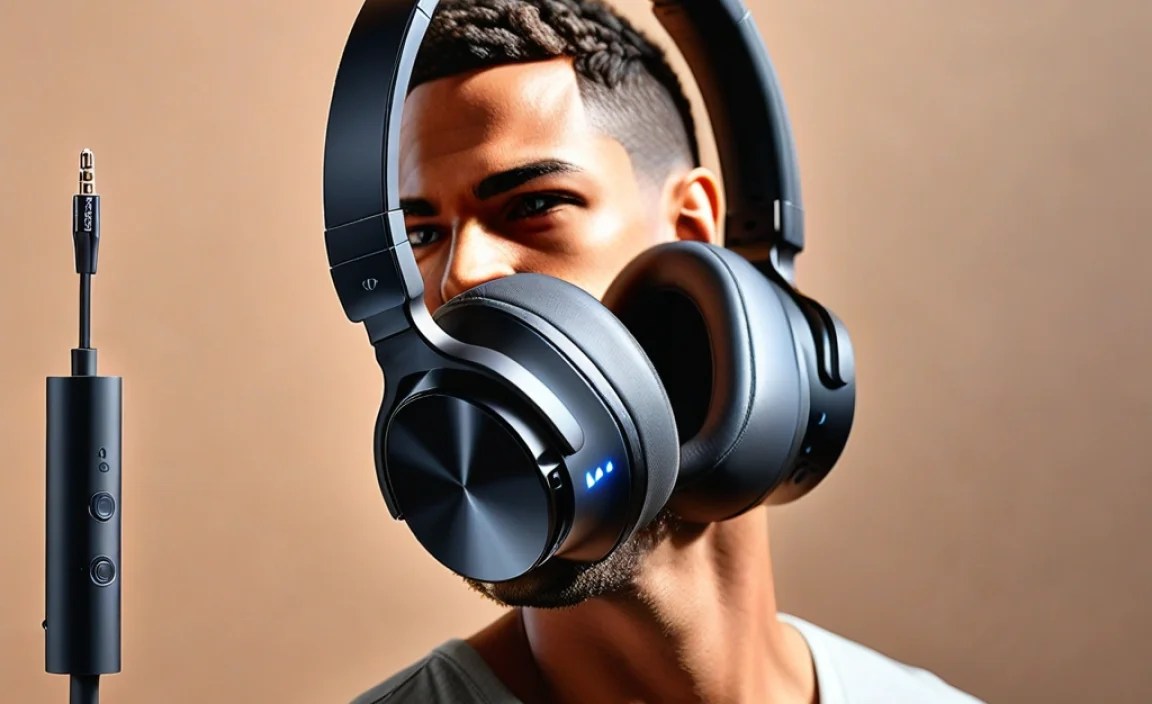
Before we get into choosing and using an adapter, it’s helpful to understand the tech behind it. When you connect a Bluetooth headphones adapter to your PS5, it essentially acts as a bridge. Your PS5 typically outputs audio via USB or its optical audio port (on older models, less common on the PS5 itself). The adapter plugs into one of these ports and then broadcasts that audio signal wirelessly via Bluetooth.
Here’s a simplified look at the process:
- PS5 Audio Output: The game or party audio is sent from the PS5 to the adapter (usually via USB).
- Adapter Conversion: The adapter takes this digital audio signal and converts it into a Bluetooth audio stream.
- Bluetooth Transmission: The adapter then wirelessly transmits this stream to your Bluetooth headphones.
- Headphone Reception: Your headphones receive the Bluetooth signal and convert it back into sound you can hear.
For voice chat, the process often works in reverse. Your headphones’ microphone picks up your voice, the adapter receives this signal wirelessly, and then transmits it back to the PS5 via the USB connection, all happening so quickly you won’t notice any delay.
It’s important to note that the PS5’s native Bluetooth support can be a bit finicky, primarily designed to work with specific audio profiles and devices. That’s where these dedicated adapters shine, as they are engineered to overcome these limitations and offer broader compatibility.
Types of Bluetooth Adapters for PS5

When you’re looking for a Bluetooth headphones adapter for your PS5, you’ll primarily encounter a few different types, each with its own connection method and feature set.
USB Bluetooth Audio Transmitters/Adapters
These are the most common and generally the easiest to use. They plug directly into one of the PS5’s USB ports (either USB-A or USB-C, depending on the adapter and your PS5 model). They handle both audio transmission and reception (for microphones).
- Pros: Plug-and-play convenience, often requires no extra drivers or complex setup, typically supports low-latency audio technologies.
- Cons: Occupies a USB port, quality can vary greatly between brands.
Bluetooth Dongles with Separate Microphone
Some older or more budget-friendly solutions might involve a USB dongle for audio output and a separate 3.5mm microphone that plugs into the DualSense controller for chat. This is less common now but was a workaround in the past.
- Pros: Can be very inexpensive.
- Cons: Requires two connections, separate mic can be less convenient, often poorer audio quality and higher latency.
Adapters Utilizing the Controller Jack
While less common and often not ideal for game audio, some adapters might leverage the 3.5mm headphone jack on the DualSense controller primarily for microphone input, with audio still coming from a USB adapter. This setup is generally avoided for full wireless audio.
For the best experience, we highly recommend focusing on high-quality USB Bluetooth audio transmitters designed specifically for consoles.
Key Features to Look For in a PS5 Bluetooth Adapter

Not all Bluetooth adapters are created equal. To ensure you get the best audio experience, here are some crucial features to consider:
Low-Latency Bluetooth Technologies
This is arguably the MOST important feature. Standard Bluetooth can have noticeable delay, which is a deal-breaker for gaming where sound needs to be in sync with the action. Look for adapters that support:
- aptX Low Latency (aptX LL): This is the gold standard for gaming and video. It significantly reduces audio delay to imperceptible levels, especially when paired with headphones that also support aptX LL.
- aptX Adaptive: A newer codec that intelligently adjusts bit rate and latency based on your environment, offering a good balance of quality and low delay.
- LC3 / LC3plus: The newer codec standard for Bluetooth 5.2 and later, offering improved efficiency and potentially lower latency than aptX LL, but still requires compatible headphones and good support.
Avoid adapters that only support basic SBC (Subband Codec) if low latency is a priority. You can learn more about Bluetooth audio codecs on resources like the official Bluetooth website.
Bluetooth Version
Look for adapters supporting at least Bluetooth 5.0 or higher. Newer versions generally offer:
- More stable connections
- Improved range
- Higher data transfer rates (beneficial for audio quality)
- Better power efficiency
Ensure your headphones also support a compatible Bluetooth version for the best results.
Microphone Support
If you play online multiplayer games, microphone support is essential. Check if the adapter:
- Has an integrated microphone.
- Supports headset’s built-in microphone (often requires specific profiles or codecs).
- Includes a separate, detachable microphone.
Some adapters might only transmit game audio and not support voice chat through your Bluetooth headset. Read product descriptions carefully!
Simultaneous Dual Device Connection (Multipoint)
This feature allows you to connect the adapter to two devices at once. For example, you could connect to your PS5 for game audio and your phone for incoming calls or music. When a call comes in, the adapter might automatically switch audio, or you might have manual control. This is a convenience, not a necessity for basic gaming.
Plug-and-Play Simplicity
The best adapters for PS5 will be “plug-and-play.” This means you don’t need to install any software or drivers. Simply plug it into the PS5, pair your headphones, and it should work straight away.
Port Compatibility (USB-A vs. USB-C)
The PS5 has both USB-A and USB-C ports. Most adapters will come with either a USB-A or USB-C connector, or sometimes include an adapter to switch between them. Choose one that fits your preferred PS5 port.
Here’s a quick comparison of adapter features:
| Feature | Importance for PS5 Gaming | What to Look For |
|---|---|---|
| Low Latency Codecs (aptX LL, aptX Adaptive, LC3) | CRITICAL | Ensure adapter AND headphones support it. Avoid SBC only. |
| Bluetooth Version (5.0+) | HIGH | More stable, better range, faster. |
| Microphone Passthrough/Integrated Mic | HIGH (for multiplayer) | Verify it supports voice chat. |
| Plug-and-Play Installation | HIGH (for ease of use) | No drivers or complex setup needed. |
| Dual Device Connection (Multipoint) | MEDIUM (for convenience) | Can connect to phone and PS5 simultaneously. |
| USB-A/USB-C Connector | LOW (depends on preference) | Adapter often includes options or is specific. |
Step-by-Step Guide: Connecting Your Bluetooth Headphones Adapter to PS5
Connecting a Bluetooth headphones adapter to your PS5 is generally straightforward. Here’s a typical process—always refer to your specific adapter’s manual, as minor steps might vary.
Step 1: Prepare Your PS5 and Adapter
- Turn on your PS5.
- Ensure your PS5 is connected to the internet (required for firmware updates sometimes).
- Take your Bluetooth adapter and plug it securely into one of the PS5’s available USB ports. Most adapters will have an indicator light that shows it’s powered on.
- If your adapter requires a USB-C to USB-A adapter, use that now.
Step 2: Put Your Bluetooth Headphones into Pairing Mode
This is a crucial step and varies by headphone model. Generally, you’ll need to:
- Turn off your Bluetooth headphones if they are already connected to another device (like your phone).
- Press and hold the power button or a dedicated Bluetooth button until an indicator light flashes (often blue or red/blue) or you hear an audio cue like “Pairing.”
- Check your headphone’s manual if you’re unsure how to initiate pairing mode.
Step 3: Pair Your Headphones with the Adapter
Once the adapter is plugged in and your headphones are in pairing mode, the adapter needs to “see” and connect to your headphones. Most quality PS5 Bluetooth adapters are designed to automatically scan for nearby devices in pairing mode.
- Wait a moment. The indicator light on the adapter might change (e.g., from flashing to solid) to indicate a successful connection. Your headphones might also announce “Connected.”
- If your adapter has a pairing button, you might need to press and hold it briefly to initiate the scan. Again, check your adapter’s manual.
- Some adapters might display a list of available devices on your TV screen, allowing you to select your headphones from a list. This is less common for simpler plug-and-play devices.
Step 4: Configure PS5 Audio Settings
Now, you need to tell your PS5 to send audio through the connected USB adapter.
- On your PS5, navigate to Settings (the gear icon).
- Select Sound.
- Under Audio Output, find the Output Device option.
- Change this from “DualSense Wireless Controller” or “HDMI Device (TV)” to the name of your USB adapter. It might be listed generically as “USB Headset” or by the adapter’s brand name.
- Next, under Audio Output, adjust Volume Control (Controller Speaker) to “Fixed” if your adapter doesn’t support variable volume via the controller.
- For 3D Audio, under Audio Output > 3D Audio for Headphones, you can choose to enable or disable it. For the absolute lowest latency, some users prefer to disable it, but this is subjective and depends on your headphones and adapter’s processing. Experiment to see what sounds best to you!
- If your adapter includes microphone support, you might need to set the Input Device to your USB adapter/headset as well under the same Audio Output menu.
Step 5: Test Your Audio and Microphone
You’re almost there! Now it’s time to confirm everything is working correctly.
- Launch a game and check if you can hear game audio through your Bluetooth headphones.
- If your adapter supports chat, join a PlayStation Party or jump into a game with voice chat enabled. Ask a friend to check if they can hear you clearly.
- Troubleshooting Tip: If you don’t hear anything, double-check that the correct Output Device is selected in PS5 settings. Ensure your headphones are still paired and have sufficient battery. Try unplugging and replugging the adapter.
Maximizing Your Wireless PS5 Audio Experience
Once you’ve got your Bluetooth adapter and headphones up and running, here are a few tips to get the most out of your setup:
- Keep Firmware Updated: Both your PS5, your Bluetooth adapter, and your headphones might receive firmware updates. Check the manufacturer’s websites periodically. Updates can improve compatibility, audio quality, and fix bugs.
- Optimize Headphone Settings: Many modern Bluetooth headphones have companion apps. See if yours does and explore settings for EQ, noise cancellation, and even specific low-latency modes.
- Positioning Matters: While Bluetooth offers freedom, very long distances or thick walls between your PS5 and headphones can cause dropouts or interference. Try to maintain a relatively clear line of sight for the best signal.
- Battery Life: Ensure your Bluetooth headphones are fully charged before long gaming sessions. Running out of battery mid-game is never fun!
- Controller Battery: If your adapter passes controller firmware updates or uses controller power in some way, keep your DualSense charged too.
Common Issues and Troubleshooting
Even with the best setup, you might encounter a hiccup. Here are some common issues and how to fix them:
| Problem | Possible Solutions |
|---|---|
| No Sound Through Headphones |
|
| Audio Lag / Delay |
|
| Microphone Not Working / Poor Chat Quality |
|
| Connection Dropping / Static |
|
| Cannot Pair Headphones |
