
Quick Summary
Connecting Bluetooth headphones to your Apple TV unlocks a private, immersive viewing experience with superior sound quality. This guide simplifies the setup process, covers compatible headphone types, and offers essential tips for seamless pairing and optimal audio enjoyment, ensuring you get the most out of your Apple TV entertainment.
Bluetooth Headphones for Apple TV: Your Essential Guide

Love your Apple TV but hate disturbing others with your movie marathons or late-night shows? Or perhaps you crave that cinematic audio experience without the need for a complex sound system? Connecting Bluetooth headphones to your Apple TV is a game-changer, offering personal, high-quality sound that transforms your viewing. Whether you’re a seasoned tech enthusiast or new to the Apple ecosystem, this guide will walk you through everything you need to know. We’ll demystify the pairing process, explore your headphone options, and offer practical tips to ensure your audio is as stunning as your visuals. Get ready to elevate your Apple TV experience with crystal-clear, private sound!
Why Use Bluetooth Headphones with Apple TV?

The allure of connecting Bluetooth headphones to your Apple TV goes beyond mere convenience; it’s about enhancing your entire home entertainment setup in several key ways. Imagine diving deep into a thrilling action sequence or catching every hushed dialogue in a drama, all without a single cable tethering you to the TV. This freedom of movement is a significant advantage, allowing you to stretch your legs or grab a snack without missing a beat. Furthermore, it’s a fantastic solution for shared living spaces. No more volume wars with family members or roommates – you can crank it up (or enjoy the subtle nuances of a soundtrack) to your heart’s content while everyone else enjoys peace and quiet. The audio quality can also be a substantial upgrade. Many Bluetooth headphones, especially those designed for audiophiles, offer richer bass, clearer mids, and crisper highs than standard TV speakers. This translates to a more immersive and engaging viewing experience, bringing you closer to the on-screen action.
Key Benefits at a Glance:
- Personalized, Private Listening: Enjoy your content without disturbing others or being disturbed.
- Enhanced Audio Quality: Experience richer soundscapes and clearer dialogue than most built-in TV speakers.
- Freedom of Movement: No cables mean you can move around comfortably while staying connected.
- Simplified Setup: Modern technology makes pairing straightforward and hassle-free.
- Reduced Clutter: Say goodbye to tangled wires and speaker setups.
What Kind of Bluetooth Headphones Can You Use with Apple TV?

The good news is that Apple TV has robust Bluetooth capabilities, making it compatible with a vast array of Bluetooth headphones. You don’t need to buy special “Apple TV certified” headphones. If your headphones use standard Bluetooth connectivity, they will likely work. This includes:
Popular Headphone Types for Apple TV:
- True Wireless Earbuds (TWS): These are the tiny, completely cordless earbuds like AirPods, Samsung Galaxy Buds, and many others. They offer ultimate portability and discretion.
- Over-Ear Headphones: These headphones cover your entire ear, providing excellent comfort for long listening sessions and often superior noise isolation and sound quality. Brands like Sony, Bose, and Sennheiser offer excellent options.
- On-Ear Headphones: Smaller than over-ear models, these rest directly on your ears. They offer a good balance of portability and audio performance.
- Sports or Fitness Bluetooth Headphones: Designed to stay put during physical activity, these are also great for TV viewing if you value a secure fit.
It’s worth noting that while most Bluetooth headphones will pair, some higher-end models might offer advanced features (like aptX codec support for potentially lower latency) that are dependent on both the headphones and the source device (Apple TV in this case). However, for standard audio playback, basic Bluetooth 4.0 or later is the key requirement.
How to Connect Bluetooth Headphones to Your Apple TV: A Step-by-Step Guide

Pairing your Bluetooth headphones with your Apple TV is surprisingly simple. Apple designed its ecosystem to be user-friendly, and connecting audio devices is no exception. Follow these steps, and you’ll be enjoying your private listening experience in no time!
Step 1: Prepare Your Headphones
Before you can pair, your Bluetooth headphones need to be in pairing mode. This is the state where they are discoverable by new devices. The exact method varies by manufacturer, but generally involves:
- Turning them on: Ensure they have sufficient battery life.
- Pressing and holding a specific button: This is often the power button, a Bluetooth button, or a dedicated pairing button.
- Looking for an indicator light: This light usually flashes blue or white to signal that it’s in pairing mode.
Pro Tip: If you’re unsure how to put your specific headphones into pairing mode, consult their user manual or the manufacturer’s website. A quick search like “[Your Headphone Brand] [Your Headphone Model] pairing mode” should give you the instructions.
Step 2: Access Your Apple TV Settings
Navigate to the settings menu on your Apple TV. You can do this by:
- From the Apple TV Home screen, go to Settings (it looks like a gear icon).
- Select Remotes and Devices.
Step 3: Find the Bluetooth Menu
Within the “Remotes and Devices” menu, you’ll see an option for Bluetooth. Select this option.
Step 4: Initiate Pairing
Your Apple TV will now start searching for available Bluetooth devices. Make sure your headphones are still in pairing mode and are relatively close to the Apple TV. You should see a list of discoverable devices appear on your TV screen. Look for the name of your Bluetooth headphones in the list.
Step 5: Select Your Headphones to Pair
Once you see your headphones’ name, use your Apple TV remote to select them. A pairing request might appear, or the devices may connect automatically. If prompted, confirm the pairing.
Step 6: Confirmation
Your Apple TV will indicate when the headphones are successfully connected. You might see a checkmark next to their name in the Bluetooth list, or a notification will pop up. At this point, any audio playback from your Apple TV should automatically route through your connected Bluetooth headphones. Congratulations, you’re all set!
Managing Multiple Bluetooth Devices
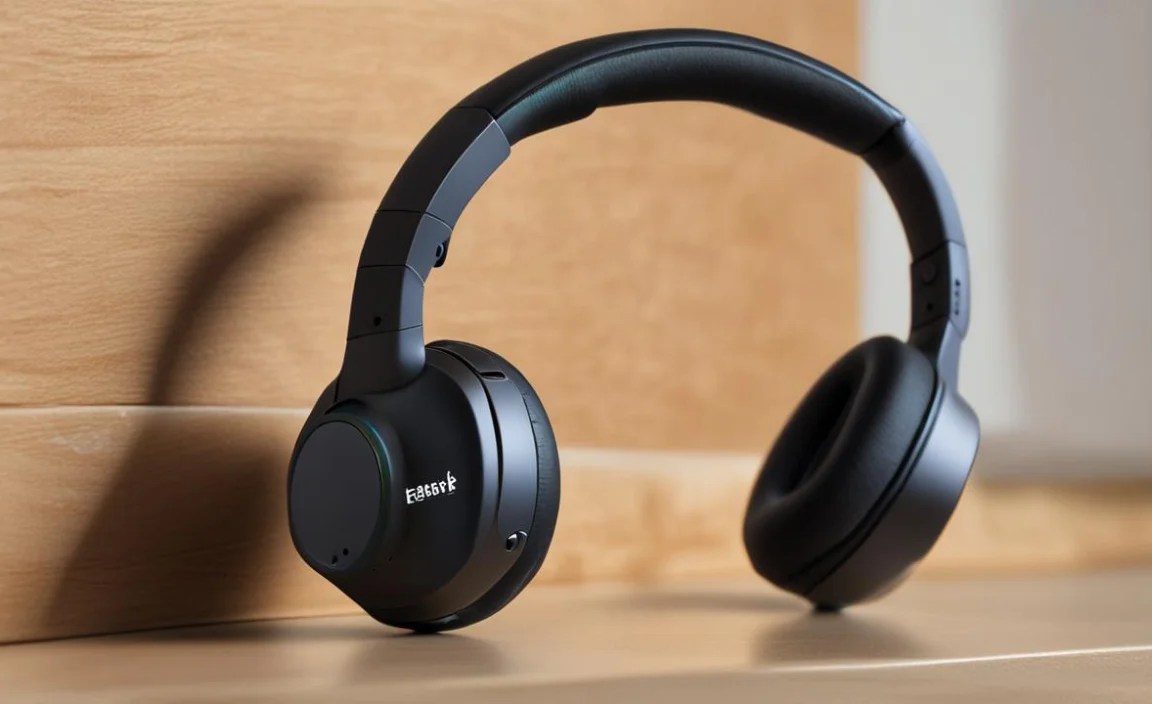
Your Apple TV can remember multiple Bluetooth devices. To switch between connected headphones or speakers, you can:
- Go to Settings > Remotes and Devices > Bluetooth.
- Select your desired device from the list of paired devices.
If a device is already paired and turned on nearby, it might connect automatically. If you want to disconnect a device without removing it from the list, select it and choose “Disconnect”. To remove a device permanently, select it and choose “Forget Device”.
Troubleshooting Common Bluetooth Connection Issues
While the pairing process is usually smooth, sometimes you might encounter a hiccup. Don’t worry; most common Bluetooth issues are easily resolved. Here are some frequent problems and their solutions:
Issue 1: Headphones Not Appearing in the List
- Check Pairing Mode: Ensure your headphones are definitely in pairing mode. Sometimes, they auto-disconnect from pairing mode after a minute or two if no device is found. Try re-entering pairing mode.
- Device Proximity: Move your headphones closer to the Apple TV.
- Interference: Other wireless devices (like microwaves or some Wi-Fi routers) can sometimes cause interference. Try to minimize these during pairing.
- Restart Devices: Turn off your headphones and restart your Apple TV (Settings > System > Restart). Then try pairing again.
Learn more about general Bluetooth troubleshooting.
Issue 2: Headphones Connected but No Sound
- Volume Check:
- Ensure the volume on your headphones is turned up.
- Check the volume on your Apple TV (Settings > Audio & Video > Volume Control > TV Speakers/AV Receiver volume, and ensure it’s not muted). When using Bluetooth headphones, the Apple TV often controls their volume directly.
- Audio Output Selection: Go to Settings > Remotes and Devices > Bluetooth. Make sure your headphones are selected as the active audio output.
- Restart Pairing: Disconnect your headphones from the Apple TV, then re-pair them.
- Test on Another Device: Pair your headphones with a smartphone or tablet to ensure they are functioning correctly.
Issue 3: Audio Lag or Sync Issues
This is more common with older Bluetooth versions or specific codecs. However, if you experience a noticeable delay between the on-screen action and the audio:
- Check Apple TV Software Updates: Ensure your Apple TV is running the latest tvOS. Go to Settings > System > Software Updates > Update Software.
- Consider Headphones with Low Latency: Some headphones support low-latency codecs like aptX Low Latency. However, compatibility depends on both the headphones and the Apple TV’s support for these specific codecs (Apple TV primarily uses AAC and SBC, which are generally good but not always the absolute lowest latency).
- Reduce Interference: As mentioned before, other wireless devices can impact Bluetooth performance.
- Wired Option (if applicable): For the absolute lowest latency, some headphones offer a 3.5mm audio jack. While this won’t work directly with Apple TV (which lacks this port), it’s a consideration for some devices. For Apple TV, Bluetooth is the primary wireless method.
Issue 4: Headphones Won’t Disconnect or Pair
- Restart Apple TV: A simple restart often resolves temporary glitches.
- Forget Device: In Settings > Remotes and Devices > Bluetooth, select your headphones and choose “Forget Device”. Then, try pairing them again from scratch.
Optimizing Your Audio Experience with Apple TV and Bluetooth Headphones
Once you’ve successfully connected your headphones, there are a few things you can do to ensure the best possible listening experience. It’s about maximizing clarity, immersion, and comfort.
Factors Affecting Sound Quality and Experience:
| Factor | Description | Impact on Experience |
|---|---|---|
| Bluetooth Version | Higher versions (e.g., Bluetooth 5.0 and above) offer better stability, range, and efficiency. | More reliable connection, less interference, potentially better sound quality. |
| Codec Support | Codecs (like SBC, AAC, aptX) compress and transmit audio. AAC is well-supported by Apple devices. | Can affect audio fidelity and latency; AAC is a good balance for Apple TV. |
| Headphone Quality | The drivers, build, and acoustic design of the headphones themselves. | Directly impacts bass, clarity, soundstage, and overall listening pleasure. |
| Battery Life | Ensuring headphones are charged for uninterrupted viewing. | Prevents annoying interruptions during movies or shows. |
| Comfort & Fit | Ergonomics for long listening sessions. | Reduces fatigue and enhances enjoyment, especially for longer content. |
| Noise Isolation/Cancellation | Ability to block out ambient noise. | Improves immersion by letting you focus on the audio. |
Tips for Enhanced Listening:
- Choose the Right Headphones: For immersive movie watching, consider over-ear headphones with good passive isolation or active noise cancellation. For casual viewing where portability is key, true wireless earbuds are excellent.
- Check Your Apple TV’s Audio Settings: While not strictly for Bluetooth headphones, ensuring your Apple TV’s audio output format is set correctly can help. Go to Settings > Audio & Video > Audio Format. Auto is usually best, but you can experiment if you encounter issues.
- Consider Spatial Audio: If your headphones and Apple TV support Spatial Audio (available on Apple TV 4K models with compatible apps), this can offer a more three-dimensional sound experience, especially with supported content. This technology aims to create an immersive theater-like soundscape.
Learn more about Spatial Audio on Apple devices. - Battery Management: Keep your headphones charged. Most have LED indicators or will notify you via an audible tone or voice prompt when the battery is low.
- Firmware Updates: Periodically check if your headphone manufacturer has released firmware updates for your model. These updates can sometimes improve performance, stability, and even sound quality.
Apple TV and AirPods: A Dream Team?
Given that both are Apple products, it’s natural to wonder about the synergy between Apple TV and AirPods (or AirPods Pro/Max). The integration is indeed seamless and offers some distinct advantages:
Advantages of Using AirPods with Apple TV:
- Effortless Pairing: If your AirPods are already paired with your iPhone or iPad signed into the same Apple ID as your Apple TV, they may appear automatically in the Bluetooth menu or even connect automatically.
- Spatial Audio: AirPods Pro and AirPods Max offer advanced Spatial Audio with dynamic head tracking, providing an incredibly immersive surround sound experience for supported content on Apple TV 4K.
- Audio Sharing: You can share audio with a second pair of compatible AirPods or Beats headphones directly from your Apple TV, allowing two people to watch and listen together privately.
- Siri Integration: Access Siri easily through your AirPods to control playback, search for content, or get information.
- Automatic Switching: Though primarily a feature between iOS devices, sometimes this intelligence extends to how Apple TV prioritizes an Apple accessory.
While other Bluetooth headphones work wonderfully, the Apple ecosystem integration with AirPods is designed for ultimate convenience and advanced audio features like Spatial Audio. This makes them a compelling choice if you’re invested in Apple products.
Frequently Asked Questions (FAQ)
How do I ensure the best sound quality from my Bluetooth headphones with Apple TV?
For the best sound quality, use headphones that support good audio codecs like AAC, which is well-optimized for Apple devices. Ensure your headphones are fully charged and that there are no major sources of Bluetooth interference. For critical listening, higher-quality headphones with larger drivers and better acoustic design will naturally perform better.
Can I connect more than one pair of Bluetooth headphones to my Apple TV at the same time?
No, a standard Apple TV can only connect to one Bluetooth audio device at a time for listening. However, with Audio Sharing on Apple TV 4K, you can share audio with a second pair of compatible AirPods or Beats headphones, allowing two people to listen privately.
Will my older Bluetooth headphones work with Apple TV?
Apple TV supports Bluetooth 4.0 and later. If your headphones are Bluetooth 4.0 or newer, they should work for basic audio playback. Older versions (like Bluetooth 3.0 or below) might not be compatible.
How do I know if my Apple TV supports Spatial Audio with Bluetooth headphones?
Spatial Audio with dynamic head tracking is primarily supported by Apple TV 4K models when using AirPods Pro or AirPods Max. You’ll need to ensure you are running the latest tvOS version and using one of these specific headphone models with compatible content from apps like Apple TV+, Apple Music, or supported third-party streaming services.
What is the range of Bluetooth for Apple TV?
The effective range for Bluetooth is typically around 30 feet (10 meters) in open space, but this can be significantly reduced by obstacles like walls, furniture, and other electronic devices causing interference. For the most stable connection, try to keep your headphones within 15-20 feet of your Apple TV.
Can I use a Bluetooth transmitter if my TV doesn’t have Bluetooth?
Yes! If your Apple TV itself doesn’t seem to be connecting correctly, or if you are looking to connect non-Bluetooth headphones to another device, a Bluetooth transmitter can be a great solution. Some transmitters even support low-latency audio, which is crucial for syncing video and audio. For Apple TV, you’d connect the transmitter to the HDMI audio output (if available, though usually not directly) or use a separate device for audio. However, Apple TV has robust built-in Bluetooth, so this is usually for more advanced setups or troubleshooting.
Do Bluetooth headphones drain Apple TV battery?
Bluetooth headphones do not draw power from the Apple TV. They have their own internal batteries that need to
