
Quick Summary: This guide makes connecting Bluetooth headphones to your laptop simple. Learn to pair easily, troubleshoot common issues, and choose the right headphones for work, study, or entertainment. Get clear, step-by-step instructions for a seamless wireless audio experience.
Bluetooth Headphones for Laptop: Your Essential Guide

Hey there, audio adventurers! Edward Cavitt here from Headphone Horizon, ready to demystify Bluetooth headphones for your laptop. Imagine kitting out your trusty laptop with amazing wireless sound – no more tangled cords holding you back! Whether you’re on a crucial video call, diving deep into an online course, or just rocking out to your favorite playlist, the right Bluetooth headphones can transform your experience.
But if you’re new to this, the thought of pairing and troubleshooting can seem a bit daunting. Fear not! This guide is crafted to be your friendly, straightforward companion, taking you from confusion to crystal-clear audio with confidence. Let’s get your laptop and headphones singing in harmony!
Why Go Wireless? The Benefits of Bluetooth Headphones for Your Laptop

Before we dive into the “how-to,” let’s quickly touch upon why Bluetooth headphones are such a fantastic choice for laptop users. The advantages are significant and can really boost your productivity and enjoyment:
- Freedom of Movement: This is the most obvious benefit! No more being tethered to your desk. You can get up, stretch, grab a coffee, or pace while on a call without interrupting your audio.
- Reduced Clutter: Say goodbye to that messy tangle of wires. A cleaner workspace is often a more productive and less stressful workspace.
- Versatility: Most Bluetooth headphones can connect to multiple devices. You can seamlessly switch between your laptop, smartphone, or tablet.
- Enhanced Audio Experience: Many modern Bluetooth headphones offer impressive sound quality, often just as good as their wired counterparts, with noise-cancellation features that are perfect for noisy environments.
- Convenience for Calls: Built-in microphones make taking calls on your laptop a breeze, all while enjoying great audio.
Understanding Bluetooth: A Quick Primer
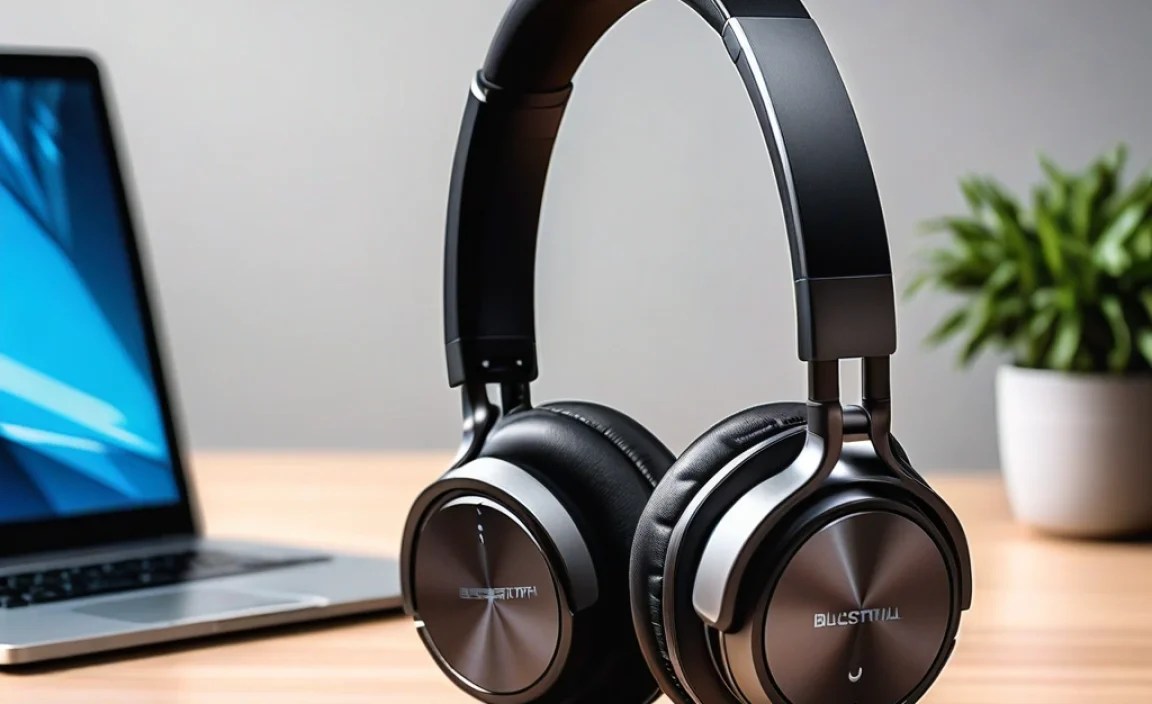
Bluetooth is a short-range wireless technology that allows devices to connect and exchange data over a small distance. Think of it as an invisible cable connecting your headphones to your laptop. For your laptop to use Bluetooth headphones, both your laptop and the headphones need to have Bluetooth capabilities, and they need to be “paired” so they can communicate securely. Most modern laptops come equipped with Bluetooth, but if yours is an older model, you might need a small USB Bluetooth adapter (sometimes called a dongle).
You can usually check if your laptop has Bluetooth enabled by looking for a Bluetooth icon in your system tray (on Windows) or your menu bar (on macOS). For a more definitive check:
- On Windows: Go to Settings > Devices > Bluetooth & other devices. If you see a toggle switch for Bluetooth, your laptop has it.
- On macOS: Click the Apple menu > About This Mac > System Report. In the sidebar, under Hardware, select Bluetooth. If you see Bluetooth information, it’s built-in.
Connecting Your Bluetooth Headphones: A Step-by-Step Guide

Connecting your Bluetooth headphones to your laptop is generally a straightforward process. While the exact steps might vary slightly depending on your operating system (Windows or macOS) and the specific headphones, the core principles are the same. Let’s break it down:
Step 1: Prepare Your Headphones
Before you can pair your headphones, they need to be discoverable. This usually means putting them into “pairing mode.” How you do this varies by model, but it typically involves:
- Charging: Ensure your headphones have enough battery life.
- Turning On: Switch your headphones on.
- Activating Pairing Mode: Look for a dedicated pairing button, or you might need to press and hold the power button for a few extra seconds beyond just turning them on. Many headphones will emit a specific sound (like a beep or a chime) or have a flashing LED light (often blue or red/blue) to indicate they are in pairing mode. Consult your headphone’s manual if you’re unsure.
Step 2: Prepare Your Laptop
Next, you need to ensure Bluetooth is enabled on your laptop and that it’s ready to search for new devices.
For Windows Users:
- Click the Start button (the Windows icon in the bottom-left corner).
- Select Settings (the gear icon).
- Click on Devices.
- In the left-hand menu, select Bluetooth & other devices.
- Make sure the Bluetooth toggle switch is turned On. If it’s off, click it to turn it on.
- Click the + Add Bluetooth or other device button at the top.
- In the “Add a device” window, select Bluetooth. Your laptop will now start scanning for nearby discoverable Bluetooth devices.
For macOS Users:
- Click the Apple menu in the top-left corner of your screen.
- Select System Settings (or System Preferences on older macOS versions).
- Click on Bluetooth in the sidebar.
- Ensure that Bluetooth is turned On. If it’s off, toggle it on.
- Your Mac will automatically start searching for discoverable Bluetooth devices in the vicinity.
Step 3: Pair Your Headphones
Once your headphones are in pairing mode and your laptop is searching, the magic happens!
- Your laptop should detect your Bluetooth headphones and list them in the available devices.
- Click on the name of your headphones when they appear in the list on your laptop’s Bluetooth settings screen.
- Your laptop might prompt you to confirm a pairing code (PIN). Usually, this is all zeros (0000) or simply requires you to confirm that the code shown matches on both devices. Follow any on-screen prompts.
- Wait for the “Connected” or “Paired” status to appear. Your headphones are now connected to your laptop!
- You should also hear a confirmation sound from your headphones, and the flashing light might change to a solid color or a slower pulse.
Step 4: Select Headphones as Audio Output
Sometimes, even after pairing, your laptop might not automatically switch the audio output to your new headphones. You’ll need to manually select them:
For Windows Users:
- Right-click the speaker icon in the system tray (usually in the bottom-right corner of your screen).
- Select Open Sound settings or Playback devices.
- Under the “Output” section (in Sound settings) or in the “Playback” tab (in Playback devices), you should see a list of available audio devices.
- Select your Bluetooth headphones from the list.
- If you’re using Sound settings, there’s a “Choose your output device” dropdown menu – select your headphones from there.
- If you’re using Playback devices, right-click on your headphones and select “Set as Default Device” to ensure all sound goes there by default.
For macOS Users:
- Click the Volume icon in the menu bar (top-right corner). If you don’t see it, you might need to enable it in System Settings > Control Center.
- Under “Output,” select your Bluetooth headphones from the list.
- Alternatively, go to System Settings > Sound > Output, and choose your headphones.
And that’s it! You should now hear all audio from your laptop through your Bluetooth headphones.
Troubleshooting Common Bluetooth Connection Issues
Even with the best technology, sometimes things don’t go as smoothly as planned. Don’t worry, most Bluetooth issues are relatively simple to resolve. Here are some common problems and their solutions:
Problem 1: Headphones Not Showing Up in Pairing List
- Check Pairing Mode: Ensure your headphones are definitely in pairing mode. This is the most common oversight. Try re-activating pairing mode.
- Proximity: Move your headphones closer to your laptop.
- Other Devices: If your headphones have been previously paired with another device (like your phone), that device might still be actively connected and preventing pairing with your laptop. Turn off Bluetooth on the other device temporarily.
- Restart: Turn your headphones off and on again. Do the same for your laptop’s Bluetooth setting (turn it off and then back on).
- Update Drivers (Windows): Sometimes, outdated Bluetooth drivers on your laptop can cause issues. You can check for updates via Device Manager.
Problem 2: Headphones Won’t Connect After Pairing
- Forget Device: On your laptop, “forget” or “remove” the headphones from your list of paired Bluetooth devices. Then, try pairing them again from scratch (follow the main steps above).
- Restart Devices: Turn both your headphones and your laptop off and then back on.
- Check Battery: Make sure your headphones are sufficiently charged.
- Interference: Other wireless devices (like Wi-Fi routers or microwaves) can sometimes interfere. Try moving away from potential sources of interference. If your laptop has an older Bluetooth version, it might be more susceptible to interference.
Problem 3: Audio is Choppy or Cuts Out
- Distance: Although wireless, Bluetooth has range limitations. Try staying closer to your laptop.
- Obstructions: Physical obstructions (like walls or even a thick desk) can degrade the signal.
- Interference: Again, other wireless devices can cause this.
- Background Processes: Sometimes, a very busy laptop with many applications running can struggle to manage the Bluetooth audio stream. Close unnecessary programs.
- Update Drivers/Software: Ensure your laptop’s operating system and Bluetooth drivers are up to date. For example, major Windows updates can sometimes improve Bluetooth performance. You can find more information on updating Windows from the official Microsoft support site.
- Headphone Firmware: Some headphones have firmware updates available. Check the manufacturer’s website for your specific model.
Problem 4: Microphone Not Working
Some Bluetooth headphones have different profiles for audio output and microphone input, and sometimes the laptop defaults to a lower-quality audio mode when the microphone is active.
- Check Input Device: In your laptop’s sound settings (as described in Step 4), ensure that your Bluetooth headphones are selected as the default microphone input device as well as the audio output.
- Check Application Settings: Some applications (like Zoom, Teams, Skype) have their own audio settings. Make sure your headphones are selected as the microphone within the application’s settings.
- Restart: A simple restart of the headphones and laptop can often fix this.
Choosing the Right Bluetooth Headphones for Your Laptop
With so many options out there, selecting the perfect pair can feel overwhelming. Consider these factors to make an informed decision:
Key Features to Consider:
- Comfort: Especially if you’ll be wearing them for long periods. Look at ear cup material, headband padding, and overall weight.
- Sound Quality: This is subjective but generally, look for headphones with balanced audio. Reviews can be very helpful here.
- Battery Life: How long do you need them to last on a single charge? Many offer 15-30+ hours.
- Microphone Quality: Crucial for calls and online meetings. Check reviews specifically mentioning microphone performance.
- Noise Cancellation (ANC): If you work in a noisy environment, Active Noise Cancellation can be a game-changer, helping you focus.
- Bluetooth Version: Newer versions (like Bluetooth 5.0, 5.1, 5.2, 5.3) generally offer better range, stability, and power efficiency. Your laptop’s Bluetooth version will also play a role.
- Codec Support: Bluetooth audio codecs (like SBC, AAC, aptX) affect sound quality and latency. AAC is great for Apple devices, while aptX is often preferred for Android and Windows. Most laptops support the standard SBC codec.
- Connectivity Features: Some headphones offer multipoint pairing (connecting to two devices simultaneously) or fast pairing technologies.
Our Top Picks: Categories for Every Need
Here’s a quick look at types of headphones that excel for laptop use:
| Type | Best For | Key Features | Considerations |
|---|---|---|---|
| Over-Ear Headphones | Immersion, Comfort, Sound Quality | Large drivers, comfortable earcups, often superior ANC and battery life. | Can be bulky, might get warm during long sessions. |
| On-Ear Headphones | Portability, Balanced Use | Lighter than over-ear, good sound, often more compact. | May not provide as much isolation as over-ear, can press on ears. |
| True Wireless Earbuds | Ultimate Portability, Calls | Compact, convenient, excellent for on-the-go or if you dislike bulky headphones. | Battery life can be shorter per charge (though cases recharge them), mic quality can vary, easier to lose. |
| Headsets with Boom Mics | Professional Calls, Gaming | Dedicated boom microphone for superior voice clarity, often designed for long talk times. | Can look less discreet, primarily designed for communication. |
When making your choice, think about your primary use case. If it’s attending endless video conferences, a headset with a good microphone might be best. For deep work or study with distractions, noise-canceling over-ear headphones are ideal. For commutes and casual listening, true wireless earbuds are hard to beat.
Optimizing Your Bluetooth Experience
Beyond just connecting, you can fine-tune your setup for the best possible experience. Here are a few tips:
- Keep Software Updated: Regularly update your laptop’s operating system and drivers, especially for Bluetooth. For Windows users, checking the laptop manufacturer’s website for specific driver updates can be more effective than relying solely on Windows Update.
- Manage Paired Devices: If you pair your headphones with many devices, it can sometimes cause confusion. Periodically “forget” devices you no longer use from your laptop’s Bluetooth list to keep it clean.
- Understand Latency: Bluetooth audio inherently has a small delay (latency) between the video and the audio. For most audio listening and general use, this is unnoticeable. However, for activities requiring precise timing, like professional audio editing or fast-paced gaming, this latency might become an issue. Some headphones and operating systems offer tools to minimize this, but wired connections are generally the only way to eliminate latency entirely.
- Power Management: On some laptops, especially those running on battery, power-saving settings can sometimes interfere with Bluetooth. Ensure Bluetooth isn’t being aggressively throttled by your power plan.
A Note on Bluetooth Versions
Matching Bluetooth versions between your laptop and headphones can enhance performance. While most devices are backward compatible (newer versions can connect to older ones), you get the best benefits with matched or complementary versions. For instance, Bluetooth 5.0 and later offer improvements in range, speed, and power efficiency. You can find more technical details about Bluetooth standards on the official Bluetooth SIG website.
Frequently Asked Questions (FAQ)
Navigating new tech can bring up questions, and that’s perfectly normal! Here are some common queries answered to boost your confidence.
Q1: Do I need a special adapter for Bluetooth headphones on my laptop?
Most modern laptops (purchased in the last 5-7 years) come with built-in Bluetooth. If your laptop doesn’t have it, you can easily get a small, inexpensive USB Bluetooth adapter (dongle) that plugs into a USB port. These are widely available and easy to set up.
Q2: Can I connect my Bluetooth headphones to multiple devices at once?
Some headphones support “multipoint pairing,” which allows them to be connected to two devices simultaneously. For example, you could be connected to your laptop and your smartphone. This is incredibly useful for switching between a work call on your laptop and a call on your phone. Check your headphone’s specifications to see if it supports multipoint.
