
Quick Summary: Connect Bluetooth headphones to your LG TV for a private, immersive viewing experience. This guide covers compatibility checks, pairing methods, troubleshooting tips, and recommended headphone types, making it easy for any user to enjoy seamless wireless audio with their LG TV.
Bluetooth Headphones for LG TV: Your Essential Guide

Are you looking to ditch the tangled wires and enjoy your favorite shows on your LG TV with crystal-clear audio? Pairing Bluetooth headphones with your LG television is a fantastic way to immerse yourself in the sound, especially for late-night viewing or when you need to focus without disturbing others.
Many modern LG TVs come equipped with built-in Bluetooth technology, making the setup process surprisingly straightforward. But what if your TV isn’t that new, or you’re unsure about the best headphones to choose? Don’t worry! This guide is designed to demystify the process, from checking compatibility and pairing your devices to selecting the right headphones and troubleshooting common issues. Let’s get you set up for the ultimate private listening experience.
Why Use Bluetooth Headphones with Your LG TV?

The benefits of connecting Bluetooth headphones to your LG TV are numerous and can significantly enhance your viewing experience:
- Privacy: Enjoy your shows, movies, or games at any volume without disturbing family members, roommates, or neighbors.
- Immersion: Wireless headphones often provide a more engaging audio experience, allowing you to hear every detail without ambient noise interference.
- Comfort: No more tripping over wires or being restricted in your movement. You can relax on the couch or even move around your room freely.
- Accessibility: For those with hearing impairments, Bluetooth headphones can provide a clearer, more direct audio feed, often with adjustable volume controls separate from the TV’s main speakers. This can be a game-changer for enjoying content.
- Gaming: Gamers particularly benefit from low latency, which minimizes the delay between on-screen action and audio, enhancing the overall gaming experience.
Understanding LG TV Bluetooth Compatibility
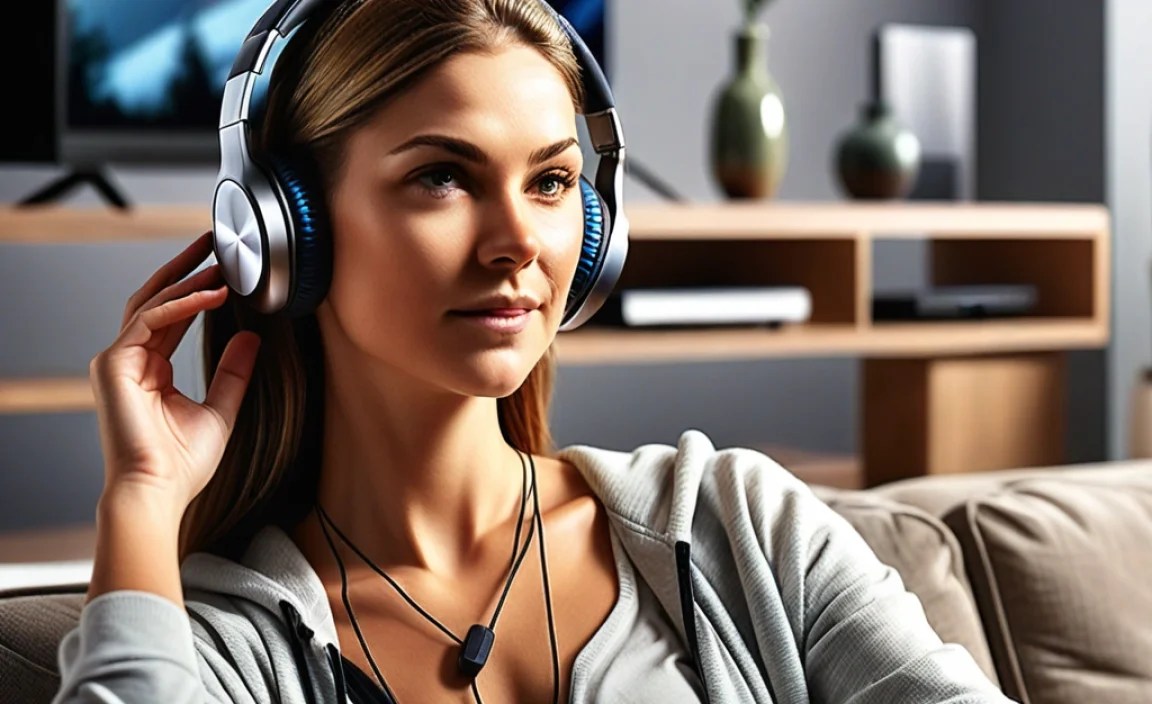
The first step to enjoying Bluetooth audio is ensuring your LG TV supports it. Most LG Smart TVs manufactured from around 2017 onwards come with built-in Bluetooth functionality. However, older models might not have this feature.
How to Check if Your LG TV Has Bluetooth
There are a couple of easy ways to check:
- Check Your TV’s Settings Menu:
- On your LG TV remote, press the Settings or Home button.
- Navigate to All Settings (or a similar option that gives you access to the full menu).
- Look for a section labeled Sound, Audio, or Connections.
- Within these menus, search for an option like Sound Output, Bluetooth, or Device Connection. If you see options to connect or manage Bluetooth devices, your TV has Bluetooth. You might need to select “Bluetooth” as the sound output.
- Consult Your TV’s User Manual or LG’s Website: If you still have the user manual for your LG TV, it will clearly state whether it has Bluetooth capabilities. You can also visit the official LG support website, enter your TV’s model number (usually found on a sticker on the back of the TV), and check its specifications.
What If Your LG TV Doesn’t Have Built-in Bluetooth?
Don’t despair if your LG TV predates built-in Bluetooth! You can easily add this functionality with a small, inexpensive accessory:
- Bluetooth Transmitter/Transmitter-Receiver: These devices plug into your TV’s audio output port (typically a 3.5mm headphone jack, optical audio out, or RCA L/R audio out) and transmit audio wirelessly to your Bluetooth headphones. Some models can also receive Bluetooth audio, making them versatile. You can find reliable options on Amazon or electronics stores. Ensure the transmitter you choose supports the audio output your TV offers.
For example, if your TV only has a 3.5mm headphone jack, you’ll need a transmitter that connects via that port. If it has an optical audio out, ensure your transmitter supports that connection type, as it often offers better audio quality.
Choosing the Right Bluetooth Headphones for Your LG TV

Not all Bluetooth headphones are created equal, especially when it comes to TV viewing. Here are some factors to consider:
Key Features to Look For:
- Bluetooth Version: Newer Bluetooth versions (like 5.0, 5.1, 5.2, or 5.3) offer better range, faster connections, and more stable performance compared to older versions (e.g., 4.0, 4.2).
- Low Latency: This is crucial for watching video. High latency means a noticeable delay between what you see on screen and what you hear, which can be very distracting. Look for headphones that explicitly mention low latency or aptX Low Latency (if both your TV/transmitter and headphones support it).
- Comfort and Fit: You’ll be wearing these for extended periods. Over-ear headphones often provide the best comfort and passive noise isolation, while on-ear and in-ear options offer portability.
- Battery Life: Ensure the headphones have enough battery life for your typical viewing sessions. Most good Bluetooth headphones offer 20+ hours of playback.
- Sound Quality: While personal preference plays a role, look for headphones known for clear dialogue and balanced audio for movies and TV shows.
- Volume Control: Built-in volume controls on the headphones are very convenient.
Recommended Types of Headphones:
- Over-Ear Headphones: Generally offer the most comfortable fit for long listening sessions and better sound isolation.
- On-Ear Headphones: A good compromise between comfort and portability.
- In-Ear Earbuds: The most portable option, great for active listening or travel, but comfort can vary.
- “TV Headphones” or “Hearing Enhancement Headphones”: Some brands specifically market headphones designed for TV watching, often emphasizing voice clarity, long-range Bluetooth, and extremely low latency.
How to Pair Bluetooth Headphones with Your LG TV (Step-by-Step)

The pairing process is generally straightforward. Follow these steps:
Step 1: Put Your Headphones in Pairing Mode
This is the most critical step, and it varies by headphone model. Typically, you’ll need to:
- Turn on your Bluetooth headphones.
- Press and hold the power button, or a dedicated Bluetooth button, until an indicator light starts flashing (often blue and red, or just a rapidly flashing blue).
- Refer to your headphone’s user manual if you’re unsure how to activate pairing mode.
Step 2: Access Your LG TV’s Bluetooth Settings
Now, navigate to your LG TV’s Bluetooth menu:
- Press the Settings or Home button on your LG remote.
- Go to All Settings.
- Select Sound.
- Choose Sound Output.
- Select Bluetooth.
- Alternatively, it might be under Connections > Bluetooth Device List or similar.
Step 3: Search for Devices on Your LG TV
Once in the Bluetooth menu on your TV:
- Your LG TV should automatically start searching for available Bluetooth devices. If not, look for an option like “Search,” “Scan,” or “Add Device.”
- Your headphones, once in pairing mode, should appear in the list of available devices on your TV screen.
Step 4: Select and Pair Your Headphones
From the list of available devices on your TV:
- Find the name of your Bluetooth headphones.
- Select your headphones using your remote.
- Your TV will attempt to connect. You might be prompted to confirm pairing.
- Once connected, the TV will usually display a confirmation message, and the indicator light on your headphones will change (e.g., turn solid blue or off).
Step 5: Set Bluetooth as the Sound Output
After successful pairing, ensure the audio is directed to your headphones:
- Go back to the Sound Output menu on your LG TV.
- Select your paired Bluetooth headphones from the list of available output devices.
- You should now hear the TV’s audio through your headphones!
Important Note for Older LG TVs or Those Needing a Transmitter: If you are using a Bluetooth transmitter, you’ll pair your headphones directly with the transmitter, not the TV. Most transmitters have a pairing button. Consult your transmitter’s manual for specific instructions. Once paired with the transmitter, the transmitter will send the audio from your TV to the headphones.
Troubleshooting Common Bluetooth Connectivity Issues
While pairing is usually smooth, you might encounter a few hiccups. Here’s how to fix them:
Issue 1: Headphones Not Appearing in the TV’s Device List
- Solution: Ensure your headphones are definitely in pairing mode. Turn them off and then back on, and re-activate pairing mode. Proximity matters; try moving the headphones closer to the TV. Also, check that no other device is currently connected to your headphones.
Issue 2: Connection Fails or is Unstable
- Solution:
- Restart Devices: Turn both your LG TV and your headphones off and then back on.
- Unpair and Re-pair: On your LG TV, go to the Bluetooth settings, find your headphones in the list, and select “Delete Device” or “Unpair.” Then, repeat the pairing process from scratch.
- Check for Interference: Other wireless devices (microwaves, Wi-Fi routers) can interfere. Try moving your TV and headphones away from potential sources of interference.
- Update TV Software: Ensure your LG TV has the latest firmware. Go to Settings > All Settings > Support > Software Update on your TV.
- Check Bluetooth Version Compatibility: If you are using a Bluetooth transmitter, ensure its Bluetooth version is compatible with your headphones.
Issue 3: Audio Lag (Lip Sync Issues)
This is a common problem with Bluetooth audio and video. The delay between video and audio can be frustrating.
- Solution:
- Use aptX Low Latency: This is the ideal solution. Check if both your LG TV (or Bluetooth transmitter) and your headphones support aptX Low Latency (or a similar low-latency codec like aptX Adaptive). This codec is designed to minimize audio delay. You might need to manually select it as the audio codec in your TV or transmitter settings if available. Learn more about codecs at aptX.com.
- Check TV Audio Settings: Some LG TVs have an “Audio Delay” or “Lip Sync” setting in the Sound menu that you can adjust manually.
- Use a Wired Transmitter: If low-latency Bluetooth is proving too difficult, consider a dedicated wireless audio system (like RF headphones, which are specifically designed for TV and have near-zero latency) or a wired connection if possible.
Issue 4: Only One Headphone Works (if using stereo)
- Solution:
- Check Headphone Balance: Ensure the balance setting on your headphones (if adjustable) is centered.
- Reset Headphones: Try resetting your headphones to factory defaults as per their manual.
- Test with Another Device: Connect your headphones to a smartphone or computer to see if both sides work. If only one side works on other devices, the headphones themselves might be faulty.
Using a Bluetooth Transmitter: A Deeper Dive
If your LG TV lacks built-in Bluetooth, a transmitter is your best friend. Here’s what to know:
Types of Audio Outputs and Corresponding Transmitters:
Your LG TV might have one or more of these audio outputs:
- 3.5mm Headphone Jack: The most common and requires a simple 3.5mm to 3.5mm connection.
- Optical Audio Out (Toslink): Often provides superior audio quality. Requires a transmitter with an optical input and an optical cable.
- RCA Audio Out (Red and White ports): Less common on modern TVs, but some older models have them. Requires a transmitter with RCA input or an RCA to 3.5mm adapter.
Setting Up a Bluetooth Transmitter:
- Connect Transmitter to TV: Plug the transmitter into the appropriate audio output port on your LG TV using the correct cable (3.5mm, optical, or RCA).
- Power the Transmitter: Most transmitters are powered via USB, often using a USB port on the TV itself or a separate power adapter.
- Put Transmitter in Pairing Mode: Press and hold the pairing button on the transmitter until its indicator light flashes.
- Put Headphones in Pairing Mode: Follow your headphone’s instructions to put them in pairing mode.
- Wait for Connection: The transmitter and headphones should automatically detect and pair with each other. The indicator lights will usually change to a solid color once connected.
- Set TV Audio Output: Ensure your LG TV’s sound output is set to the port you connected the transmitter to (e.g., “Audio Out” for headphone jack, “Optical Audio Out”).
The Importance of Low Latency Transmitters
When choosing a transmitter, prioritize models that explicitly state support for low-latency codecs like aptX Low Latency or aptX Adaptive. This is crucial to avoid that annoying lip-sync issue where the audio is delayed behind the video. For example, a transmitter that supports aptX Low Latency will work best with headphones that also support it.
A good resource for understanding audio transmission and codecs can be found on the Digital Trends website.
Tips for the Best Listening Experience
Once you’re connected, here are some extra tips:
- Keep Firmware Updated: Regularly check for software updates for both your LG TV and your Bluetooth headphones. Updates can improve performance and fix bugs.
- Manage Connected Devices: If your LG TV has a list of paired devices, it’s good practice to “forget” or delete devices you no longer use. This can prevent connection conflicts.
- Placement Matters: For the best Bluetooth range, ensure there are no major obstructions between your LG TV (or transmitter) and your headphones.
- Charge Your Headphones: A dead battery can be frustrating. Keep your headphones charged, especially before a long movie marathon.
- Consider a Dedicated TV Headphone System: If you frequently struggle with latency or connection stability, dedicated wireless TV headphones (often using RF technology instead of Bluetooth) are designed for this specific purpose and can offer superior performance.
Frequently Asked Questions (FAQ)
Q1: Can I connect two pairs of Bluetooth headphones to my LG TV at the same time?
A: Most LG TVs do not support connecting two Bluetooth headphones simultaneously for independent listening. Some TV models or specific LG operating system versions might offer this functionality, often found under advanced sound settings or called “Dual Audio” or “Music Share.” If this feature is not explicitly mentioned in your TV’s manual or settings, it’s likely not supported natively. You might achieve this with a dual-output Bluetooth transmitter.
Q2: Will my old Bluetooth headphones work with my new LG TV?
A: Generally, yes. Bluetooth is designed to be backward compatible. Your new LG TV will likely support older Bluetooth versions (e.g., 4.0, 4.2), but performance might not be as stable or efficient as with newer Bluetooth versions. If you experience issues, ensure your headphones are the latest version you have available and try re-pairing.
Q3: How do I know if my LG TV supports aptX Low Latency?
A: The best way to check for aptX Low Latency support on your LG TV is to consult your TV’s user manual, the manufacturer’s website for your specific model, or by checking the Bluetooth audio codec settings within your TV’s sound menu. If the option isn’t readily visible or mentioned in documentation, it’s unlikely to be supported.
Q4: What is the range of my LG TV’s Bluetooth?
A: The Bluetooth range for LG TVs, like most Bluetooth devices, is typically around 30 feet (about 10 meters) in an open, unobstructed space. However, this range can be significantly reduced by walls, furniture, and interference from other electronic devices. For optimal performance, keep your headphones relatively close to the TV.
