
Upgrading your Macbook experience with Bluetooth headphones is a game-changer, offering freedom from wires and enhanced audio. This guide makes picking and connecting them simple, even for beginners. Discover the benefits, how to choose the right pair, and easy setup steps to enjoy seamless sound on your Mac!
Bluetooth Headphones for Macbook: Your Essential Upgrade!

As lovers of all things audio here at Headphone Horizon, we know a thing or two about making your listening experience as fantastic as possible. If you’ve got a Macbook, you’re already working with a pretty slick piece of tech. But let’s be honest, tangled wires can put a damper on any groove.
That’s where Bluetooth headphones come in – they’re not just a convenience, they’re an essential upgrade that unlocks a new level of freedom and audio enjoyment for your Mac. Whether you’re a student jamming in the library, a professional taking calls, or just someone who loves their music, ditching the cords is a serious upgrade. This guide is here to walk you through everything you need to know, making the process simple, stress-free, and totally empowering for any user.
Why Bluetooth Headphones are a Macbook Must-Have

Let’s dive into why pairing your Macbook with Bluetooth headphones is such a brilliant move. It’s about more than just looks; it’s about a fundamentally better way to interact with your device and your audio.
Unleash Your Movement
The most obvious benefit is the freedom from wires. No more accidental tugs that yank your headphones off or limit your movement around your desk. You can comfortably get up, grab a drink, or pace while on a call without breaking the connection. This freedom is invaluable for productivity and pure enjoyment.
Declutter Your Workspace
A clean workspace can lead to a clearer mind. Bluetooth headphones help reduce cable clutter, contributing to a more organized and aesthetically pleasing setup. Your Macbook desk looks sleeker, and you’ll spend less time untangling cords.
Enhanced Audio Quality
While older Bluetooth technology sometimes came with audio quality concerns, newer versions, like Bluetooth 5.0 and above, offer robust audio transmission. Many modern Bluetooth headphones support advanced codecs (like aptX and LDAC) that deliver near-lossless sound quality, rivaling wired options for the discerning ear.
Seamless Multi-Device Connectivity
Many contemporary Bluetooth headphones can connect to multiple devices simultaneously. This means you can be listening to music on your Macbook and seamlessly switch to take a call on your iPhone without re-pairing. It’s a productivity booster that keeps you in the flow.
Convenience for Calls and Meetings
For professionals and students alike, clear audio for video calls and online meetings is crucial. Bluetooth headphones often come with integrated microphones that are far superior to your Macbook’s built-in mic, ensuring you sound clear and professional. Plus, the freedom to move around during long meetings is a definite plus.
Choosing the Right Bluetooth Headphones for Your Macbook

With so many options out there, selecting the perfect pair can feel a bit overwhelming. But don’t worry, we’ll break it down. Think about what matters most for your usage!
Types of Bluetooth Headphones
- Over-Ear Headphones: These cups completely surround your ears, offering excellent noise isolation and often the best sound quality and comfort for long listening sessions. They tend to be bulkier but provide an immersive experience.
- On-Ear Headphones: These rest on your ears rather than around them. They offer a good balance of sound quality and portability, and some find them more comfortable than over-ear models for shorter periods.
- In-Ear Earbuds (True Wireless): These are completely wire-free, with each earbud being separate. They are incredibly portable, discreet, and perfect for active lifestyles. Noise cancellation is increasingly common and effective in these.
Key Features to Consider
- Battery Life: How long do you need them to last on a single charge? Most reputable brands offer 20-30 hours for over-ear, while earbuds can range from 5-10 hours per charge with multiple recharges from their case.
- Comfort and Fit: If you plan on wearing them for extended periods, comfort is paramount. Look for padded earcups, adjustable headbands, and lightweight designs. For earbuds, ensure they come with various tip sizes to achieve a secure and comfortable fit.
- Sound Quality: This is subjective, but look for headphones that match your preferred sound profile (e.g., balanced, bass-heavy, clear mids). Reading reviews from audiophile sites can provide detailed insights.
- Active Noise Cancellation (ANC): If you work in noisy environments or travel frequently, ANC can be a lifesaver, blocking out distractions and allowing you to focus or enjoy your audio without distractions. Apple’s AirPods Pro and Max offer excellent ANC, often seamlessly integrated with macOS.
- Microphone Quality: If you’ll be using them for calls, check reviews specifically on microphone performance. Some headphones excel at picking up your voice clearly, even in noisy surroundings.
- Bluetooth Version: Newer versions (5.0 and above) offer better range, stability, and power efficiency compared to older versions.
- Codec Support: While your Macbook supports standard SBC and AAC codecs, some higher-end headphones support aptX or LDAC for potentially better audio quality, though this depends on the source and receiver.
Popular Brands to Explore
Here are a few brands known for their quality Bluetooth headphones that pair beautifully with Macbooks:
| Brand | Popular Models for Macbook | Key Strengths |
|---|---|---|
| Apple | AirPods Pro (2nd Gen), AirPods (3rd Gen), AirPods Max | Seamless integration with macOS and iOS, excellent ANC, spatial audio support, good mic quality. |
| Sony | WH-1000XM5/XM4, WF-1000XM4/XM5 | Industry-leading ANC, superb sound quality, long battery life, great app support. |
| Bose | QuietComfort Ultra Headphones, QuietComfort Earbuds II | Exceptional comfort, superior ANC, balanced sound, reliable performance. |
| Sennheiser | Momentum 4 Wireless, Momentum True Wireless 3 | Audiophile-grade sound, premium build quality, good ANC, long battery life. |
| Jabra | Elite 8 Active, Elite 4 Active | Durable, good for active use, solid call quality, decent ANC on higher models. |
Connecting Bluetooth Headphones to Your Macbook: A Simple Guide

Connecting your new Bluetooth headphones to your Macbook is a breeze. Follow these straightforward steps, and you’ll be enjoying wireless audio in no time!
Step 1: Put Your Headphones in Pairing Mode
This is the crucial first step. The exact method varies by headphone model, so it’s always best to consult your headphone’s manual. However, here are some common ways:
- Dedicated Pairing Button: Many headphones have a specific button (often marked with a Bluetooth symbol). Press and hold this button until an indicator light flashes (usually blue or white), signifying it’s discoverable.
- Power Button Hold: For some devices, particularly earbuds, holding the power button for an extended period after they turn on will activate pairing mode.
- Through the Companion App: Some headphones require you to use their dedicated app to initiate pairing.
Tip: Often, the indicator light on the headphones will blink rapidly or change color when they are in pairing mode. This is your cue they’re ready to be seen by your Macbook!
Step 2: Open Bluetooth Settings on Your Macbook
Your Macbook makes it easy to manage Bluetooth connections:
- Click the Apple menu in the top-left corner of your screen.
- Select System Settings (on macOS Ventura and later) or System Preferences (on older macOS versions).
- In the System Settings/Preferences window, click on Bluetooth in the sidebar/main window.
Step 3: Enable Bluetooth if Necessary
If Bluetooth is not already on, you’ll see a toggle switch. Click it to turn Bluetooth On.
Step 4: Search for and Connect Your Headphones
Once Bluetooth is on, your Macbook will automatically start searching for nearby discoverable Bluetooth devices. Your new headphones should appear in the list of “Nearby Devices” or “My Devices”.
- Look for the name of your headphones in the list.
- Click the Connect button next to your headphones’ name.
Troubleshooting Tip: If your headphones don’t appear immediately, ensure they are still in pairing mode and relatively close to your Macbook. You might need to refresh the Bluetooth list by toggling Bluetooth off and on again on your Mac.
Step 5: Confirm the Connection
Once successfully connected, your headphones will move from the “Nearby Devices” list to the “My Devices” list, and it will say “Connected” next to their name. You might also hear an audio cue from your headphones confirming the connection.
Step 6: Set as Audio Output Device (If Needed)
In most cases, macOS will automatically switch the audio output to your newly connected Bluetooth headphones. If you don’t hear sound or want to ensure it’s selected, you can manually change it:
- Go back to System Settings or System Preferences.
- Click on Sound.
- Under the “Output” tab, select your Bluetooth headphones from the list of available devices.
You can also quickly access sound output settings by clicking the Control Center icon in your menu bar (it looks like two sliders) and then clicking “Sound.”
Tips for Optimizing Your Bluetooth Headphone Experience on Macbook
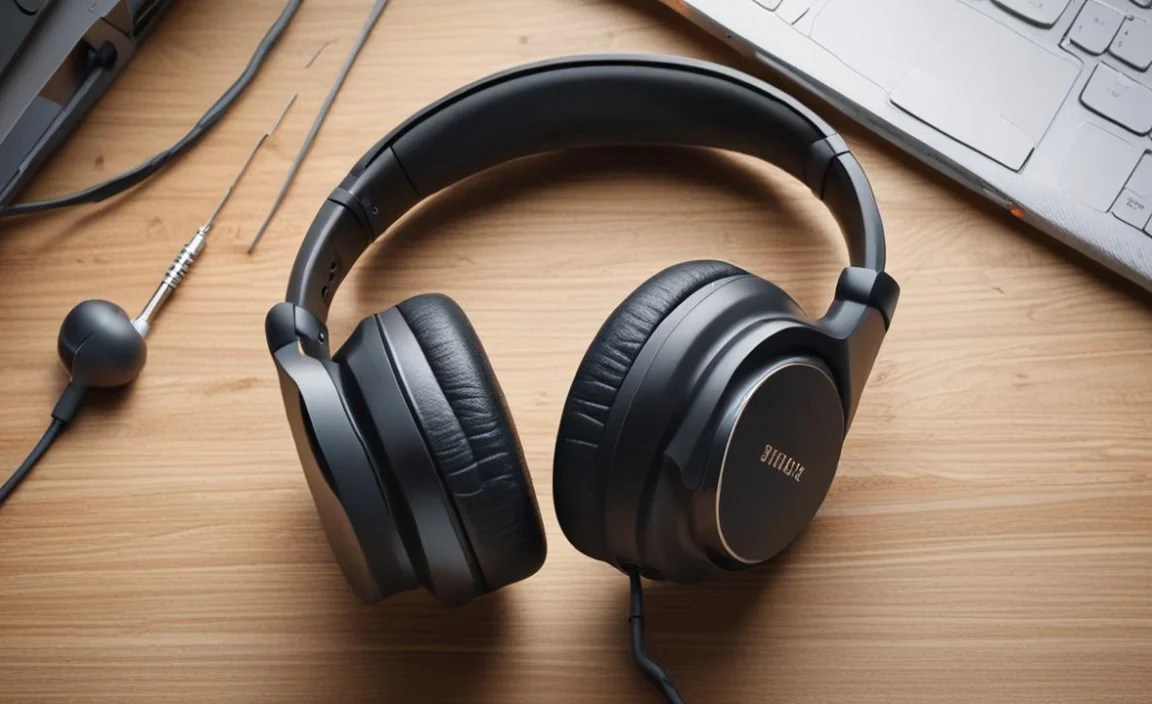
Once connected, there are a few extra steps you can take to ensure your Bluetooth headphones work their absolute best with your Macbook.
Keep Firmware Updated
Many premium Bluetooth headphones come with companion apps (e.g., Sony Headphones Connect, Bose Music App, Apple’s ecosystem). These apps often provide firmware updates that can improve performance, fix bugs, and sometimes even add new features. Make sure to download and install these updates for the best experience. For Apple’s own headphones like AirPods and AirPods Max, firmware updates are typically delivered automatically when connected to your Mac and plugged in or charging.
Manage Multiple Connections Wisely
If your headphones support multipoint connection (connecting to two devices at once), use this feature to your advantage. For example, connect to your Macbook for work and your iPhone for personal calls. Be aware that audio playback will typically pause on one device when an incoming call or notification occurs on the other. You can manage these connections through your headphone’s app.
Check Battery Levels
Your Macbook’s Bluetooth menu often displays the battery level of connected headphones. Keep an eye on this to avoid unexpected power loss. For AirPods, you can also check the battery level by opening the lid near your unlocked iPhone or by adding the battery widget to your Mac’s Notification Center.
Maximize Audio Quality (When Possible)
While Bluetooth codecs like SBC are standard, if your headphones support AAC (which Macbooks do well) or other higher-quality codecs like aptX, the connection should automatically favor the best available. For the absolute highest fidelity, consider checking if your specific headphone-Macbook combination offers any advanced audio settings through a companion app, though for most users the default settings provide excellent sound.
Utilize Spatial Audio (for supported headphones)
If you have AirPods Pro, AirPods Max, or certain Beats headphones, take advantage of Spatial Audio. This feature creates an immersive, theater-like soundstage that makes music and movies feel much more engaging. You can check and enable Spatial Audio settings within System Settings > Sound > Output or through the Bluetooth settings for your specific Apple device.
Troubleshooting Common Bluetooth Issues
Even with the best technology, occasional glitches can happen. Here are some common issues and simple fixes:
Problem: Headphones Not Connecting / Not Appearing in List
- Solution: Ensure headphones are in pairing mode. Turn Bluetooth off and on again on your Macbook. Restart your Macbook. Forget the device in Bluetooth settings and try pairing again. Check headphones’ manual for specific reset procedures.
Problem: Intermittent Audio Dropouts or Stuttering
- Solution: Move closer to your Macbook. Minimize interference from other wireless devices (like microwaves, Wi-Fi routers). Update headphone firmware. If possible, try a different Bluetooth codec (less common to control directly on Mac). Ensure your Macbook’s operating system is up to date.
Problem: Poor Microphone Quality During Calls
- Solution: Ensure the headphones are selected as the input device in System Settings > Sound > Input. Check for firmware updates for your headphones. Try moving to a quieter environment or speaking closer to the microphone. Some headphones have companion app settings to adjust mic noise suppression.
Problem: Headphones Connect but No Sound
- Solution: Double-check that your Bluetooth headphones are selected as the audio output device in System Settings > Sound > Output. Make sure the volume isn’t muted or too low on both your Macbook and the headphones themselves. Try disconnecting and reconnecting.
Problem: Battery Drains Too Quickly
This can be an issue with the headphones or the Macbook’s Bluetooth power management.
- Solution: Ensure ANC and other power-hungry features on your headphones are managed appropriately. Update headphone firmware. Check your Macbook’s battery health and ensure macOS is up-to-date. If the issue persists across devices, it might be time to contact the headphone manufacturer for support.
For comprehensive support on macOS Bluetooth, Apple provides extensive official troubleshooting guidance.
Frequently Asked Questions About Macbook Bluetooth Headphones
Q1: Do all Bluetooth headphones work with a Macbook?
Yes, virtually all standard Bluetooth headphones and earbuds are compatible with Macbooks, as MacBooks support the universal Bluetooth profiles required for audio streaming and control.
Q2: Is it better to use wired or Bluetooth headphones with my Macbook?
For pure convenience and freedom of movement, Bluetooth is superior. For audiophiles prioritizing the absolute highest fidelity with no compromise, high-resolution wired headphones can still offer an edge, but the difference is becoming increasingly negligible for everyday listening with modern Bluetooth advancements.
Q3: How do I disconnect my Bluetooth headphones from my Macbook?
You can disconnect by going to System Settings > Bluetooth, finding your headphones in the “My Devices” list, and clicking the “Disconnect” button. Alternatively, you can simply turn off Bluetooth on your Macbook or turn off your headphones.
Q4: Can I use my Bluetooth headphones for gaming on my Macbook?
Yes, you can. However, Bluetooth can sometimes introduce a slight audio delay (latency), which might be noticeable in fast-paced games. For critical gaming where timing is everything, some gamers prefer wired or low-latency wireless solutions. Many modern headphones have improved this latency significantly, but it’s something to be aware of.
Q5: How do I reset my Bluetooth headphones if they won’t connect?
The reset procedure varies greatly by brand and model. Typically, it involves holding down one or more buttons for an extended period. Always refer to your headphone’s user manual or the manufacturer’s support website for specific instructions on how to reset your particular model.
Q6: Will my AirPods work better with a Macbook than other Bluetooth headphones?
Apple’s AirPods and AirPods Max offer a more seamless integration with Macbooks due to being part of the Apple ecosystem. Features like automatic device switching, easy pairing, and Spatial Audio often work out-of-the-box with minimal setup. However, other brands offer excellent performance that just requires standard Bluetooth pairing. The sound quality and comfort are primarily determined by the headphones themselves, not just their brand relative to your Mac.
Conclusion: Step into the Wireless World!
Upgrading your Macbook experience with Bluetooth headphones is one of the simplest yet most impactful enhancements you can make. It’s about reclaiming your space, enjoying your audio with richer sound, and adding a layer of effortless convenience to your daily workflow and leisure time.
We’ve covered why they’re so great, what to look for when choosing a pair, and the easy steps to get them connected and running smoothly. Don’t let tangled wires hold you back any longer. Embrace the freedom and superior sound that Bluetooth headphones bring to your Macbook. Happy listening!
