
Quick Summary: Discover how to use Bluetooth headphones with your PS4 for immersive gaming audio without messy wires. This guide breaks down connection methods, Bluetooth adapter options, and tips for finding the perfect pair, making wireless PS4 sound simple and stress-free, even for beginners.
Hey gamers! Edward Cavitt here from headphonehorizon. Ever found yourself tangled in wires while navigating the thrilling worlds of your PS4? Or maybe you’re craving that crystal-clear audio to truly feel the pulse of the game?
You’re in the right place! For a long time, connecting wireless headphones to the PlayStation 4 seemed like a puzzle, with many wondering if it was even possible without buying costly proprietary gear. The good news is, with a few simple steps and perhaps a small adapter, you can unlock a world of untethered audio freedom. Let’s dive in and get your PS4 sounding amazing, wirelessly!
Why Go Wireless with Your PS4 Gaming Audio?

The benefits of using Bluetooth headphones for your PS4 gaming sessions are pretty significant. Beyond the obvious freedom from cable clutter, wireless audio offers a more immersive experience. Imagine hearing every footstep, every whispered hint, and every explosive sound effect with superior clarity, all without the restriction of a cord.
This can genuinely enhance your gameplay, giving you a competitive edge and a deeper connection to the virtual worlds you explore. Plus, it’s a lot more comfortable for those marathon gaming sessions, allowing you to kick back and truly get lost in the game without any physical limitations.
Benefits at a Glance:
- Freedom of Movement: No more getting tangled or pulled back by wires.
- Enhanced Immersion: Experience game audio with greater detail and spatial awareness.
- Comfort: Enjoy longer gaming sessions without the restriction of cables.
- Convenience: Easily move around your gaming space without disconnecting.
- Clearer Communication: Many wireless gaming headsets offer excellent microphones for in-game chat.
Understanding PS4’s Bluetooth Capabilities
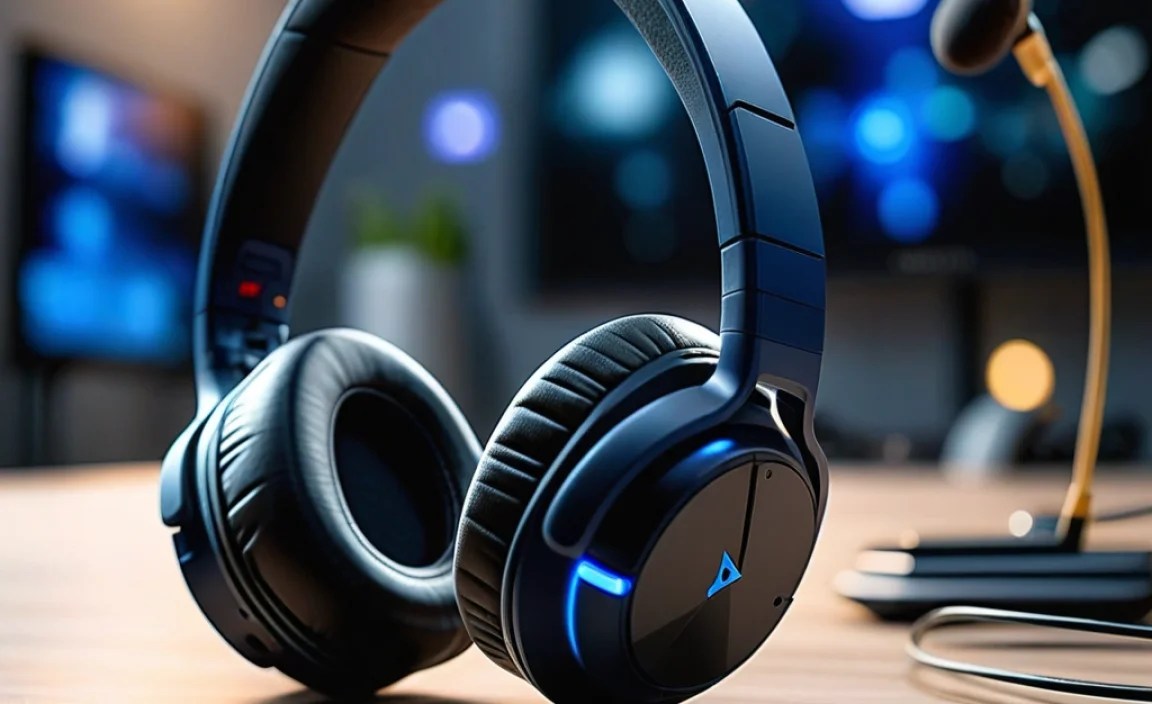
It’s important to understand that the PS4 and PS4 Pro don’t natively support all Bluetooth audio devices directly. Unlike smartphones or computers, the PlayStation 4 was designed with specific audio output protocols in mind, which can sometimes exclude standard Bluetooth headphones.
This is a common point of confusion for many newcomers to PS4 audio customization. Sony primarily designed the console to work seamlessly with wired headsets or their officially licensed wireless headsets that often use a USB dongle for a direct connection.
However, this doesn’t mean you’re out of luck! The PS4 does support Bluetooth for controllers and some other accessories, but for audio, it often requires a workaround. This is where Bluetooth audio adapters or specific types of Bluetooth headsets come into play. The key is to bypass the PS4’s standard Bluetooth audio limitations by using a device that translates the audio signal into a format the PS4 can send out wirelessly.
How to Connect Bluetooth Headphones to Your PS4: The Methods

There are a few primary ways to get your favorite Bluetooth headphones working with your PS4. Let’s break down the most effective methods, from the most straightforward to slightly more involved options.
Method 1: Using a Bluetooth Audio Transmitter/Adapter
This is by far the most common and recommended method for using standard Bluetooth headphones with your PS4. A Bluetooth audio transmitter (often called a dongle or adapter) plugs into your PS4 and converts the audio signal into a Bluetooth signal that your headphones can receive.
What You’ll Need:
- A Bluetooth audio transmitter that supports PS4 (look for USB or 3.5mm audio jack compatibility).
- Your Bluetooth headphones.
- Your PS4 console.
Step-by-Step Guide:
- Choose Your Transmitter: Ensure the transmitter you buy is compatible with the PS4. Many will plug directly into a USB port, while others might use the 3.5mm audio jack found on the DualShock 4 controller (though this can sometimes limit functionality or audio quality). USB transmitters are generally preferred for best results.
- Connect the Transmitter:
- For USB Transmitters: Plug the Bluetooth transmitter into one of the PS4’s USB ports. The PS4 should automatically recognize it as an audio output device, or you might need to configure it in the PS4 settings (we’ll cover this in the next step).
- For 3.5mm Transmitters: Plug the transmitter into the headphone jack of your DualShock 4 controller. This method might require the transmitter to have its own battery or draw power from the controller, which could affect controller battery life.
- Enable Bluetooth Pairing on Your Headphones: Put your Bluetooth headphones into pairing mode. Consult your headphone’s manual for specific instructions on how to do this (usually involves holding down a power or Bluetooth button until a light flashes).
- Pair Your Headphones with the Transmitter: Most transmitters have a pairing button. Press and hold this button until its indicator light starts flashing, signaling it’s ready to pair. Your headphones should connect automatically to the transmitter. Some transmitters might have a small screen or require you to select your headphones from a list if they support multiple connections.
- Configure PS4 Audio Output:
- Turn on your PS4.
- Navigate to Settings on the PS4 home screen.
- Select Devices.
- Choose Audio Devices.
- Under Output Device, select the Bluetooth Transmitter (it might appear with a generic name or the brand name of your adapter).
- Under Output to Headphones, select All Audio to ensure you get game sound and chat audio, or Chat Audio Only if you prefer.
- Adjust the Volume Control (Headphones) to your liking.
- Test the Audio: Launch a game or application that produces sound to confirm your headphones are working and you’re receiving clear audio.
Pro Tip: For the best experience, opt for a Bluetooth transmitter that uses a more advanced Bluetooth profile like aptX Low Latency (if both your transmitter and headphones support it). This profile significantly reduces audio delay, which is crucial for gaming. You can learn more about audio codecs and latency at resources like Rtings.com, a trusted source for audio and headphone reviews and information.
Method 2: Using Headphones with a Built-in USB Dongle
Some wireless gaming headsets are designed specifically for consoles. These often come with their own proprietary USB dongle that plugs directly into your PS4. This dongle creates a dedicated wireless connection, bypassing the PS4’s standard Bluetooth limitations and often offering a more stable connection with lower latency.
What You’ll Need:
- A wireless gaming headset with a USB dongle (ensure it’s PS4 compatible).
- Your PS4 console.
Step-by-Step Guide:
- Plug in the Dongle: Insert the headset’s USB dongle into one of the PS4’s USB ports.
- Turn on the Headset: Power on your wireless headset. It should automatically pair with the dongle.
- Configure PS4 Audio Output:
- Go to Settings on your PS4.
- Select Devices > Audio Devices.
- Under Output Device, select the USB Headset (it will likely appear with the headset’s brand name).
- Under Output to Headphones, select All Audio.
- Adjust Volume Control (Headphones) as needed.
- Enjoy: Your headset should now be connected and delivering high-quality game audio.
This method generally offers the most seamless experience, as these headsets are often optimized for gaming with features like low latency and clear microphone performance.
Method 3: Using Bluetooth Headphones with a PS4 Controller’s 3.5mm Jack (Limited Use)
This is a less common and often less effective method, but it’s worth mentioning. If your Bluetooth headphones have a detachable audio cable, you can plug that cable into the PS4 controller’s 3.5mm headphone jack. However, this connects you via a wire, defeating the purpose of wireless headphones.
This method is really only useful if you want to use the headphones’ microphone wirelessly (if the headphones support dual-mode Bluetooth or include a separate adapter for this) or if you’re using a separate Bluetooth adapter transmitter plugged into the controller as described in Method 1.
Important Note: While the PS4 controller has a 3.5mm jack, it’s primarily for wired audio input/output. Connecting standard Bluetooth headphones directly through a cable doesn’t magically enable Bluetooth audio output from the PS4 itself through the controller. You still need a way for the PS4 to send its audio wirelessly.
Choosing the Right Bluetooth Headphones for Your PS4
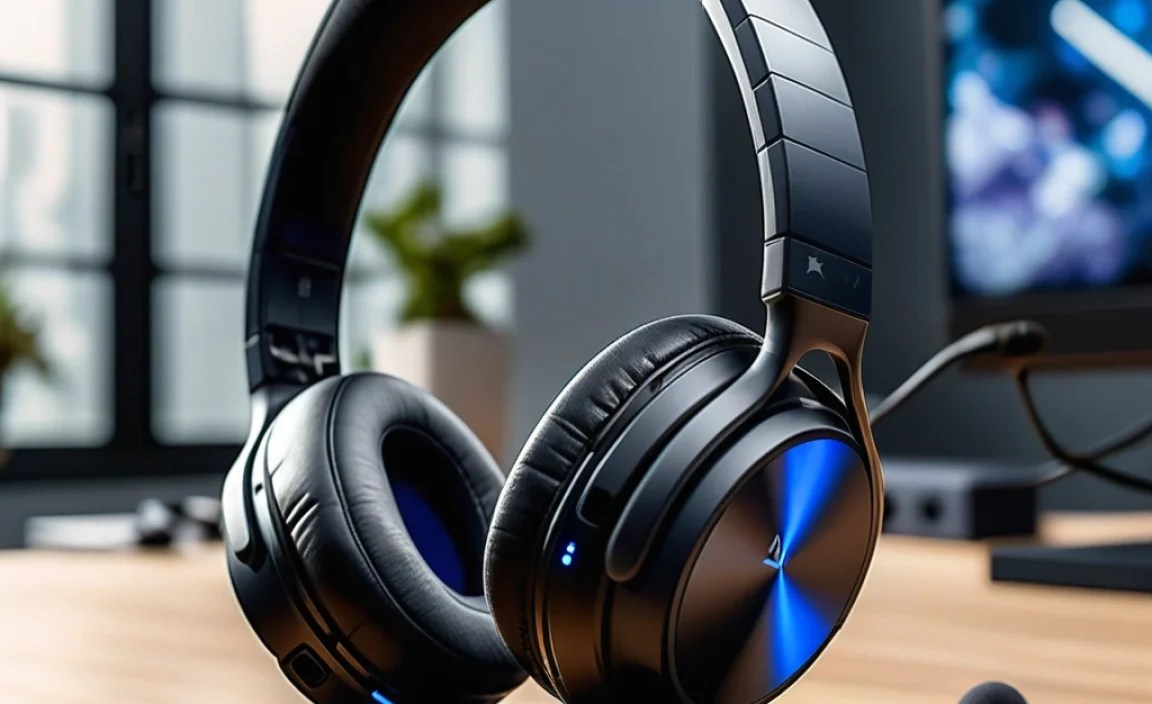
When selecting Bluetooth headphones for your PS4, several factors come into play. It’s not just about brand names; it’s about features that enhance your gaming experience.
Key Features to Consider:
- Low Latency: This is paramount for gaming. High latency (delay) between the on-screen action and the audio can throw off your timing and ruin immersion. Look for headphones or transmitters that support low-latency codecs like aptX LL.
- Comfort: Gaming sessions can be long. Ensure the headphones are lightweight, have comfortable earcups, and a good headband fit.
- Microphone Quality: If you play multiplayer games and need to communicate with teammates, a clear and effective microphone is essential. Some headphones have boom mics, while others use built-in mics.
- Battery Life: You don’t want your headphones dying mid-game. Check the advertised battery life and consider how quickly they can recharge.
- Sound Quality: While all headphones produce sound, gaming requires good positional audio (for directional cues), clear dialogue, and impactful sound effects.
- Connectivity Options: Some headphones offer robust Bluetooth connectivity, while others might also come with a USB dongle or an audio cable for flexibility.
Bluetooth Transmitter vs. PS4-Specific Wireless Headsets
To help you decide, here’s a quick comparison of the two main approaches:
| Feature | Bluetooth Transmitter + Standard Headphones | PS4-Specific Wireless Headset with Dongle |
|---|---|---|
| Flexibility | Use your existing favorite Bluetooth headphones. | Comes as a complete package, optimized for PS4. |
| Latency | Depends heavily on transmitter and headphone codec support (aptX LL recommended). Can vary. | Generally very low latency due to proprietary connection. |
| Setup | Requires pairing both transmitter and headphones. | Usually plug-and-play with the dongle. |
| Audio Quality | Varies by your headphones. | Often tuned for gaming, with emphasis on spatial audio. |
| Microphone | Relies on headphone’s built-in mic or requires a separate mic solution if not integrated well. | Typically includes a dedicated, high-quality gaming microphone. |
| Cost | Can be more cost-effective if you already own good headphones. | Can be a significant investment, but often offers a premium experience. |
Troubleshooting Common PS4 Bluetooth Audio Issues
Even with the best setup, you might run into a few bumps in the road. Here are some common issues and how to fix them:
- No Sound:
- Double-check that your headphones are properly paired and connected to the transmitter/dongle.
- Ensure the correct Output Device is selected in PS4’s Audio Devices settings.
- Verify that Output to Headphones is set to All Audio.
- Check the volume levels on both the PS4 and your headphones.
- Try restarting both your PS4 and your headphones.
- Audio Lag (Latency):
- If using a Bluetooth transmitter, ensure it and your headphones support low-latency codecs like aptX LL.
- Try switching to a USB port closer to the console if using a USB transmitter to minimize interference.
- Reduce other wireless devices operating nearby that might cause interference (e.g., Wi-Fi routers, other Bluetooth devices).
- If possible, try a wired connection to rule out Bluetooth as the sole issue.
- Microphone Not Working:
- In PS4’s Audio Devices settings, ensure that the microphone input is correctly set (especially if using a separate adapter or a USB headset).
- Check if the microphone is muted on the headset itself.
- Confirm that your headphones’ microphone can be used simultaneously with audio output for PS4 (some older Bluetooth profiles had limitations).
- Connection Drops:
- Ensure your Bluetooth transmitter and headphones are within range.
- Minimize interference from other electronic devices and physical obstructions. Thick walls or metal objects can degrade signal strength.
- Make sure both your transmitter and headphones have sufficient battery charge.
- Try re-pairing the devices: unpair them from each other and go through the pairing process again.
For more in-depth technical support, especially regarding network connectivity and latency, you can refer to guides like those on the PlayStation Support website, which often has articles covering device connectivity.
FAQ: Your PS4 Bluetooth Audio Questions Answered
Got more questions about getting your Bluetooth headphones hooked up to your PS4? Here are some common queries addressed:
Q1: Can I connect any Bluetooth headphones directly to my PS4?
A1: Unfortunately, no. The PS4 does not natively support all Bluetooth audio devices directly. You typically need a Bluetooth audio transmitter, a USB dongle specific to the headset, or headphones designed with PS4 compatibility in mind.
Q2: What is latency, and why is it important for PS4 gaming?
A2: Latency is the delay between when an action happens in the game and when you hear the corresponding sound. For gaming, low latency is crucial so that the audio matches the on-screen visuals, preventing you from feeling out of sync and impacting your reaction time.
Q3: Do I need a special Bluetooth adapter for PS4?
A3: For most standard Bluetooth headphones, yes, you’ll need a Bluetooth audio transmitter (adapter) that plugs into your PS4. This adapter converts the PS4’s audio output into a Bluetooth signal your headphones can receive. Headsets designed for PS4 often come with their own USB dongle.
Q4: Will using a Bluetooth adapter drain my PS4’s battery faster?
A4: If the adapter plugs into a USB port, it will draw power from the PS4, which uses a small amount of the console’s overall power. If you’re using a transmitter connected to the controller’s 3.5mm jack, it might draw some power from the controller, potentially reducing controller battery life slightly.
Q5: Can I use my Bluetooth headphones for both game audio and voice chat?
A5: Yes, you generally can. In the PS4’s Audio Devices settings, you can choose to output ‘All Audio’ to your headphones. However, the quality of the microphone and its ability to transmit clearly can vary greatly depending on the headphones and the Bluetooth connection.
Q6: What is aptX Low Latency (aptX LL), and should I look for it?
A6: aptX Low Latency is a Bluetooth audio codec technology designed to significantly reduce audio delay. If both your Bluetooth transmitter and your headphones support aptX LL, you’ll experience a much more enjoyable gaming experience with minimal audio lag.
Q7: How do I make sure my PS4 recognizes my Bluetooth adapter?
A7: Once plugged in, the PS4 should attempt to recognize the adapter. You might need to manually select it as the ‘Output Device’ in Settings > Devices > Audio Devices. If it’s not appearing, try a different USB port or ensure the adapter’s firmware is up to date (check the manufacturer’s website).
Conclusion: Elevate Your PS4 Gaming Experience
As you can see, enjoying wireless Bluetooth audio with your PlayStation 4 is entirely achievable, even if it requires a little extra setup beyond a simple direct connection. By understanding the PS4’s Bluetooth limitations and utilizing a compatible Bluetooth audio transmitter or a dedicated wireless headset, you can banish those pesky wires and immerse yourself fully in your favorite games. The key is choosing the right method and gear for your needs, prioritizing low latency for that critical gaming edge, and comfortable wear for those extended
