
Quick Summary: Enjoy your TV without disturbing others! Connecting Bluetooth headphones to your TV is easier than you think. This guide walks you through the straightforward steps, explains common setup methods, and helps you choose the right headphones for a smoother, more personal viewing experience.
Welcome to headphonehorizon! Are you tired of missing dialogue on your favorite shows or constantly asking others to turn down the volume? Or perhaps you love late-night viewing but don’t want to disturb your household. Whatever your reason, using Bluetooth headphones with your TV can be a game-changer, offering a private, immersive audio experience.
Many people think it’s complicated, but I’m here to show you that connecting your “bluetooth headphones for tv” is actually a proven and effortless process. We’ll break down how to do it, what you’ll need, and how to get the best sound quality so you can get back to enjoying your entertainment without a fuss.
Why Use Bluetooth Headphones with Your TV?

The benefits of pairing Bluetooth headphones with your television are numerous and can significantly enhance your viewing habits:
- Personalized Volume Control: Enjoy your shows at a volume that’s comfortable for you without affecting others in the room. This is perfect for families with different listening preferences or for those with hearing impairments.
- Enhanced Immersion: Headphones can deliver clearer, more detailed sound than TV speakers, making dialogue crisper and action sequences more impactful. You can truly get lost in the movie or game.
- Late-Night Viewing: Watch movies or TV series late into the night without disturbing sleeping family members or housemates.
- Accessibility: For individuals with hearing loss, specially designed TV headphones can amplify dialogue and reduce background noise, making TV more accessible and enjoyable.
- Reduced Clutter: Say goodbye to long, tangled audio cables that can be a tripping hazard or an eyesore.
Understanding How to Connect: Two Main Paths
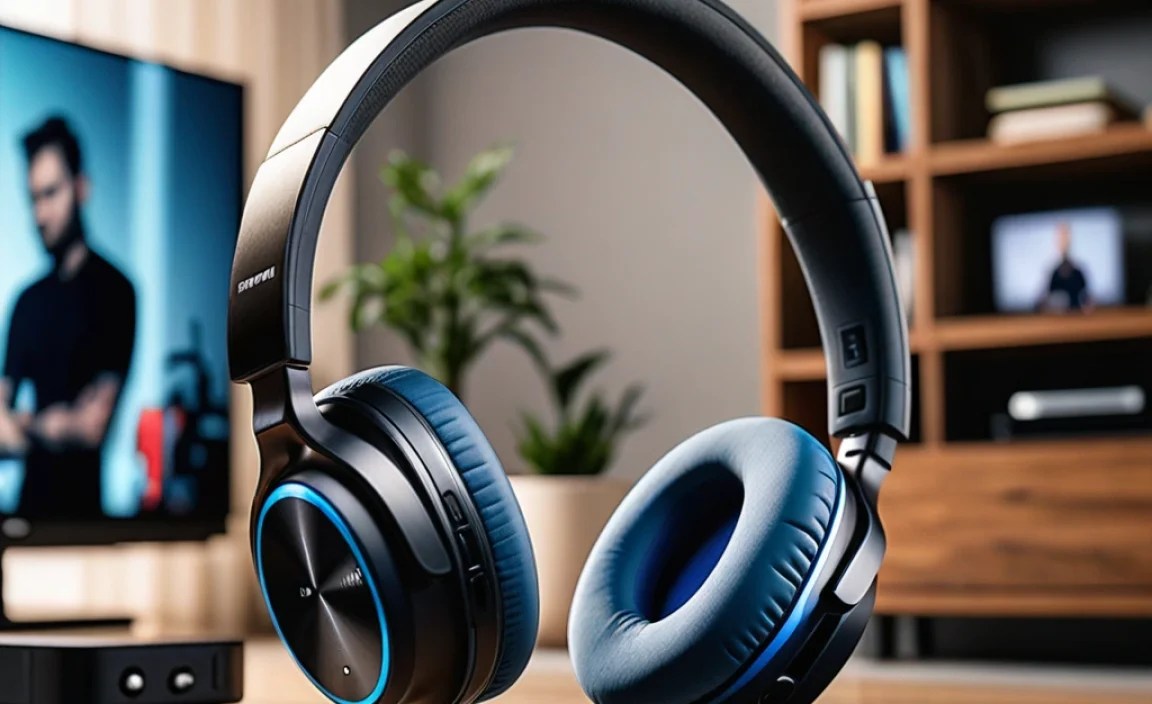
Connecting Bluetooth headphones to your TV generally falls into two main categories, depending on your television’s built-in capabilities. We’ll explore each one in detail.
Path 1: Your TV Has Built-in Bluetooth
This is the simplest and most common scenario in modern TVs. If your TV has integrated Bluetooth, the process is very similar to pairing headphones with your smartphone.
Step-by-Step: Connecting to a Bluetooth-Enabled TV
- Put Your Headphones in Pairing Mode: Check your headphone’s user manual for specific instructions, but typically, you’ll need to press and hold a power or Bluetooth button until an indicator light flashes (often blue, red/blue, or white). This signifies they are ready to connect.
- Access Your TV’s Bluetooth Settings:
- On your TV remote, press the ‘Settings’ or ‘Menu’ button.
- Navigate to the ‘Sound’ or ‘Audio’ settings.
- Look for an option like ‘Bluetooth,’ ‘Add Device,’ ‘Wireless Speakers,’ or ‘Audio Output.’
- Select ‘Bluetooth’ and then choose ‘Add Device’ or ‘Search for Devices.’
The exact wording varies significantly between TV brands and operating systems (like LG’s webOS, Samsung’s Tizen, or Android TV). If you’re having trouble finding it, consult your TV’s manual or search online for “[Your TV Brand] [Your TV Model] connect Bluetooth headphones.”
- Select Your Headphones from the List: Your TV will scan for available Bluetooth devices. Once your headphones appear in the list (usually by their model name, e.g., “Sony WH-1000XM5” or “AirPods”), select them.
- Confirm the Pairing: Your TV might display a confirmation message or simply connect automatically. Your headphones might also give an audio cue indicating they are connected.
- Test the Audio: Play some content on your TV and check if the sound is coming through your headphones. You may need to adjust the volume on your headphones or TV.
Troubleshooting for Built-in Bluetooth
If you can’t connect:
- Ensure your headphones are fully charged and in pairing mode.
- Make sure your headphones aren’t already connected to another device (like your phone). Turn off Bluetooth on other devices if necessary.
- Restart both your TV and your headphones.
- Try removing any previously paired devices from your TV’s Bluetooth list and try pairing again.
- Check your TV’s manual or manufacturer’s website for compatibility notes. Some TVs may only support certain Bluetooth profiles or codecs for audio.
Path 2: Your TV Does Not Have Built-in Bluetooth
Don’t despair if your TV is older or simply lacks Bluetooth functionality! You can easily add this capability using a Bluetooth transmitter/receiver.
What You’ll Need: A Bluetooth Transmitter/Receiver
These handy devices plug into your TV’s audio output and broadcast the sound via Bluetooth to your headphones. They are often referred to as Bluetooth audio adapters or dongles.
When choosing a transmitter, consider these factors:
- Audio Output Compatibility: Ensure the transmitter supports the audio ports available on your TV. The most common are:
- 3.5mm Headphone Jack: The easiest to connect, it looks like a standard headphone port.
- RCA (Red and White) Audio Jacks: You might need an adapter cable if the transmitter only has 3.5mm.
- Optical Audio (S/PDIF) Port: For higher quality audio, if your TV and transmitter support it.
- Low Latency Support (aptX LL, aptX HD): This is crucial for TV viewing. Standard Bluetooth can have a noticeable delay between the video and audio, which is distracting. Look for transmitters that support “Low Latency” codecs like aptX LL (aptX Low Latency). This provides near-synced audio and video. For more information on Bluetooth codecs, you can refer to resources like the official Bluetooth Technology Quick Reference Guide.
- Battery Life (if applicable): Some transmitters are battery-powered, others plug into a USB port on your TV for power. Battery-powered ones are convenient for portability but require charging.
- Number of Devices Supported: Some transmitters can connect to two pairs of headphones simultaneously, which is great for sharing the experience.
- Range: Most Bluetooth transmitters offer a decent range, but check specifications if you plan to move around a lot while watching.
Step-by-Step: Using a Bluetooth Transmitter
- Choose the Right Audio Output on Your TV:
- 3.5mm Headphone Jack: This is the most straightforward. You’ll likely plug the transmitter directly into this port.
- RCA Audio Out (Red/White): If your TV only has RCA outputs, use an RCA-to-3.5mm adapter cable to connect to the transmitter.
- Optical Audio Out: If both your TV and transmitter have optical ports (usually a small, square port with a flap, often labeled ‘Optical Out’ or ‘Digital Audio Out’), use an optical cable for the best quality. You might need a converter if your transmitter only accepts 3.5mm input.
Important: When using wired audio outputs like RCA or Optical, you might need to configure your TV’s audio settings. Go to your TV’s sound settings and select the correct audio output. Some TVs also allow you to disable the TV’s internal speakers when an external audio device is connected. This is often found under ‘Audio Output’ or ‘Sound Out’ settings.
- Connect the Transmitter to Your TV: Plug the transmitter into the chosen audio output port on your TV using the appropriate cable (3.5mm, RCA, or optical).
- Power the Transmitter:
- If it has a built-in battery, ensure it’s charged.
- If it requires external power, plug it into a USB port on your TV or a USB power adapter.
- Put the Transmitter in Pairing Mode: Similar to headphones, there’s usually a button on the transmitter. Press and hold it until an indicator light flashes, showing it’s ready to pair.
- Put Your Headphones in Pairing Mode: Follow your headphone manual’s instructions to make them discoverable, just as you would for connecting to a phone or a Bluetooth-enabled TV.
- Pair the Transmitter and Headphones: Bring your headphones close to the transmitter. They should automatically detect and pair with each other. The indicator lights on both devices will typically change to a solid color or stop flashing once connected.
- Test the Audio: Play content on your TV. If you don’t hear sound, double-check that your TV’s audio output is set correctly and that the transmitter is powered on and paired. Adjust volumes on both your headphones and, if applicable, on the TV and transmitter.
Choosing the Right Bluetooth Headphones for TV
While many Bluetooth headphones can work, some features are particularly beneficial for TV watching:
Recommended Features for TV Headphones
- Low Latency Codecs (aptX LL, aptX HD): As mentioned, this is critical for eliminating audio delay. If neither your TV nor your transmitter supports aptX LL, you might experience noticeable lip-sync issues.
- Comfort: You’ll be wearing them for extended periods. Over-ear headphones often provide the best comfort and passive noise isolation.
- Long Battery Life: For binge-watching sessions, good battery life is a must. Many models offer 20-30+ hours on a single charge.
- Volume Control: On-ear or in-line controls make it easy to adjust the volume without reaching for your remote or phone.
- Built-in Microphone (Optional): If you use your TV for video calls or gaming with voice chat, a good microphone is a plus, though not essential for general viewing.
Headphone Types to Consider
Here’s a quick look at common types and their suitability for TV:
| Headphone Type | Pros for TV | Cons for TV |
|---|---|---|
| Over-Ear (Circumaural) | Excellent comfort for long sessions, great passive noise isolation, often the best comfort and audio quality. | Can be bulky, may cause ears to get warm after extended use. |
| On-Ear (Supra-aural) | Lighter than over-ear, more portable. | Can be less comfortable for long durations as they press on the ears, less passive noise isolation. |
| In-Ear (Earbuds/IEMs) | Very portable, good for active users, some models offer excellent noise cancellation. | Comfort can vary greatly, some find them uncomfortable for long periods, soundstage might be less immersive than over-ear. |
| Neckband Bluetooth | Less likely to fall off, earbuds often magnetically attach when not in use. | Can feel restrictive for some, battery life might be limited by the size of the neckband. |
Advanced Options: Bluetooth Transmitters with Multiple Connections
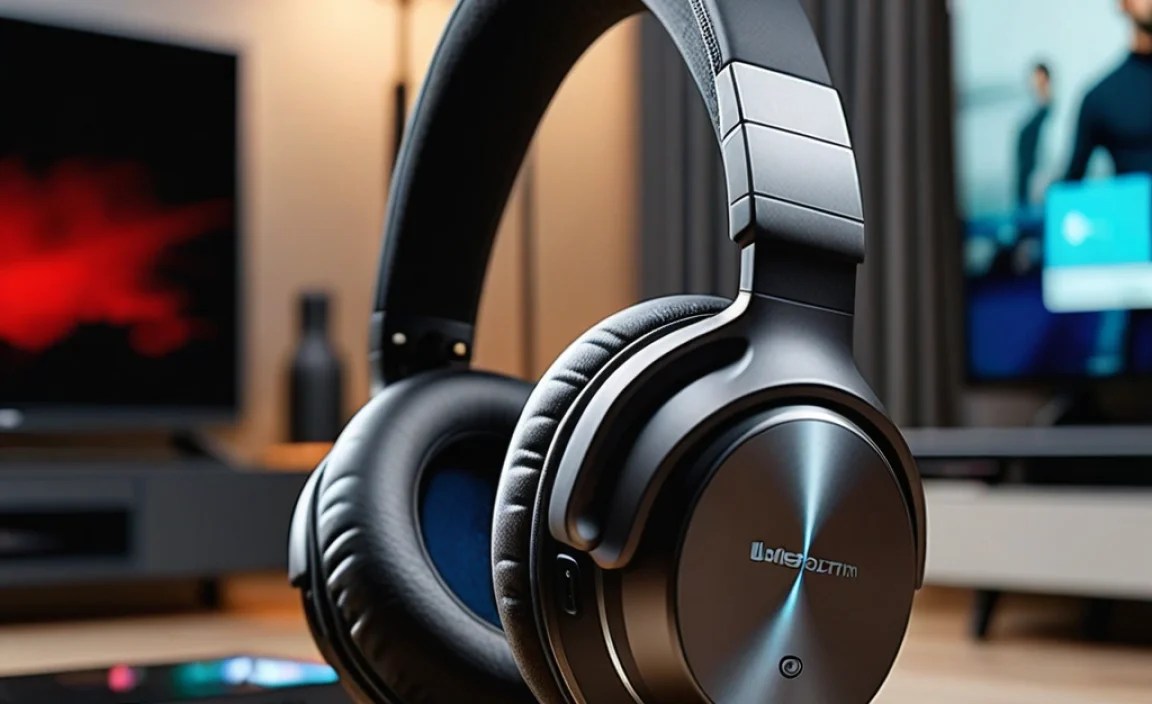
If you often watch TV with a partner and want to use two pairs of headphones simultaneously, look for a Bluetooth transmitter specifically designed for dual connections. These devices pair with two headphones at the same time, allowing both viewers to control their own volume (usually via their respective headphones).
When using dual-connection transmitters, each headphone pair needs to be paired individually to the transmitter. Follow the transmitter’s manual for pairing instructions, which often involves putting both headphones in pairing mode sequentially.
Maintaining Your Bluetooth Setup for Longevity
To ensure your “bluetooth headphones for tv” and any associated transmitters work reliably for a long time, simple maintenance goes a long way:
- Keep Them Clean: Regularly wipe down your headphones and transmitter with a soft, dry cloth. For earcups, use a slightly damp cloth if necessary, avoiding harsh chemicals.
- Proper Charging: Follow the manufacturer’s recommendations for charging. Avoid overcharging or letting the battery drain completely too often.
- Store Safely: When not in use, store your headphones and transmitter in a protective case or a safe place where they won’t be crushed or exposed to extreme temperatures.
- Update Firmware: Some higher-end headphones and transmitters can receive firmware updates that improve performance or fix bugs. Check the manufacturer’s app or website periodically.
- Handle Cables with Care: If you’re using any adapter or connection cables, handle them gently to avoid fraying or damage.
For more in-depth advice on headphone care, resources like Rtings.com offer comprehensive guides on cleaning and maintenance tailored to different headphone types.
Frequently Asked Questions (FAQ)
Q1: Will any Bluetooth headphones work with my TV?
Not necessarily. While most standard Bluetooth headphones (like those for smartphones) will pair with a Bluetooth-enabled TV or transmitter, you might encounter compatibility issues regarding audio codecs. For the best experience, especially to avoid lip-sync issues, look for headphones and transmitters that support low-latency codecs like aptX LL. If your TV/transmitter only supports standard SBC, you might experience a delay. Always check the specifications of both your TV and headphones.
Q2: How do I fix the audio delay (lip-sync) with my TV headphones?
Lip-sync issues are almost always caused by Bluetooth latency. Your primary solution is to ensure both your TV (or transmitter) and headphones support a low-latency codec like aptX LL. For TVs that don’t have built-in Bluetooth, use a transmitter that explicitly advertises aptX LL support. If you’re already using aptX LL-compatible devices and still have a delay, check your TV’s audio settings to see if there’s a manual lip-sync adjustment feature. Restarting your devices can sometimes resolve temporary glitches.
Q3: My TV doesn’t have Bluetooth. What’s the easiest way to connect headphones?
The easiest method is to use a Bluetooth audio transmitter/receiver. These plug into your TV’s audio output (like the headphone jack, RCA, or optical port) and broadcast the sound wirelessly to your Bluetooth headphones. Make sure to get one that supports a low-latency codec (aptX LL) for the best viewing experience.
Q4: Can I connect two pairs of headphones to my TV at the same time?
Yes, but your TV needs to support it or you need specific equipment. Some newer TVs have a setting to connect two Bluetooth audio devices. Alternatively, you can purchase a Bluetooth transmitter that is advertised as supporting dual connections, allowing two pairs of headphones to listen simultaneously.
Q5: How far can Bluetooth headphones be from my TV?
The standard Bluetooth range is typically around 30 feet (10 meters) in an open, unobstructed space. However, this can be significantly reduced by walls, furniture, and other electronic devices that may cause interference. For reliable audio, it’s best to keep your headphones within about 15-20 feet of your TV or transmitter.
Q6: Do I need special headphones for TV, or will my regular Bluetooth earbuds work?
Your regular Bluetooth earbuds or headphones will likely work for pairing. However, for the best TV experience, focus on whether they support low-latency codecs like aptX LL to minimize audio delay. If they only support standard SBC, you might notice a lag between the picture and sound, which can be distracting for movies and shows.
Conclusion
Connecting Bluetooth headphones to your TV is a straightforward and highly rewarding upgrade to your home entertainment setup. Whether your TV comes equipped with built-in Bluetooth or you opt for an inexpensive Bluetooth transmitter, the process is designed to be user-friendly. By understanding your TV’s capabilities, choosing headphones with the right features (especially low latency), and following these simple steps, you can effortlessly unlock a more immersive, personalized, and enjoyable way to experience your favorite content. No more missed dialogue, no more disturbing others – just pure audio enjoyment tailored perfectly for you. Happy viewing and listening!
