
Quick Summary: Discover how Bluetooth headphones enhance your TV experience! This guide simplifies choosing, connecting, and using wireless headphones for TV, ensuring crystal-clear audio without disturbing others. Learn about necessary adapters, latency, and comfort for an immersive viewing setup.
Bluetooth Headphones for Watching TV: Your Essential Guide to Clear, Private Audio
Are late-night TV sessions a source of frustration for those around you? Or perhaps you’re tired of fiddling with long audio cables that restrict your movement? If so, bringing Bluetooth headphones into your home theater is a game-changer. Imagine enjoying every whisper, every explosion, and every musical score with stunning clarity, all without a single cord tying you down or waking up the rest of the household. This guide is crafted for anyone looking to enhance their TV viewing with the effortless convenience of wireless audio, even if you’re brand new to the technology. We’ll break down exactly what you need to know to make informed choices and set up your perfect, private listening sanctuary.
Why Use Bluetooth Headphones for Watching TV?

The benefits of using Bluetooth headphones for your television are numerous and can significantly upgrade your entertainment experience. It’s not just about convenience; it’s about improving audio quality, accessibility, and overall enjoyment.
- Enhanced Audio Clarity: Many modern Bluetooth headphones offer superior sound quality compared to the built-in speakers of most TVs. You can finally hear subtle dialogue perfectly and appreciate the full dynamic range of soundtracks.
- Personalized Volume Control: Enjoy your shows at your preferred volume without disturbing family members, roommates, or neighbors. This is especially useful for those with hearing impairments who might need the volume louder than others can comfortably tolerate.
- Freedom of Movement: No more being tethered to your TV by audio cables. Bluetooth provides a wireless connection, allowing you to get up, grab a snack, or move around your living space freely while staying connected to the audio.
- Reduced Latency: While an historical issue, modern Bluetooth technology, particularly with the aptX Low Latency codec, has dramatically reduced audio delay. This means the sound is much more likely to stay in sync with the on-screen action, preventing that jarring disconnect.
- Accessibility: For individuals with hearing loss, Bluetooth headphones can be a lifeline, allowing them to enjoy television at a volume and clarity that suits their individual needs.
Understanding Bluetooth and Your TV: What You Need to Know

Connecting Bluetooth headphones to your TV isn’t always as simple as pressing a button, but with a little understanding, it’s entirely achievable. The main factor is whether your TV already has built-in Bluetooth capabilities.
Does Your TV Have Built-In Bluetooth?
This is the first and most crucial question. Many newer smart TVs come equipped with Bluetooth, making the process incredibly straightforward. You can usually find this information in your TV’s settings menu or by consulting your TV’s manual. Look for options related to audio output, sound settings, or accessories, and you might see a Bluetooth pairing option.
How to Check:
- Turn on your TV.
- Navigate to the Settings menu.
- Look for Sound or Audio settings.
- Within those menus, search for Bluetooth, Wireless Devices, or External Speakers.
- If you see an option to “Add Device” or “Pair New Device,” your TV has Bluetooth!
If your TV doesn’t have built-in Bluetooth, don’t worry! There’s a simple and effective solution: a Bluetooth transmitter/receiver. These small devices plug into your TV’s audio output (usually a headphone jack, optical audio out, or RCA jacks) and broadcast the audio signal via Bluetooth to your headphones.
What is Bluetooth Latency and Why It Matters
Latency refers to the tiny delay between the audio signal being generated and it reaching your ears. For everyday listening, a small delay might go unnoticed, but when watching TV or movies, even a slight lag between the on-screen action and the sound can be incredibly distracting. This is often referred to as “lip-sync issues.”
Different Bluetooth versions and audio codecs handle latency differently:
- SBC (Subband Codec): This is the standard, most basic Bluetooth audio codec. It’s universally compatible but can have higher latency, making it less ideal for TV watching.
- AAC (Advanced Audio Coding): Used by Apple devices, AAC offers better quality than SBC and can have lower latency.
- aptX: A Qualcomm codec that offers improved audio quality and lower latency than SBC.
- aptX HD: An enhanced version of aptX, providing higher fidelity audio.
- aptX Low Latency (aptX LL): This is the golden ticket for TV watching! aptX LL is specifically designed to minimize delay, often achieving a latency of around 30-40 milliseconds, which is generally imperceptible to the human ear.
Key Takeaway: If you are using a TV with built-in Bluetooth or purchasing a Bluetooth transmitter, look for support for the aptX Low Latency codec for the best lip-sync experience. Both your TV (or transmitter) and your headphones will need to support the same low-latency codec for it to work.
Choosing the Right Bluetooth Headphones for TV

With so many options available, picking the right headphones can feel overwhelming. For watching TV, several features are more important than others, ensuring comfort and an immersive audio experience.
Key Features to Look For:
- Low Latency Support (aptX LL): As discussed, this is paramount for syncing audio and video.
- Comfort: You’ll likely be wearing these for extended periods. Over-ear headphones often provide the best comfort and passive noise isolation for a more immersive experience.
- Battery Life: Ensure the headphones have enough battery life for your longest movie marathons or binge-watching sessions. Aim for at least 15-20 hours of playback on a single charge.
- Sound Quality: While often subjective, look for headphones known for clear dialogue reproduction and a balanced sound profile.
- Ease of Connection: Simple pairing is a must. Some headphones offer multi-point connection, which can be handy if you also want to use them with your phone.
- Volume Control: Integrated volume controls on the headphones are incredibly convenient, so you don’t have to reach for a remote.
Types of Bluetooth Headphones Suitable for TV:
- Over-Ear Headphones: These cover your entire ear and are generally the most comfortable for long listening sessions. They often provide excellent sound isolation, making you feel more immersed in the TV’s audio. Many gaming headsets also fall into this category and are excellent for low-latency audio.
- On-Ear Headphones: These rest on your ears. They are typically lighter than over-ear models but might not offer the same level of comfort or noise isolation.
- In-Ear Earbuds: While convenient and portable, many earbuds might not offer the same level of comfort for extended wear as over-ear models, and some may not support aptX Low Latency. However, if comfort and portability are your top priorities, ensure you find a pair that explicitly states aptX LL support.
How to Connect Bluetooth Headphones to Your TV

The connection process differs slightly depending on whether your TV has built-in Bluetooth or if you’re using a transmitter.
Method 1: Connecting to a TV with Built-In Bluetooth
This is the most straightforward method:
- Put Your Headphones in Pairing Mode: This usually involves pressing and holding a power or Bluetooth button until an indicator light flashes, often blue or red/blue. Consult your headphone’s manual for specific instructions.
- Open Your TV’s Bluetooth Settings: On your TV, go to Settings > Bluetooth (or similar) and select “Scan for Devices” or “Add Device.”
- Select Your Headphones: Your headphones should appear in the list of available devices. Select them to initiate pairing.
- Confirm Pairing: You might be prompted to confirm the pairing on either the TV or your headphones. Once connected, you should see a confirmation message on your TV, and the audio should now play through your headphones.
- Set TV Audio Output: In your TV’s audio settings, ensure that Bluetooth or your headphones are selected as the audio output device. Sometimes, selecting the headphones automatically switches the output.
Method 2: Using a Bluetooth Transmitter/Receiver
If your TV lacks built-in Bluetooth, a transmitter is your best friend. These devices connect to your TV’s audio output and send the sound wirelessly to your headphones.
You’ll Need:
- A Bluetooth transmitter/receiver (ensure it supports aptX Low Latency if your headphones do).
- Your Bluetooth headphones.
- The necessary audio cables (often included with the transmitter, e.g., 3.5mm audio cable, RCA cables).
Steps:
- Connect the Transmitter to Your TV:
- If using a 3.5mm (headphone jack) output: Connect one end of the 3.5mm audio cable to your TV’s headphone jack and the other end to the transmitter’s audio input.
- If using RCA audio outputs (red and white jacks): Connect the RCA cables from your TV’s audio out ports to the corresponding input ports on the transmitter.
- If using an optical (TOSLINK) audio output: This is often preferred for better audio quality. Connect an optical cable from your TV’s optical out port to the transmitter’s optical input. You may need to change your TV’s audio output format to PCM for optical connections.
- Power the Transmitter: Most transmitters are powered via USB. Plug the included USB cable into the transmitter and connect the other end to a USB port on your TV or a USB power adapter.
- Put the Transmitter in Pairing Mode: Press and hold the power/pairing button on the transmitter until its indicator light flashes, signaling it’s ready to pair.
- Put Your Headphones in Pairing Mode: Follow the instructions for your specific headphones.
- Pair the Devices: The transmitter and your headphones should automatically detect and pair with each other, often indicated by a solid light on both devices. Some transmitters might have a button to press to initiate pairing if they don’t auto-connect.
- Configure Your TV’s Audio Output: This is crucial. Go into your TV’s audio settings and select the correct output source corresponding to how you connected the transmitter (e.g., Headphones, Optical Audio Out, External Speakers). You may need to disable the TV’s internal speakers. Consult Rtings.com’s guide on connecting Bluetooth headphones to TVs for detailed TV-specific advice.
Table: Common TV Audio Output Ports for Bluetooth Transmitters
| Port Type | Appearance | Cable Type | Notes |
|---|---|---|---|
| 3.5mm Headphone Jack | A small, circular port, usually green. | 3.5mm to 3.5mm audio cable. | Most common and easiest to use. |
| RCA Audio Out | Two circular ports, red (right channel) and white (left channel). | RCA to 3.5mm audio cable or RCA to RCA cable. | Often found on older TVs. |
| Optical (TOSLINK) | A small port with a trapdoor, often square or D-shaped. | Optical (TOSLINK) cable. | Offers higher audio quality; ensure TV audio is set to PCM. |
Troubleshooting Common Issues
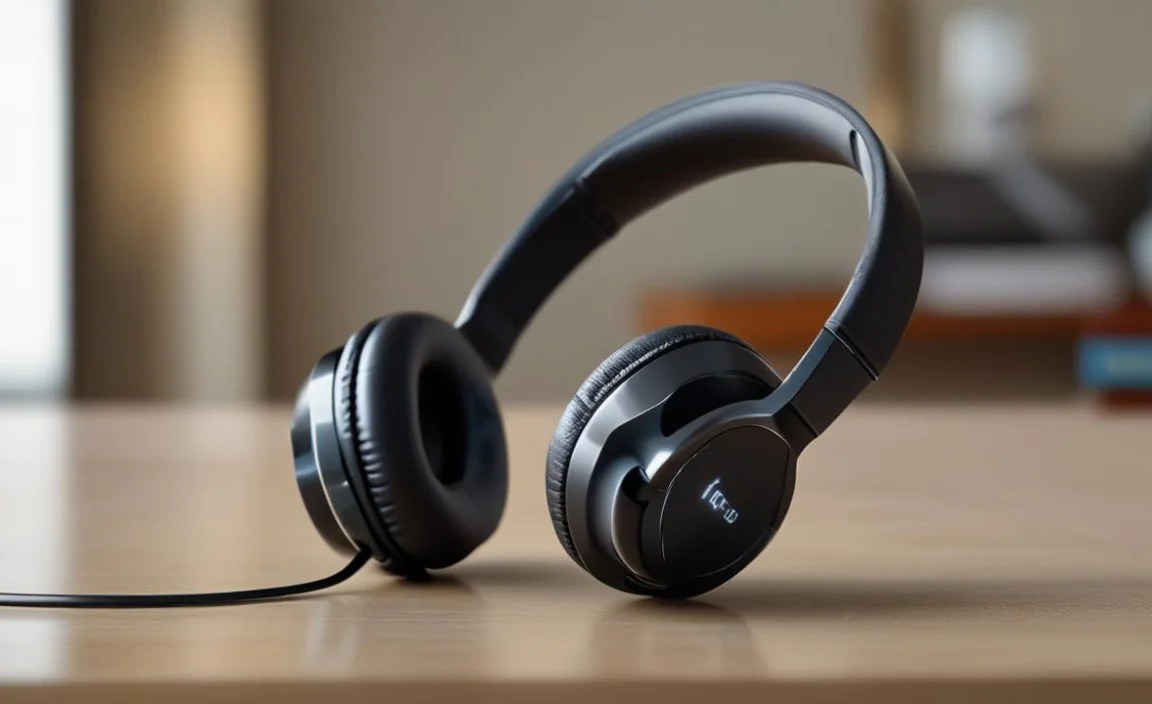
Even with the best intentions, you might run into minor snags. Here are some common problems and how to easily resolve them:
- No Sound:
- Check headphone volume.
- Ensure headphones are properly paired and connected.
- Verify your TV’s audio output is set to Bluetooth or the correct external source. Make sure TV speakers are disabled in settings.
- Restart both your TV and headphones.
- If using a transmitter, ensure it’s powered on and correctly wired. Try a different audio cable or port on the TV.
- Audio Lag (Lip-Sync Issues):
- The most common culprit is a lack of aptX Low Latency support on either your TV/transmitter or headphones.
- Ensure both devices are advertising aptX LL support and are connected using that codec. Some devices default to SBC or another codec.
- If you can, select aptX LL in the headphone or transmitter settings (if available).
- Try re-pairing the devices.
- Check your TV’s audio settings for any “AV Sync” or “Lip Sync Adjustment” features and try tuning it.
- Connection Drops:
- Ensure your Bluetooth transmitter is placed away from potential interference sources like microwaves or other wireless devices.
- Check the range; Bluetooth typically works well within 30-50 feet, but obstructions can reduce this.
- Ensure your headphones have sufficient battery charge.
- Update your TV’s firmware if available.
- Distorted or Choppy Audio:
- This can also be due to interference or being too far from the source. Move closer or try to reduce interference.
- Low battery on either device can sometimes cause audio issues.
- Restart both devices and re-pair.
Frequently Asked Questions
Can I use any Bluetooth headphones with my TV?
You can pair almost any Bluetooth headphones with a TV that has built-in Bluetooth or when using a Bluetooth transmitter. However, for the best experience with minimized audio lag, look for headphones and a transmitter that both support the aptX Low Latency codec.
Do I need a special Bluetooth transmitter for my TV?
If your TV doesn’t have built-in Bluetooth, yes, you’ll need a Bluetooth transmitter. For watching TV specifically, it’s highly recommended to get one that supports aptX Low Latency to avoid noticeable delays between the picture and sound.
How far can my Bluetooth headphones be from the TV?
The standard Bluetooth range is typically up to 33 feet (10 meters), but this can vary. Obstacles like walls, furniture, and other electronic devices can reduce this range significantly. For TV watching, it’s best to stay within about 20-30 feet for a stable connection.
Will my TV’s built-in speakers turn off when I connect Bluetooth headphones?
Most TVs will automatically mute their internal speakers when Bluetooth headphones are connected and set as the primary audio output. You might need to manually disable them in the TV’s audio settings if they don’t turn off automatically.
Can I connect two pairs of Bluetooth headphones to my TV at the same time?
This depends on your TV or Bluetooth transmitter. Some newer smart TVs and advanced Bluetooth transmitters support dual-device audio streaming, allowing two people to listen simultaneously. Check your TV’s specifications or the transmitter’s features to see if this is supported.
For more in-depth information on Bluetooth specifications and audio codecs, resources like the official Bluetooth technology website can provide detailed insights.
Conclusion: Elevate Your TV Experience Today
Embracing Bluetooth headphones for your television viewing is a simple yet profound way to enhance your personal entertainment space. Whether you’re a cinephile looking for that cinematic surround sound feel, a night owl wanting to catch up on shows without disturbing anyone, or someone who simply craves crystal-clear audio dialogues, wireless headphones offer the perfect solution. We’ve walked through identifying your TV’s capabilities, choosing headphones with the right features like aptX Low Latency for seamless syncing, and the practical steps for connecting them, whether directly or with a transmitter. Troubleshooting common issues has also been covered to ensure your setup is as smooth as possible. So, dive in, explore the options that best suit your setup and listening preferences, and get ready to enjoy your favorite shows and movies in a whole new – and wonderfully quiet – way. Happy viewing!
