
Quick Summary: A Bluetooth splitter for headphones is an essential tool for sharing your audio wirelessly. It allows multiple devices or individuals to connect to a single audio source, making it perfect for movie nights, music sharing, or collaborative listening without messy wires. Simple to set up and use, it enhances your audio experience by enabling shared wireless enjoyment.
Bluetooth Splitter for Headphones: The Proven Essential for Shared Wireless Audio

Hey there, audio adventurers! Edward Cavitt here from Headphone Horizon. Ever found yourself wanting to share that amazing song, that edge-of-your-seat movie soundtrack, or even that important podcast with a friend or family member, but wished you didn’t have to huddle around a single pair of earbuds? Or perhaps you’ve got a fancy new pair of wireless headphones and want to share the audio from your laptop or TV with a partner, but your device only supports one Bluetooth connection at a time?
If any of that sounds familiar, then a Bluetooth splitter for headphones might just be the incredibly simple, yet surprisingly powerful, solution you’ve been looking for. It’s a small device that packs a big punch in making shared listening a breeze, transforming how we enjoy our portable sound experiences. Let’s dive into why this gadget is an absolute must-have for anyone who loves their audio, and especially for those who love to share it!
What Exactly is a Bluetooth Splitter for Headphones?

At its core, a Bluetooth splitter for headphones is a device designed to take a single audio source and allow it to be transmitted wirelessly to multiple Bluetooth-enabled headphones or speakers simultaneously. Think of it as a wireless hub for your audio. Instead of your phone, tablet, or laptop only being able to send audio to one set of Bluetooth headphones at a time, this splitter acts as an intermediary, broadcasting the audio signal to two or more receiving devices. This is particularly useful because many standard Bluetooth transmitters (like those built into smartphones and laptops) are designed to pair with only one audio output at a time for stability and optimal performance, according to standards set by organizations like the Bluetooth Special Interest Group (SIG).
These splitters come in various forms. Some are small, portable dongles that you might plug directly into your device’s headphone jack (if it has one) or a USB-C port. Others might be larger units that connect via an auxiliary cable to your audio source. Regardless of their physical form, their primary function remains the same: to enable multi-device Bluetooth audio streaming from a single source.
Why You Need a Bluetooth Splitter: The Everyday Use Cases
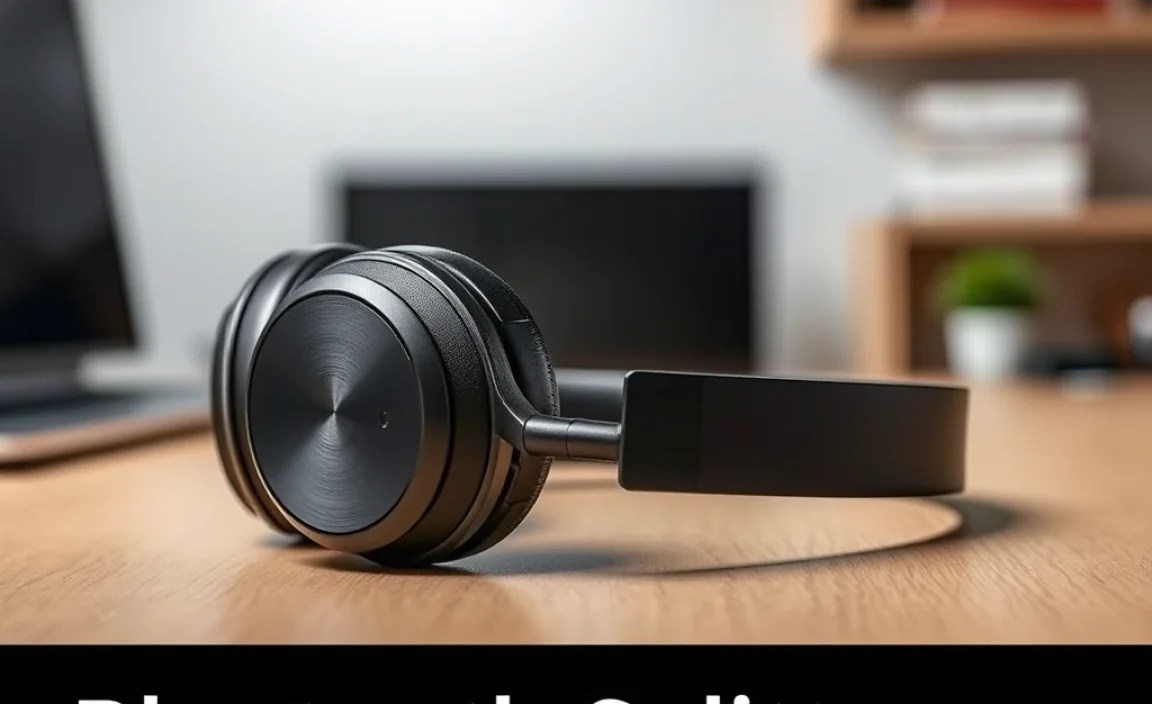
The utility of a Bluetooth splitter extends far beyond a simple desire to share. It solves common audio frustrations and opens up new ways to enjoy your technology. Let’s explore some practical scenarios where this little gadget proves its worth:
1. Cozy Movie Nights & Binge-Watching Sessions
This is perhaps the most popular use case. Imagine you and your significant other want to watch a movie on your tablet or laptop, but you both have your own comfortable pairs of Bluetooth headphones. Without a splitter, you’d have to choose who gets to use headphones, or resort to less-than-ideal wired solutions. With a Bluetooth splitter synced to both your headphones, you can both immerse yourselves in the movie’s audio experience without disturbing anyone else in the house, and without tangles.
2. Traveling Companions & Shared Journeys
Long car rides, train journeys, or flights can be made infinitely more pleasant when you can share the audio from a single device. Whether it’s a shared playlist, an audiobook, or a podcast, a Bluetooth splitter allows two people to listen simultaneously, each with their own comfortable headphones. This avoids the dilemma of one person having to listen to the audio out loud or wear uncomfortable earbuds.
3. Workout Buddies & Gym Sessions
If you and a friend hit the gym together and like to motivate yourselves with the same energetic playlist, a Bluetooth splitter is your solution. Connect the splitter to your phone, and both of you can tune into the same workout mix, wirelessly. It’s a cleaner, more hygienic solution than sharing wired earbuds.
4. Collaborative Work & Study Sessions
Sometimes, you might need to listen to an audio lecture, a webinar, or a music track together for a collaborative project or study session. A splitter allows you and a colleague or classmate to both hear the audio clearly through your respective headphones, facilitating better focus and discussion without needing to shout over laptop speakers.
5. Gaming with a Partner
Playing a two-player game on a PC or console where audio is crucial? If you both want to be fully immersed without disturbing others, a Bluetooth splitter can pair your headphones to the game’s audio, ensuring you don’t miss a single critical sound cue.
6. Extending Your Device’s Capabilities
Many modern smartphones and tablets are phasing out the traditional headphone jack, forcing reliance on Bluetooth. However, their built-in Bluetooth transmitters are often limited to one audio stream. A Bluetooth splitter bypasses this limitation, effectively upgrading your device’s audio output capabilities for shared listening.
Types of Bluetooth Splitters for Headphones
Not all Bluetooth splitters are created equal, and understanding the different types can help you choose the best fit for your needs. Here’s a breakdown:
1. Dongle-Style Splitters
These are typically small, compact devices that plug directly into a USB-C port or, less commonly now, a 3.5mm audio jack on your device. They often feature simple pairing buttons and may have built-in rechargeable batteries. They are highly portable and ideal for use with smartphones, tablets, and laptops.
2. Larger Transmitter/Receiver Units
These are more robust units that usually connect to your audio source via a 3.5mm auxiliary cable (often included) or RCA cables. They typically have their own power source (either a built-in rechargeable battery or an AC adapter) and may offer more advanced features like aptX low-latency support for reduced audio delay. These are great for home entertainment systems, TVs, or older audio equipment lacking Bluetooth output.
3. Splitters with Integrated Headphone Jacks (for wired sharing)
While our focus is on Bluetooth, it’s worth noting that traditional, non-Bluetooth “splitters” exist that simply take a single headphone jack and turn it into two or more (e.g., a 3.5mm Y-splitter). These are purely for wired sharing. Bluetooth splitters, on the other hand, are specifically designed for wireless multi-device output.
Key Features to Look For
When you’re shopping for a Bluetooth splitter, consider these important features to ensure you get the best performance and user experience:
- Bluetooth Version: Look for newer Bluetooth versions (e.g., Bluetooth 5.0 or higher). These offer better range, faster connection speeds, and more stable connections.
- Number of Outputs: Most splitters support two simultaneous connections, but some might offer more. Decide how many devices you need to connect.
- Battery Life: If it’s a portable, battery-powered unit, check its expected playback time on a single charge. Some offer quick charging capabilities.
- Audio Codec Support (Latency): For video watching or gaming, low latency is crucial. Look for support for codecs like aptX Low Latency (aptX LL) if both your splitter and headphones support it. This significantly reduces the delay between the video and audio.
- Range: How far can the Bluetooth signal reach from the splitter to your headphones? Better range means more freedom of movement.
- Ease of Use: Simple pairing buttons and clear indicators are a plus.
- Connectivity Options: Some devices can act as both a transmitter (sending audio) and a receiver (playing audio from another source).
How to Set Up Your Bluetooth Splitter: A Step-by-Step Guide
Setting up most Bluetooth splitters is surprisingly straightforward. While the exact steps may vary slightly depending on the model, the general process is as follows:
Step 1: Charge Your Splitter (If Applicable)
Many portable Bluetooth splitters have built-in rechargeable batteries. Before you begin, ensure your splitter is adequately charged. Most will come with a USB charging cable. Connect it to a power source and allow it to charge fully. Look for an indicator light that shows charging status and completion.
Step 2: Connect the Splitter to Your Audio Source
This step depends on the type of splitter and your audio source:
- For Dongle-Style Splitters (USB-C/3.5mm): Simply plug the splitter directly into the appropriate port on your smartphone, tablet, or laptop.
- For Transmitter/Receiver Units: Connect the splitter to your audio source using the provided audio cable (usually 3.5mm aux or RCA). Connect one end to the “Audio Out” or “Headphone Out” of your TV, computer, or stereo system, and the other end to the splitter’s input port.
Step 3: Put the Splitter into Pairing Mode
Most splitters have a dedicated pairing button. Press and hold this button for a few seconds until an indicator light starts blinking (often blue or red, or alternating colors). This signals that the splitter is discoverable and ready to pair with your headphones.
Step 4: Put Your First Bluetooth Headphone into Pairing Mode
Turn on your first pair of Bluetooth headphones and put them into their pairing mode. This usually involves pressing and holding the power button or a dedicated Bluetooth button until an indicator light flashes, or you hear an audio cue like “Pairing.” Refer to your headphone’s manual if you’re unsure.
Step 5: Pair Your First Headphone with the Splitter
The splitter should automatically detect your headphones and connect. You might see a steady light on the splitter or hear a voice prompt like “Device 1 Connected.” If it doesn’t connect automatically, you may need to briefly press the pairing button on the splitter again or initiate the scan from your headphones’ app if they have one.
Step 6: Pair Your Second (or Subsequent) Bluetooth Headphone
Repeat steps 4 and 5 for your second pair of Bluetooth headphones. Turn them on, put them into pairing mode, and bring them close to the splitter. The splitter should then detect and connect to the second device. Again, look for a confirmation light or voice prompt indicating “Device 2 Connected.”
Step 7: Test the Audio
Once both headphones are connected, play some audio from your source device. You should now hear the same audio playing simultaneously on both pairs of headphones. Test this with a song, a video, or any audio content. Make sure the volume controls on your headphones work independently.
Troubleshooting Common Issues
While Bluetooth splitters are generally reliable, occasional hiccups can occur. Here are some common issues and how to resolve them:
- No Sound on One or Both Headphones:
- Ensure both headphones are fully charged and powered on.
- Check that both headphones are correctly paired and show as “Connected” on the splitter.
- Try re-pairing both headphones: turn them off, put them back into pairing mode, and re-connect them to the splitter for both connections.
- Verify that the audio source volume is turned up.
- If using a wired connection to the source, ensure the aux cable is securely plugged in at both ends.
- Audio Lag or Desynchronization (Lip Sync Issues):
- This is most common when watching videos. Ensure your splitter and headphones both support low-latency codecs like aptX LL. If they do, make sure this feature is enabled on both devices (it’s often automatic or requires a specific pairing sequence).
- Try re-pairing both headphones.
- Close any unnecessary apps on your audio source device that might be consuming processing power.
- If one of your headphones doesn’t support low latency, it might lag behind the one that does, or both might have a slight delay compared to the video.
- Short Bluetooth Range:
- Bluetooth range can be affected by walls, other electronic devices (like microwaves or Wi-Fi routers), and physical obstructions.
- Try moving your audio source and splitter closer to your headphones.
- Ensure the splitter’s antenna (if visible) is not obstructed.
- Intermittent Audio Dropouts:
- This can be due to interference or a weak Bluetooth signal. Try moving closer to the source or reducing potential interference.
- Ensure your headphones are from reputable brands known for stable Bluetooth connectivity.
- Re-pairing the devices might resolve temporary glitches.
- Splitter Not Entering Pairing Mode:
- Ensure the splitter is charged or powered on correctly.
- Consult the splitter’s user manual for the exact procedure to enter pairing mode.
- If it still fails, try resetting the splitter by holding the power button for an extended period or using a reset button (if available).
Bluetooth Splitters vs. Traditional Wired Splitters
It’s worth highlighting the distinction here. While a simple 3.5mm ‘Y’ splitter can connect two wired headphones to one jack, it lacks the convenience and freedom of wireless. Here’s a quick comparison:
| Feature | Bluetooth Splitter | Traditional Wired Splitter (3.5mm Y-splitter) |
|---|---|---|
| Connectivity | Wireless (Bluetooth) | Wired (3.5mm audio jack) |
| Number of Devices | Typically 2+ Bluetooth devices | Typically 2+ wired headphones/earbuds |
| Audio Source Connection | Bluetooth transmitter or 3.5mm/USB audio input | 3.5mm audio jack |
| Freedom of Movement | High (limited by Bluetooth range) | Low (limited by cable length) |
| Interference | Can be subject to wireless interference | No wireless interference, but prone to cable tangles and damage |
| Audio Quality/Latency | Depends on Bluetooth version & codecs; potential for latency | Direct signal, minimal latency, highest potential fidelity if devices are capable |
| Portability | Generally very portable | Extremely portable |
| Power | Often battery-powered or USB | Passive (no power required) |
As you can see, the Bluetooth splitter offers a modern, wireless advantage that traditional wired solutions can’t match, especially for users with multiple Bluetooth headphones and a desire for clutter-free listening. The ability to share audio wirelessly from a single source without being tethered by cables is a significant upgrade for convenience and usability.
Frequently Asked Questions (FAQ)
Q1: Can I use any Bluetooth headphones with a Bluetooth splitter for headphones?
Generally, yes! As long as your headphones are standard Bluetooth audio devices, they should be compatible with most Bluetooth splitters. The splitter acts as a transmitter, and your headphones are the receivers. The key is that both devices use the same fundamental Bluetooth profiles for audio transmission.
Q2: What is audio latency, and why is it important for a Bluetooth splitter?
Audio latency is the delay between when audio is generated by the source and when you actually hear it. For watching videos or playing games, a noticeable delay between the picture and sound can be very jarring. Low-latency codecs, like aptX Low Latency (aptX LL), are designed to minimize this delay. If your splitter and headphones both support aptX LL, you’ll have a much smoother, synchronized experience.
Q3: How far can the Bluetooth signal from a splitter reach?
The range varies by Bluetooth version and the specific product. Bluetooth 5.0 and later generally offer better range and stability, often up to 30-50 feet (10-15 meters) in ideal conditions. However, walls, furniture, and other electronic devices can significantly reduce this range.
Q4: Can I use a Bluetooth splitter to connect two Bluetooth speakers at the same time?
Yes! The principle is the same. If you have a Bluetooth splitter that supports two audio outputs, you can connect two Bluetooth speakers to it simultaneously from one audio source, effectively creating a basic stereo or multi-room setup for compatible speakers. Just ensure the speakers are in pairing mode and connect them to the splitter as you would headphones.
Q5: Do I need to buy a specific splitter if I want to use it with my TV?
For TVs, especially those without built-in Bluetooth, you’ll typically want a Bluetooth transmitter/receiver unit that connects to your TV’s audio output (usually a headphone jack, optical audio out, or RCA audio out). Even if your TV has Bluetooth, a splitter can overcome its single-device limitation. Look for models with optical audio input if your TV has an optical audio out port, as this can often provide a higher quality audio signal.
