
Quick Summary: A Bluetooth splitter for multiple headphones allows several people to wirelessly listen to the same audio source simultaneously. This guide explains what they are, how they work, their benefits, how to choose one, and offers setup tips, making shared listening easy and enjoyable for everyone.
Bluetooth Splitter for Multiple Headphones: Your Essential Guide
Ever found yourself wishing you could share that amazing song, podcast, or movie with a friend or family member, but were limited by a single headphone jack? Or maybe you’re tired of tangled wires when you have multiple people wanting to listen in on a presentation or a game. If this sounds familiar, then a Bluetooth splitter for multiple headphones might be the audio solution you’ve been searching for! These handy gadgets are designed to break free from the one-to-one connection that’s typical of Bluetooth audio. In this guide, we’ll dive into what makes them tick, why you might need one, and how to pick the perfect splitter to enhance your shared listening experiences. Let’s get your audio amplified for everyone!
What Exactly is a Bluetooth Splitter for Multiple Headphones?

Simply put, a Bluetooth splitter for multiple headphones is a device that takes a single audio source (like your smartphone, tablet, laptop, or TV) and allows it to transmit audio wirelessly to more than one set of Bluetooth headphones at the same time. Think of it as a wireless symphony conductor, orchestrating the sound to reach multiple listeners without any conflict. This is a game-changer for situations where you want to share an audio experience, whether it’s for entertainment, education, or even just quieting a shared space with personalized audio.
Unlike traditional wired audio splitters that simply duplicate a signal through separate cables, a Bluetooth splitter leverages wireless technology to achieve the same goal. This means no more fumbling with extra cables or worrying about compatible ports. It’s all about seamless, shared wireless audio. While some devices, like certain smartphones and laptops, have built-in capabilities to connect to two audio devices simultaneously (often called “Dual Audio” or “Audio Sharing”), a dedicated Bluetooth splitter offers more consistent performance and often the ability to connect to more than two devices.
How Do Bluetooth Splitters for Multiple Headphones Work?
The magic behind a Bluetooth splitter lies in its ability to act as a central hub for audio transmission. Here’s a simplified breakdown of the process:
- Receiving the Audio: The splitter first receives the audio signal from your source device. This connection is typically made via Bluetooth, but some splitters might also offer a 3.5mm audio jack for a wired connection to your source, providing flexibility.
- Re-Broadcasting the Audio: Once the splitter has the audio, it then broadcasts this signal wirelessly using Bluetooth technology. The key feature is its ability to establish multiple independent Bluetooth connections simultaneously.
- Connecting Headphones: Your individual Bluetooth headphones then pair with the splitter, just as they would with any other Bluetooth audio source. Each headphone set establishes its own stable connection to the splitter.
- Synchronized Playback: The splitter is designed to send the same audio stream to all connected headphones with minimal latency, ensuring that everyone hears the sound at roughly the same time. This synchronization is crucial for enjoying movies or games together.
The quality of the audio transmission and the number of devices a splitter can support depend on its underlying Bluetooth technology (e.g., Bluetooth version) and its internal processing capabilities. Newer Bluetooth versions, like Bluetooth 5.0 and above, offer improved stability, range, and the ability to handle multiple simultaneous connections more efficiently.
Why You Might Need a Bluetooth Splitter
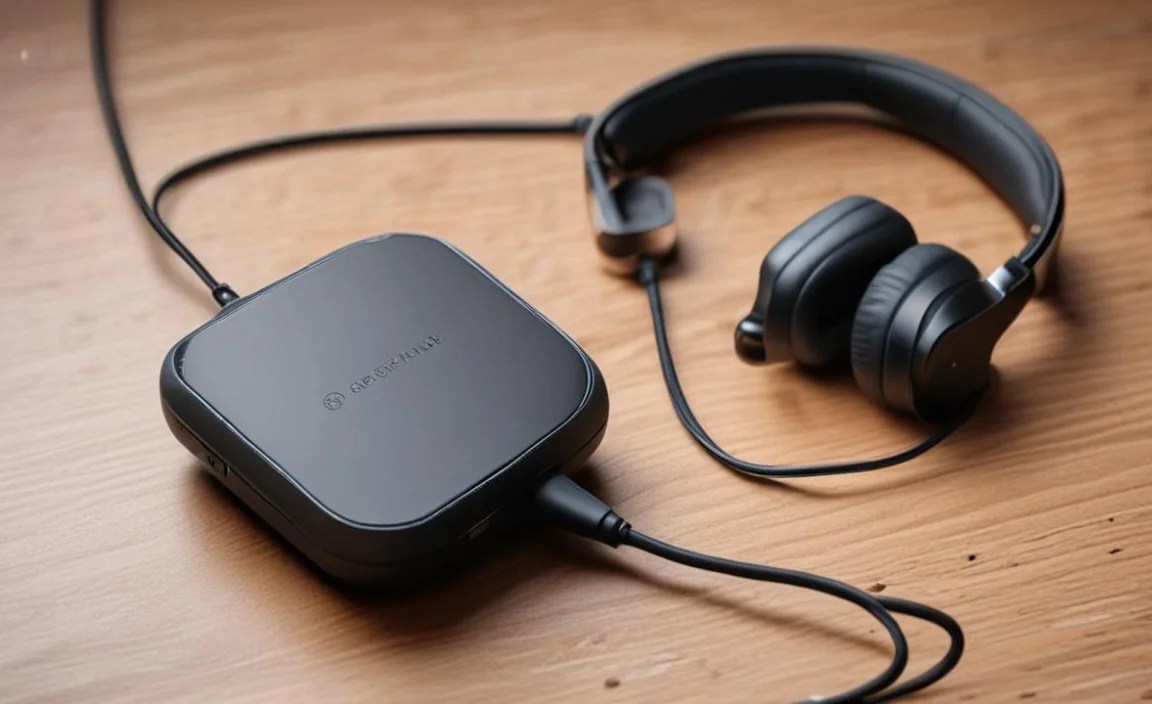
The utility of a Bluetooth splitter for multiple headphones extends to a variety of everyday scenarios. Here are some compelling reasons why investing in one could significantly improve your audio experiences:
Entertainment for Two (or More!)
- Movie Nights: Share the audio from a movie on a tablet or laptop with a partner or friend without disturbing others.
- Music Sharing: Listen to your favorite tunes together, whether you’re on a short trip or just chilling at home.
- Gaming: Experience immersive game audio with a friend, ensuring you both catch every subtle sound cue.
Travel and Commuting
- Shared Rides: Keep passengers entertained on long car rides by sharing audio from a single device.
- Public Transport: Avoid the noise of a plane or train by letting everyone in your travel group enjoy their own private soundscape.
Educational and Professional Use
- Online Learning: Two students can listen to lecture audio from a single computer, sharing the learning experience.
- Presentations: Conduct private audio previews of presentations or videos with colleagues.
- Language Learning: Practice listening comprehension with a partner using audio from a single source.
Accessibility and Comfort
- Reduced Strain: If you often find yourself sharing an audio device with someone else, a splitter can prevent arguments over volume levels or the need for one person to remove their headphones.
- Tidy Setup: Eliminate the clutter of multiple wires and adapters, especially when trying to connect several devices.
Choosing the Right Bluetooth Splitter
Not all Bluetooth splitters are created equal! To ensure you get the best experience, consider these key features when making your selection:
Key Features to Consider:
- Number of Supported Headphones: This is the most crucial factor. Do you need to connect just two pairs, or are you looking to support three, four, or even more? Splitters typically support 2-4 pairs, but some advanced models might go higher.
- Bluetooth Version: Look for splitters with Bluetooth 5.0 or later. These versions offer better power efficiency, a more stable connection, a wider range, and improved support for multiple devices compared to older versions.
- Audio Quality and Latency: While most splitters aim for low latency, the actual audio fidelity can vary. If you’re a discerning listener or plan to use it for gaming/movies where timing is critical, check reviews or product specifications for audio quality and latency performance. Support for codecs like aptX Low Latency can be a plus.
- Battery Life (for portable splitters): If you plan to use the splitter on the go, battery life is important. Check the advertised playtime and consider if it meets your needs. Many are rechargeable via USB.
- Connection Options: While most are primarily Bluetooth-focused, some offer a 3.5mm audio input (aux-in) for wired connection to the source, which can be handy if your source device doesn’t have Bluetooth.
- Ease of Use: Look for intuitive pairing processes and clear indicators for battery status and connection.
- Brand Reputation and Reviews: Popular brands often offer more reliable products and better customer support. Reading user reviews can provide real-world insights into performance and durability.
Comparison Table: Typical Bluetooth Splitter Features
| Feature | Entry-Level Splitters | Mid-Range Splitters | High-End Splitters |
|---|---|---|---|
| Supported Headphones | 2 pairs | 2-4 pairs | 4+ pairs, some advanced models |
| Bluetooth Version | 4.0 – 4.2 | 5.0 – 5.2 | 5.0 and above, often with aptX support |
| Latency | Moderate to High | Low to Moderate | Very Low (often with aptX Low Latency support) |
| Battery Life | 3-6 hours | 6-12 hours | 10+ hours, fast charging |
| Connection Options | Primarily Bluetooth input | Bluetooth input & often 3.5mm aux-in | Bluetooth input, 3.5mm aux-in, sometimes USB audio |
| Price Range | $15 – $30 | $30 – $60 | $60+ |
One important aspect to remember is that while a splitter allows multiple headphones to connect, the audio quality and overall experience can still be influenced by the quality of the source device and the headphones themselves. For the best results, pair your splitter with decent quality headphones.
Setting Up Your Bluetooth Splitter: A Step-by-Step Guide
Getting your Bluetooth splitter up and running is usually quite straightforward. Here’s a general guide that should apply to most devices:
Step 1: Charge the Splitter (If Necessary)
Before you begin, ensure your Bluetooth splitter has sufficient battery power. Most portable splitters come with a USB cable for charging. Plug it into a power source like a USB wall adapter, power bank, or your computer. Look for indicator lights that show when it’s charging and when it’s fully charged.
Step 2: Connect the Splitter to Your Audio Source
- Bluetooth Connection: Put your splitter into pairing mode (usually by pressing and holding a button until an LED flashes). Then, on your source device (phone, tablet, PC), go to your Bluetooth settings, search for new devices, and select your splitter when it appears.
- Wired Connection (if applicable): If your splitter has a 3.5mm aux-in port and your source device has a headphone jack, simply connect them using a standard 3.5mm audio cable. This is a great option if your source device isn’t Bluetooth-enabled or if you prefer a wired connection.
Once connected, your source device should indicate that audio is being routed through the splitter. You might need to select the splitter as the audio output in your device’s sound settings, especially on computers.
Step 3: Pair Your First Headphones
Ensure your first set of Bluetooth headphones is in pairing mode. This process varies by headphone model, but often involves holding down the power button or a dedicated pairing button. Once your headphones are discoverable, put your splitter back into pairing mode or a button that allows it to search for nearby headphones. The splitter might have a specific button for pairing the first (or second) headphone, or it may automatically scan for devices after a short while. Once paired, both the splitter and your headphones should indicate a successful connection, often with a solid LED light.
Step 4: Pair Your Second (and Subsequent) Headphones
Repeat the pairing process from Step 3 for each additional set of headphones you want to connect. Most splitters are designed to pair sequentially. For example, if you have a 2-pair splitter:
- Connect the first headphones to Bluetooth channel 1.
- Connect the second headphones to Bluetooth channel 2.
Your splitter’s manual will detail the exact button presses or sequences for pairing each subsequent device. Some may have dedicated buttons for each connection, while others use a single button in combination with different timing of presses.
Step 5: Play Your Audio
Once all your headphones are paired and connected to the splitter, play some audio from your source device. Everyone wearing a connected headphone should now be able to hear the same sound! You might need to adjust the volume on your source device and on each individual headphone to ensure comfortable listening levels for everyone.
Troubleshooting Common Issues
- No Sound: Check that the splitter is powered on, correctly connected to your source device, and that your headphones are paired with the splitter. Also, ensure your source device’s volume is up and not muted.
- Choppy or Dropped Audio: This can be due to distance from the splitter, interference from other wireless devices (like Wi-Fi routers or microwaves), or low battery on either the splitter or headphones. Try moving closer to the splitter or minimizing interference.
- One Headphone Not Working: Try unpairing and re-pairing that specific headphone set. Ensure it’s fully charged and within range.
- Sync Issues (Lip Sync problems): If you notice a delay between video and audio, especially in movies or games, this might indicate higher latency. If your splitter and headphones support aptX Low Latency, ensure both devices are compatible with this codec for a better sync. Older Bluetooth versions or cheaper splitters are more prone to latency.
For detailed instructions specific to your model, always refer to the user manual that came with your Bluetooth splitter.
Alternatives to Bluetooth Splitters
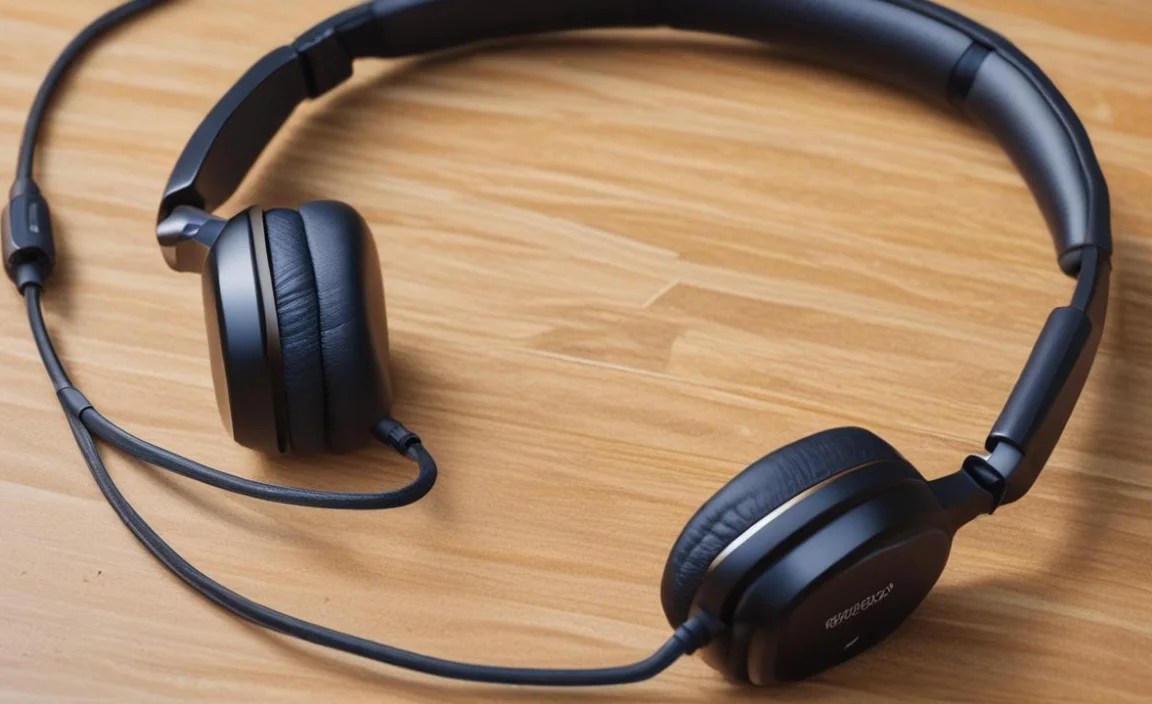
While a Bluetooth splitter is a fantastic solution, it’s worth knowing about other methods for sharing audio:
1. Built-in Dual Audio Features
Many modern smartphones (especially Samsung devices) and some laptops offer a feature allowing them to stream audio to two Bluetooth devices simultaneously directly from the operating system. This is the most convenient option as it requires no extra hardware.
- Pros: No extra cost, no extra hardware, seamless integration.
- Cons: Limited to two devices, not available on all source devices, can sometimes have sync issues or reduced audio quality compared to dedicated solutions.
2. Wired 3.5mm Audio Splitters
These are simple, inexpensive devices that plug into a single headphone jack and split it into two or more headphone jacks, allowing multiple wired headphones to connect. You can then connect these to a single jack on your device.
- Pros: Very cheap, no batteries needed, no Bluetooth latency issues, reliable.
- Cons: Requires wired headphones, can limit portability and create cable clutter, dependent on your source device having a headphone jack.
3. Wireless Audio Transmitters/Receivers with Multi-Point Pairing
Some advanced Bluetooth transmitters and receivers support connecting to multiple headphones. These are often used for TVs or audio systems that lack built-in Bluetooth.
- Pros: Can offer higher audio quality and lower latency (especially with aptX HD/LL), more robust connection.
- Cons: Can be more expensive and complex to set up than a simple splitter.
For a truly wireless, convenient, and efficient way to share audio with multiple people, a dedicated Bluetooth splitter often strikes the best balance.
Frequently Asked Questions (FAQ)
Q1: Can I connect any Bluetooth headphones to a splitter?
Yes, generally you can connect any standard Bluetooth headphones that support Bluetooth audio profiles (like A2DP) to a Bluetooth splitter. The splitter acts as a hub, and the headphones connect to it as they would to any other Bluetooth source.
Q2: Will there be a noticeable delay between the audio I hear and what my friend hears?
Most dedicated Bluetooth splitters are designed for low latency to minimize delays, ensuring good synchronization. However, some delay is inherent in Bluetooth transmission. For critical applications like gaming or watching movies where lip-sync is paramount, look for splitters that specifically support low-latency codecs like aptX Low Latency, and ensure your headphones are also compatible with this codec. For casual music listening, the delay is usually imperceptible.
Q3: How many headphones can I connect with a single Bluetooth splitter?
This varies by model. The most common Bluetooth splitters support connecting two pairs of headphones. However, you can find models that support three, four, or even more, depending on the splitter’s capabilities and the technology it uses. Always check the product specifications for the exact number of supported devices.
Q4: Do I need to keep the splitter close to my headphones?
Bluetooth has a limited range, typically around 10 meters (33 feet) in ideal conditions. However, this range can be significantly reduced by obstacles like walls, or interference from other electronic devices. For the most stable connection, keep your headphones within a few meters of the splitter, especially if you’re moving around.
Q5: Can I connect my splitter to my TV?
Many Bluetooth splitters come with a 3.5mm aux-in port, allowing you to connect them to your TV’s headphone jack or audio out port using a 3.5mm audio cable. Some advanced models also support optical audio input or USB audio, making them suitable for a wider range of devices, including TVs, computers, and gaming consoles.
Q6: What if I want to use different types of headphones (e.g., one in-ear, one over-ear)?
That’s perfectly fine! As long as both pairs of headphones are standard Bluetooth headphones, they can connect to the splitter independently. The splitter simply transmits the audio signal; it doesn’t differentiate between the types of headphones receiving it.
Q7: Does the splitter affect my source device’s audio quality?
When using a wired connection to the source device (via 3.5mm aux-in), the splitter receives the analog audio signal. When using Bluetooth to connect to the source, the signal is transmitted digitally and decoded by the splitter. In either case, the quality of the audio transmitted by the splitter to the headphones will depend on the splitter’s DAC (Digital-to-Analog Converter) and Bluetooth capabilities, as well as the quality
