
Can’t share your audio? A Bluetooth transmitter for multiple headphones is a genius solution, letting two or more people listen to the same sound source simultaneously.
This guide makes setup simple, transforming your TV, laptop, or stereo into a shared listening experience without tangled wires or annoying delays. Enjoy movies, music, or games together, no matter your headphone type!
Bluetooth Transmitter for Multiple Headphones: The Genius Solution to Shared Audio Bliss

Hey everyone, Edward Cavitt here from headphonehorizon! Ever found yourself wanting to share the audio from your TV or computer with a friend or partner, only to realize you’ve got just one headphone jack? Or maybe you’ve tried using a splitter and ended up with crackly sound or a mess of wires?
It’s a common frustration that can really dim the enjoyment of a great movie or your favorite tunes. But what if I told you there’s a simple, elegant solution that lets multiple people listen wirelessly, at the same time, from the same source?
Enter the Bluetooth transmitter for multiple headphones. This little gadget is an absolute game-changer, and in this guide, I’m going to show you exactly how it works and how easy it is to set up. Get ready to stop the headphone hogging and start sharing your sound!
What Exactly is a Bluetooth Transmitter for Multiple Headphones?

Let’s break it down. Most of us are familiar with Bluetooth headphones connecting to our phones or laptops. A Bluetooth transmitter works a bit like that, but in reverse. It takes an audio signal from a non-Bluetooth source – like your TV’s headphone jack, an older stereo system, or a computer’s audio-out port – and broadcasts it wirelessly using Bluetooth technology.
The “multiple headphones” part is key here. Unlike basic transmitters that only pair with one device, these special transmitters are designed to connect with two or more Bluetooth headphones or speakers simultaneously.
This means you and a friend can both tune into the same show on your respective wireless earbuds, or a couple can enjoy a late-night movie without disturbing anyone else, each with their own pair of comfortable headphones. It’s a straightforward way to upgrade any audio source to modern, multi-device wireless capability.
Why You Need One: The Benefits Unpacked

Before we dive into the “how-to,” let’s talk about why this technology is so fantastic. It’s not just about convenience; it solves several common audio sharing problems:
- Share Without Disturbing: This is the big one. Watch movies, play games, or listen to music late at night or early in the morning without waking up the rest of the household. Everyone involved gets their own private listening experience.
- No More “One Headphone Jack” Wars: If you’ve ever had to take turns listening to something on a laptop or TV, those days are over. Two (or sometimes even more!) people can enjoy the same audio simultaneously.
- Avoid Tangled Wires: Forget those messy audio splitters. A Bluetooth transmitter offers a clean, wireless solution that keeps your entertainment space tidy.
- Upgrade Older Devices: Got a great TV or sound system that lacks built-in Bluetooth? A transmitter instantly gives it modern wireless capabilities, saving you the cost of buying all new equipment.
- Improved Audio Quality (Often): Many modern Bluetooth transmitters support high-quality audio codecs (like aptX Low Latency), which can deliver sound that’s closer to wired quality, with minimal delay. This is crucial for watching videos where audio needs to sync perfectly with the picture.
- Universal Compatibility: Most transmitters connect via a standard 3.5mm audio jack or RCA cables, making them compatible with a vast range of devices.
Choosing Your Bluetooth Transmitter: What to Look For

Not all Bluetooth transmitters are created equal, especially when it comes to connecting to multiple headphones. Here’s what you should keep an eye out for:
Key Features for Multi-Headphone Transmitters:
- Dual-Link/Multi-Pairing Capability: This is the absolute most important feature. Ensure the product explicitly states it can connect to two (or more) devices simultaneously.
- Bluetooth Version: Look for transmitters using Bluetooth 4.0 or higher. Newer versions (like 5.0 or 5.1) offer better range, stability, and power efficiency.
- Audio Codec Support:
- SBC: Basic and universally compatible, but lower quality and higher latency.
- AAC: Better quality than SBC, especially for Apple devices.
- aptX: Good quality audio.
- aptX Low Latency (aptX LL): This is the gold standard for video watching. It significantly reduces audio delay, ensuring lips and sound are synchronized. You and anyone else listening will need headphones that also support aptX LL for this to work fully.
- Sufficient Range: Check the advertised range. Most offer up to 30-50 feet (10-15 meters) indoors, but this can vary based on obstructions.
- Battery Life (if portable): If you plan to use it on the go or move it around, consider how long the battery lasts on a single charge. Many can also be powered via USB while in use.
- Easy Pairing Process: Look for transmitters that boast a straightforward, one-button pairing process.
Connection Options:
Most transmitters will connect to your audio source using one of these common methods:
- 3.5mm Aux Jack: The most common type. Looks like a standard headphone socket.
- RCA Cables (Red and White): Often found on older or larger audio systems. Many transmitters come with an adapter cable to use both 3.5mm and RCA.
- Optical (Toslink/SPDIF): For higher quality digital audio. Some advanced transmitters support this.
Step-by-Step Guide: Setting Up Your Bluetooth Transmitter
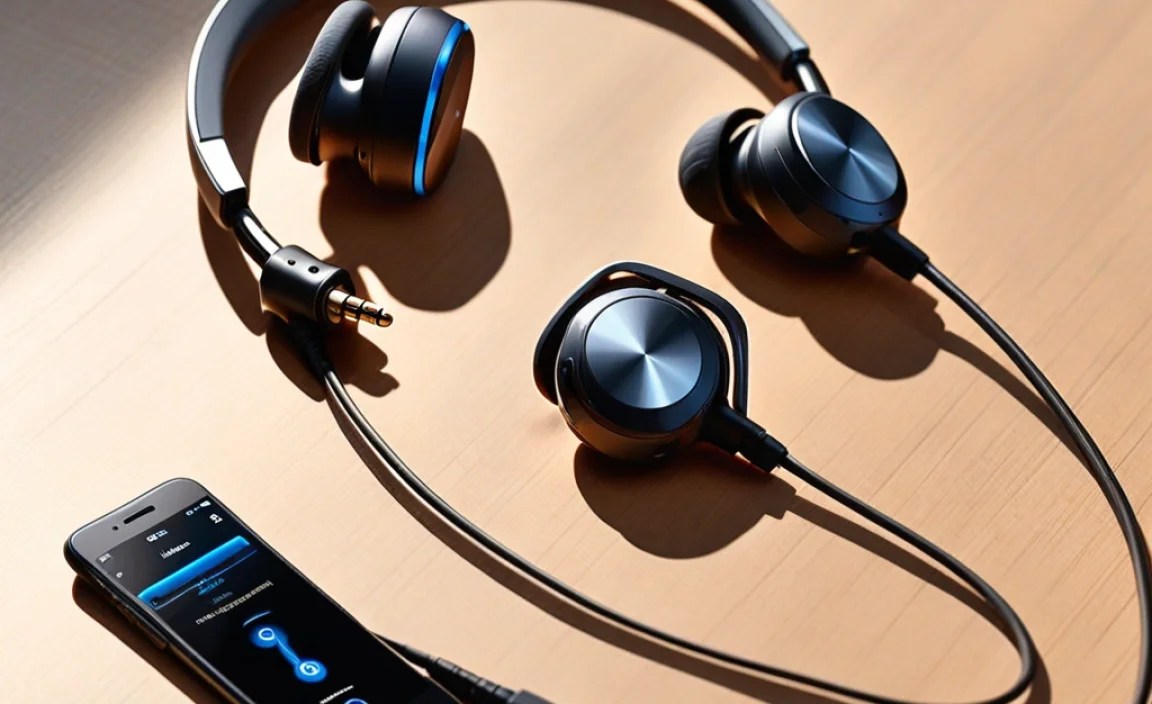
Ready to get started? Setting up your Bluetooth transmitter is surprisingly simple. Here’s a general guide. Always refer to your specific transmitter’s manual for exact instructions.
Step 1: Unpack and Identify Components
Open the box and lay out everything you received. You should have:
- The Bluetooth transmitter unit
- A USB charging/power cable
- An audio cable (usually 3.5mm to 3.5mm)
- Potentially an RCA to 3.5mm adapter cable
- A user manual
Step 2: Charge or Power Your Transmitter
If your transmitter has a built-in battery, it’s a good idea to fully charge it before first use. Plug the USB cable into the transmitter and a USB power source (like a wall adapter, computer USB port, or power bank). If it’s designed to be powered by USB constantly, plug it in.
Step 3: Connect the Transmitter to Your Audio Source
This is where you link the transmitter to your TV, computer, or stereo:
- For TVs/Computers with a 3.5mm Headphone Jack: Plug one end of the 3.5mm audio cable into your TV’s headphone port and the other end into the audio-in port on your Bluetooth transmitter.
- For TVs/Stereos with RCA Outputs (Red and White): Connect the RCA cables (or the provided adapter cable) from the red and white audio-out ports on your device to the corresponding audio-in ports on the transmitter.
- For TVs/Devices with Optical Out: If your transmitter supports optical input, connect an optical cable from the device’s optical-out port to the transmitter’s optical-in port.
Important Note: Make sure your audio source’s sound output is set to the correct connection you’re using (e.g., “Headphone,” “Line Out,” or “Optical”). For TVs, you might need to go into the audio settings and select the external audio output. Some TVs also require you to disable their internal speakers when an external audio output is connected. Check your TV’s manual for specifics.
Here’s a quick look at common connection types:
| Connection Type | Typical Use Case | What You Need | Pros | Cons |
|---|---|---|---|---|
| 3.5mm Aux | Headphone jacks on TVs, laptops, tablets | 3.5mm to 3.5mm audio cable | Most common, simple to use | Can be analog (potential for interference) |
| RCA (Red/White) | Stereo systems, older TVs/AV receivers | RCA to 3.5mm adapter cable or RCA to RCA | Standard for many audio components | Requires adapter for most Bluetooth transmitters |
| Optical (Toslink/SPDIF) | Modern TVs, high-end audio equipment | Optical cable | Digital signal, less prone to interference, high quality | Not all transmitters support this; requires specific ports |
Step 4: Put the Transmitter into Pairing Mode
Locate the power/pairing button on your transmitter. Press and hold it for a few seconds until the indicator light starts flashing rapidly. This signifies it’s ready to connect to a Bluetooth device.
Step 5: Pair Your First Bluetooth Headphone
Turn on your first pair of Bluetooth headphones and put them into their own pairing mode. Most headphones have a Bluetooth button you press and hold. Their indicator lights will usually flash differently to show they’re discoverable.
Place your headphones close to the transmitter.
The transmitter will automatically search for nearby Bluetooth devices. Once it finds your headphones, the indicator lights on both devices should change (often turning solid or flashing slowly) to show a successful connection. You should now hear audio from this first pair of headphones.
Step 6: Pair a Second (or Third/Fourth) Bluetooth Headphone
This is where the magic of multi-headphone transmitters happens! Your transmitter usually has a secondary button or requires a slightly different action to pair a second device. Common methods include:
- Pressing the pairing button again: Some transmitters allow you to re-enter pairing mode by briefly pressing the button again.
- Dedicated second pairing button: Some models have a separate button for the second connection.
- Auto-detection: As soon as the first device is connected, some transmitters automatically start scanning for a second device.
Again, put your second pair of Bluetooth headphones into pairing mode. Bring them close to the transmitter. Once connected, both pairs of headphones should be receiving the audio from your source. Test this by playing something!
If your transmitter supports more than two devices, repeat the pairing process for each additional headphone. Always refer to your transmitter’s manual, as the pairing sequence can vary slightly.
Step 7: Final Checks and Troubleshooting
- Check Audio Sync: If you’re watching video, check for any lip-sync issues. If there’s a delay, ensure both your transmitter and headphones support aptX Low Latency (and that both are using it). Some transmitters have a specific button to toggle aptX LL.
- Volume Control: You’ll typically control the volume on your headphones themselves. The volume on your TV/source might need to be set to a moderate level (e.g., 50-75%).
- Audio Source Settings: Double-check your TV or device’s audio settings to ensure it’s outputting sound correctly and the speaker selection is appropriate.
- Distance/Interference: If the connection is unstable, move the transmitter and headphones closer together and away from potential sources of interference (like microwaves or other wireless devices).
A Comparison Table: Common Transmitter Scenarios
To help you visualize how a transmitter can solve different problems, let’s look at a few scenarios:
| Scenario | Your Goal | Recommended Transmitter Feature | Solution |
|---|---|---|---|
| Watching a Late-Night Movie | Share with a partner without waking others. | Dual-link, aptX Low Latency support. | Connect TV audio to transmitter, pair two wireless headphones with aptX LL. Everyone enjoys the movie at their own volume, in sync. |
| Gaming with a Friend | Both players hear game audio clearly and in sync. | Dual-link, low latency transmission (aptX LL is ideal). | Connect console/PC audio to transmitter, pair two wireless gaming headsets or headphones. Reduces lag for a better gaming experience. |
| Listening to Music Together | Share music from a non-Bluetooth stereo system. | Dual-link, good range. | Connect stereo receiver to transmitter, pair two wireless headphones or speakers. Allows easy listening without wires. |
| Kids Watching Cartoons | Keep kids quiet and entertained without loud TV volume. | Dual-link, child-friendly headphones. | Connect TV to transmitter, pair two pairs of kids’ wireless headphones. Kids can watch their shows with their own sound. |
Tips for the Best Experience
Here are a few extra tips to ensure your multi-headphone Bluetooth experience is as smooth as possible:
- Use Compatible Headphones: For the best sound quality and lowest latency, try to use Bluetooth headphones that also support the same advanced codecs as your transmitter (like aptX Low Latency). Visit resources like aptX’s official site to learn more about compatible devices.
- Keep Firmware Updated (if applicable): Some advanced transmitters might have firmware updates available. Check the manufacturer’s website occasionally.
- Placement Matters: Position the transmitter centrally between the listening devices, further away from potential signal interference.
- Understand Codecs: Remember, the audio codec is a shared protocol. If your transmitter supports aptX LL but one of your headphones only supports SBC, both will default to SBC. For the best results, use two headphones that support the highest common codec.
- Battery Management: If using a transmitter with a battery, keep it charged. For stationary use, a transmitter that is USB-powered is often more convenient.
Frequently Asked Questions (FAQ)
Q1: Will any Bluetooth headphones work with a dual-link transmitter?
Yes, any standard Bluetooth headphones will work for basic audio sharing. However, for the lowest audio delay when watching videos or gaming, both the transmitter and your headphones should support a low-latency codec like aptX Low Latency. If one device doesn’t support it, the connection will fall back to a more basic codec (like SBC), which can introduce noticeable lag.
Q2: Can I connect three or more headphones?
It depends on the specific transmitter model. Many are designed for two headphones, but some higher-end models explicitly state support for three or even four simultaneous connections. Always check the product specifications carefully.
Q3: How do I control the volume for each person?
Volume is almost always controlled individually on each Bluetooth headphone or speaker. The transmitter itself doesn’t usually have volume controls for each connection. You’ll adjust the volume directly on your own headphones.
Q4: What’s the range like for dual connections?
The range is generally similar to single connections, typically around 30-50 feet (10-15 meters) in an open space. However, walls and obstructions can significantly reduce this. For dual connections, the stability might be slightly more affected by distance or interference compared to a single connection.
Q5: My audio is delayed (lip-sync issue). What can I do?
This is the most common issue if you’re not using low-latency codecs.
- Ensure your transmitter has an “aptX Low Latency” mode and that it’s activated.
- Make sure your headphones ALSO support aptX Low Latency.
- If both support it, check if there’s a specific button or setting on your transmitter to activate aptX LL.
- If latency persists or one device doesn’t support aptX LL, you might experience some delay. For critical audio sync needs, wired connections or specialized wireless systems are sometimes necessary, but for general entertainment, aptX LL transmitters are usually excellent.
Q6: Can I use a Bluetooth transmitter for multiple speakers?
Yes! The same principle applies. You can connect your audio source to a dual-link Bluetooth transmitter and pair it with two Bluetooth speakers simultaneously. This is great for creating a simple stereo setup or distributing sound in different parts of a room.
Q7: Do I need two separate transmitters for three people?
Not necessarily. If your transmitter supports connecting to three or more devices, you only need one. If it’s a standard dual-
