
Quick Summary: Unlock wireless freedom for any headphones! This guide explains Bluetooth transmitters, how they work, and helps you choose the right one to connect your wired headphones to modern devices without Bluetooth. Get ready for seamless, cable-free listening anywhere.
Bluetooth Transmitter for Wireless Headphones: Your Essential Guide

Hey there, fellow audio lovers! Edward Cavitt here from Headphone Horizon. Ever found yourself wishing you could use your favorite, super-comfy wired headphones with your new laptop, TV, or gaming console that bafflingly lack a headphone jack, or maybe just one with a frustratingly short cable?
It’s a common dilemma these days! Fortunately, there’s a simple and effective solution: a Bluetooth transmitter.
These clever little gadgets can bridge the gap, letting you enjoy the freedom of wireless listening without ditching the headphones you already love. In this guide, we’ll break down exactly what a Bluetooth transmitter is, how it works its magic, and help you pick the perfect one for your needs. Let’s dive into the world of wireless audio!
What Exactly is a Bluetooth Transmitter, and How Does it Work?

At its core, a Bluetooth transmitter is a device that takes an audio signal from a non-Bluetooth source and converts it into a Bluetooth signal. Think of it as a translator that speaks both the language of wired audio outputs (like a headphone jack or RCA cables) and the language of Bluetooth, which your wireless headphones understand.
Here’s a simplified breakdown of the process:
- Audio Input: The transmitter connects to your audio source (e.g., a TV’s headphone jack, an old stereo system’s AUX output, or a desktop computer’s audio port) using a standard audio cable.
- Signal Conversion: Inside the transmitter, this analog or digital audio signal is processed and encoded into a Bluetooth data stream.
- Bluetooth Transmission: The transmitter then broadcasts this Bluetooth signal wirelessly.
- Headphone Reception: Your Bluetooth-enabled headphones (or any other Bluetooth audio device) pick up this signal.
- Decoding and Playback: The headphones decode the Bluetooth signal and play the audio.
This process allows you to enjoy your music, movies, or games wirelessly, free from the tangle of wires connecting your headphones directly to the source. It’s a fantastic way to extend the life and utility of both your existing headphones and your newer devices.
Why You Might Need a Bluetooth Transmitter

In a world increasingly moving towards wireless connectivity, many devices are phasing out traditional audio ports. This can leave those of us with beloved wired headphones in a bit of a bind. Here are some prime scenarios where a Bluetooth transmitter becomes your best friend:
- Modern TVs: Many new TVs, especially slim-design models, omit the standard 3.5mm headphone jack. To use your wireless headphones with your TV for late-night viewing without disturbing others, a transmitter is essential.
- Gaming Consoles: While some consoles offer Bluetooth audio, others require an adapter or don’t support it directly for controllers or dedicated wireless headsets. A transmitter can be a surprisingly effective solution.
- Old Stereos and Hi-Fi Systems: Give your classic audio equipment a modern twist! Connect a Bluetooth transmitter to your stereo’s AUX input and stream music directly from your smartphone or tablet without cumbersome wires.
- Desktop Computers and Laptops: Some ultrabooks and compact desktops might have limited audio outputs or no Bluetooth functionality at all. A transmitter can add convenient wireless audio.
- Airplanes and Public Transport: While not always the primary use case, some transmitters can be plugged into in-flight entertainment systems, allowing you to use your noise-canceling Bluetooth headphones for movies. (Always ask flight attendants for permission and ensure the device is approved for use).
- Avoiding Cable Clutter: Even if a device has a headphone jack, a transmitter can help create a cleaner, wire-free listening setup.
Types of Bluetooth Transmitters
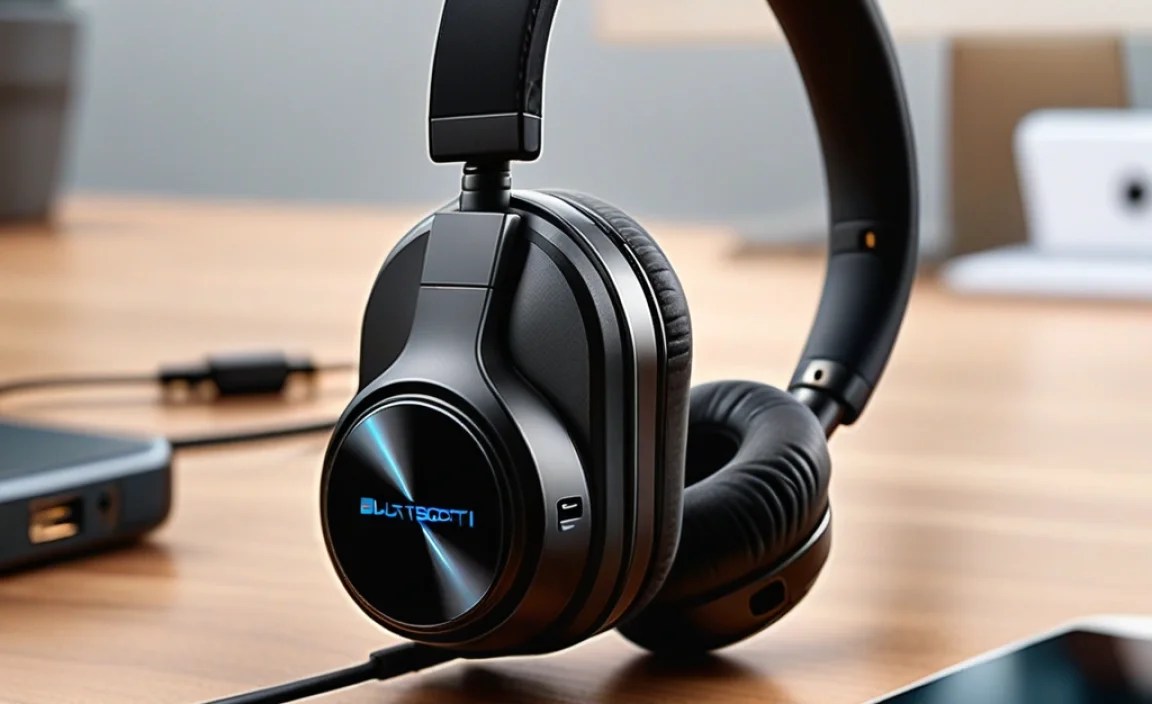
Bluetooth transmitters come in various shapes, sizes, and feature sets. Understanding these differences will help you make an informed choice:
1. Standalone Transmitters
These are dedicated devices whose sole purpose is to transmit Bluetooth audio. They typically connect via a 3.5mm AUX cable, RCA cables, or sometimes optical (Toslink) digital audio ports. They are powered either by a USB port (often found on TVs or computers) or a built-in rechargeable battery.
2. 2-in-1 Transmitters/Receivers
These versatile devices can function as both a transmitter and a receiver. When in transmitter mode, they perform the functions described above. When in receiver mode, they take a Bluetooth signal (from your phone, for example) and output it as a wired audio signal, effectively turning a non-Bluetooth speaker or stereo into a wireless one. This is great if you have multiple needs.
3. USB Bluetooth Dongles
These are small, USB-stick-like devices that plug directly into a USB port on a computer or other compatible device. They often act as both a transmitter and receiver for data and audio. They are very convenient for adding Bluetooth capabilities to computers that lack them but may not offer the same audio quality or advanced features as dedicated audio transmitters for home entertainment systems.
Key Features to Look For When Buying
When you’re browsing for a Bluetooth transmitter, keep these important features in mind to ensure you get the best experience:
Bluetooth Version
This is crucial for performance. Look for transmitters supporting Bluetooth 5.0 or higher. Newer versions offer:
- Faster speeds: Quicker pairing and more stable connections.
- Longer range: A more robust signal over greater distances.
- Lower power consumption: Better battery life for portable transmitters.
- Improved audio quality: Support for advanced codecs.
- Multi-point connection: The ability to connect to two devices simultaneously (e.g., two headphones).
Avoid transmitters using older versions like Bluetooth 4.0 or below if possible; they will be significantly less reliable.
Audio Codecs
Codecs are the “languages” used to compress and transmit audio over Bluetooth. The transmitter and your headphones need to support the same codecs for optimal quality and low latency. Key codecs include:
- SBC (Sub-band Codec): The mandatory, universal codec. It’s supported by all Bluetooth audio devices but offers the most basic audio quality.
- AAC (Advanced Audio Coding): Commonly used by Apple devices. Offers better quality than SBC and is widely supported.
- aptX (Audio Codec Plus): Developed by Qualcomm. Offers near CD-quality audio with lower latency than SBC and AAC.
- aptX HD: A higher-fidelity version of aptX, supporting 24-bit audio.
- aptX Low Latency (aptX LL): Crucial for watching videos and gaming. It significantly reduces the delay between the video and audio, minimizing lip-sync issues.
- LDAC: Developed by Sony. Offers the highest bandwidth and potentially the best audio quality, especially for high-resolution audio files.
Recommendation: If you’re sensitive to audio lag, especially for video or gaming, prioritize transmitters with aptX Low Latency. For the best audio fidelity, look for aptX HD or LDAC, ensuring your headphones also support them. A transmitter that supports multiple codecs (like SBC, AAC, and aptX LL) offers the most flexibility.
Connectivity Options
Check how the transmitter connects to your audio source and how it’s powered:
- Audio Input: 3.5mm AUX is the most common. RCA (red and white connectors) and Optical (Toslink) offer higher fidelity for some systems.
- Power Source:
- USB Powered: Convenient if your TV, computer, or charger has a USB port available.
- Internal Rechargeable Battery: Ideal for portable use or if USB power isn’t readily accessible. Battery life varies greatly.
- AC Adapter: Less common for small transmitters but offers continuous power.
Number of Audio Channels
Most audio devices use stereo (two channels: left and right). Ensure the transmitter supports stereo audio if that’s what you need. Some professional audio applications might require mono, but this is rare for headphones.
Multipoint Pairing
This allows the transmitter to connect to and support audio from two devices simultaneously. For example, you could have your TV audio playing, and if your phone rings, it might switch to your phone’s audio (if supported by both the transmitter and headphones). This is a great convenience feature.
Ease of Use and Setup
Look for transmitters with simple pairing buttons and clear indicator lights. Most modern transmitters are plug-and-play, but reading reviews can offer insight into any tricky setup processes.
How to Connect and Use Your Bluetooth Transmitter: A Step-by-Step Guide
Setting up your Bluetooth transmitter is generally straightforward. Here’s a typical process:
Step 1: Choose the Right Cables and Power
- Identify your audio source’s output: Find the headphone jack (3.5mm), RCA outputs (red/white), or optical audio (Toslink) port on your TV, computer, or stereo.
- Select the correct input cable: Your transmitter will likely come with a 3.5mm AUX cable. If your source uses RCA or Optical, ensure your transmitter also supports these and you have the appropriate cable.
- Connect the power:
- If USB powered, plug the transmitter’s USB cable into a powered USB port on your device or a USB wall adapter.
- If battery-powered, ensure it’s charged.
Step 2: Connect the Transmitter to Your Audio Source
Plug one end of your chosen audio cable into the output port of your source device (e.g., TV headphone jack).
Plug the other end of the audio cable into the audio input port of your Bluetooth transmitter.
Step 3: Power On and Enter Pairing Mode
Turn on your Bluetooth transmitter. Most transmitters have a button you need to press and hold to put them into pairing mode. This is usually indicated by a flashing LED light, often blue or red.
Refer to your transmitter’s manual for specific instructions on how to activate pairing mode.
Step 4: Put Your Wireless Headphones into Pairing Mode
Turn on your wireless headphones and ensure they are also in Bluetooth pairing mode. This usually involves pressing and holding a power or Bluetooth button until an indicator light flashes (often blue). Check your headphone’s manual for precise instructions.
Step 5: Pair the Devices
Keep the transmitter and headphones relatively close to each other (within a few feet is best for initial pairing). They should automatically detect each other and pair. Once paired, the flashing lights on both the transmitter and headphones will usually turn solid or change color, indicating a successful connection.
Step 6: Select the Correct Audio Output on Your Source Device (If Necessary)
This is a critical step, especially for TVs and computers. You might need to tell your source device to send audio through the output you’ve connected the transmitter to.
- For TVs: Go to your TV’s sound settings. Look for an option like “Audio Output,” “Sound Out,” or “Speaker Settings.” You’ll likely need to select “Headphone Out,” “External Speakers,” or an “Optical Out” option if you’re using an optical cable. Some TVs automatically switch when something is plugged into the headphone jack, but not all do.
- For Computers: Go to your computer’s sound settings (usually in the Control Panel or System Preferences). Select the correct audio output device, which might be labeled as “Line Out,” “Headphones,” or the specific name of the transmitter’s input connection.
Step 7: Adjust Volume
There are usually two volume controls to consider:
- Transmitter Volume: If your transmitter has its own volume dial or buttons, set this to a moderate level.
- Headphone Volume: Control the final listening volume using the controls on your wireless headphones.
If your source device offers volume control for the output you’re using (like a TV’s headphone jack volume), you might need to adjust that as well. It’s often best to set the source device’s volume relatively high and control the final volume on your headphones to ensure a strong enough signal.
Troubleshooting Common Connection Issues
Even with simple tech, sometimes things don’t connect perfectly on the first try. Here are some common issues and how to solve them:
- No Sound:
- Check cable connections are secure at both ends.
- Ensure the transmitter and headphones are powered on and successfully paired (indicator lights are solid).
- Verify the correct audio output is selected on your source device (TV, computer settings).
- Make sure the volume is turned up on both the transmitter (if applicable) and your headphones.
- Try restarting both the transmitter and your headphones.
- Choppy or Distorted Audio:
- Move the transmitter and headphones closer together. Obstacles like walls or furniture can interfere.
- Minimize interference: Other wireless devices (microwaves, Wi-Fi routers, other Bluetooth devices) can sometimes cause issues. Try to keep them apart.
- Ensure both devices support compatible, high-quality codecs.
- Check for firmware updates for your transmitter and headphones if available.
- Lip-Sync Issues (Audio Lag):
- This is almost always a codec issue. Ensure both your transmitter and headphones support aptX Low Latency (aptX LL). If one or both only support SBC or AAC, you will experience some lag, especially with fast-paced video.
- Try disabling any “enhancements” or “surround sound” features on your TV or audio source, as these can sometimes increase processing time and lag.
- Cannot Pair:
- Ensure both devices are in pairing mode simultaneously.
- Turn off Bluetooth on any other nearby devices that might try to auto-connect.
- Try “forgetting” the device on your headphones (or vice versa if it has saved previous connections) and re-pair from scratch.
- Consult the manuals for both devices for specific troubleshooting steps.
Choosing the Right Transmitter: A Comparative Look
To help solidify your decision, let’s look at a simplified comparison of common scenarios and recommended transmitter types. Please note that specific product models change rapidly, so this is a general guide to features.
| Scenario | Primary Need | Recommended Transmitter Features | Example Use Case |
|---|---|---|---|
| Watching TV at Night | Low Latency, Good Range | Bluetooth 5.0+, aptX Low Latency, 3.5mm AUX input, USB or Battery powered | Connects to TV headphone jack to wirelessly listen via Bluetooth headphones without disturbing others. |
| Connecting to Older Stereo/Hi-Fi | Versatility, Audio Quality | Bluetooth 5.0+, aptX or aptX HD, RCA or 3.5mm AUX input, Power Adapter or USB | Streams music from phone to vintage stereo system. Potentially also a 2-in-1 receiver. |
| Gaming on PC/Console | Extremely Low Latency | Bluetooth 5.0+ with dedicated aptX Low Latency chipset, USB or 3.5mm input | Ensures in-game audio syncs perfectly with on-screen action. Needs headphones that also support aptX LL. |
| Travel (e.g., Flights) | Portability, Dual Device Support | Bluetooth 5.0+, aptX (for balanced quality), Battery powered, potentially Dual Link (for 2 people) | Plugs into airplane seat’s audio jack. May allow connecting two pairs of headphones to share audio. |
| Adding Bluetooth to a Desktop PC | Simplicity, Connectivity | USB Bluetooth Dongle (often acts as both TX/RX), Bluetooth 5.0+ | Plugs into a PC USB port to enable wireless headphone connection. May also add Bluetooth for peripherals. |
Essential Accessories and Considerations
Beyond the transmitter itself, a few other things can enhance your wireless listening experience:
- Quality Audio Cables: While most transmitters come with a basic cable, using a higher-quality cable (especially for optical or RCA connections) can sometimes improve signal integrity.
- USB Wall Adapter: If your transmitter is USB powered but your device’s USB port doesn’t provide enough power or is inconvenient, a standard USB wall adapter is a
