
Quick Summary: This guide helps you choose and set up Bose headphones for a better TV experience. Learn how to connect different models, the benefits of wireless audio, and tips for clear, comfortable viewing, ensuring you won’t miss a single word of your favorite shows.
Are you tired of straining to hear dialogue on your TV, or perhaps your late-night viewing disturbs others in your household? Bose headphones offer a fantastic solution, delivering immersive sound directly to your ears.
Whether you’re looking to catch every whispered secret in a drama, feel the roar of the action in a blockbuster, or simply enjoy your favorite shows without disturbing anyone, Bose has options that can significantly enhance your television experience. This guide will walk you through everything you need to know to make the most of Bose headphones with your TV, from understanding your connection options to selecting the perfect pair for your needs.
Why Bose Headphones for Your TV?

Bose has a long-standing reputation for exceptional audio quality, comfort, and innovative technology. When it comes to enhancing your TV viewing, Bose headphones bring several key advantages:
- Superior Sound Clarity: Bose is renowned for its ability to reproduce sound accurately, meaning you’ll hear dialogue, music, and sound effects with remarkable clarity, often revealing nuances you might have missed otherwise.
- Noise Cancellation Technology: Many Bose models feature industry-leading active noise cancellation (ANC). This is a game-changer for TV watching, as it can block out distracting background noise from your environment, allowing you to focus solely on your program.
- Comfort for Extended Wear: Designed with plush earcups and a lightweight build, Bose headphones are incredibly comfortable, making them ideal for longer movie marathons or binge-watching sessions.
- Wireless Freedom: Most modern Bose headphones offer Bluetooth connectivity, giving you the freedom to move around your living room without being tethered to your TV by a wire.
- Personalized Audio Experience: With Bose headphones, you control the volume and sound profile. You can turn it up as loud as you need without bothering others, or adjust settings through companion apps for a personalized listening experience.
Choosing the Right Bose Headphones for TV

Bose offers a variety of headphone types, each suited for different preferences and needs. For TV watching, consider these popular categories:
Over-Ear Headphones
These are the classic choice, featuring large earcups that completely encompass your ears. They often provide the most immersive sound and the best passive noise isolation.
- Pros: Excellent comfort, superb sound quality, great noise isolation, often feature advanced ANC.
- Cons: Can be bulkier, may generate more heat around the ears during long sessions.
- Recommended Models: Bose QuietComfort (QC) series (e.g., QC45, QC Ultra), Bose Noise Cancelling Headphones 700.
On-Ear Headphones
These headphones rest on your ears rather than around them. They can be a good middle ground between portability and sound experience.
- Pros: More compact than over-ear, decent comfort.
- Cons: Less immersive sound, may not offer as much noise isolation as over-ear models or as effective ANC.
- Recommended Models: Bose QuietComfort 35 II (can sometimes be found at a slightly lower price point).
Earbuds/In-Ear Headphones
These small, portable options fit directly into your ear canal. They are great for portability and discreet listening.
- Pros: Extremely portable, good passive noise isolation due to the seal.
- Cons: Can be less comfortable for very long listening sessions for some users, soundstage might be less expansive than over-ear models.
- Recommended Models: Bose QuietComfort Earbuds II, Bose Sport Earbuds (though QC Earbuds II are better for ANC and overall sound for TV).
Specialized TV Wireless Headphone Systems
While Bose primarily focuses on general consumer headphones, some third-party brands offer dedicated wireless headphone systems designed to pair with your TV, often with a dedicated transmitter. If you don’t have a Bluetooth-enabled TV and aren’t keen on complex setups involving audio adapters, you might explore these. However, for Bose, we’ll focus on Bluetooth connectivity.
Connecting Bose Headphones to Your TV: Step-by-Step

The method for connecting your Bose headphones to your TV depends largely on whether your TV has built-in Bluetooth functionality. Let’s break down the most common scenarios.
Scenario 1: Your TV Has Built-In Bluetooth
This is the most straightforward method. Many modern smart TVs come equipped with Bluetooth. If yours does, it’s as simple as pairing a phone or tablet.
- Enable Bluetooth on Your TV:
- Navigate to your TV’s settings menu. Look for a section related to “Sound,” “Audio,” “Connections,” or “Bluetooth.”
- Find the Bluetooth settings and turn it ON.
- Select the option to “Add Device” or “Scan for Devices.” Your TV will now search for nearby Bluetooth devices.
- Put Your Bose Headphones in Pairing Mode:
- This process varies slightly by model, but generally involves pressing and holding the Bluetooth button on the headphones or a dedicated pairing button (often located on the earcup or charging case). Refer to your Bose headphone manual for exact instructions.
- A light will usually flash, or you’ll hear an audio cue indicating that the headphones are ready to pair.
- Select Your Headphones on the TV:
- Your Bose headphones should appear in the list of available Bluetooth devices on your TV screen.
- Select them from the list and confirm the pairing if prompted.
- Confirm Connection and Audio Output:
- Once paired, your TV might automatically switch the audio output to your headphones. You may need to go back into the TV’s audio settings and confirm that the audio output is set to Bluetooth headphones.
- Test by playing something on your TV. You should now hear the sound through your Bose headphones.
Scenario 2: Your TV Does Not Have Built-In Bluetooth
Don’t worry if your TV is older or lacks Bluetooth. You have a few excellent options to add this functionality using either a Bluetooth transmitter or an audio adapter.
Option A: Using a Bluetooth Transmitter/Audio Adapter
This is a very popular and effective solution. A Bluetooth transmitter connects to your TV’s audio output and then broadcasts the sound wirelessly to your Bose headphones.
What You’ll Need:
- A Bluetooth transmitter (look for one that supports low-latency codecs like aptX Low Latency – more on that below)
- Your Bose headphones
- Appropriate audio cables (usually included with the transmitter)
Steps:
- Choose the Right Transmitter:
- Connection Type: Most transmitters connect via 3.5mm audio jack (headphone jack), RCA (red and white ports), or Optical (S/PDIF). Check which audio output your TV has available. Optical is generally preferred for digital quality.
- Low Latency: This is CRUCIAL for TV watching. “Latency” is the delay between the video on screen and the audio you hear. If latency is high, the dialogue will appear out of sync with the actors’ lips. Look for transmitters that specifically mention “aptX Low Latency” (aptX LL) or have similar low-latency technologies. Your Bose headphones also need to support the same low-latency codec for this to work best. Most recent Bose models do.
- Number of Devices: Some transmitters can connect to two pairs of headphones simultaneously, which is great for watching with a partner.
- Connect the Transmitter to Your TV:
- Identify the audio output ports on your TV. Common ones are:
- 3.5mm Audio Out: A single headphone-style jack.
- RCA Audio Out: Two ports, usually red and white.
- Optical Audio Out (S/PDIF): A small port with a slightly rectangular shape, often covered by a flap.
- Plug the appropriate cable from the transmitter’s input port to your TV’s corresponding audio output port.
- Important: Ensure you’ve selected the correct audio output on your TV’s settings. If you plug into Optical, your TV’s audio output setting must be set to “Optical.” If you plug into the headphone jack, set it to “Headphone Out.” Sometimes, you’ll need to turn off the TV’s internal speakers entirely via the TV’s sound settings.
- Identify the audio output ports on your TV. Common ones are:
- Power the Bluetooth Transmitter:
- Most transmitters require power, usually via a USB cable connected to a USB port on your TV or a separate USB power adapter.
- Pair Your Bose Headphones with the Transmitter:
- Put your Bose headphones into pairing mode (as described in Scenario 1, Step 2).
- Activate pairing mode on your Bluetooth transmitter. This usually involves pressing a button until an indicator light flashes.
- The transmitter and headphones should automatically connect. Look for a solid light on both devices indicating a successful connection.
- Test and Adjust Volume:
- Play content on your TV. You should hear sound through your Bose headphones.
- Listen for lip-sync issues. If there’s a noticeable delay, check if both your transmitter and headphones support aptX Low Latency and that both are using it. You may also find some transmitters have a “TV” or “Sync” button to manually delay the audio slightly.
- You will control the volume using your Bose headphones.
Option B: Using a Wired Connection with a Bluetooth Audio Adapter (Less Common for TV, but possible)
This is more about flexibility if you have a very specific setup, but generally, a dedicated transmitter (Option A) is superior for TV. However, if you happen to have a Bluetooth audio receiver adapter and your TV has an audio output that can feed into it (like a headphone jack), you could technically do this. For TV, Option A is the way to go.
Audio Codecs: Keeping Lips in Sync
The term “codec” (coder-decoder) is important when talking about Bluetooth audio, especially for TV because it dictates how audio is compressed and transmitted. The primary concern for TV is latency.
- SBC (Subband Coding): This is the default Bluetooth audio codec. It’s universally compatible but generally has the highest latency, making it unsuitable for TV sync.
- AAC (Advanced Audio Coding): Used by Apple devices. Offers better quality than SBC and can have lower latency, but not always low enough for perfect TV sync.
- aptX: A family of codecs developed by Qualcomm. Offers better sound quality and lower latency than SBC.
- aptX HD: Further improvement on aptX for higher-resolution audio.
- aptX Low Latency (aptX LL): Specifically designed to reduce audio delay to around 30-40 milliseconds, making it virtually unnoticeable for video. This is the gold standard for Bluetooth audio with video.
When buying a Bluetooth transmitter for your TV, prioritize one that supports aptX Low Latency. Ensure your Bose headphones also support it for the best experience. You can typically check your Bose headphone specifications on the official Bose website or in their user manual.
For more information on audio codecs and Bluetooth, you can refer to resources like the official Bluetooth SIG website.
Optimizing Your Bose TV Listening Experience

Once connected, here are some tips to make your Bose TV audio sessions even better:
- Adjust Volume Appropriately: Start with a low volume on your headphones and gradually increase it until it’s comfortable. Most Bose headphones have intuitive volume controls on the earcup.
- Leverage Noise Cancellation: If your Bose headphones have Active Noise Cancellation (ANC), turn it on! This will block out ambient room noise (HVAC, traffic, conversations) letting you focus on the TV audio.
- Use the Bose Music App: Many Bose headphones can be controlled and customized via the Bose Music app. You can often fine-tune EQ settings, manage noise cancellation levels, and check battery status.
- Check Battery Levels: Ensure your headphones are fully charged before a long viewing session. A dead battery can interrupt your entertainment.
- Comfort is Key: Adjust the headband and earcups for a snug but comfortable fit. Ensure there’s no excessive pressure on your ears or head.
- Consider a Dedicated Transmitter for Each TV (if applicable): If you have multiple TVs, a small, plug-and-play Bluetooth transmitter for each can save you the hassle of reconnecting.
Troubleshooting Common Issues
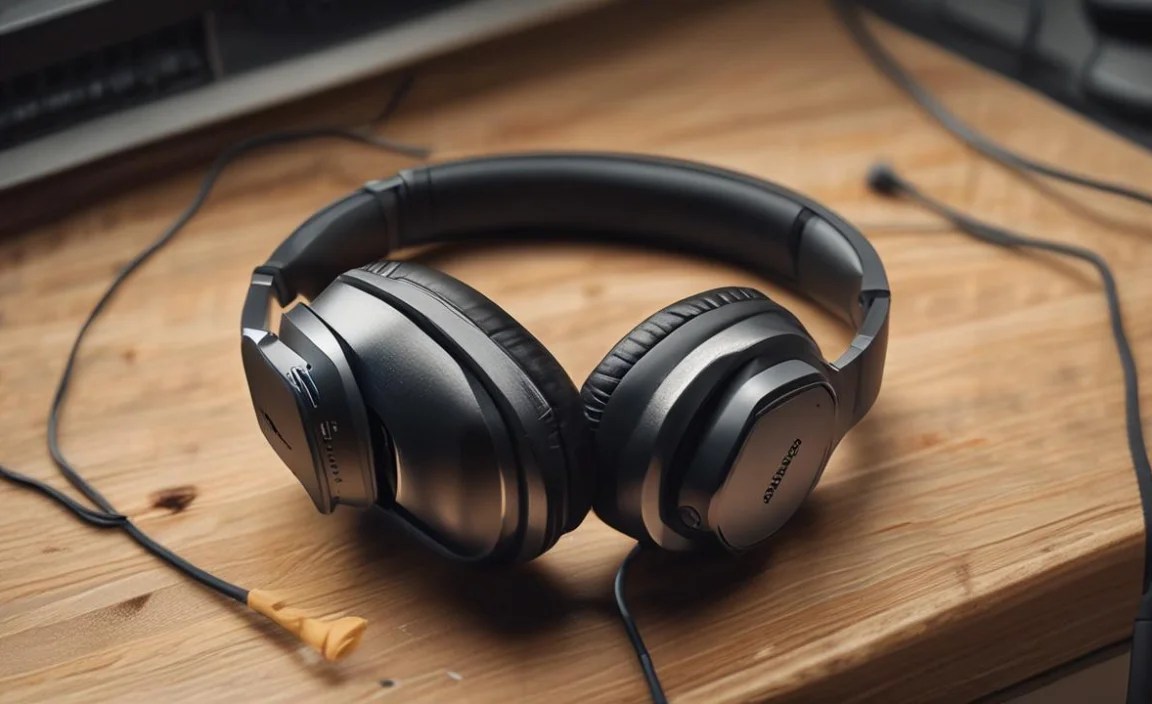
It’s not always smooth sailing, but most common issues are fixable. Here are a few:
- No Sound:
- Check if headphones are ON and connected.
- Ensure headphones are paired correctly with the TV or transmitter.
- Verify the TV’s audio output is set to Bluetooth or the correct analog/digital output connected to the transmitter.
- Make sure the TV’s internal speakers are not muted or that the audio output setting has disabled them.
- Check volume levels on both the TV (if applicable) and your headphones.
- Audio/Video Sync Issues (Lip Sync):
- This is almost always a latency problem. Ensure your transmitter and headphones both support aptX Low Latency and are using it.
- Some transmitters have a manual sync adjustment.
- Try changing the Bluetooth codec setting on your TV if it offers options (though many TVs don’t expose this easily).
- If using a wired adapter connected to the TV’s headphone jack, ensure the TV’s audio output is set to “Headphone” and not something like “Fixed” or “Variable” that might be otherwise unavailable.
- Intermittent Cutting Out/Connection Drops:
- Ensure headphones are within range of the TV/transmitter.
- Check for interference from other wireless devices (microwaves, other Bluetooth devices).
- Restart both your TV and your headphones.
- Try re-pairing the headphones.
- Ensure headphone firmware is up to date via the Bose Music app.
- One Earcup Not Working:
- This usually indicates a hardware issue. Try a different device to see if the problem persists. If so, contact Bose support.
Bose Headphones for TV: A Comparison Table
This table provides a general overview of how different types of Bose headphones might perform for TV watching. Keep in mind that specific model features will vary.
| Feature | Bose Over-Ear (e.g., QC series) | Bose Earbuds (e.g., QC Earbuds II) | Older/Basic Bluetooth Headphones |
|---|---|---|---|
| Best for Immersive Sound: | High | Medium | Low to Medium |
| Active Noise Cancellation (ANC): | Excellent (often industry-leading) | Very Good | Varies (can be basic or absent) |
| Comfort for Long Sessions: | Excellent | Good (can vary by individual fit) | Good (can vary) |
| Portability: | Low | Excellent | Good |
| Latency (with aptX LL Transmitter): | Excellent | Excellent | Good (if aptX LL supported) |
| Connection Simplicity (with Smart TV): | Easy | Easy | Easy |
| Recommended for Dialogue Clarity: | High | High | Medium |
Frequently Asked Questions (FAQ)
Q1: Can I use any Bluetooth headphones with my TV?
Generally, yes, if your TV has Bluetooth or you use a Bluetooth transmitter. However, for the best experience, particularly avoiding audio delays, it’s highly recommended to use headphones and a transmitter that support low-latency codecs like aptX Low Latency.
