
Quick Summary: Discover how Bose wireless headphones can revolutionize your TV viewing. This guide simplifies choosing, connecting, and optimizing Bose headphones for crystal-clear dialogue and immersive sound without disturbing others. Learn essential setup tips for a seamless experience.
Bose Wireless Headphones for Television: An Essential Guide
Are you tired of straining to hear dialogue on your favorite shows or disturbing your family with late-night movie marathons? Thankfully, technology offers a fantastic solution: wireless headphones. And when it comes to premium sound and comfort, Bose is a name many trust. This guide is your friendly companion to navigating the world of Bose wireless headphones for television, making sure you get the best audio experience without any fuss. We’ll break down exactly what you need to know to enjoy your TV like never before, all with simple, clear explanations.
Why Bose Wireless Headphones for Your TV?

Bose has built a stellar reputation for delivering exceptional audio quality and superior comfort. When it comes to pairing their wireless headphones with your television, you’re looking at a significant upgrade in your viewing experience. Imagine sinking into your couch, the world of your show or movie unfolding around you with rich, detailed sound, all without disturbing anyone else in the house. This is the gift of good wireless headphones.
Here’s why Bose stands out for this specific purpose:
- Exceptional Sound Quality: Bose is renowned for its balanced audio profiles, delivering clear dialogue, crisp effects, and deep bass that enhances the realism of on-screen action.
- Comfort for Long Sessions: Their headphones are designed for extended wear, featuring plush earcups and lightweight designs, perfect for binge-watching an entire season.
- Noise-Cancelling Technology: Many Bose models offer active noise cancellation (ANC), which can be a game-changer if your home environment is noisy. It helps you focus solely on your TV’s audio.
- Reliable Wireless Connectivity: Bose headphones typically feature stable Bluetooth connections, minimizing dropouts and ensuring a smooth audio stream.
- Ease of Use: While there’s a little tech involved, setting up Bose headphones is generally straightforward, even for those new to wireless audio.
Understanding Connectivity Options
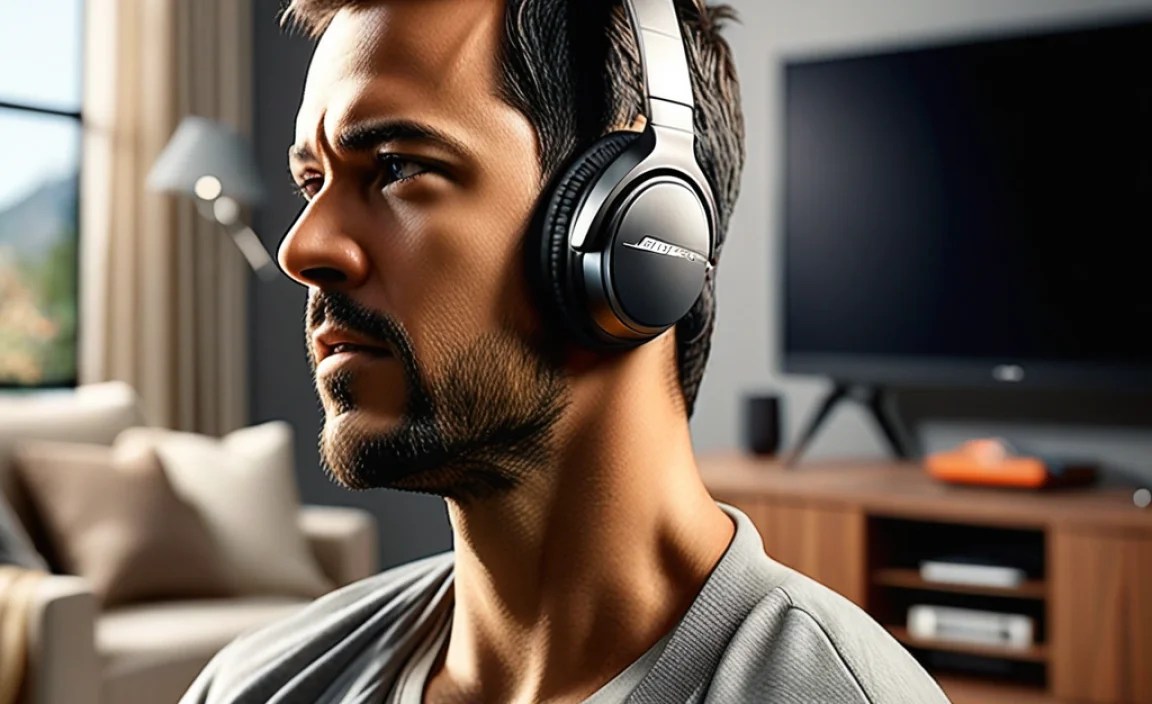
Connecting your Bose wireless headphones to your TV might seem a bit daunting at first, but it’s usually quite manageable. The primary methods involve Bluetooth and sometimes an optional transmitter. Understanding which method your TV and headphones support is the first crucial step.
1. Bluetooth Connectivity (Most Common)
Most modern Smart TVs come equipped with built-in Bluetooth technology. This is the most seamless way to connect your Bose wireless headphones directly. If your TV has Bluetooth, the connection process is usually as simple as pairing a smartphone.
Identifying if Your TV Has Bluetooth:
Look for these indicators:
- Settings Menu: Navigate to your TV’s sound or network settings. You should find an option for Bluetooth or “Add Device.”
- Remote Control: Some remotes have a dedicated Bluetooth button.
- TV Manual or Manufacturer Website: If you’re unsure, consult your TV’s user manual or search for its model number on the manufacturer’s website.
How to Pair Your Bose Headphones via Bluetooth:
The exact steps can vary slightly by TV brand, but the general process is:
- Put your Bose headphones in pairing mode. This usually involves pressing and holding a specific button (often the power button or a dedicated Bluetooth button) until an indicator light flashes or you hear an audio cue. Consult your Bose headphone manual for precise instructions.
- On your TV, go to the Bluetooth settings. Select “Add Device” or “Search for Devices.”
- Your TV will scan for available Bluetooth devices. Select your Bose headphones from the list when they appear.
- Confirm the pairing. Your TV and headphones should indicate when they are successfully connected. You might hear a “connected” sound from your headphones.
2. Bluetooth Transmitters
What if your TV doesn’t have built-in Bluetooth? Don’t worry, you’re not out of luck! A Bluetooth transmitter is a small device that plugs into your TV and broadcasts an audio signal wirelessly, allowing any Bluetooth headphones (like your Bose) to connect to it.
Connecting via a Bluetooth Transmitter:
- Choose a suitable transmitter. Look for one that uses aptX Low Latency (if supported by your headphones) to minimize audio delay, which is crucial for watching TV.
- Connect the transmitter to your TV. This is typically done via an audio output port on your TV, such as the optical audio out (most common and provides the best quality) or a 3.5mm headphone jack. Ensure you use the correct cable.
- Power the transmitter. Most transmitters are powered via USB, which you can often plug into a USB port on your TV or a separate power adapter.
- Put the transmitter in pairing mode. Follow the transmitter’s instructions for this.
- Put your Bose headphones in pairing mode.
- Allow the transmitter and headphones to find and connect to each other. Once paired, the transmitter will broadcast the TV’s audio to your headphones.
Types of Audio Outputs for Transmitters:
It’s important to know what audio outputs your TV has to choose the right transmitter and cable:
- Optical Audio Out (Digital): This is often the preferred method for transmitting high-quality digital audio. It uses a small, square-ish port.
- 3.5mm Headphone Jack (Analog): This is a standard headphone port but outputs analog audio. It’s simpler but might have slightly lower audio fidelity than optical.
- RCA Audio Out (Red and White Ports): Older TVs might have these. You’ll need an RCA-to-3.5mm adapter if your transmitter only takes a 3.5mm input.
Choosing the Right Bose Headphones for TV

Bose offers a range of wireless headphones, and while many are excellent for music, some might be better suited for television viewing. Key features to consider include comfort, battery life, and specific technologies that enhance the TV experience.
Recommended Bose Models for TV Viewing
While availability can change, here are some Bose models that consistently perform well for TV and general use:
- Bose QuietComfort Series (e.g., QC45, QC Ultra): World-renowned for their active noise cancellation and supreme comfort, these are fantastic for immersive TV watching, especially if you need to block out distractions.
- Bose Noise Cancelling Headphones 700: Sleek, comfortable, and offering top-tier ANC and sound quality. They also have excellent voice pickup for calls, which is a nice bonus.
- Bose SoundLink Series (e.g., SoundLink Around-Ear Wireless Headphones II): A more budget-friendly option that still delivers Bose’s signature sound and comfort, though typically without advanced ANC.
Key Features to Look For:
- Comfort: Over-ear designs are generally best for long TV sessions. Look for well-padded earcups and an adjustable headband.
- Battery Life: Aim for headphones with at least 15-20 hours of battery life on a single charge. Many Bose models far exceed this.
- Low Latency: This is critical for TV. Look for support for codecs like aptX Low Latency if you’re using a transmitter, or check reviews for how well Bose handles latency with its built-in Bluetooth.
- Multipoint Pairing: The ability to connect to two devices simultaneously (e.g., your TV and your phone) can be very convenient.
Setting Up Your Bose Headphones for the Best TV Experience

Once you have your Bose headphones and your TV is ready, a few tweaks can elevate your viewing even further.
Step-by-Step Setup Guide
Step 1: Charge Your Headphones
Ensure your Bose headphones are fully charged before you begin. Most models use a USB-C or micro-USB port.
Step 2: Connect to Your TV
Follow the Bluetooth pairing process or the transmitter connection guide described earlier.
Step 3: Adjust TV Audio Output
Once connected, you’ll likely need to tell your TV to send audio to the Bluetooth headphones. You can usually find this in your TV’s sound settings under “Audio Output” or “Speaker Settings.” Select “Bluetooth Headphones” or the name of your connected device.
Step 4: Manage Audio Delay (Latency)
This is where frustration can creep in if not addressed. If your TV’s Bluetooth or your transmitter supports it, prioritize Low Latency codecs. If you experience a noticeable delay between the video and audio, try these steps:
- Check your TV’s settings: Some TVs have an “AV Sync” or “Lip Sync” adjustment feature that can manually correct delays.
- Use a Low Latency Transmitter: If using a transmitter, ensure it supports aptX Low Latency or a similar low-latency standard. Your Bose headphones also need to support it for the benefit.
- Restart Devices: Sometimes, simply turning off your TV and headphones and turning them back on can resolve minor sync issues.
- Try a Different Audio Output: If using Bluetooth directly from the TV, try connecting via an optical audio out connected to a transmitter, as this often has less inherent delay.
For more information on digital audio and latency, resources like Dolby’s explanation of audio and latency can provide deeper insights.
Step 5: Optimize Sound Settings
Experiment with your TV’s sound settings. Bose headphones are designed to deliver a rich sound, but you might prefer to boost dialogue or bass. Some TVs allow you to select different sound modes (e.g., Cinema, Music, Standard).
Step 6: Test and Refine
Watch a few minutes of content. Is the dialogue clear? Is the sound immersive? Are there any delays? Make any necessary adjustments until you’re perfectly satisfied.
Troubleshooting Common Issues
Even with premium gear, you might run into a hiccup now and then. Here are some common problems and their easy fixes:
Problem: No Sound
- Check Volume: Ensure the volume is up on both your headphones and your TV (if applicable).
- Verify Connection: Confirm your headphones are still connected to the TV/transmitter. Re-pair them if necessary.
- Check TV Audio Output: Double-check that the TV is set to output audio to your Bluetooth headphones and not the TV speakers.
- Headphones Charged? Make sure your headphones have enough battery life.
Problem: Audio Delay (Lip Sync Issues)
This is a common Bluetooth challenge. Refer back to “Manage Audio Delay (Latency)” in the setup section. Prioritize aptX Low Latency if possible, and utilize your TV’s AV Sync settings.
Problem: Intermittent Audio / Dropped Connections
- Reduce Interference: Other wireless devices (microwaves, Wi-Fi routers, other Bluetooth devices) can interfere. Try moving closer to the TV or transmitter, or temporarily turn off other wireless devices.
- Update Firmware: Check if your Bose headphones or Bluetooth transmitter have firmware updates available. Bose updates can often be managed via their app.
- Restart Devices: A simple power cycle often resolves temporary glitches.
Problem: One Earbud/Earcup Not Working (for earbuds, less common for over-ear)
Ensure the headphone contact points are clean and the device is properly seated in its case (if applicable). A full reset of the headphones might be necessary – consult your Bose manual.
Bose Headphones vs. Traditional TV Speakers
The difference is night and day when you switch from your TV’s built-in speakers to Bose wireless headphones.
| Feature | Bose Wireless Headphones | TV Built-in Speakers |
|---|---|---|
| Audio Quality | Rich, detailed, immersive, clear dialogue. Often with noise cancellation. | Can be tinny, lacks bass, dialogue can be muffled depending on TV model. |
| Volume Control | Independent volume control on headphones. | Control via TV remote. |
| Privacy | Listen privately without disturbing others. | Audio is broadcast to the entire room. |
| Immersion | Creates a personal sound bubble, enhancing dramatic scenes. | Sound fills the room, but may not be as detailed. |
| Connectivity | Bluetooth or transmitter required. Initial setup needed. | No setup required, always on. |
| Comfort | Designed for long-term wear. | N/A (sound source). |
Frequently Asked Questions (FAQ)
Q1: Do all Bose wireless headphones work with TVs?
Most Bose wireless headphones use Bluetooth, which is compatible with any TV that has Bluetooth capabilities. If your TV doesn’t have Bluetooth, you’ll need a Bluetooth transmitter, which will work with virtually any Bose wireless headphone that has Bluetooth.
Q2: Can I watch TV with Bose wireless headphones without disturbing my family?
Absolutely! This is one of the primary benefits. The sound from your headphones is private, so you can enjoy movies or shows at any volume without disturbing others in the house, even if they are in the same room.
Q3: What is “audio latency,” and why is it important for TV watching?
Audio latency, or delay, is the time it takes for sound to travel from its source to your ears. For TV and movies, it’s crucial that the audio and video are perfectly synchronized (no lip-sync issues). Bluetooth connections can sometimes introduce a slight delay, which is why features like aptX Low Latency are beneficial.
Q4: My TV doesn’t have Bluetooth. What are my options for using Bose wireless headphones?
Your best option is to use a Bluetooth transmitter. This small device plugs into your TV’s audio output (like the optical audio port) and creates its own Bluetooth signal that your Bose headphones can connect to. For the best experience, opt for a transmitter that supports low-latency audio codecs.
Q5: How do I make sure my Bose headphones are comfortable enough for a whole movie?
Bose headphones are generally very comfortable. When choosing, prioritize over-ear models designed for long wear, with plush earcups and an adjustable, padded headband. Reading user reviews specifically mentioning comfort for extended periods can be very helpful.
Q6: Can I connect my Bose headphones to my soundbar instead of my TV?
Yes, if your soundbar has Bluetooth output capabilities or an audio output port that can be used with a Bluetooth transmitter, you can connect your headphones to the soundbar. This can be a great option if your soundbar offers better audio processing than your TV.
Q7: What if I experience interference or connection drops?
Interference can be caused by other wireless devices. Try moving your headphones closer to the TV or transmitter, minimizing the number of active Bluetooth devices in the vicinity, or moving potential sources of interference (like Wi-Fi routers or microwaves) further away. Re-pairing the headphones can also help.
Final Thoughts on Elevating Your TV Sound
Integrating Bose wireless headphones into your television viewing experience is a straightforward yet remarkably impactful upgrade. It’s about enhancing your enjoyment, providing convenience for everyone in the household, and cutting through the clutter of complex audio settings. Whether you’re catching up on the news, diving into a gripping drama, cheering for your team, or enjoying a cinematic masterpiece, the clarity and immersion offered by quality wireless sound are unparalleled.
By understanding your TV’s connectivity options, choosing the right Bose model, and following these simple setup and troubleshooting steps, you’re well on your way to a superior audio experience. No more missed dialogue, no more complaints about noise, just pure, unadulterated enjoyment of your favorite content. So, go ahead, connect those Bose headphones, settle in, and rediscover the joy of truly immersive television sound.
