
Quick Summary: Finding compatible headphones for your Xbox One is straightforward! This guide breaks down what to look for, whether you need wireless or wired options, and helps you choose a headset that enhances your gaming experience without breaking the bank. Get ready for immersive sound and clear communication.
Hey there, fellow gamers and audio fans! Edward Cavitt here from headphonehorizon, your go-to spot for making sense of all things sound. If you’ve just snagged an Xbox One or are looking to upgrade your audio game, you’re in the right place. The right headphones can transform your gaming sessions from good to absolutely epic, letting you hear every crucial footstep, every cinematic explosion, and all the strategic chatter from your squadmates. But with so many options out there, how do you know which ones will actually work with your Xbox One? It can feel a bit daunting, right? Don’t worry, I’m here to clear the air. We’ll walk through exactly what makes headphones compatible with the Xbox One, cover the ins and outs of wired versus wireless, and point you toward some great choices. Let’s dive in and find you the perfect pair!
Understanding Xbox One Headphone Compatibility
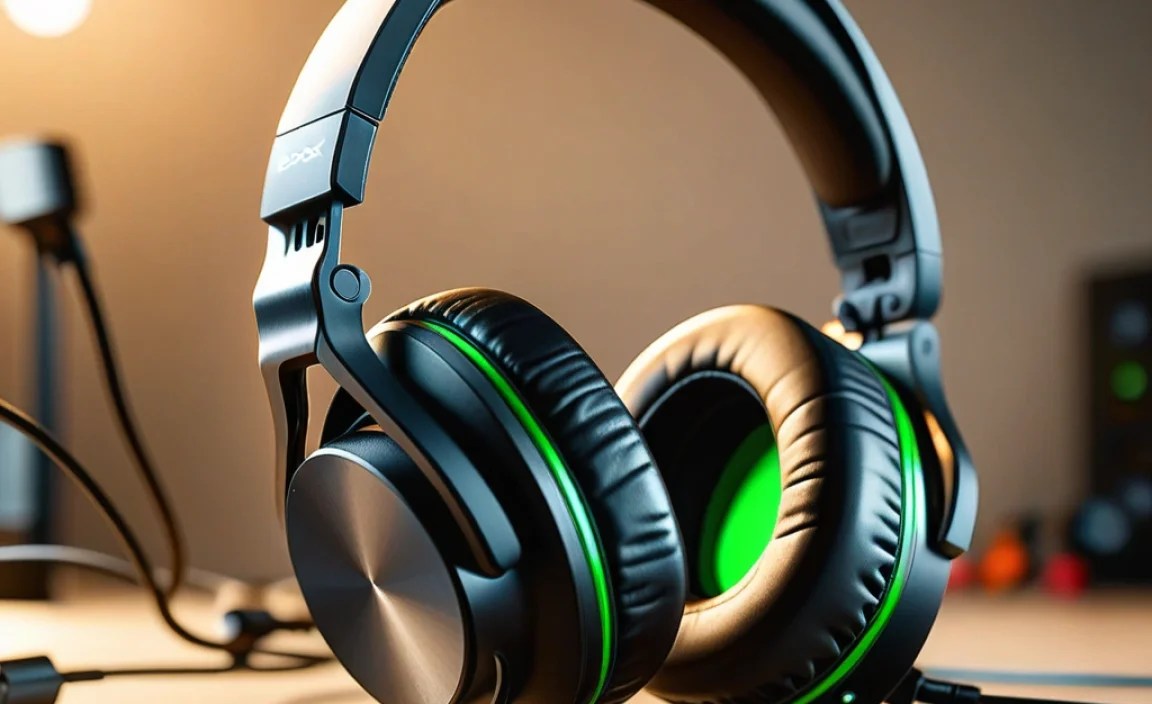
Before we even start looking at specific models, it’s super important to understand how headphones connect to your Xbox One. This is the key to compatibility. Microsoft has used a few different methods over the years, and knowing these will save you a lot of confusion.
Connection Types Explained
Your Xbox One primarily supports two ways to connect headphones:
- 3.5mm Audio Jack: This is the most common and versatile connection. It’s a standard audio port found on most modern controllers and many gaming headsets. If your headset has a 3.5mm plug, it will likely work directly with your Xbox One controller.
- Wireless Adapters/Dongles: Some wireless headsets connect to your Xbox One using a dedicated USB wireless adapter or through the Xbox Wireless protocol (similar to Bluetooth but often with lower latency for gaming).
- Optical Audio Out (Less Common for Headsets): Some older or higher-end audio systems might use an optical audio cable, but this is rare for direct headset connections to the Xbox One itself. Most headsets will bypass this for simpler connection methods.
Controller Revisions and Audio Ports
This is a crucial detail! Early Xbox One controllers didn’t have a built-in 3.5mm jack. If you have one of these older controllers, you’ll need an Xbox One Stereo Headset Adapter. This adapter plugs into the proprietary port at the bottom of your controller and provides a 3.5mm jack, plus volume and chat mix controls. Newer Xbox One controllers (released from Summer 2015 onwards) have the 3.5mm jack directly on them, making things much simpler!
How to tell if your controller has the 3.5mm jack: Look at the bottom of your controller. If you see a circular port surrounded by metal, that’s your 3.5mm jack. If you see a wider, more rectangular slot with a little plastic bit in the middle, it’s the older style, and you’ll need that adapter.
Wired vs. Wireless: Which is Right for You?
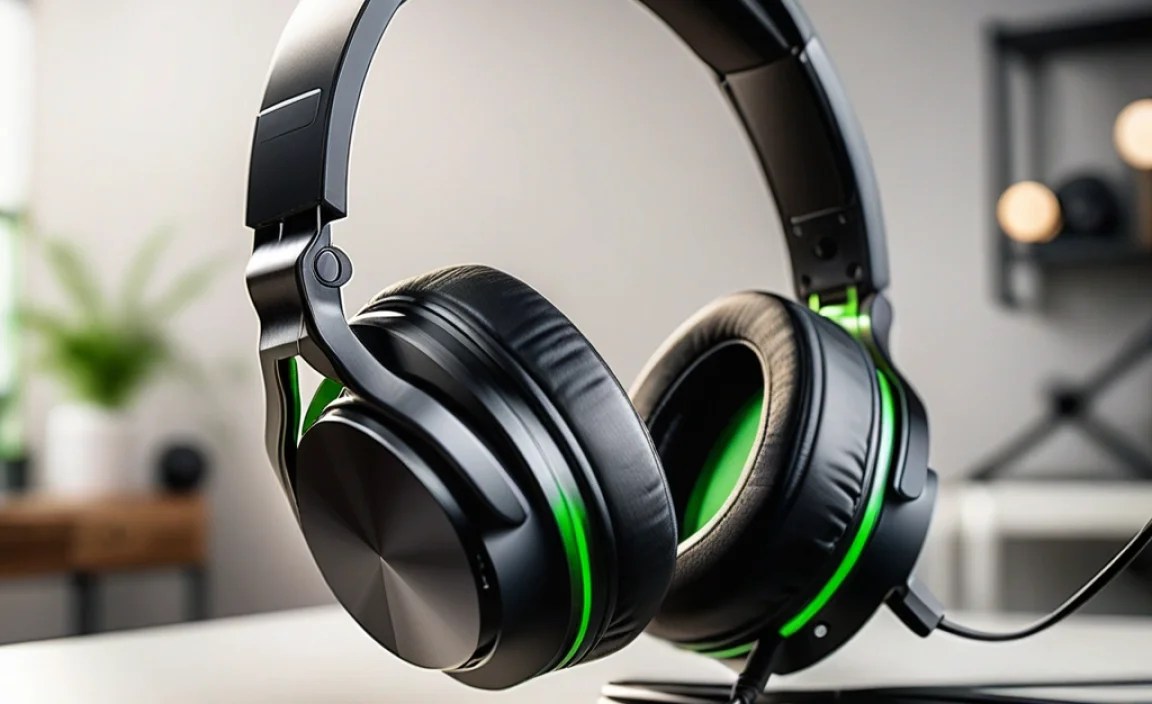
This is a big decision point for any gamer. Both wired and wireless headphones have their pros and cons. Let’s break them down to help you choose.
Wired Headphones
Wired headphones, almost universally, connect via a 3.5mm audio jack. This means they plug directly into your controller (or the headset adapter, if needed). They are generally simpler, often more budget-friendly, and offer excellent audio quality without worrying about battery life or interference.
Pros of Wired Headphones:
- No Batteries or Charging: They draw power through the connection, so you never have to worry about them dying mid-game.
- Lower Latency: Audio is transmitted directly, meaning there’s virtually no delay between what happens in the game and what you hear. This is critical for competitive gaming.
- Cost-Effective: Generally, wired headsets offer more bang for your buck in terms of audio quality and features compared to wireless counterparts at the same price point.
- Simple Setup: Just plug and play (assuming you have the correct port or adapter).
Cons of Wired Headphones:
- Cable Tangling: The most obvious downside – cables can get tangled and limit your movement.
- Limited Range: You’re tethered to your controller, so you can’t wander far from your console.
- Controller Wear: Constantly plugging and unplugging can sometimes wear out the audio jack on the controller over time.
Wireless Headphones
Wireless headphones offer the freedom to move around without being tethered. For Xbox One, this usually means either using a proprietary Xbox Wireless connection or a USB dongle that plugs into the console. Some might also use Bluetooth, but this is less common for dedicated gaming headsets due to higher latency.
Pros of Wireless Headphones:
- Freedom of Movement: No cables means you can get up, stretch, or grab a drink without disconnecting.
- Cleaner Setup: A less cluttered gaming space.
- Advanced Features: Many wireless headsets come with features like active noise cancellation, advanced surround sound, and longer battery life.
Cons of Wireless Headphones:
- Battery Life: You need to remember to charge them! Running out of battery during a long session is a common frustration.
- Potential Latency: While Xbox Wireless is optimized for low latency, some Bluetooth connections can have noticeable delays, which can be a disadvantage in fast-paced games.
- Higher Cost: Wireless technology adds to the price, so you’ll often pay more for a wireless headset than a comparable wired one.
- Setup Complexity: Might require pairing, firmware updates, or ensuring the USB dongle is recognized.
Key Features to Look for in Xbox One Headphones

Beyond just connectivity, several features can significantly enhance your gaming audio experience. Here’s what to keep an eye out for:
1. Audio Quality (Drivers and Soundstage)
This refers to how good the headset sounds. Look for headsets with larger speaker drivers (e.g., 50mm) as they generally produce a richer, more powerful sound. A good soundstage will make the game world feel more immersive, helping you pinpoint enemy locations or the direction of explosions.
2. Microphone Quality
If you play multiplayer games and communicate with teammates, a clear microphone is essential. Look for features like noise cancellation for the mic, which helps filter out background noise. Some mics are detachable or can be flipped up to mute, which is very convenient.
3. Comfort and Durability
You’ll be wearing these for hours, so comfort is key. Check reviews for details on earcup padding, headband adjustability, and weight. Materials matter, too – look for sturdy construction that feels like it will last.
4. Surround Sound Technology
While many headsets advertise “surround sound,” it often comes in two forms for Xbox One:
- Virtual Surround Sound: This is simulated surround sound created by the headset’s software or drivers. It can greatly improve spatial awareness.
- Windows Sonic for Headphones: A free spatial audio solution built into Xbox One. Many headsets are compatible with this.
- Dolby Atmos for Headphones: A premium spatial audio format that often requires a small one-time purchase in the Xbox store. It offers incredible positional accuracy.
- DTS Headphone:X: Another premium spatial audio option, similar to Dolby Atmos.
For the best experience, look for headsets that explicitly support Windows Sonic, Dolby Atmos, or DTS Headphone:X.
5. Chat Mix Controls
This feature allows you to adjust the balance between game audio and chat audio directly from the headset or its controls. It’s incredibly useful for when you need to focus on your teammates or drown out game sounds to hear instructions.
Setting Up Your Xbox One Headphones: A Step-by-Step Guide

Let’s get those headphones connected and ready to go!
For Wired Headphones (with 3.5mm Jack)
- Check Your Controller: Ensure your Xbox One controller has a 3.5mm audio jack on the bottom. If not, you’ll need the Xbox One Stereo Headset Adapter.
- Connect the Adapter (if needed): If you’re using the adapter, plug it into the proprietary port at the bottom of your controller.
- Plug in Your Headphones: Insert the 3.5mm plug from your headset directly into the 3.5mm jack on your controller, or into the 3.5mm jack on the headset adapter.
- Test Audio: Power on your Xbox One. By default, audio should now be routed to your headset. You can navigate the console menus and play a game to test.
- Adjust Volume: Use the volume controls on your headset or on the headset adapter (if applicable) to set your desired loudness. If using the adapter, experiment with the “Game” and “Chat” volume buttons.
For Wireless Headphones (Xbox Wireless Protocol)
- Charge Your Headset: First, ensure your wireless headset is fully charged.
- Turn on Your Xbox: Power on your Xbox One console.
- Turn on Your Headset: Press and hold the power button on your headset until it activates.
- Pair the Headset:
- On your Xbox One, press and hold the pairing button (a small, round button) on the front of the console (usually near the USB port).
- Immediately press and hold the pairing button on your headset. This button is often located on the earcup or band. The lights on both devices might blink.
- Wait for the lights on both the console and the headset to become solid, indicating they are paired.
- Test Audio: Navigate menus and play a game to confirm audio and chat are working.
- Adjust Volume: Use the volume controls on your headset. You should also be able to adjust chat mix via your Xbox One’s settings or headset-specific controls if available.
For Wireless Headphones (USB Dongle)
- Charge Your Headset: Ensure your headset is charged.
- Plug in the Dongle: Insert the USB wireless dongle that came with your headset into one of the USB ports on your Xbox One console (front or back).
- Turn on Your Xbox and Headset: Power on your console and then turn on your headset.
- Automatic Pairing: In most cases, the dongle and headset will automatically pair. A solid light on the headset and dongle usually confirms a connection. If not, refer to your headset’s manual for pairing instructions (it might involve pressing a button on both).
- Test Audio: Test sound and chat by navigating the console and playing a game.
- Adjust Volume: Use your headset’s volume controls.
Configuring Audio Settings on Xbox One
Even with the right hardware, tweaking your Xbox One’s audio settings can further enhance your experience.
- Access Settings: Press the Xbox button on your controller to open the Guide, navigate to the “System” tab, and select “Settings.”
- Audio Output: Go to “General” > “Volume & audio output.”
- Headset Audio: Under “Headset format,” you can often select options like “Stereo uncompressed,” “Windows Sonic for Headphones,” “Dolby Atmos for Headphones,” or “DTS Headphone:X.” Experiment with these to see which sounds best for you.
- Microphone Settings: You can also adjust microphone monitoring levels and other chat settings here. If your headset has a mute button, test that to ensure it’s unmuted.
Top Picks for Compatible Xbox One Headphones (Examples)
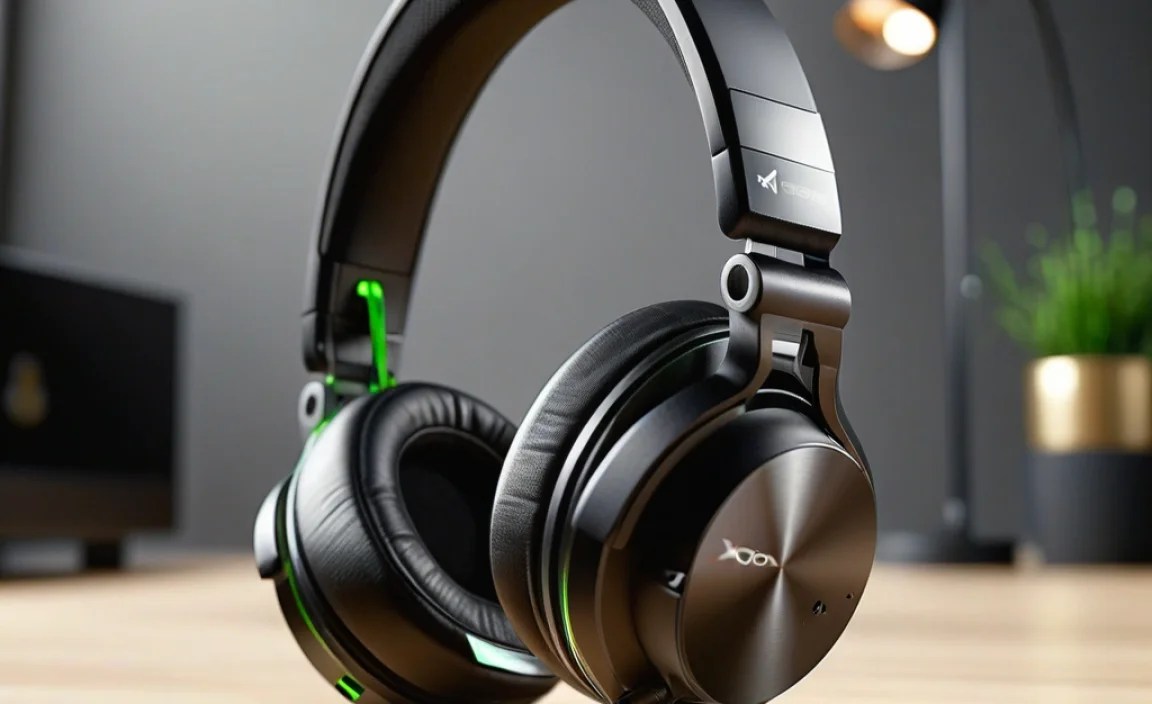
While specific models change frequently, here are a few popular and reliable types of compatible headphones for Xbox One that often get great reviews. Always check the latest specifications before purchasing!
Wired Headset Recommendations
For a budget-friendly, no-fuss experience, many players opt for wired headsets that plug directly into the controller.
| Headset Name (Example) | Connection Type | Key Features | Best For |
|---|---|---|---|
| Turtle Beach Recon 70 / 50X | 3.5mm Jack | Comfortable earcups, decent mic, lightweight. | Budget gamers, beginners. |
| HyperX CloudX | 3.5mm Jack | Excellent comfort, solid audio, durable build. | Long gaming sessions, great value. |
| Razer Kraken X | 3.5mm Jack | Ultra-lightweight, clear microphone, good value. | Comfort and clarity on a budget. |
Wireless Headset Recommendations
For the ultimate freedom, wireless options are fantastic. Look for those with Xbox Wireless certification for the best performance.
| Headset Name (Example) | Connection Type | Key Features | Best For |
|---|---|---|---|
| Xbox Wireless Headset | Xbox Wireless + Bluetooth | Direct console connection, low latency, good mic, supports Dolby Atmos. | Seamless Xbox integration, all-around performer. |
| SteelSeries Arctis 7X / 9X | Xbox Wireless (7X uses USB-C dongle for other consoles) | Excellent comfort, long battery life, clear audio, good mic. | Serious gamers prioritizing comfort and performance. |
| Turtle Beach Stealth 600 / 700 Gen 2 | Xbox Wireless | Comfortable, strong audio, often includes chat mix controls, Gen 2 offers Bluetooth. | Everyday gamers seeking reliable wireless. |
Note: Always verify specific model compatibility for “Xbox One” as some headsets might be designed for Xbox Series X|S but are backward compatible or use the same connection methods.
Troubleshooting Common Headset Issues
Even with compatible headphones, you might run into a hiccup. Here are some common problems and how to fix them:
No Sound
- Check Volume: Ensure the volume is turned up on your headset and not muted.
- Check Connection: Make sure the 3.5mm jack is fully plugged in, or that your wireless headset is properly paired and within range.
- Check Xbox Settings: Go to System > Settings > Volume & audio output and ensure “Headset format” is set to something appropriate (like Stereo uncompressed) and that “Headset” is enabled under “Headset audio.”
- Restart Console: A simple restart can often resolve temporary glitches.
No Chat Audio (Can Hear Game, But Not Teammates)
- Check Chat Mix: If your headset has a chat mix control, ensure it’s not turned all the way towards game audio.
- Xbox Settings: Navigate to System > Settings > General > Volume & audio output. Under “Headset audio,” make sure “Chat mixer” is set to “Do nothing” or adjust the “Adjust headset volume” slider.
- Party Settings: If you’re in an Xbox party, check the party settings to ensure your headset is selected for communication.
No Game Audio (Can Hear Teammates, But Not Game)
- Check Chat Mix: Slide the chat mix towards game audio.
- Xbox Settings: In the chat mixer settings, ensure it’s not inadvertently reducing game audio.
Microphone Not Working
- Check Mute: Ensure your microphone isn’t muted (look for a physical mute button or flip-up mic).
- Check Xbox Settings: Go to System > Settings > General > Volume & audio output. Under “Headset audio,” check if “Microphone monitoring” is set appropriately and that your microphone is enabled.
- Re-pair Wireless Headset: Sometimes unpairing and re-pairing a wireless headset can resolve microphone issues.
- Controller Update: Ensure your controller firmware is up to date. Plug it into the Xbox using a USB cable and check for
